
How to Create a Hold with SpinOne’s eDiscovery Solution

Creating a Hold is a vital part of any eDiscovery solution. Creating a Hold allows you to rest with peace of mind knowing that your backed up data is now being held for you when you need it most. Whether it is referencing a Case, exporting the results of a Search or needing to double check your investigation, creating a Hold allows you to keep your finding protected from retentions or preservation as well as accidental or intentional deletions.
To create a Hold on SpinOne, first navigate to eDiscovery on the left hand toolbar…
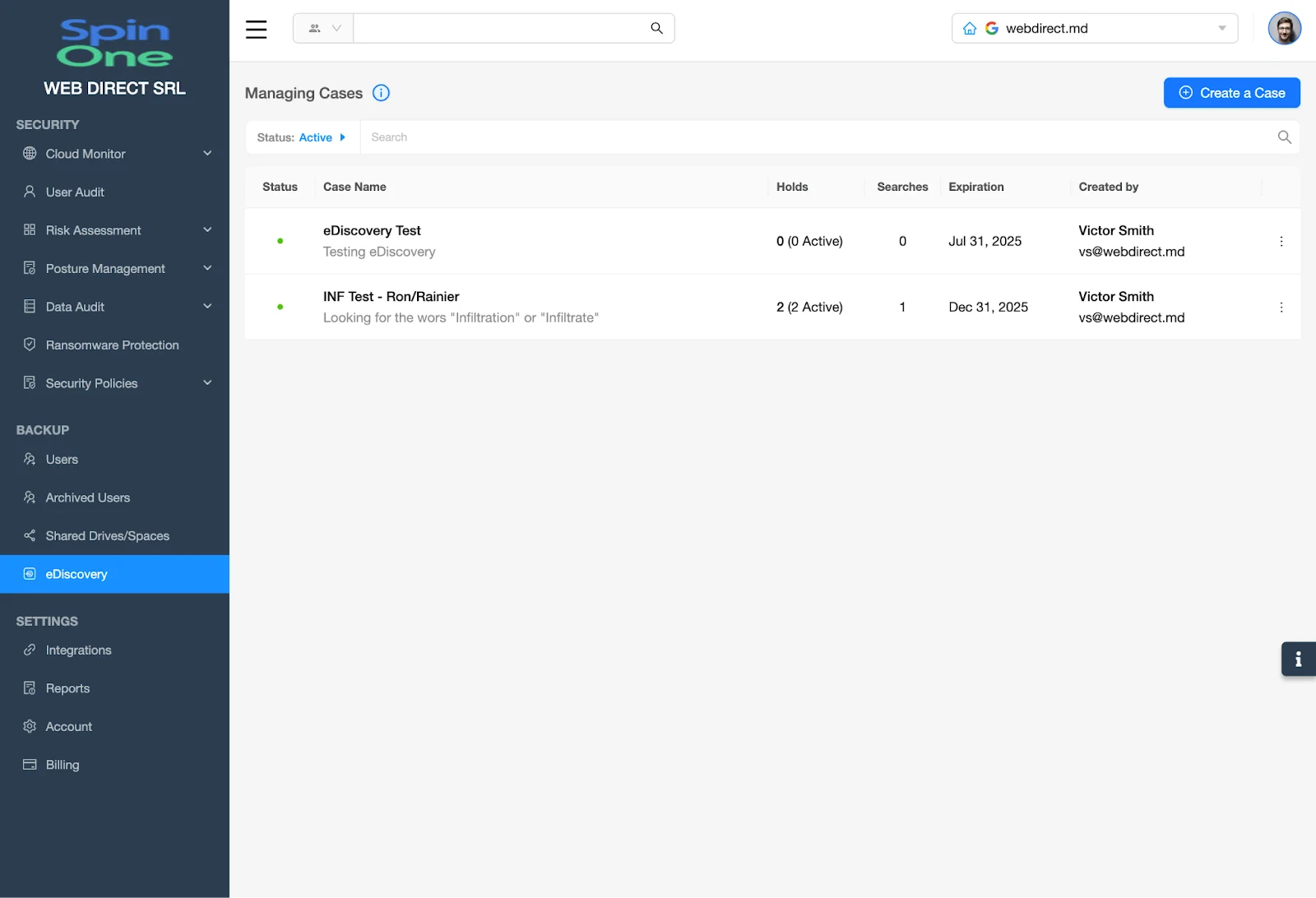
Next, select the Case for which you want to create a Hold to release the drop down menu for that Case.
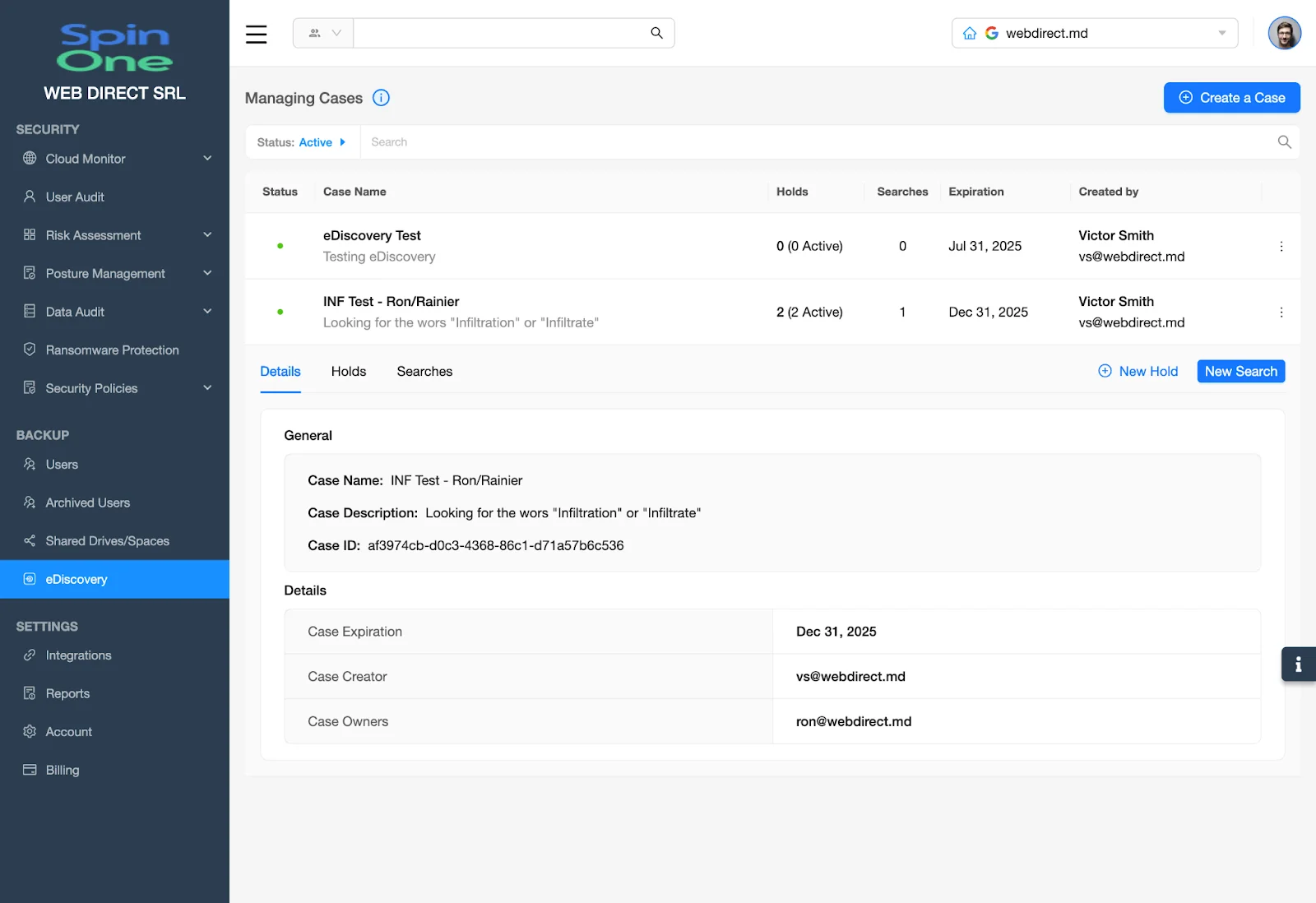
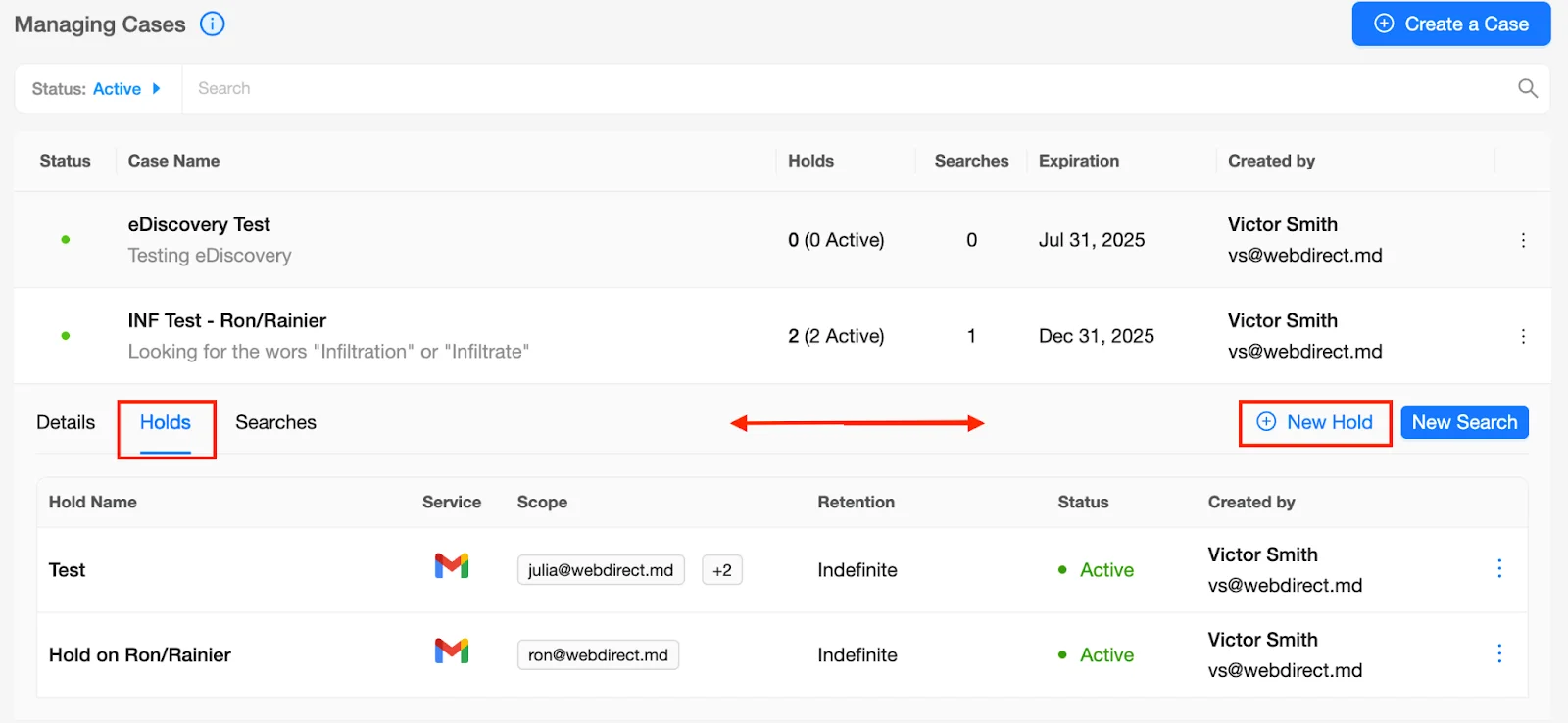
Now that you have opened a Case, select either Holds to see all holds for that specific Case or to create a new Hold, select New Hold on the far right side of the Case.
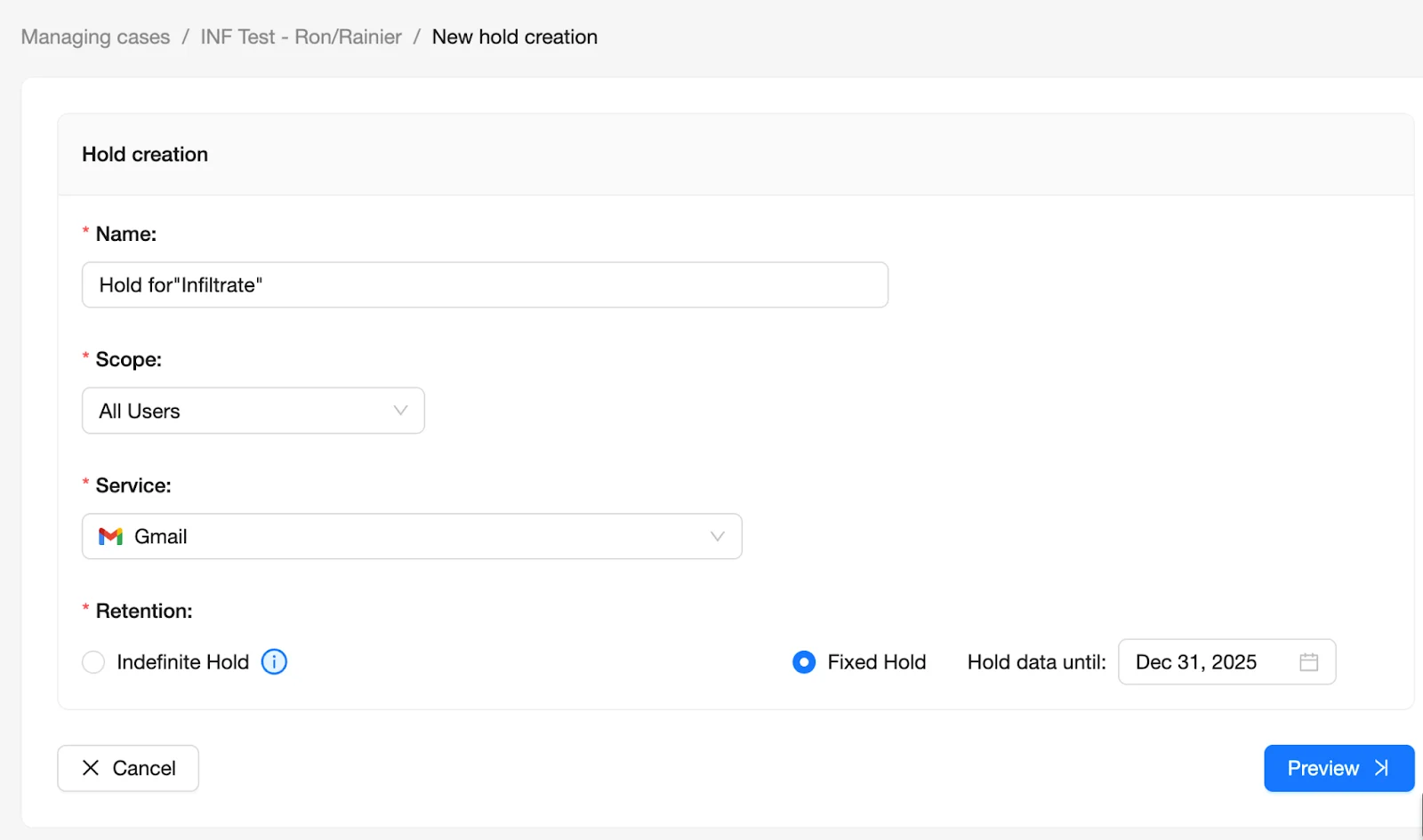
After selecting New Hold, you will be introduced to the Hold Creation page.
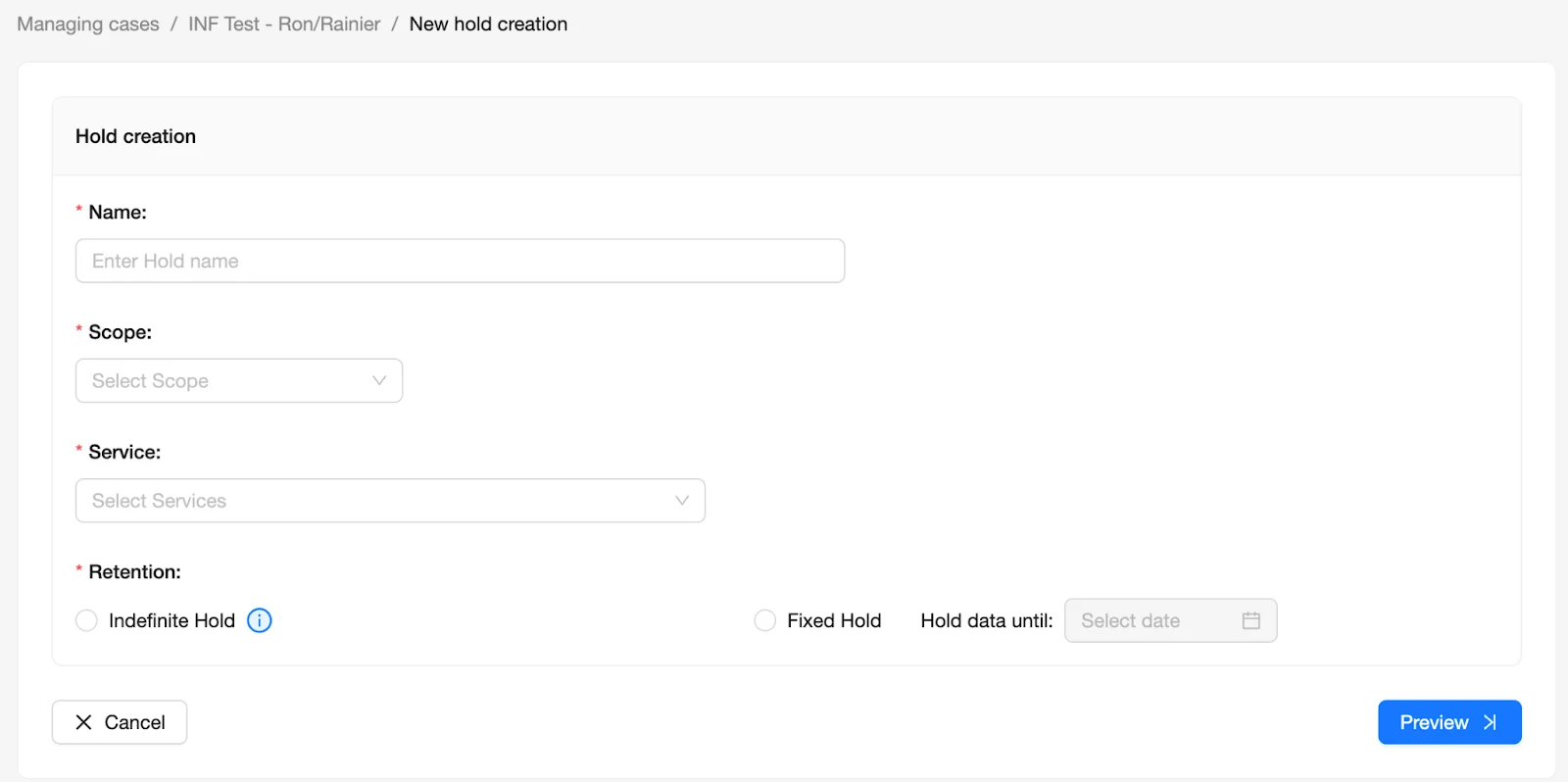
From the Hold Creation page, be sure to complete 4 crucial Hold steps…
- First, name your Hold via the Name field
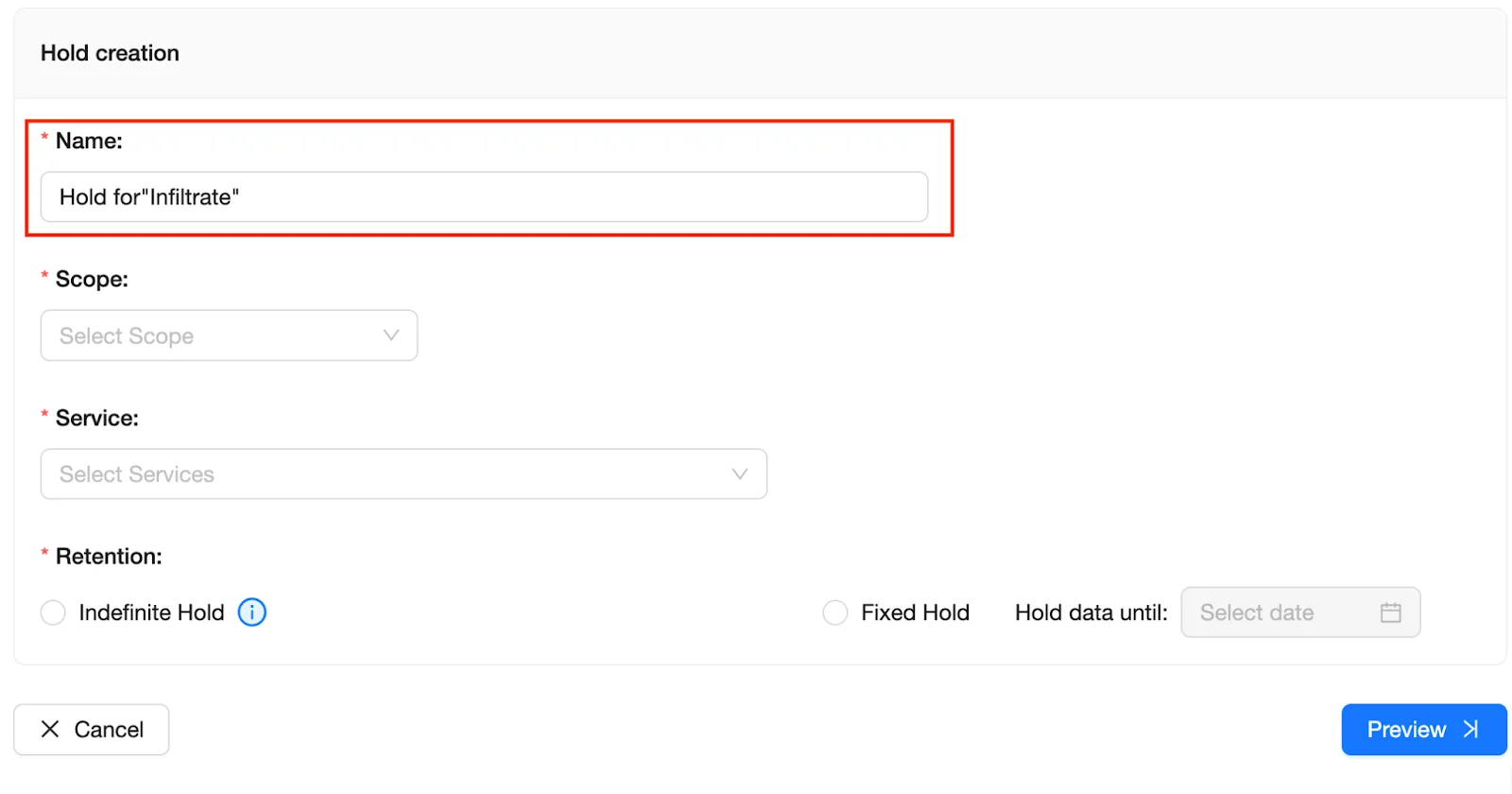
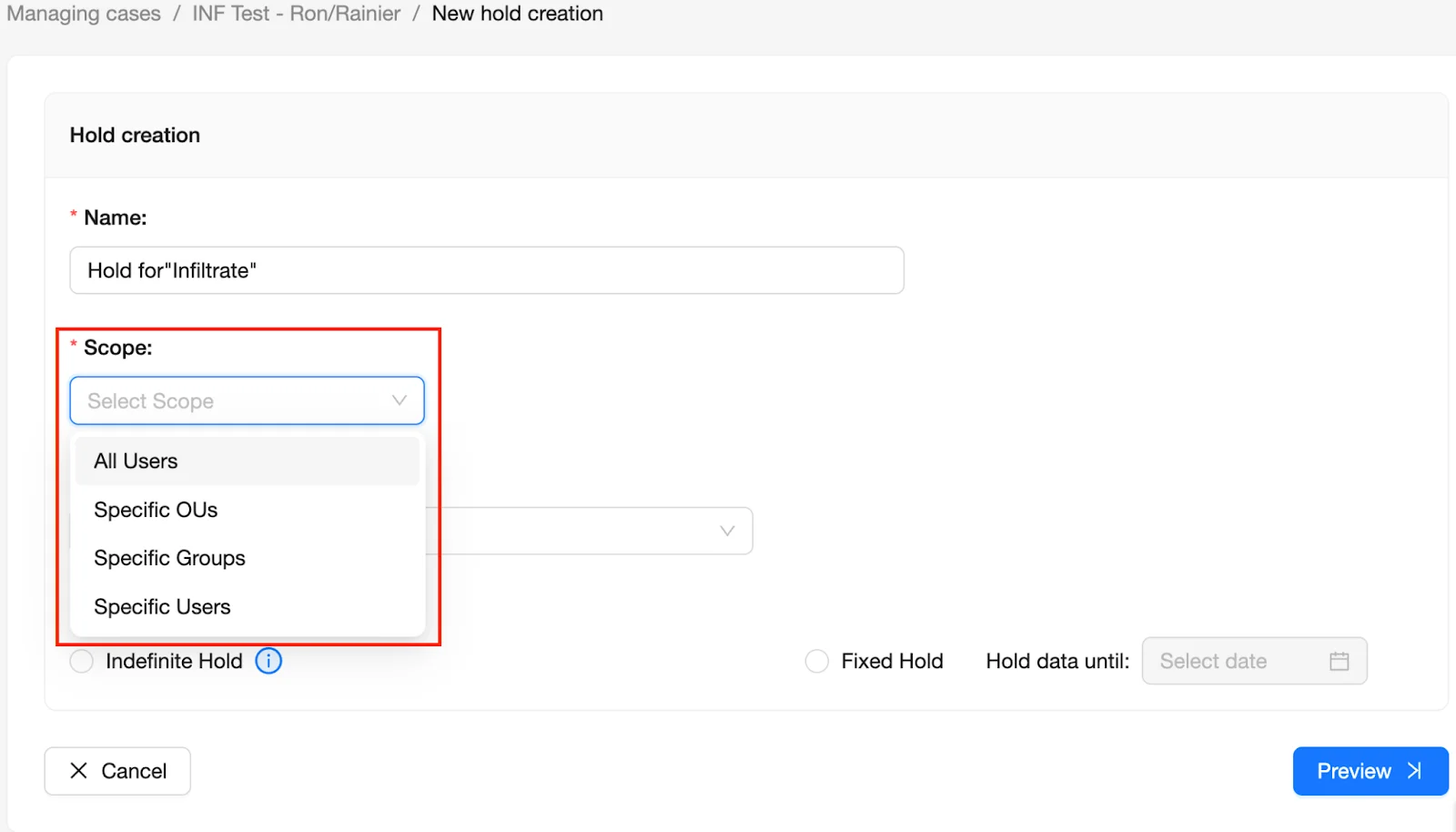
- Secondly, be sure to select the entities to which the Hold shall be applied via the Scope menu
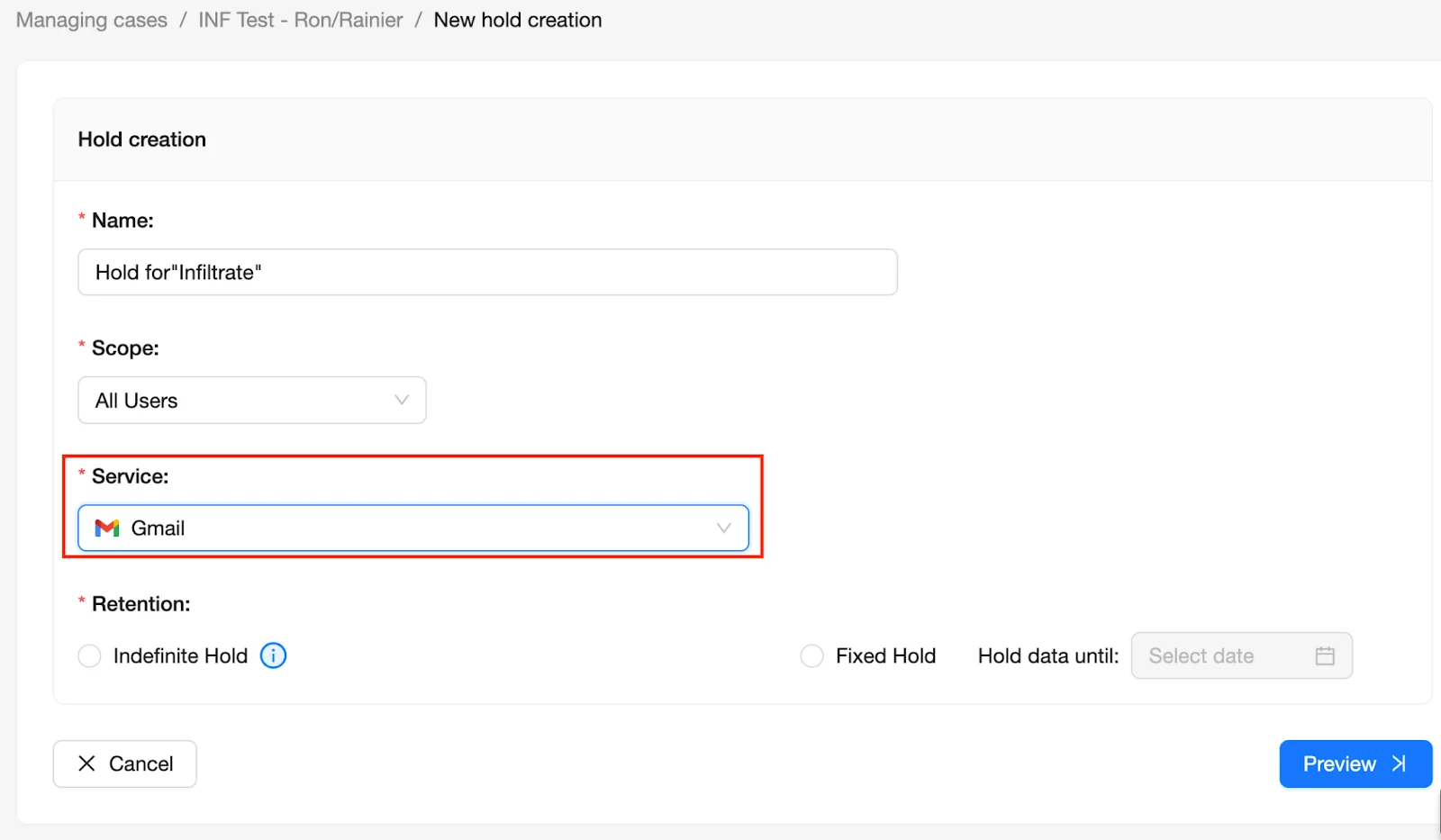
- Thirdly, select the service to which the Hold shall apply via the Service drop down menu.
- Lastly, determine the length of time for the Hold to exist, choose between an Indefinite Hold or a custom Fixed Hold
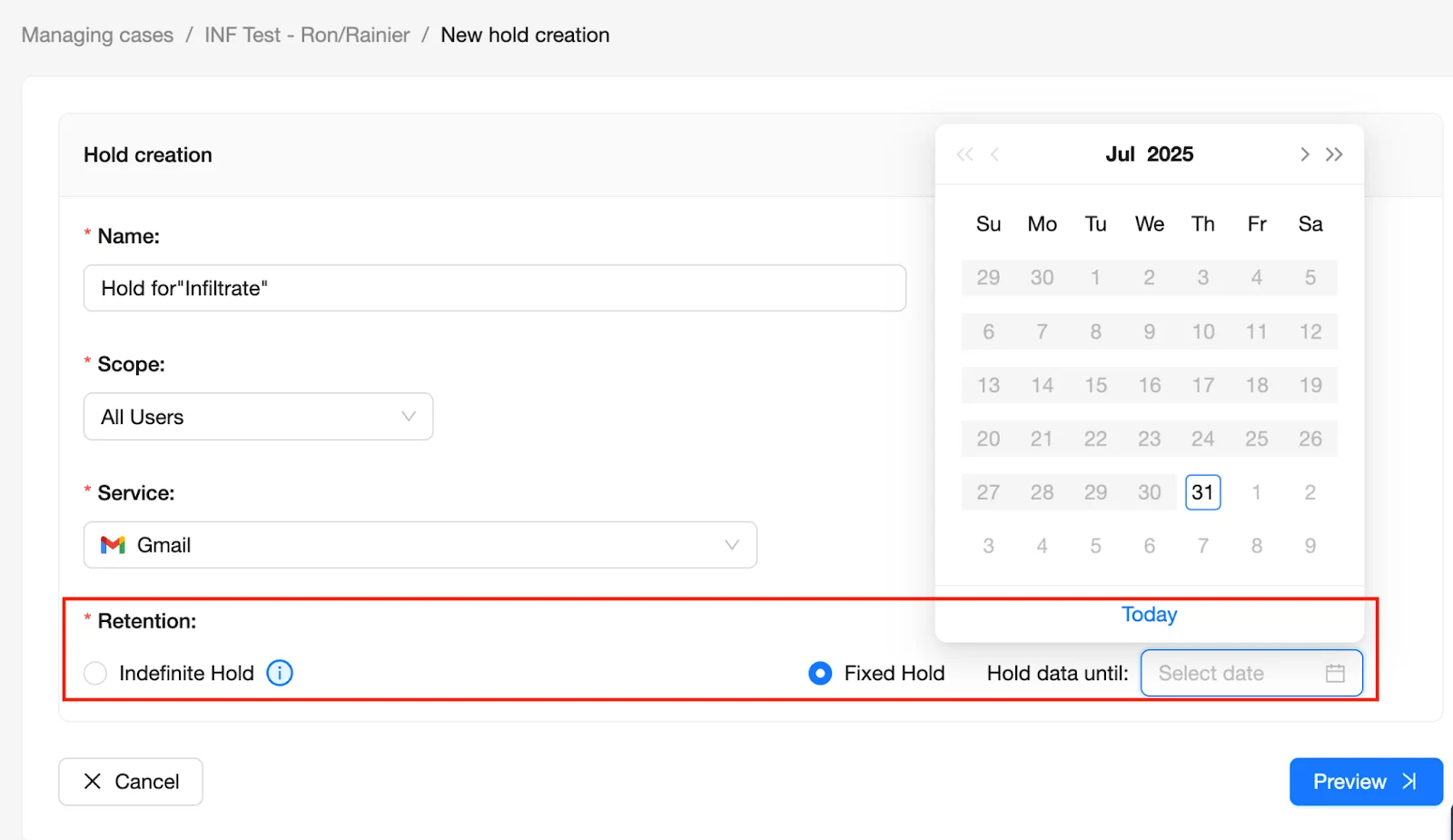
Once completed, your Hold Creation menu should look similar to this… At this point, proceed by selecting Preview on the bottom right of the page.
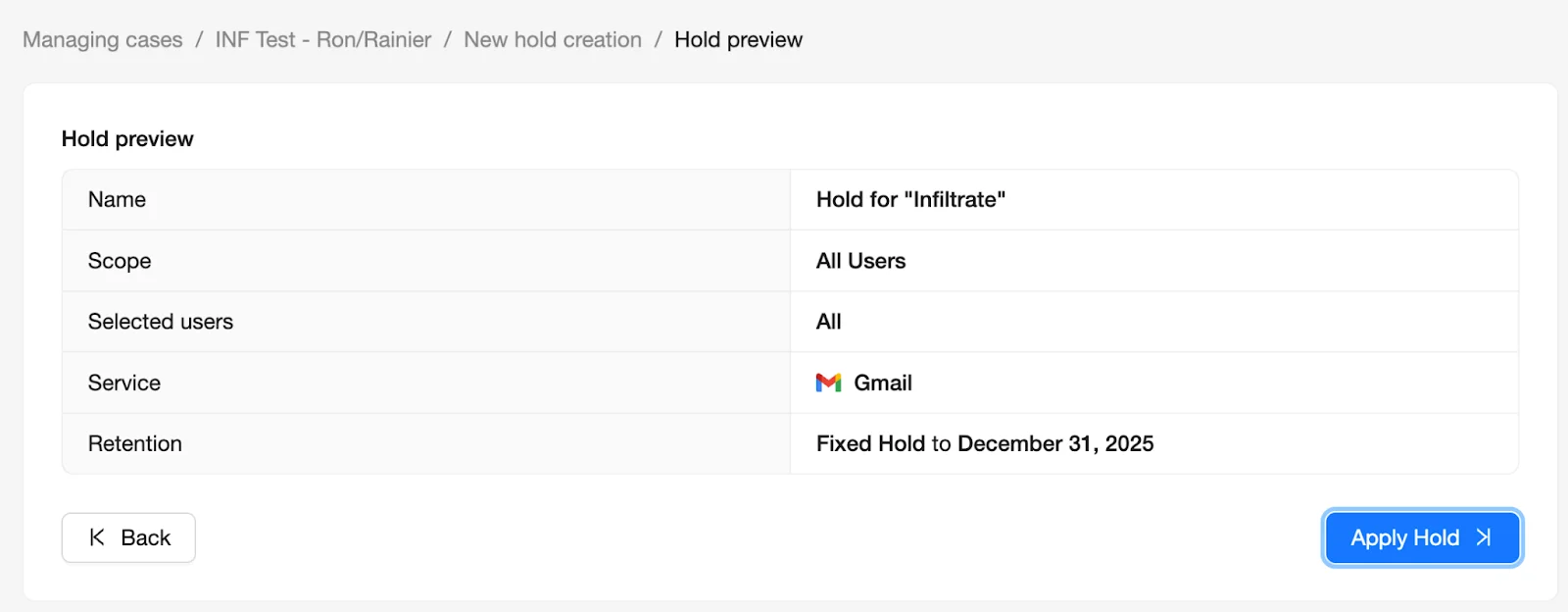
After selecting Preview, you’ll be greeted with a visual of the Hold that you are about to apply.
Once you have finished reviewing the Hold information, select Apply Hold to launch the Hold.
Now, your Hold is live and in effect!
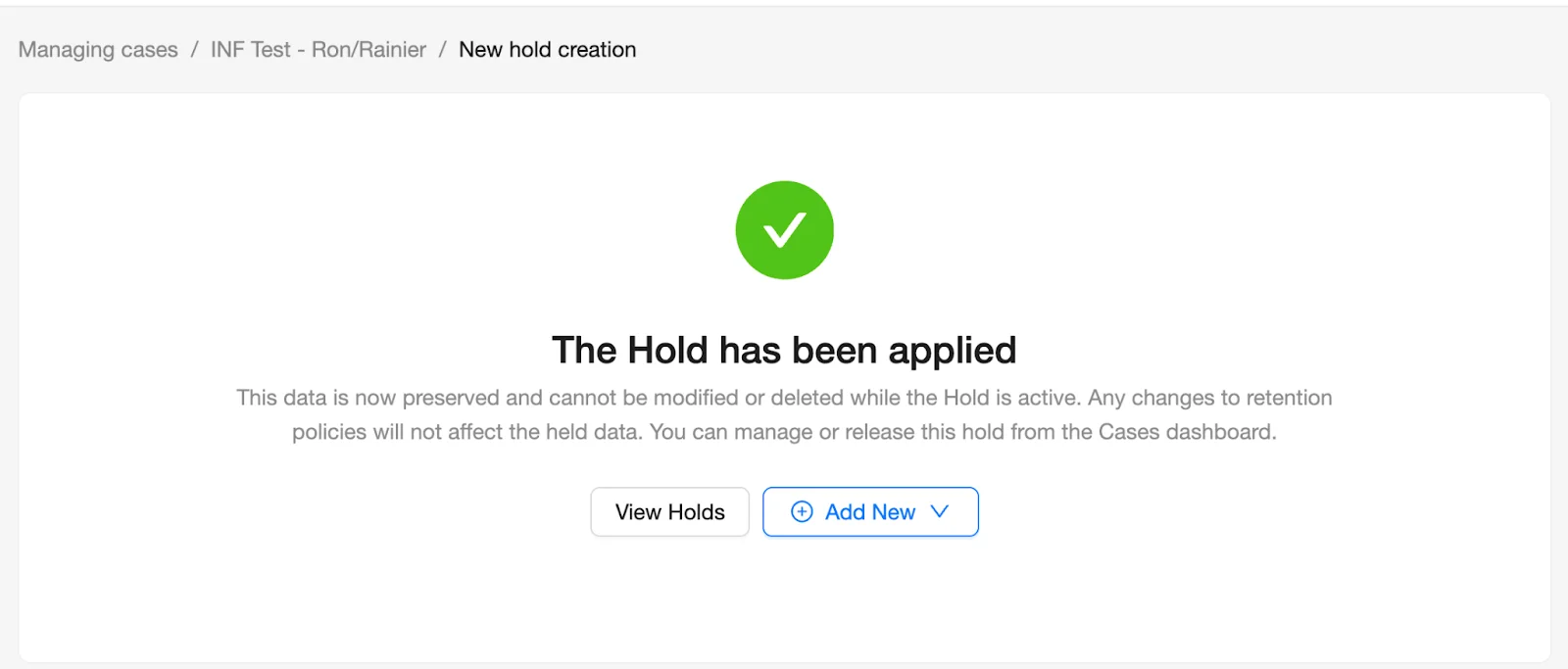
Congratulations! You have successfully launched an eDiscovery Hold on SpinOne!
Be sure to reference other Knowledge Base articles, showing how to create a Case, create a Search as well as how to Export eDiscovery data from SpinOne.