
How to Create a Search with SpinOne’s eDiscovery Solution

Searches are a crucial part of any eDiscovery solution. This is where you set the parameters and determine the data you want to identify during your investigation.
To create a Search on SpinOne, first navigate to eDiscovery on the left hand toolbar…
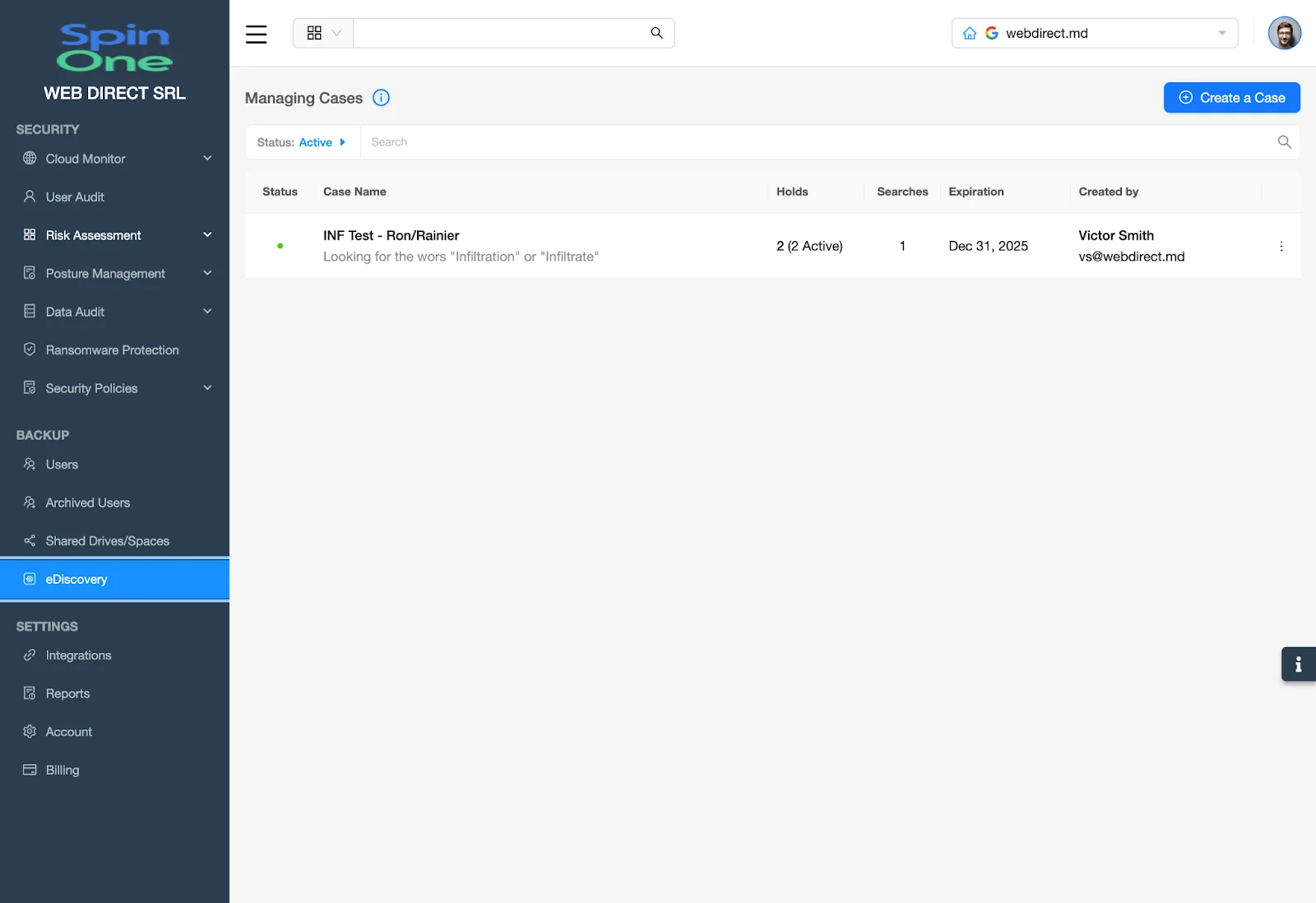
Next, select your Case from the Case Name column to release the drop down menu and select either Searches, to rerun an existing Search or select New Search to launch an entirely new search within your Case.
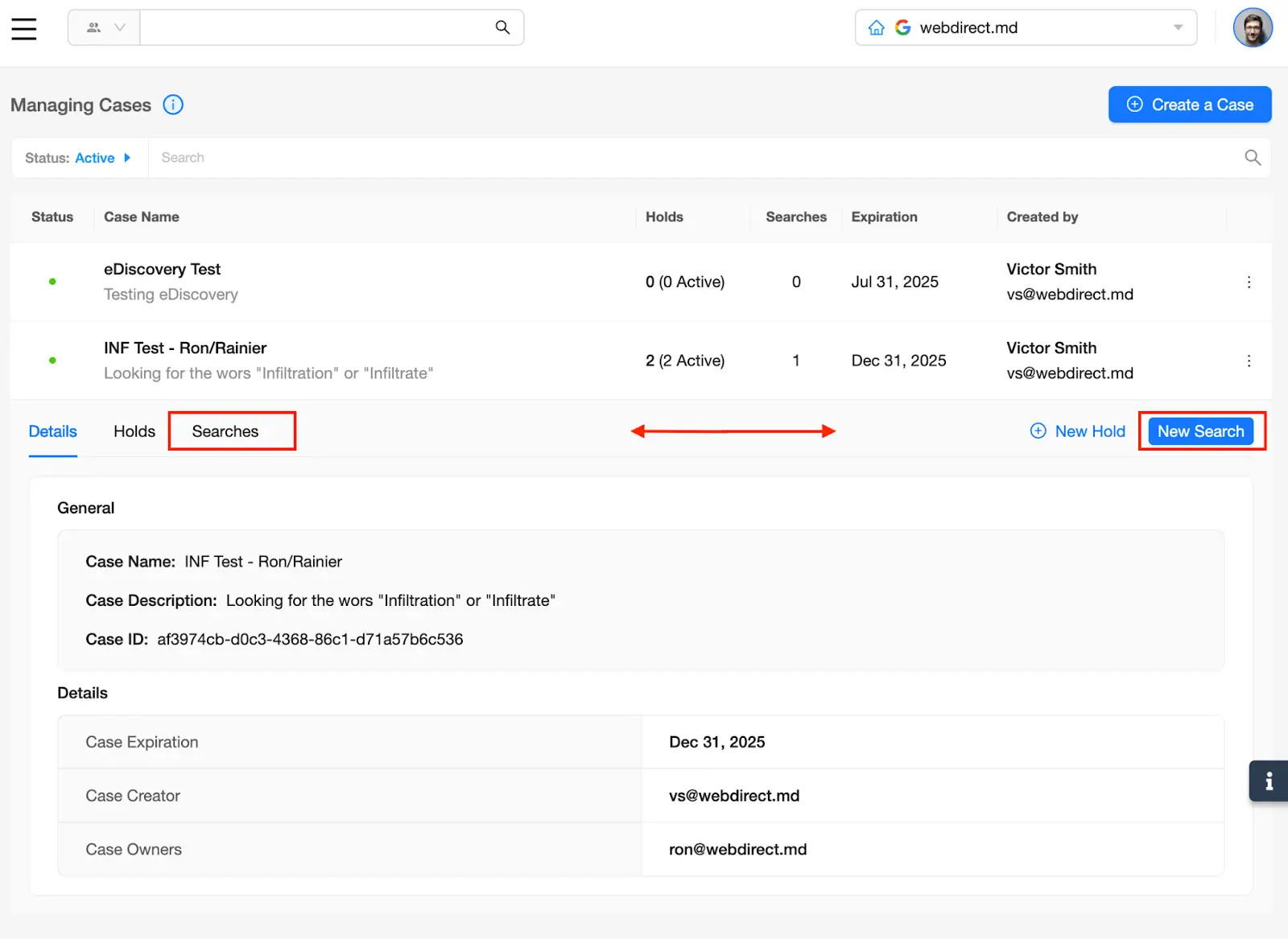
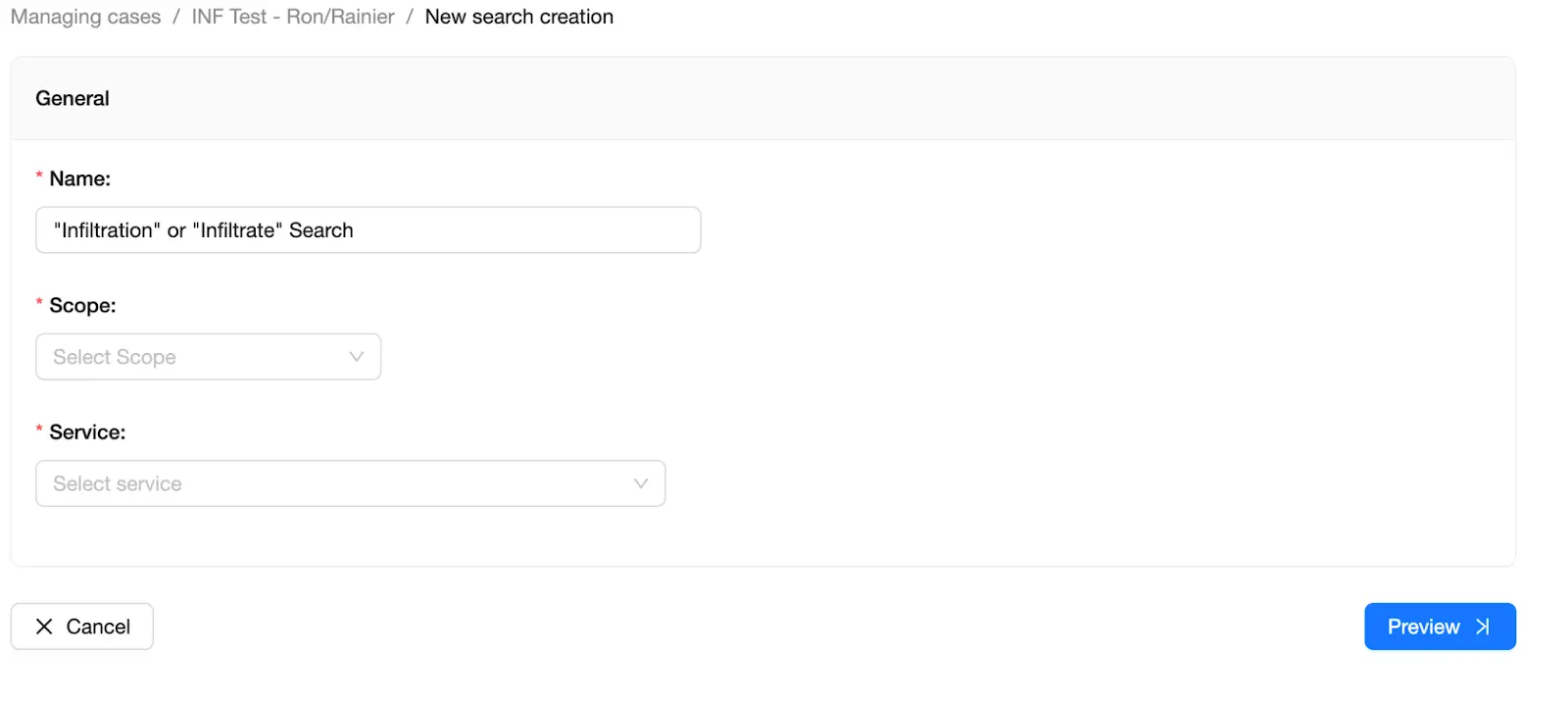
After selecting New Search, be sure to complete the following steps.
- Set the Name of the search
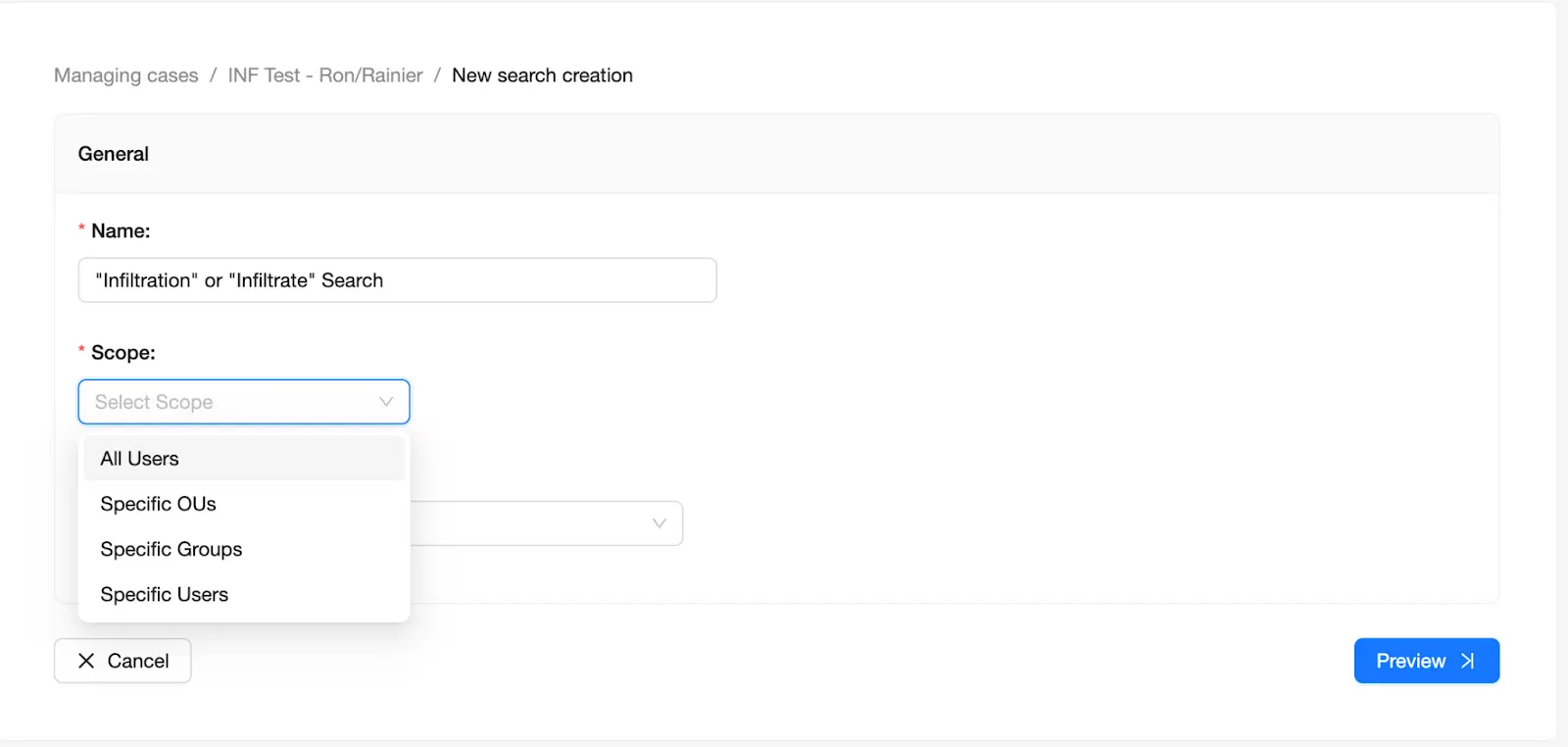
- Select the Scope drop down menu to make you determination of the entities to whom this search should apply
- Select the Google Workspace Service to which this search should apply.
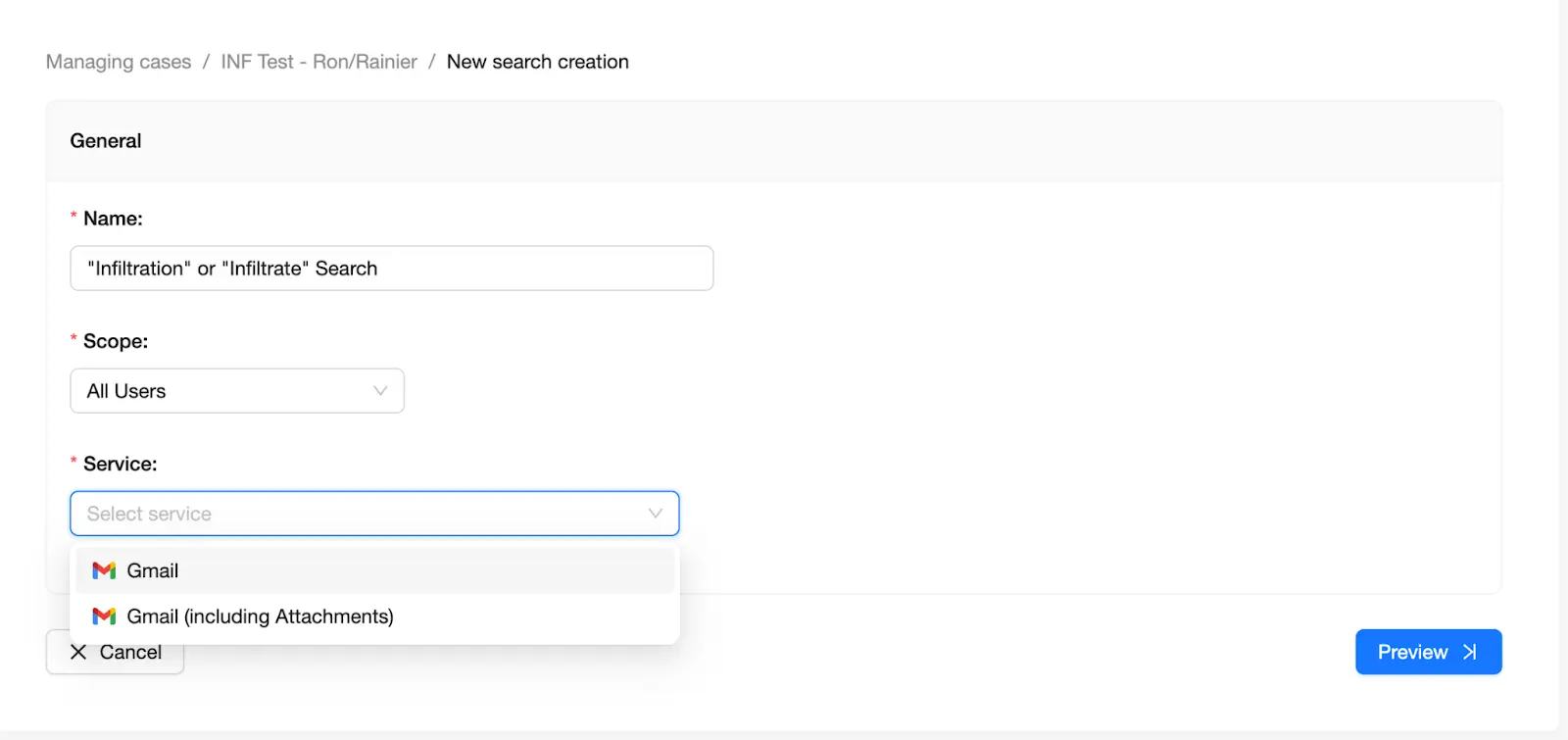
After completing those initial 3 steps, you will unlock the Search Criteria section…
From here, you are now able to set the parameters of the search.
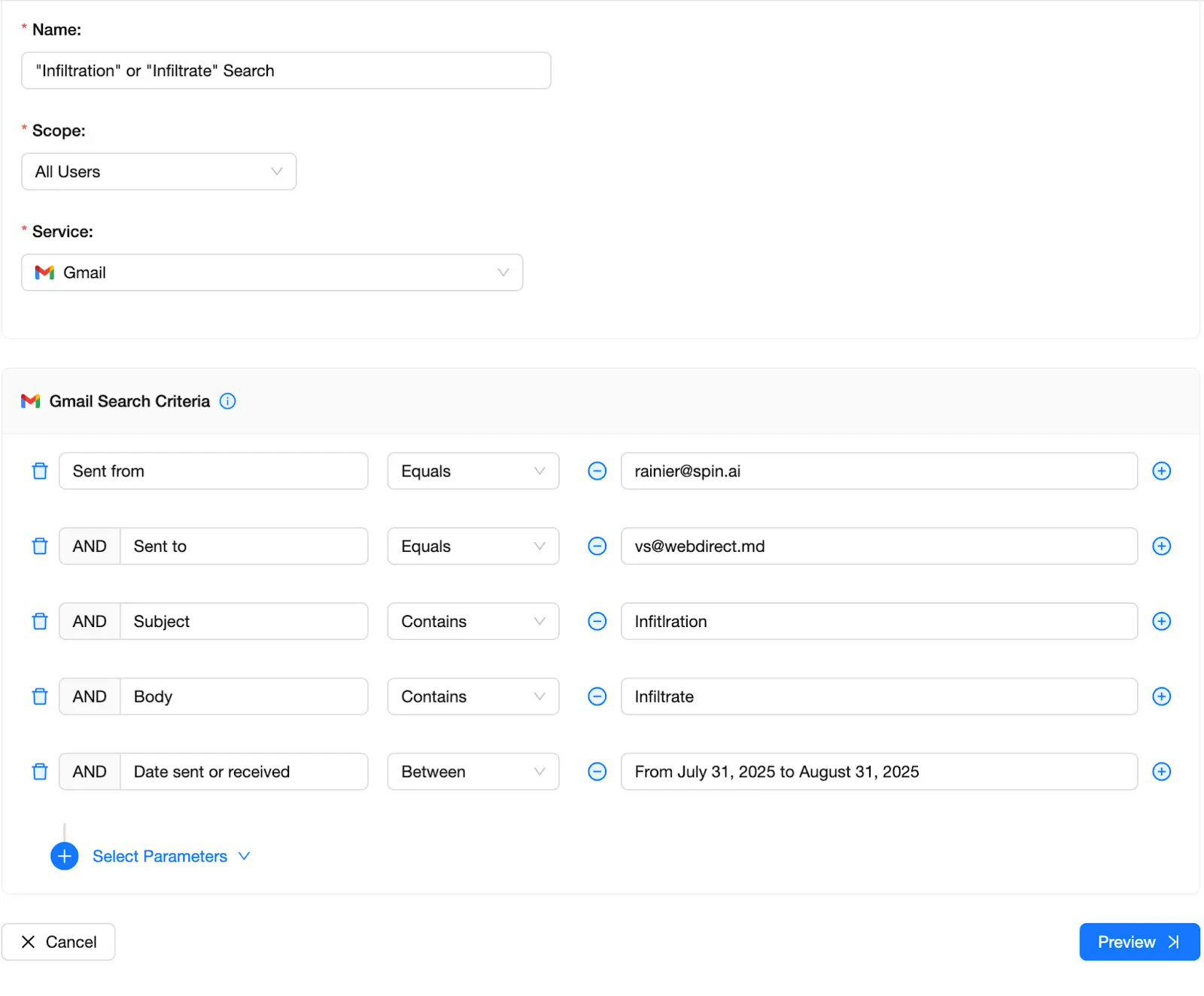
After selecting the Search Criteria, select Preview on the bottom right of the screen to see a summary of the Search that you are able to launch.
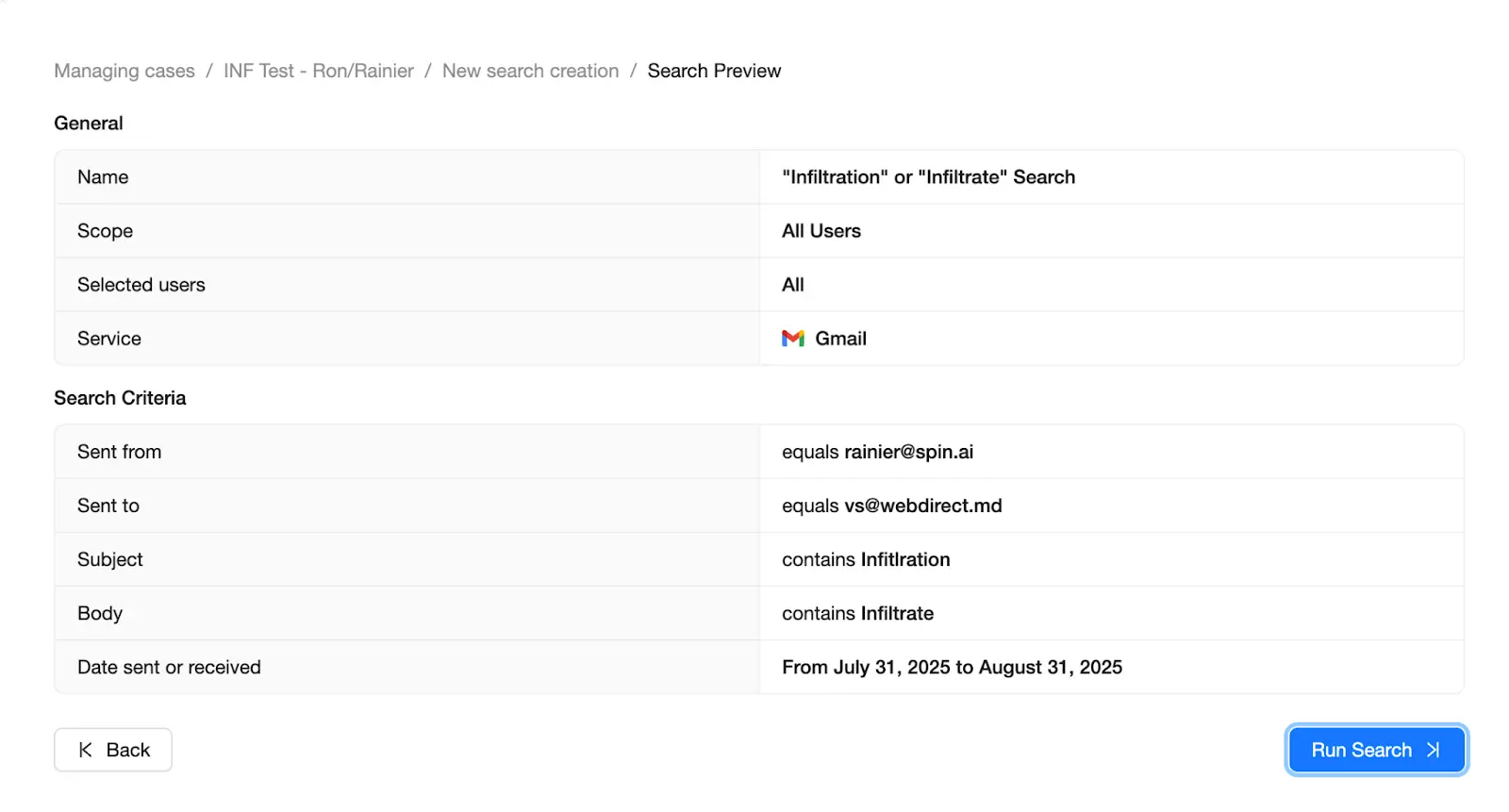
After confirming the information that you entered is correct, select Run Search.
Congratulations! You have successfully launched an eDiscovery Search on SpinOne!
Be sure to reference other Knowledge Base articles, showing how to create a case, perform legal holds as well as how to export eDiscovery data from SpinOne.