
How to Export eDiscovery Data from a Case in SpinOne

Exporting data from an eDiscovery investigation is crucial. It’s time like these where having a legal hold on data is crucial but that only holds your data for when you need it most.
Exportation of detected data is paramount to supply Legal Teams and Organizations with the information they need to complete their investigation.
To create a Export data from a Search on SpinOne’s eDiscovery solution, first navigate to eDiscovery on the left hand toolbar…
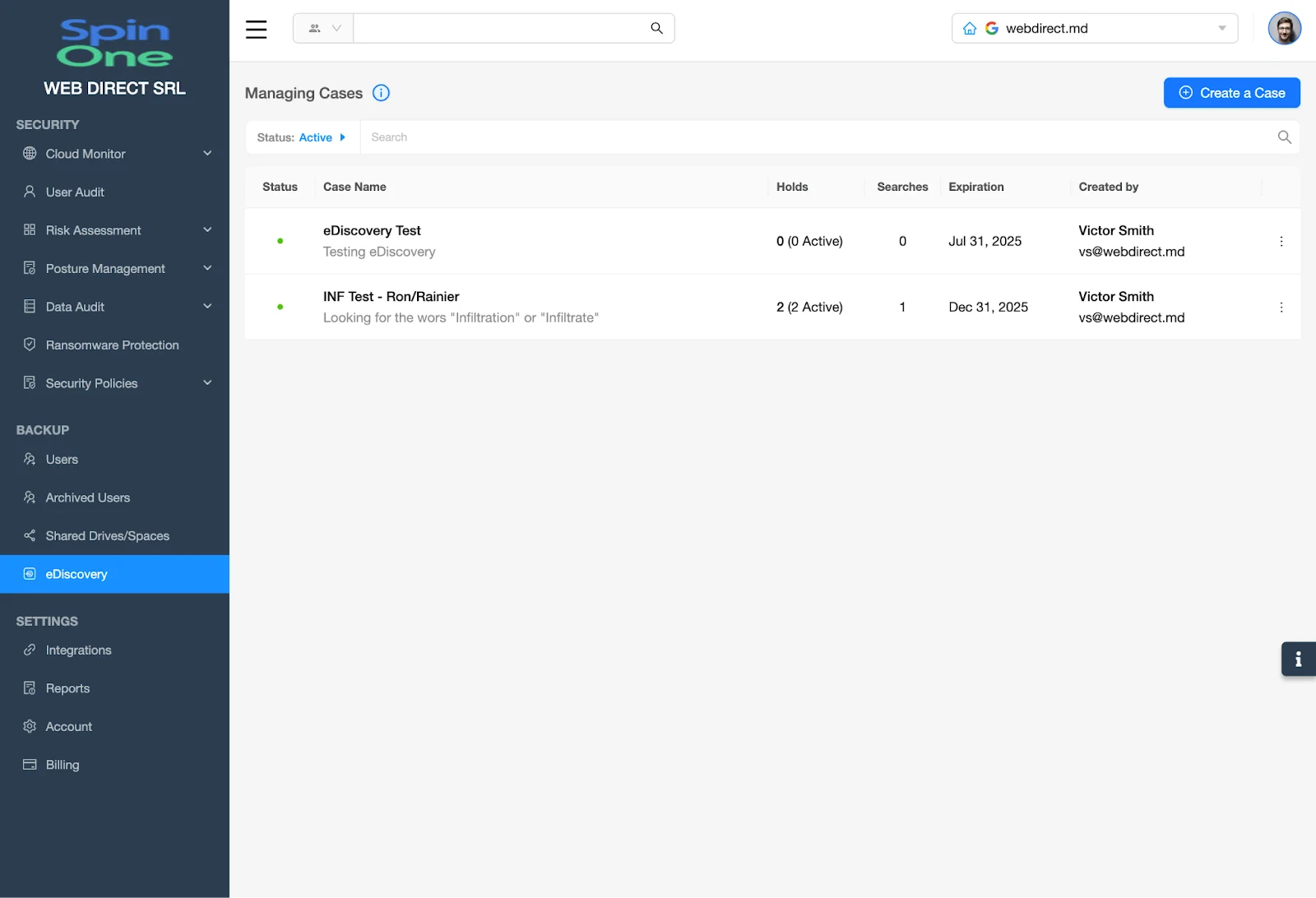
Select a Case where you know the data you need resides, to open the Case…
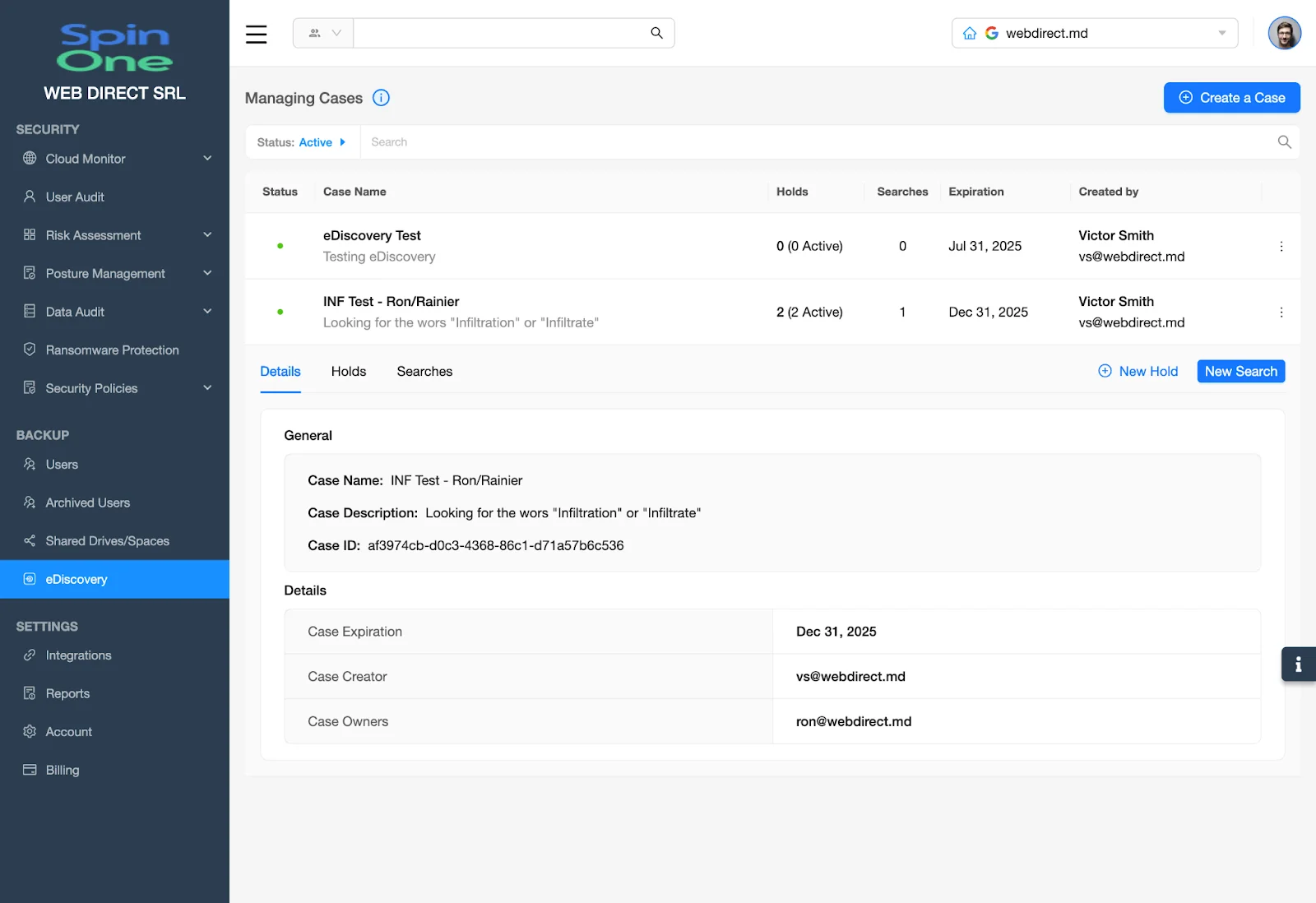
Once a Case is opened, select Searches.
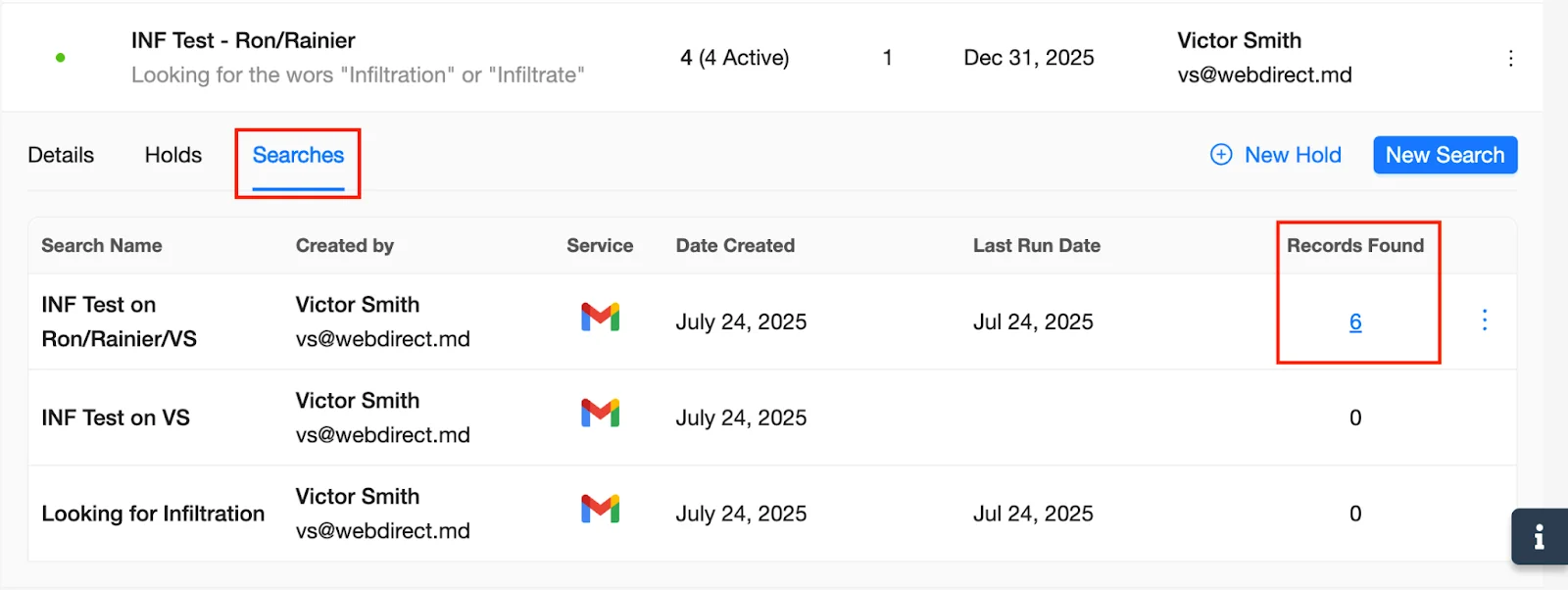
Here, you will see the results of your eDiscovery searches…
Select the blue hyperlink quantity to open the results of the Search
From here, you will see the totality of the results from the Search that was run…
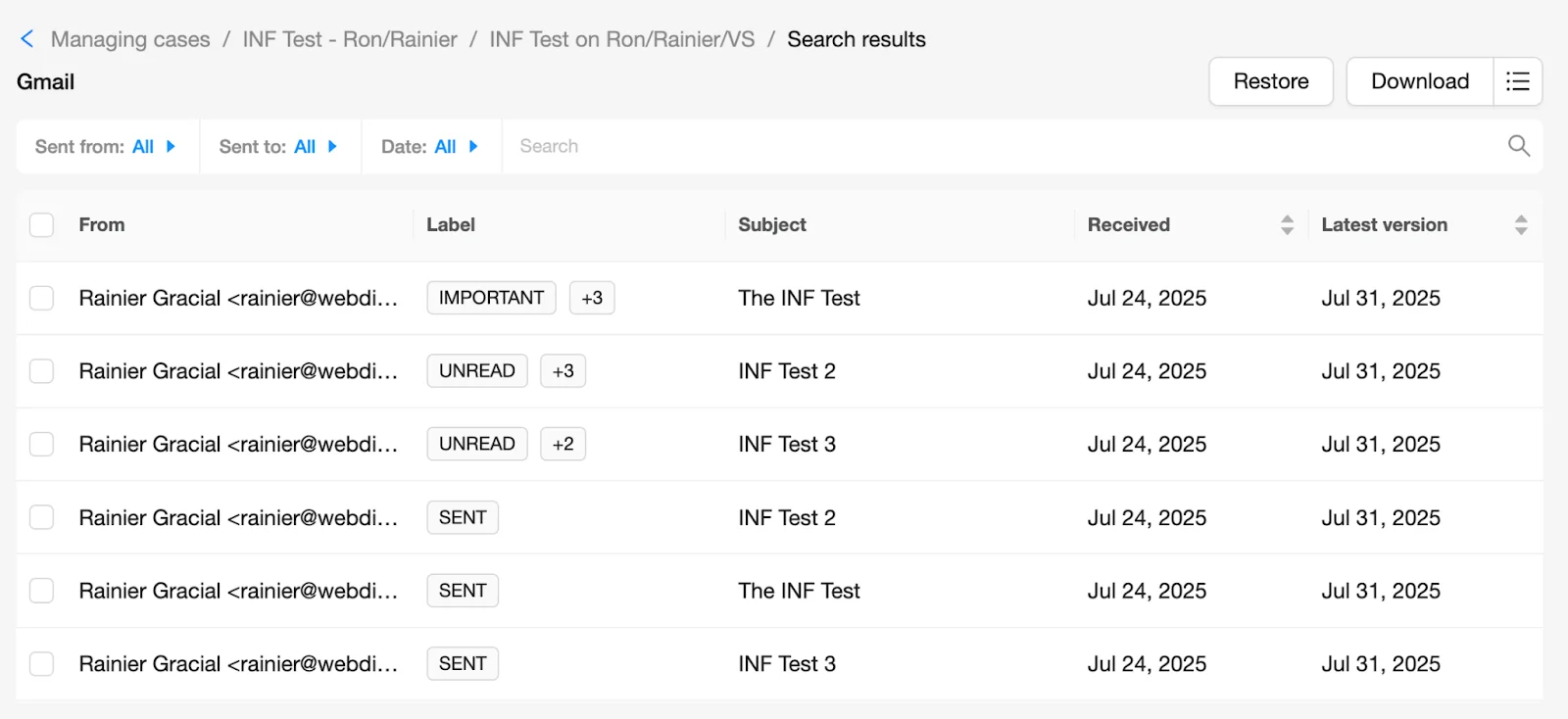
Select however many results you would like to export…
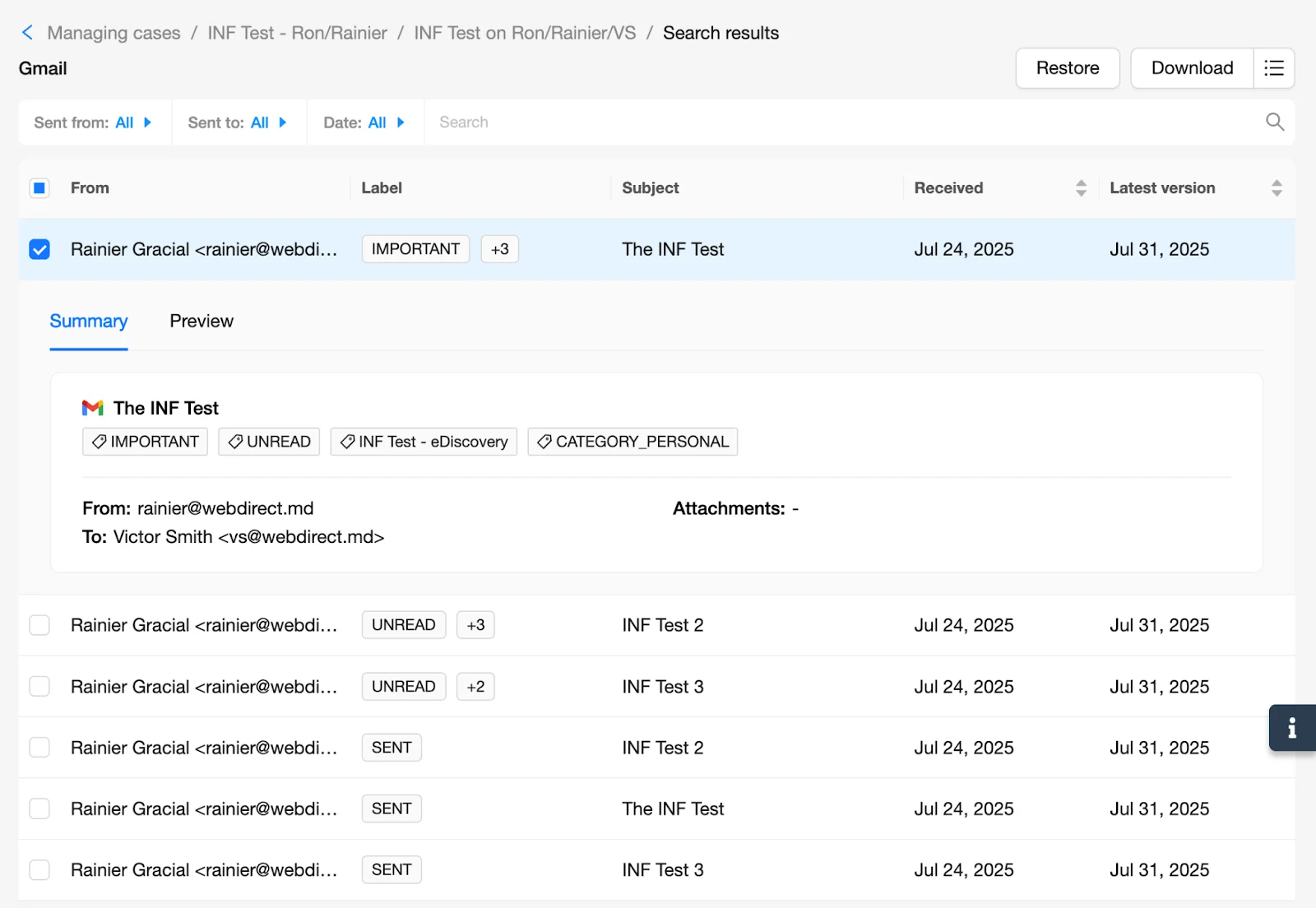
Once you have made your selections, click either Restore or Download to retrieve the results of the Search.
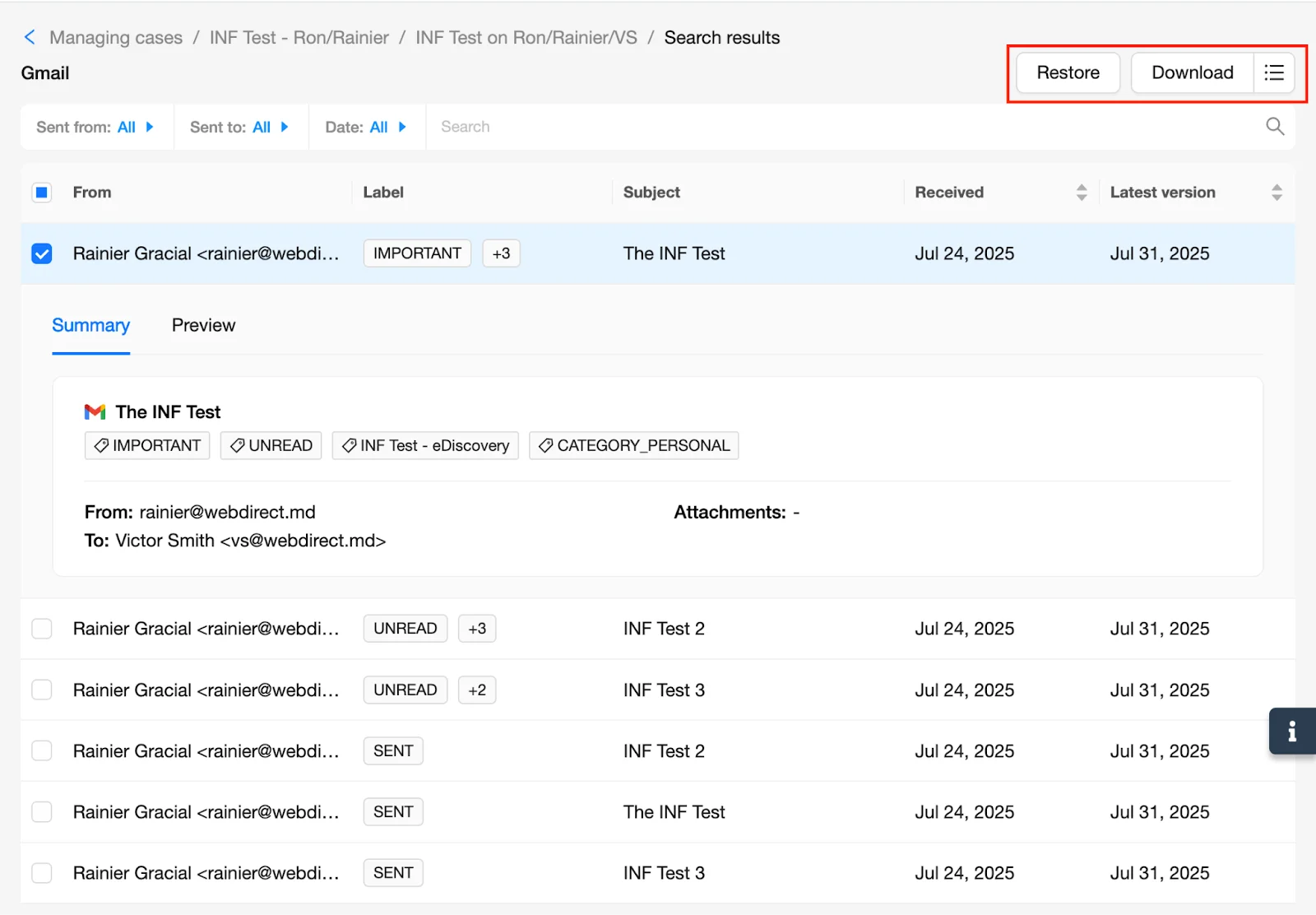
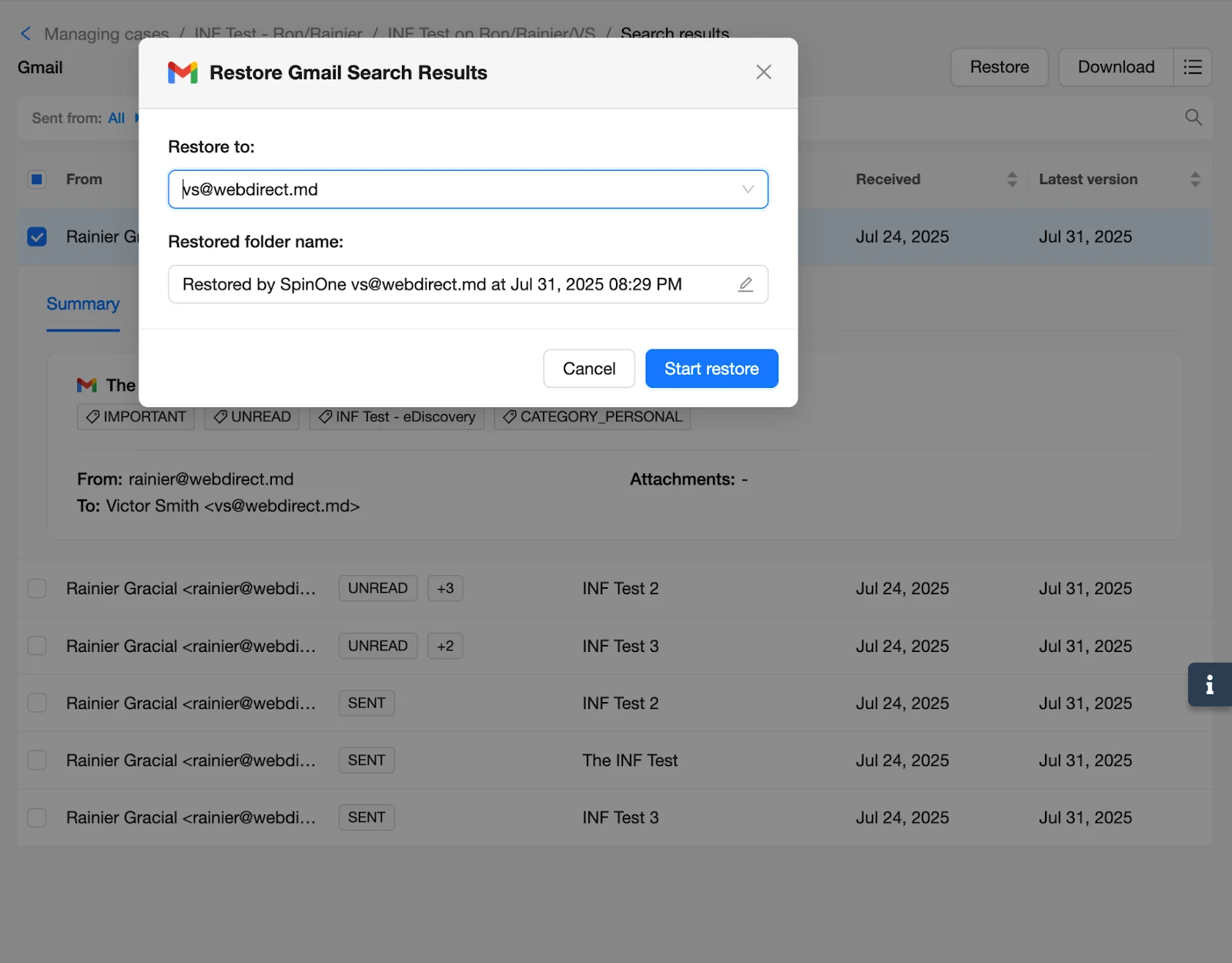
Restore sends the data back to the live environment of the User selected as the recipient of the restore.
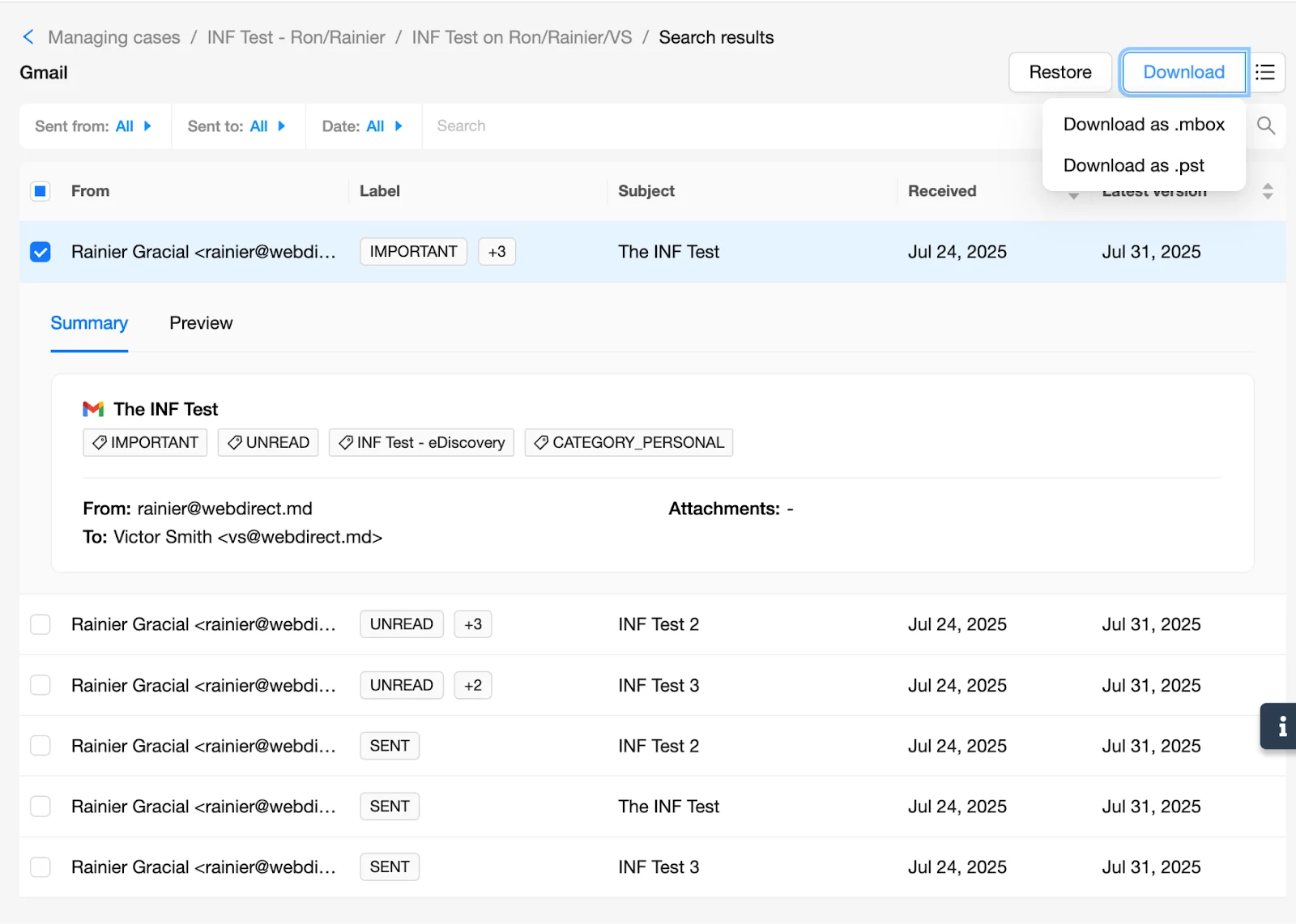
Selecting Download will enable you to locally download the data.
Congratulations! You have successfully exported data from eDiscovery on SpinOne!
Be sure to reference other Knowledge Base articles, showing how to create a Case, create a Search as well as how to create a Hold from SpinOne.