
How to Limit a User’s Access to eDiscovery Only

Follow the steps in this article to give a User access to eDiscovery in SpinOne without granting them full Admin permissions. Once configured, eDiscovery will be the only section the User sees when they log in.
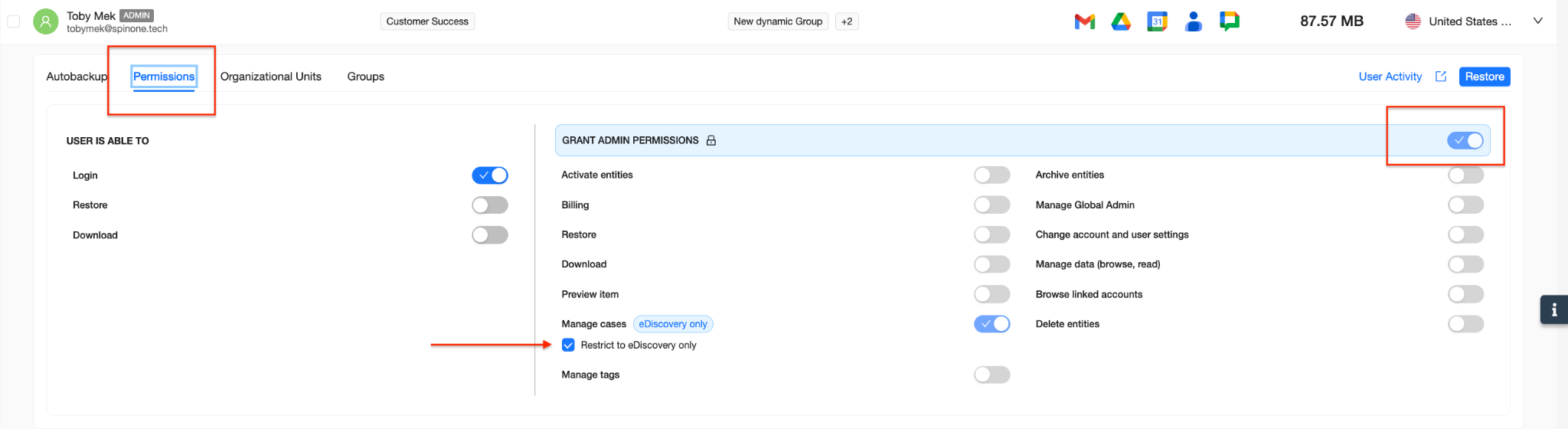
Log in to your SpinOne account. From the left navigation panel, head to Backup > Users and locate the User. Click the arrow at the end of their row to expand it, then open the Permissions tab.
Under “User is able to”, turn on Login. Next, turn on the Grant admin permissions toggle, turn on Manage cases, and check Restrict to eDiscovery only.
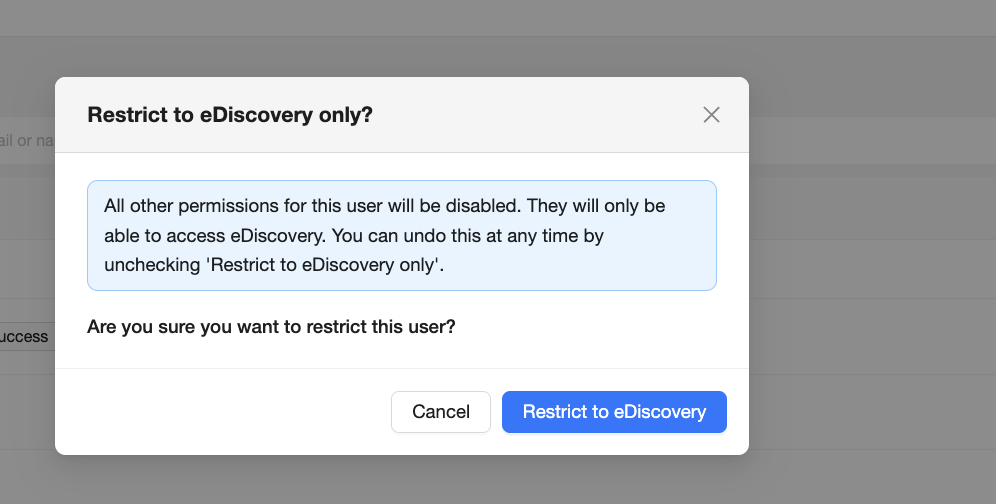
A confirmation window will appear, explaining that all other permissions for this User will be disabled. Click Restrict to eDiscovery to confirm.
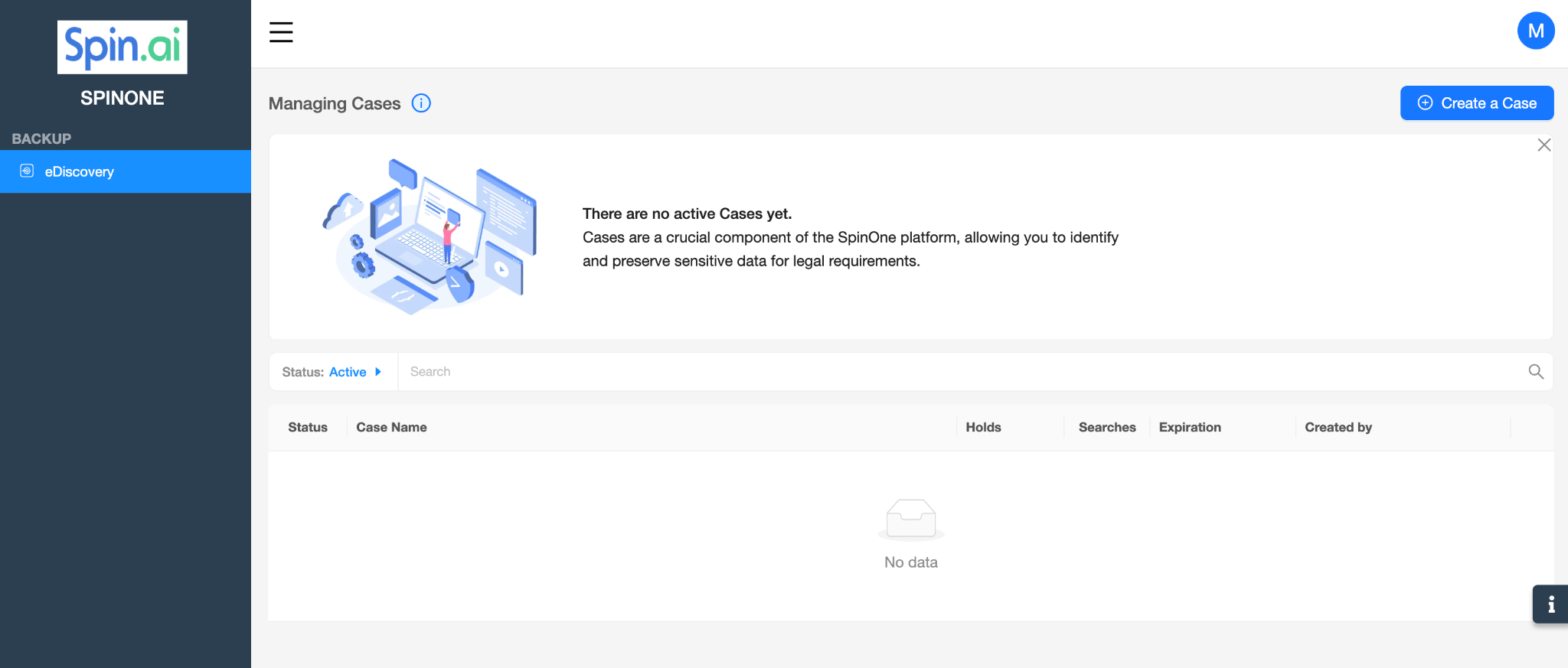
That’s it! The next time the User logs in to SpinOne, they will only see eDiscovery in the left navigation panel.
Note: You can undo this at any time by returning to the User’s Permissions tab and unchecking Restrict to eDiscovery only.
To learn more about working with cases, see How to Create an eDiscovery Case.