
How to make a User an eDiscovery Case Manager on SpinOne

For users on SpinOne to be able to create, manage and action eDiscovery functionalities such as creating Cases, running Searches, implementing Legal Holds as well as Exportation of data, they need to have the Manage Cases permission turned on.
Below is a step by step guide on how to enable users with the needed permission for eDiscovery Cases.
Firstly, navigate to the Users section on the lefthand toolbar beneath Backup…
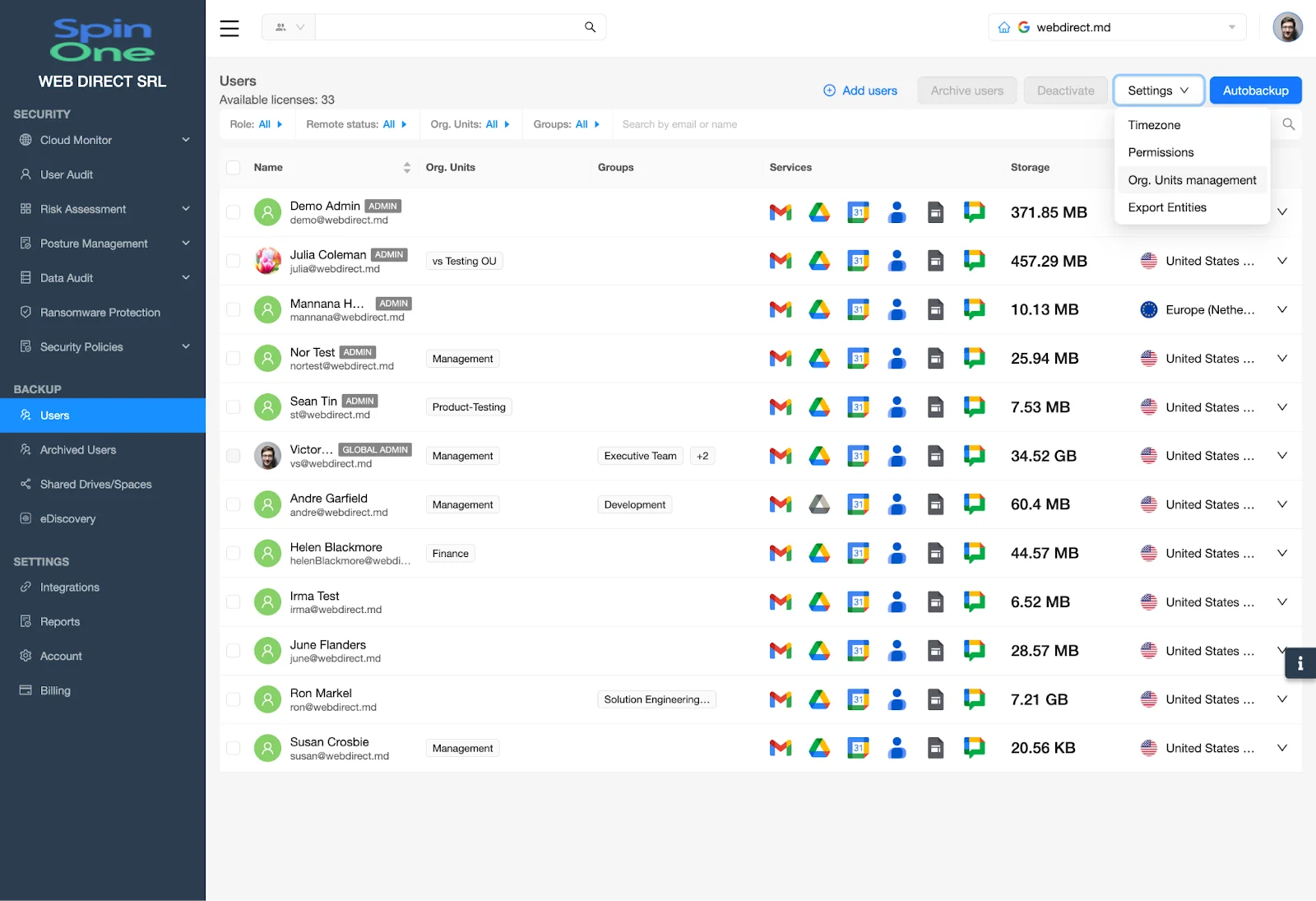
Next, select the User that needs the Manage Cases permission and select Permissions…
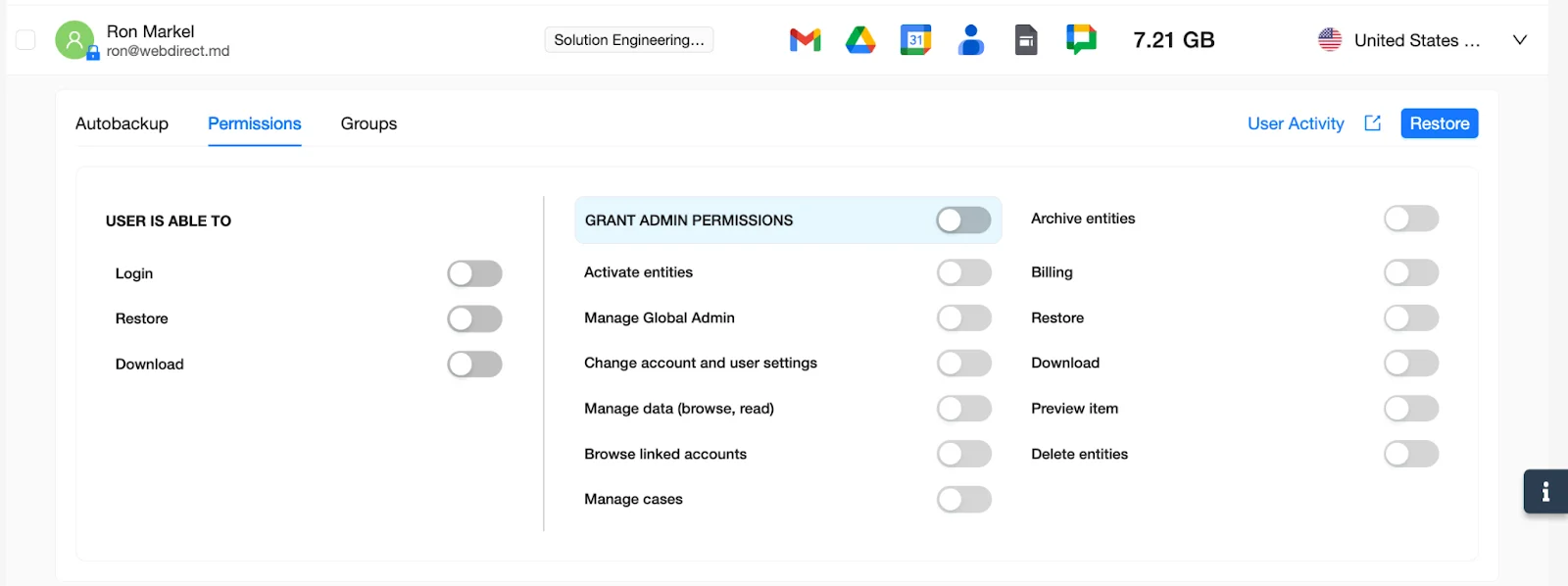
From here, turn on the following permissions:
- User is Able to -> Login – On
- Grant Admin Permissions – On
- Manage Cases – On
Once completed, the User permissions should look like this…
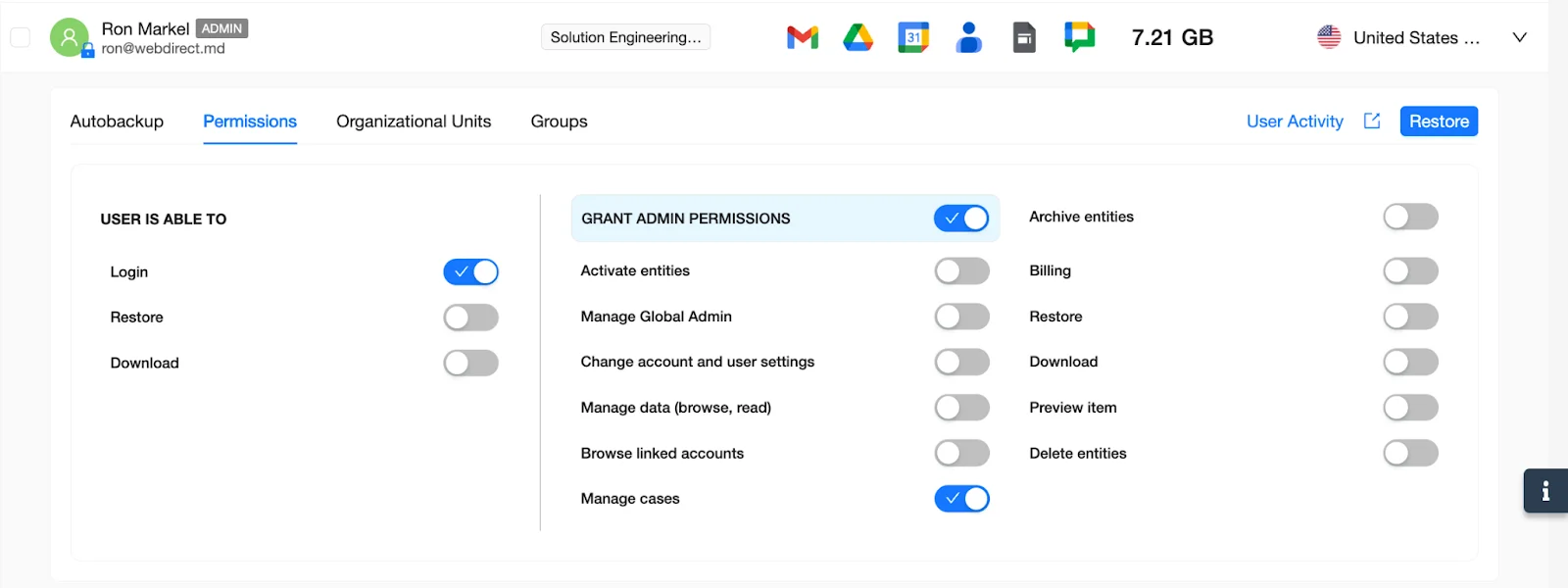
The User can now login to the SpinOne platform, access eDiscovery as well as access the Cases for which they are involved. Additionally, you are now able to select this User when creating a Case to make them a Case Manager.
Congratulations! You have successfully granted Mange Case permissions to your User(s)!
Be sure to reference other Knowledge Base articles, showing how to create a Case, create a Search as well as how to Export eDiscovery data from SpinOne.