
How to Manage User Permissions on SpinOne for Google Workspace™

Initially, only the Root Administrator of the SpinOne account will have access to the SpinOne platform. However, it is extremely easy to delegate customized access to other users.
In this article, we will discuss how to:
- Assign additional permissions to other users
- Understand what each permission set entails
Assigning Additional Permissions to Other Users
To get started, log in to your SpinOne account. You should first see your SpinOne Dashboard…
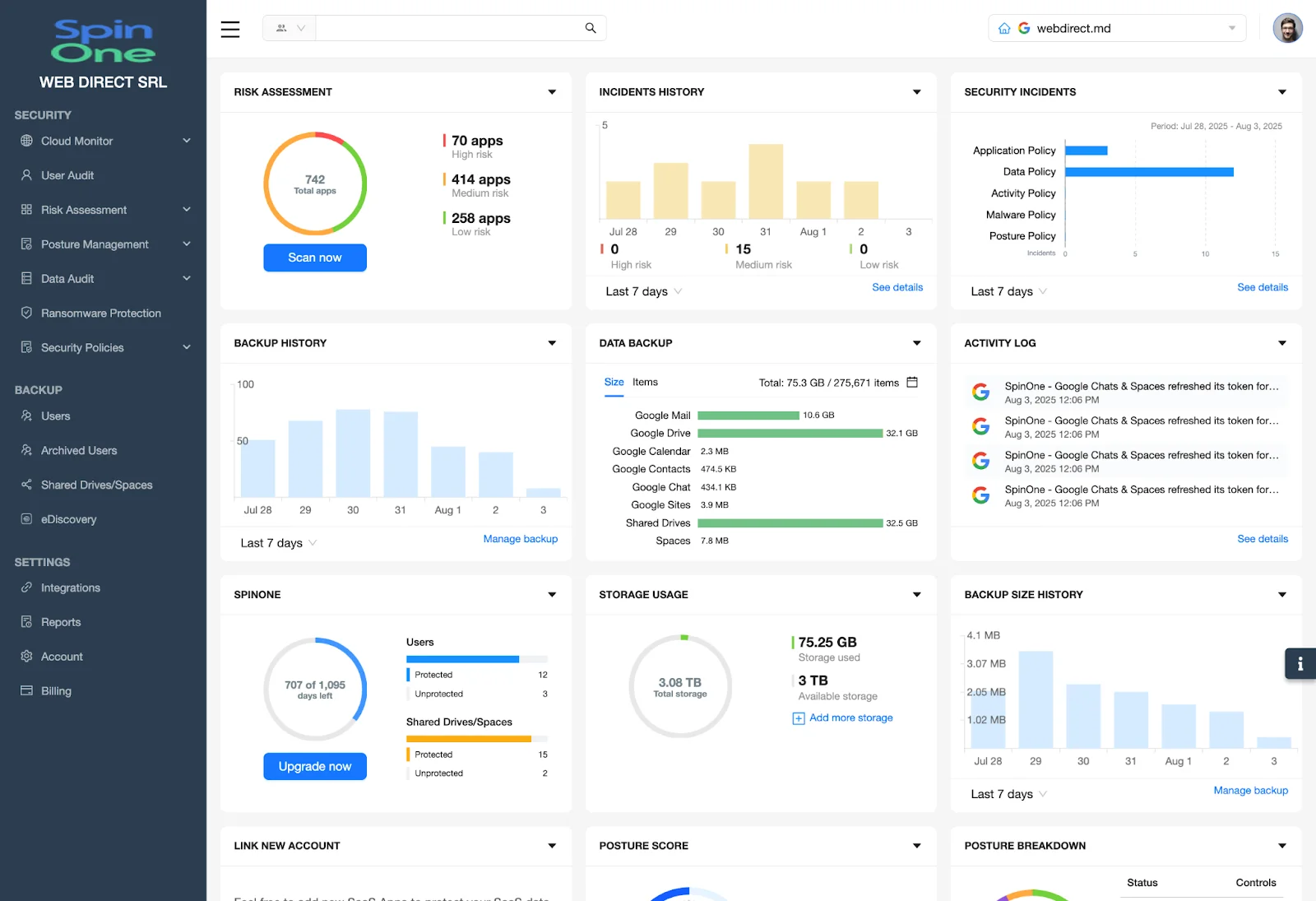
Next, head to the Users section from the left panel…
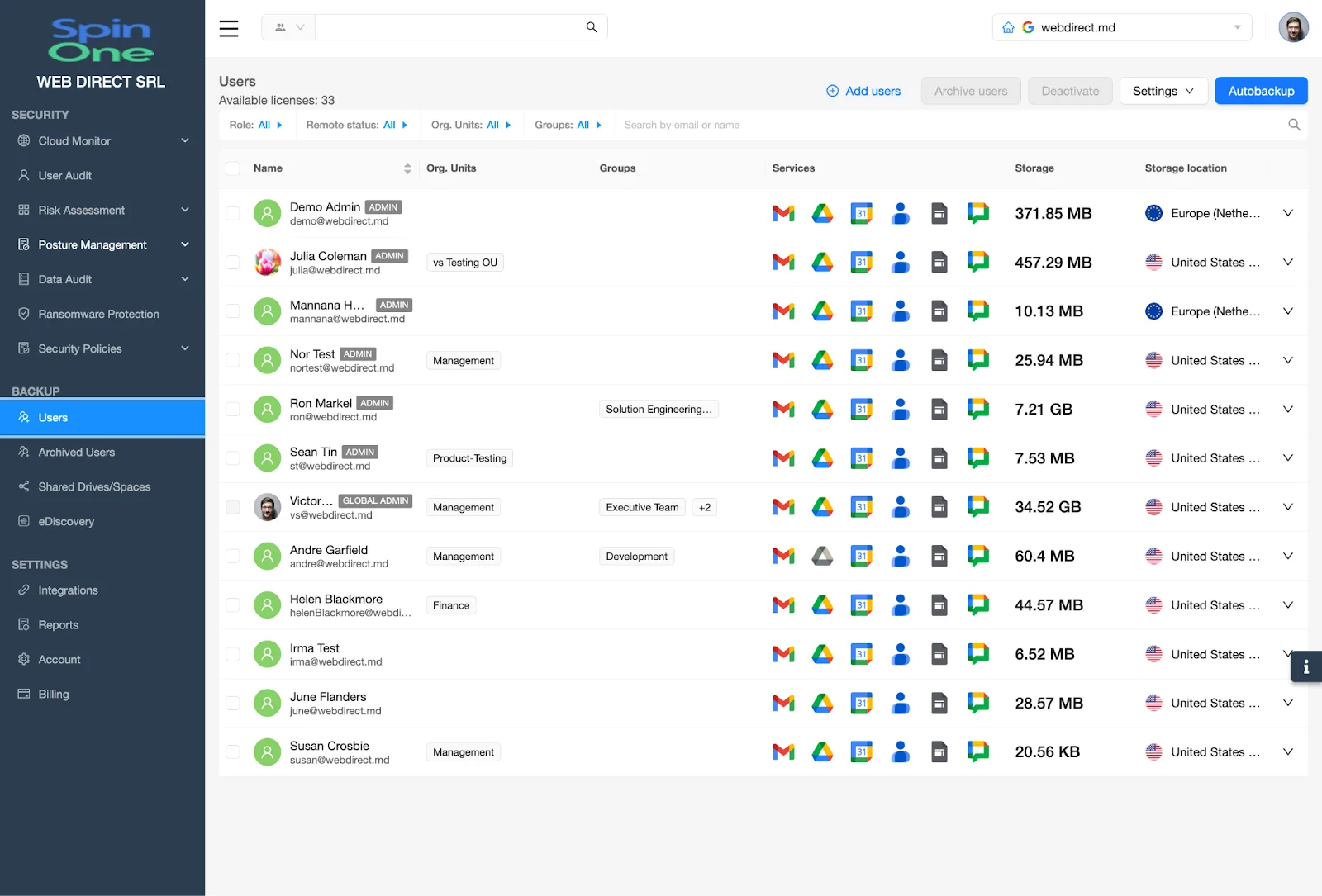
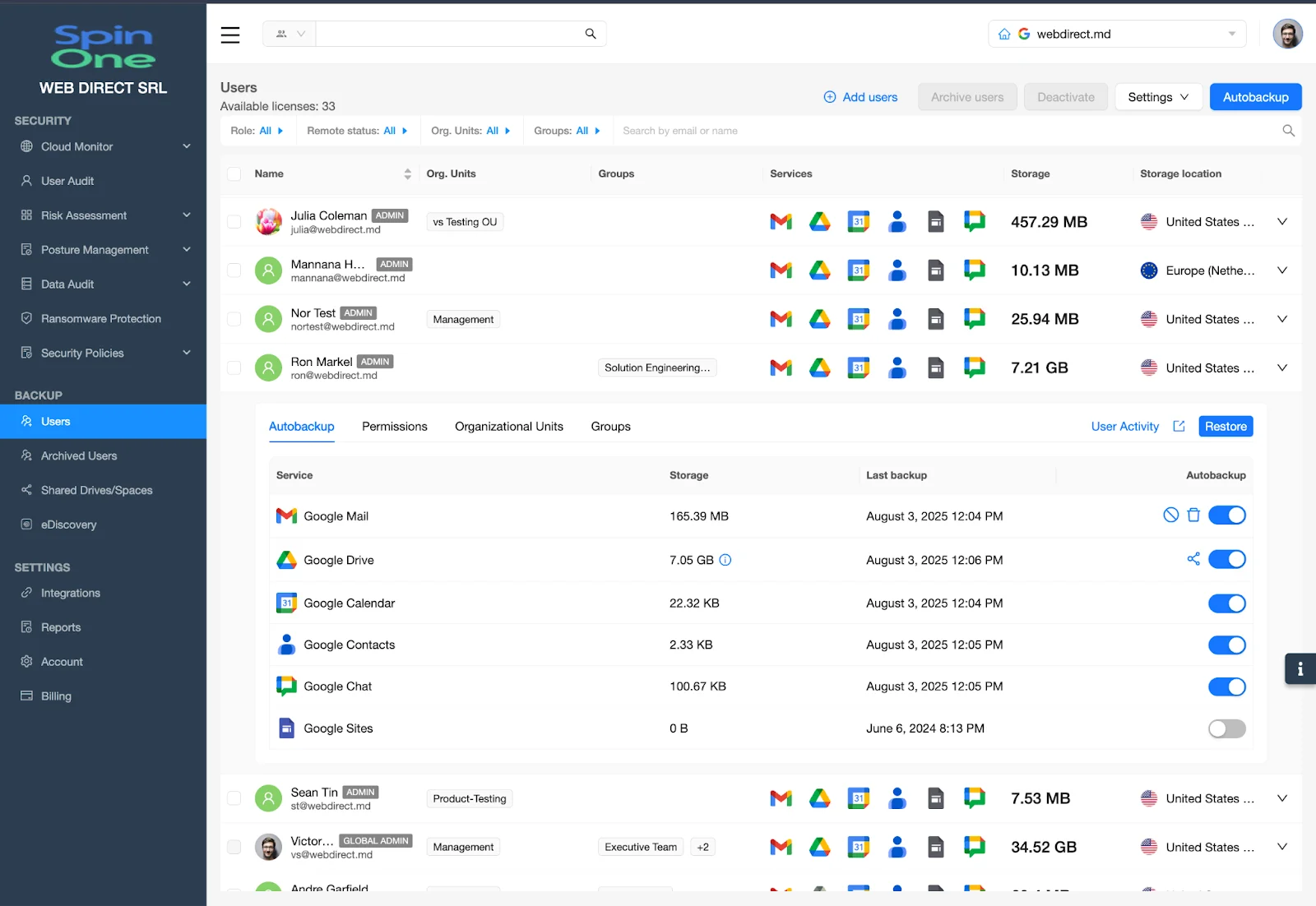
Now, select the User to whom you want to assign permissions…
From the Permissions tab, you can see all of the available permissions that can be toggled on for this User…
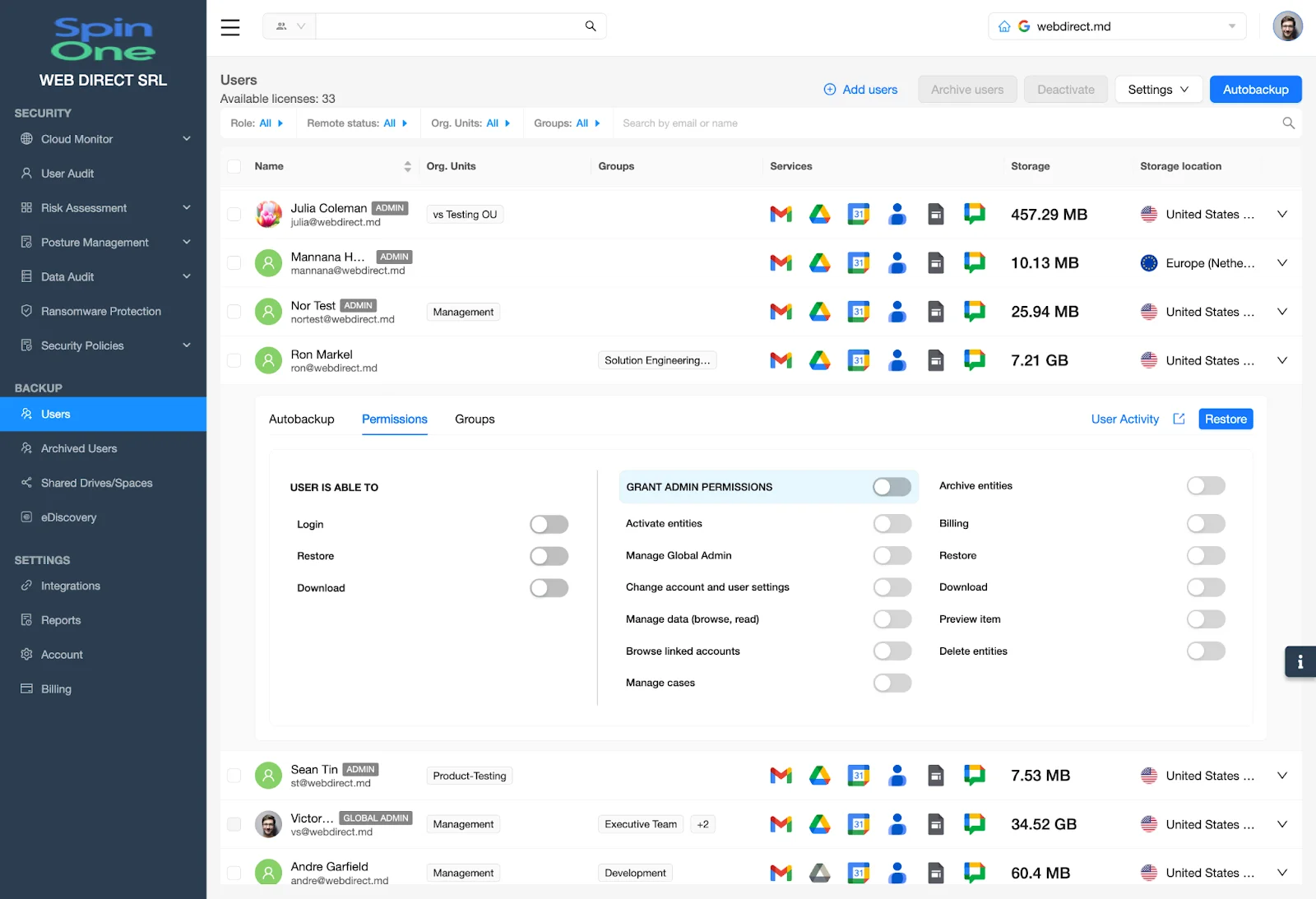
Now you can easily customize the permissions set for this user.
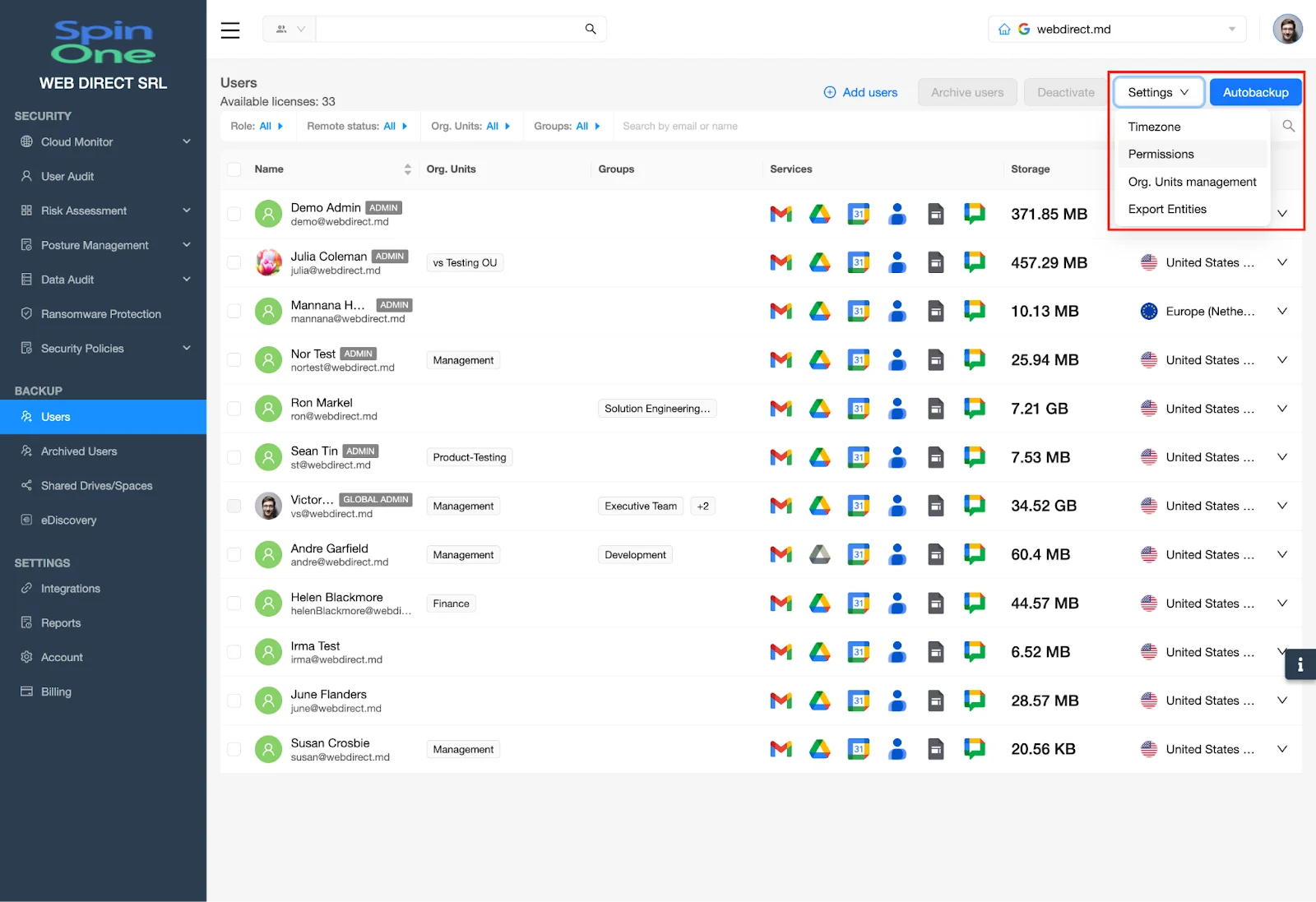
If you would like to update permissions for ALL users, or for a certain Organization Unit, select Permissions from the Settings on the top right of the current screen.
From here, you are able to change the permissions for the selected Users or Organization Units…
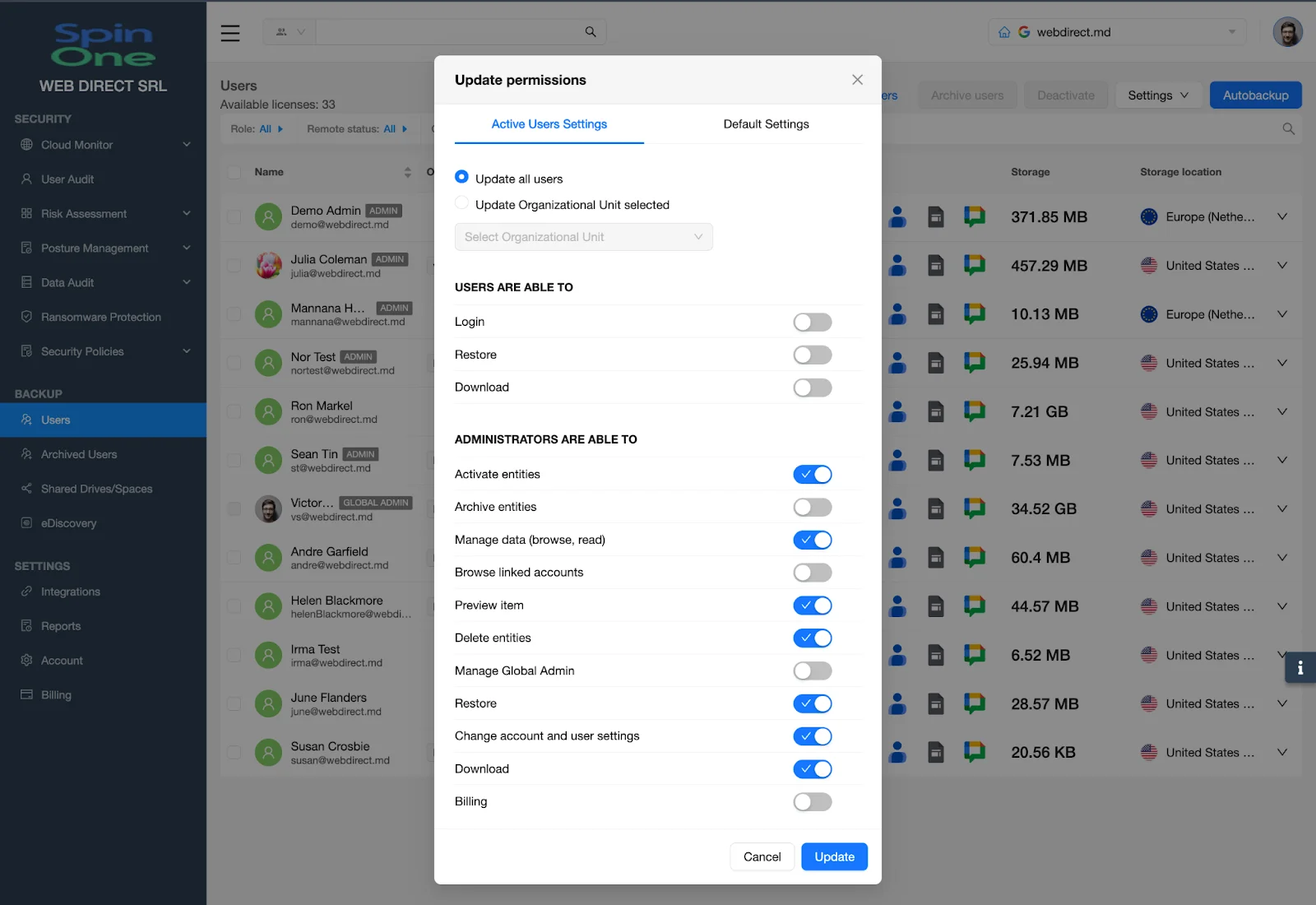
Understanding What Each Permission Set Entails
It is important to understand what each permission set entails in order to correctly delegate access to anyone needed.
You can delegate an end-user with the ability to simply login, and manage their own data by providing the following permissions:
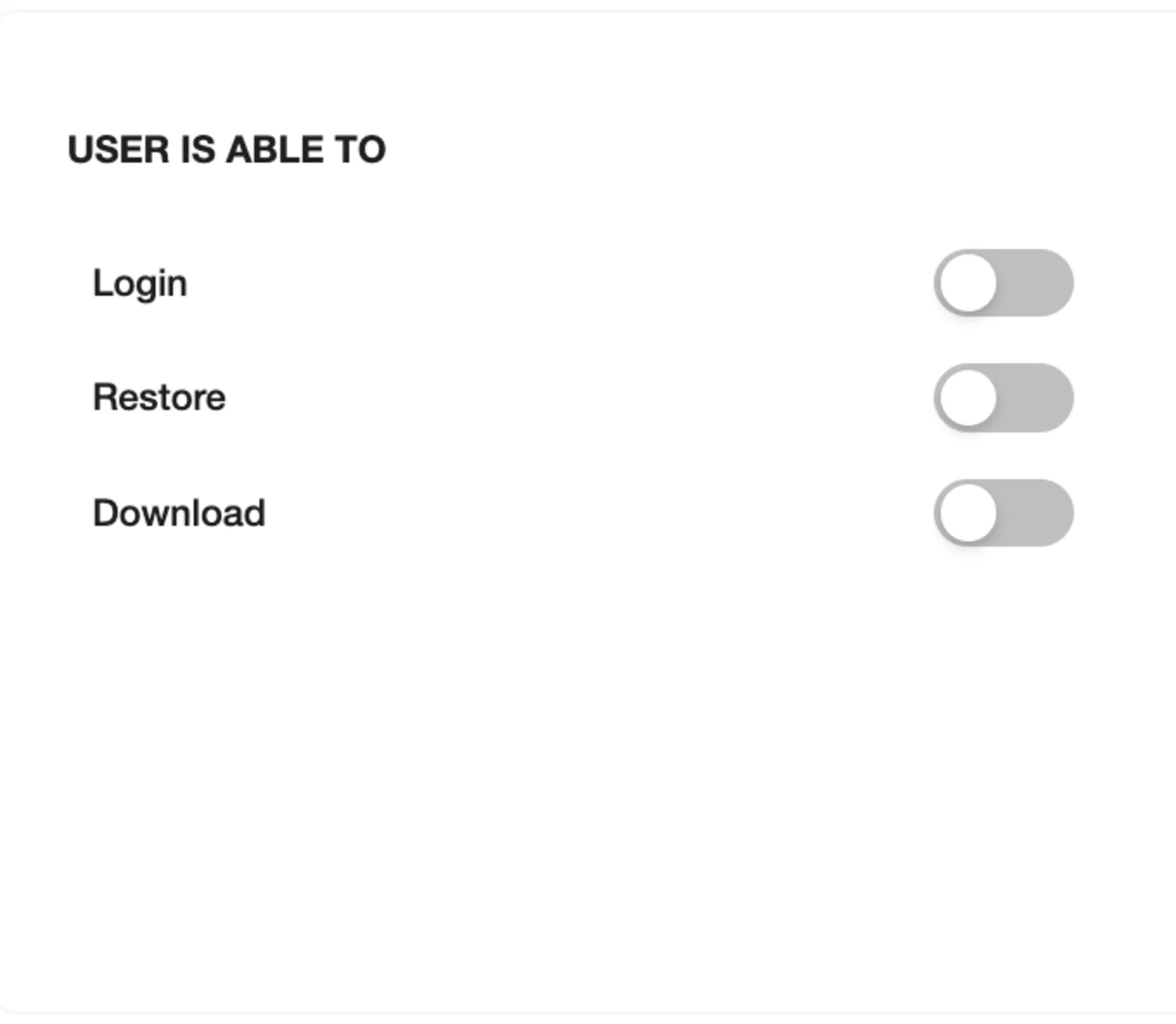
- Login – Allows the User to login to the SpinOne platform
- Restore – Allows the user to restore their own data
- Download – Allows the user to download their own data
In order to provide Administrative privileges, first, ensure that the User is Able to permissions are enabled and then proceed to provide further permissions…
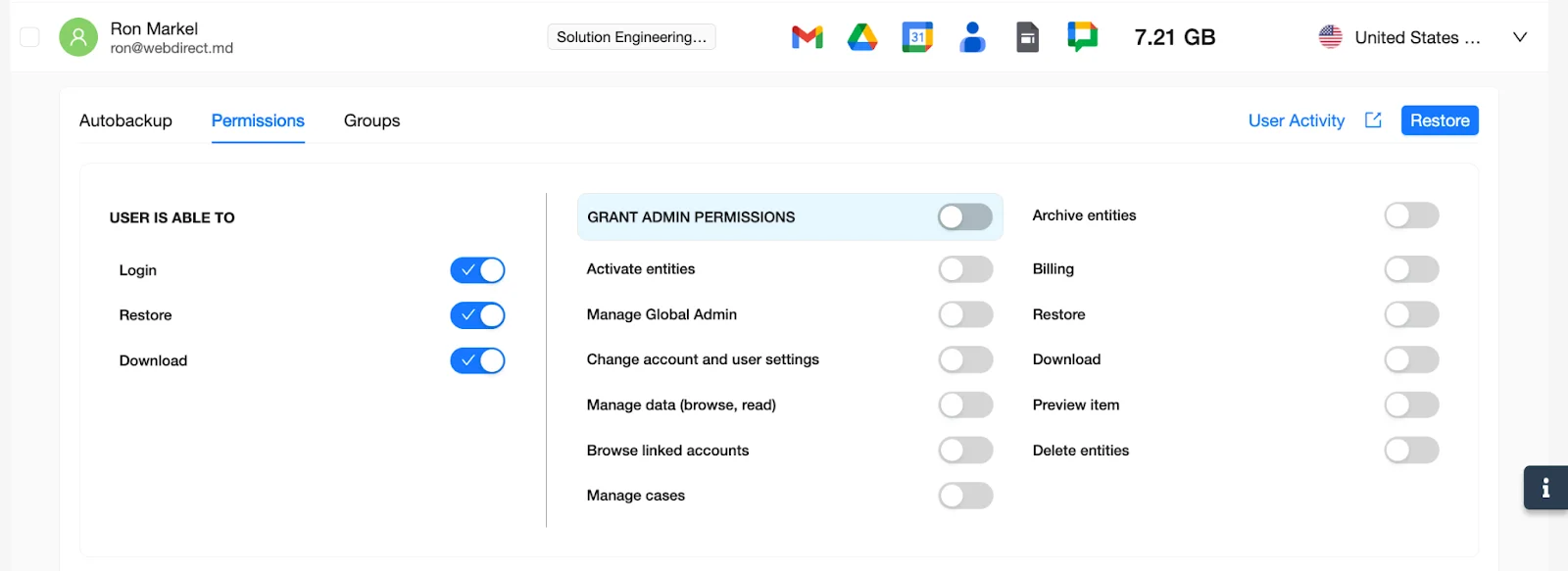
Start off by enabling the Grant Admin Permissions toggle. Once this has been enabled, this User is automatically marked as an administrator on the SpinOne console. Enabling this will now allow you to customize the rest of the administrative permissions. The administrator will by default be able to view all Users, unless access is restricted to a certain Organizational Unit.
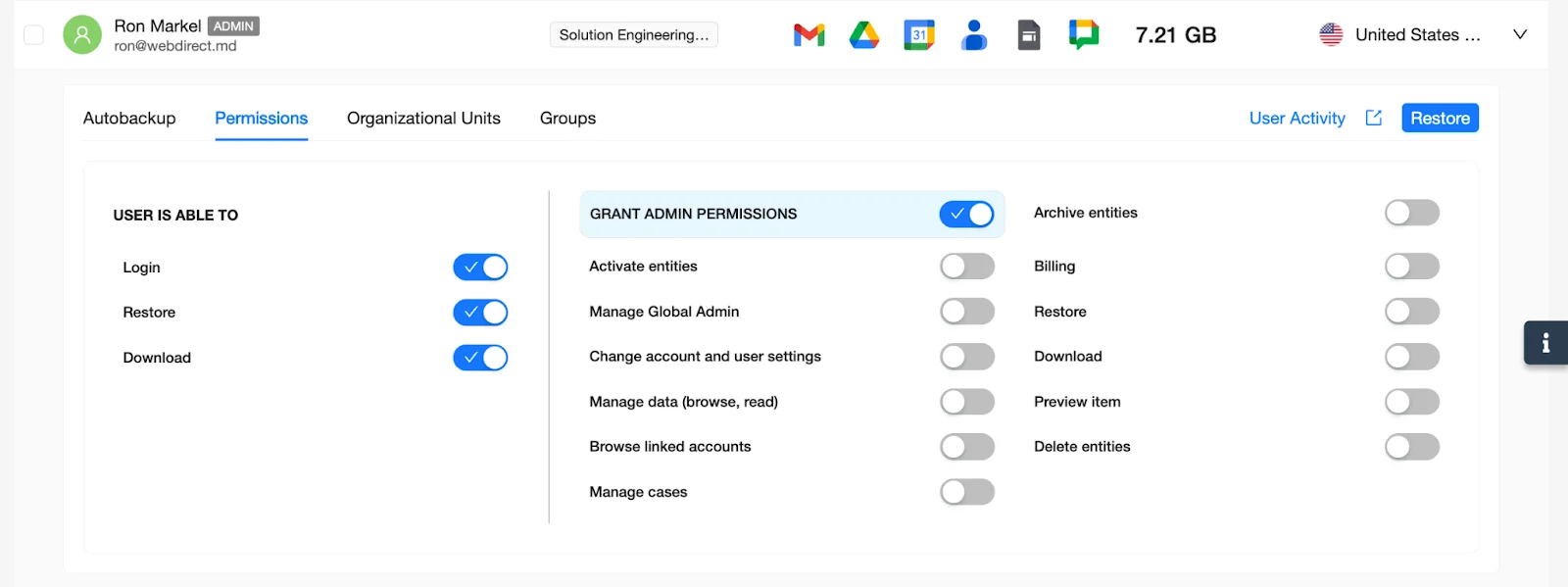
Lastly, let’s go through what each permission means:
- Activate Entities – Ability to onboard Users, Shared Drives and Spaces
- Manage Global Admin – Ability to see and manage the Root Administrator User
- Change Account and User Settings – access to the Account Settings to manage automation, reporting, backup frequency, etc.
- Manage data (browse, read) – Ability to view titles of User data such as Gmail and GDrive
- Browse Linked Accounts – Ability to access other Spin Accounts that are linked together
- Manage Cases – Ability for a User to access and action eDiscovery Cases
- Archive Entities – Ability to Archive users on SpinOne
- Billing – Ability to add licenses, change plans and manage payment
- Restore – Ability to launch restores of accessible user data (includes cross-user restoration)
- Download – Ability to export backed up data to a local device
- Preview Item – Ability to preview emails on SpinOne
- Delete users – Ability to remove a User from SpinOne
Once these permissions have been updated, the user can access the SpinOne platform in the same manner as the Root Administrator: initially by OAuth (using “Sign in With Microsoft”), and then with the ability to create their own unique SpinOne credentials.
If you would like an administrator to only have access to Users from a certain Organizational Unit, restrict their access to those OUs by following these steps:
- Select Users on the lefthand toolbar and then select Settings on the top right corner of the page and click Org. Units Management…
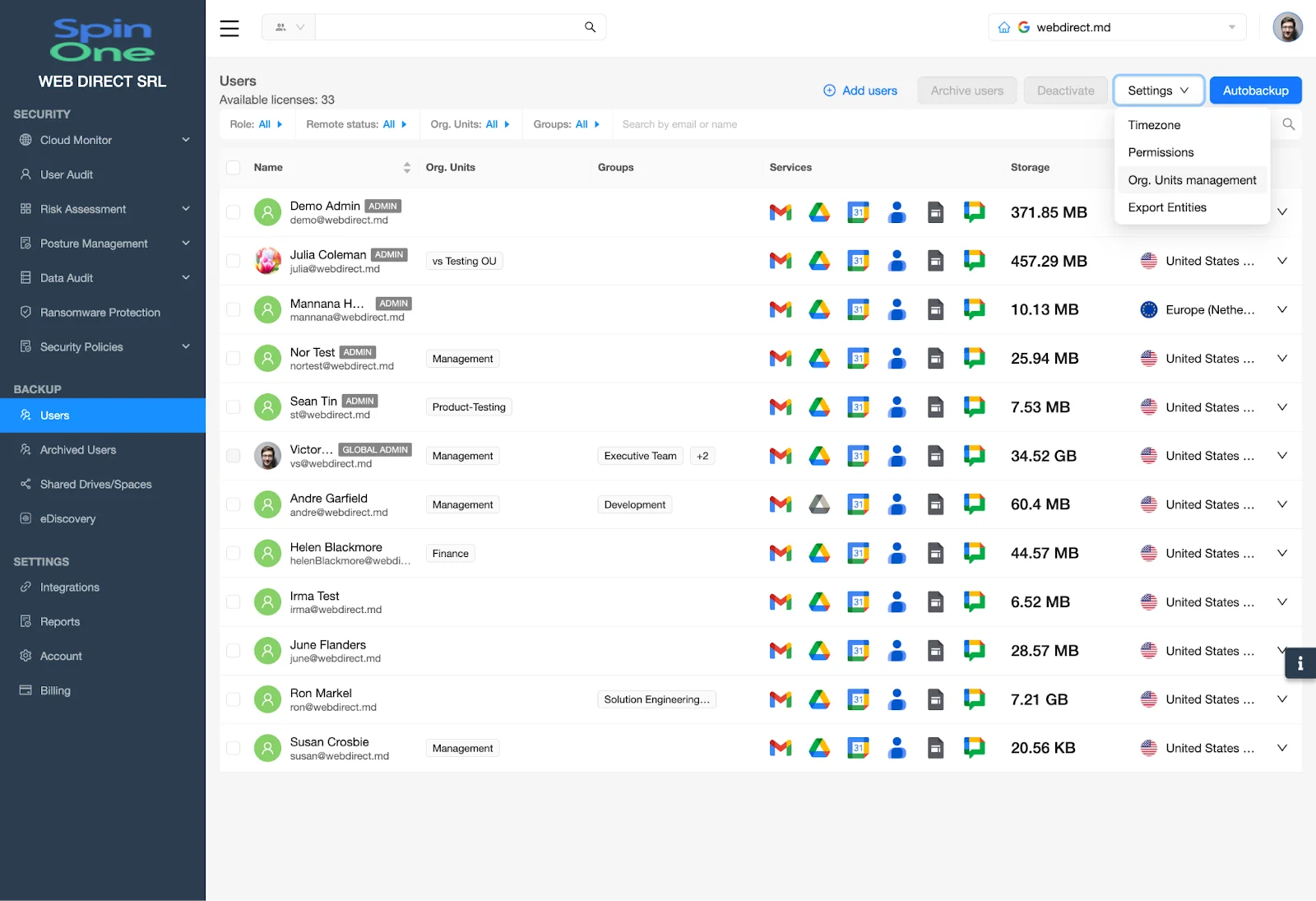
- Select an Organizational Unit and then search for the User(s) that you want to be an Admin for this OU.
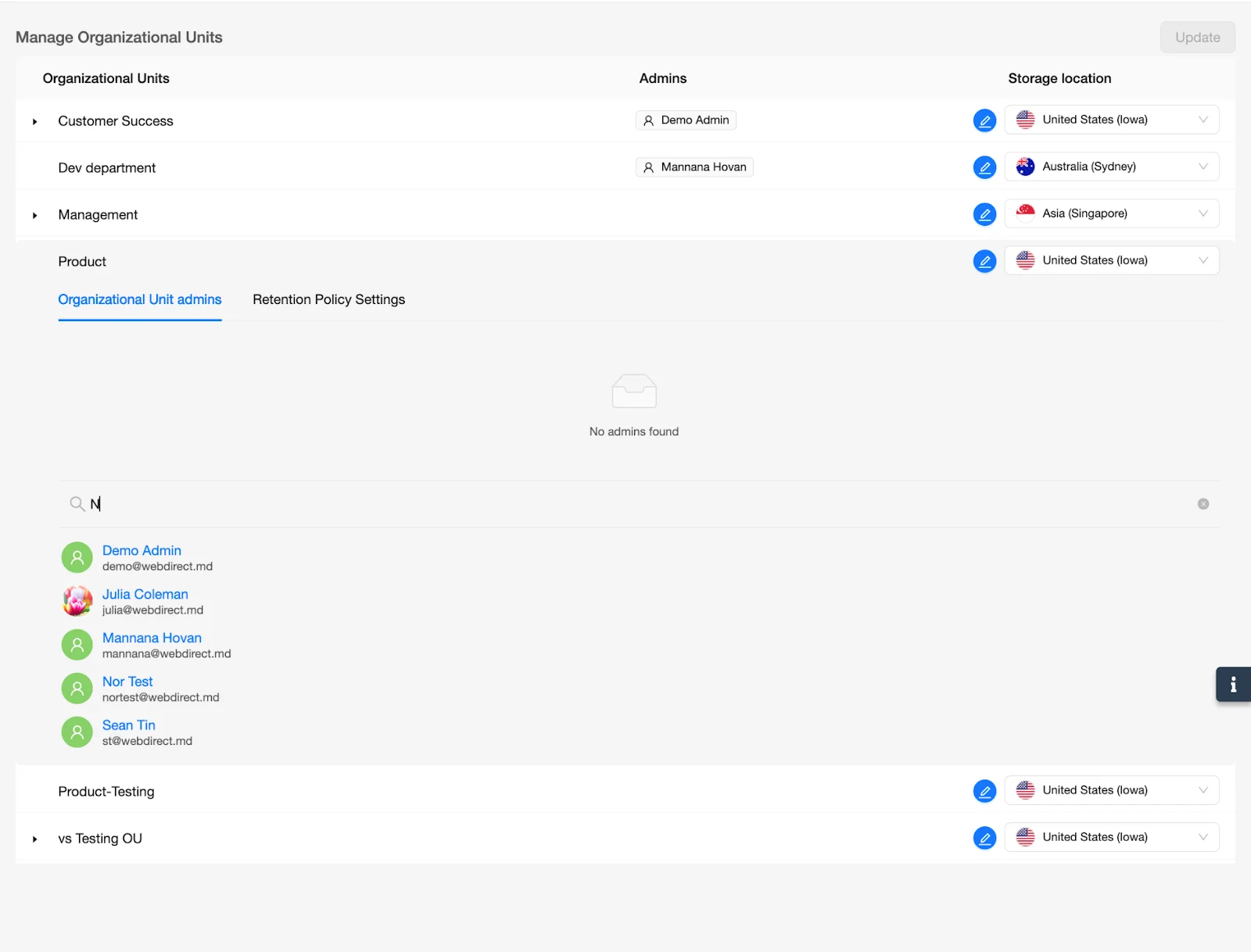
- Once you have identified a User, click the + sign on the far right of the page…
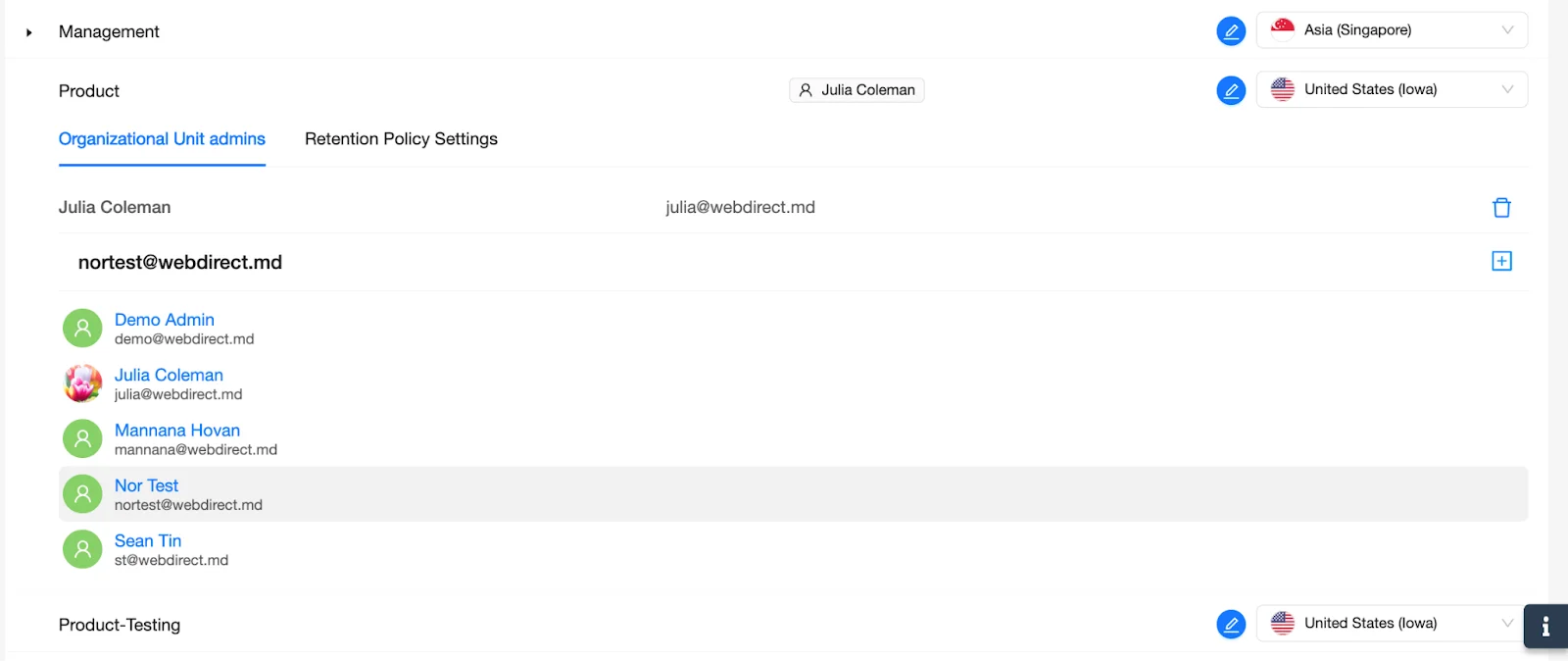
- Now, this user account can only access and manage (based on their permissions) users from the specified Organizational Unit…
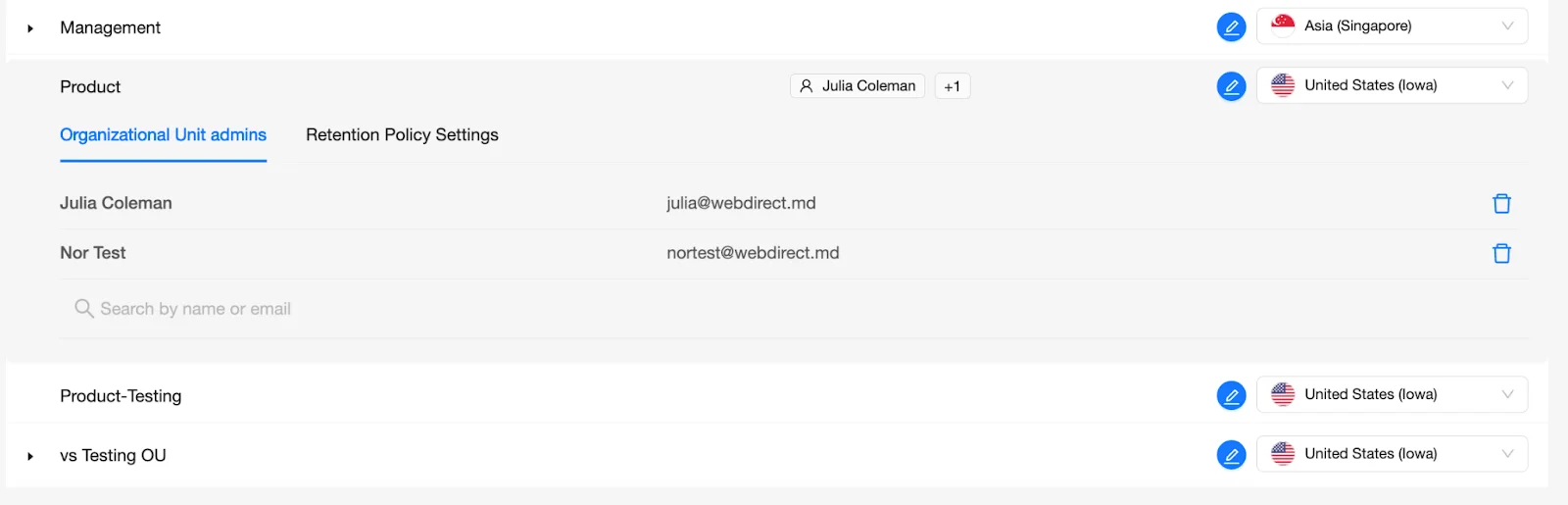
You can add more administrators to the same OU or remove these administrators as necessary.