
SpinCRX Account Security Policy

Account Policy is a pivotal feature within our product, designed to streamline onboarding and offboarding workflows on the SpinCRX platform. This policy empowers customers by automating license procurement as required, ensuring a seamless user experience.
To begin creating Account Security Policies, navigate to SpinCRX…
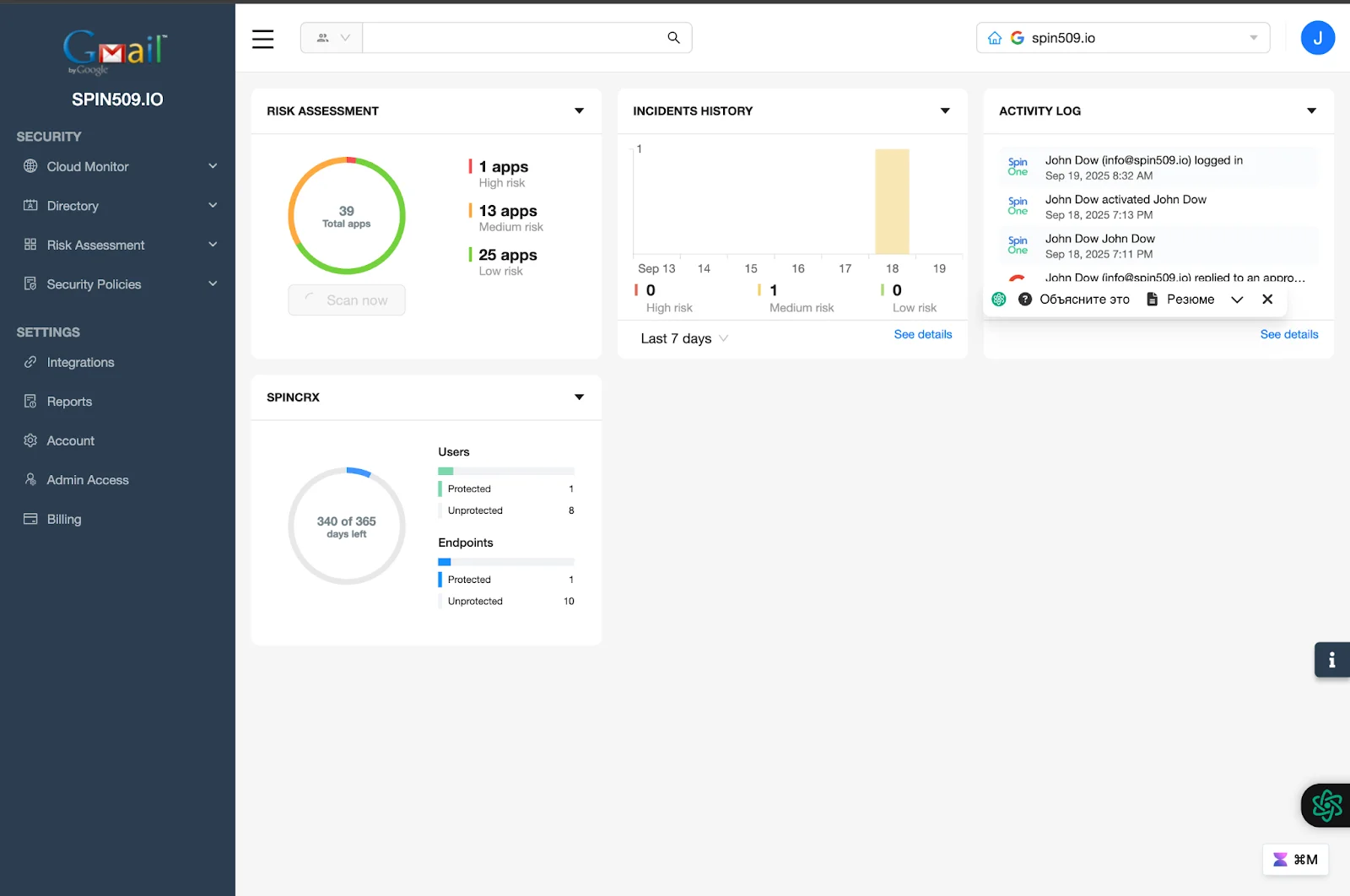
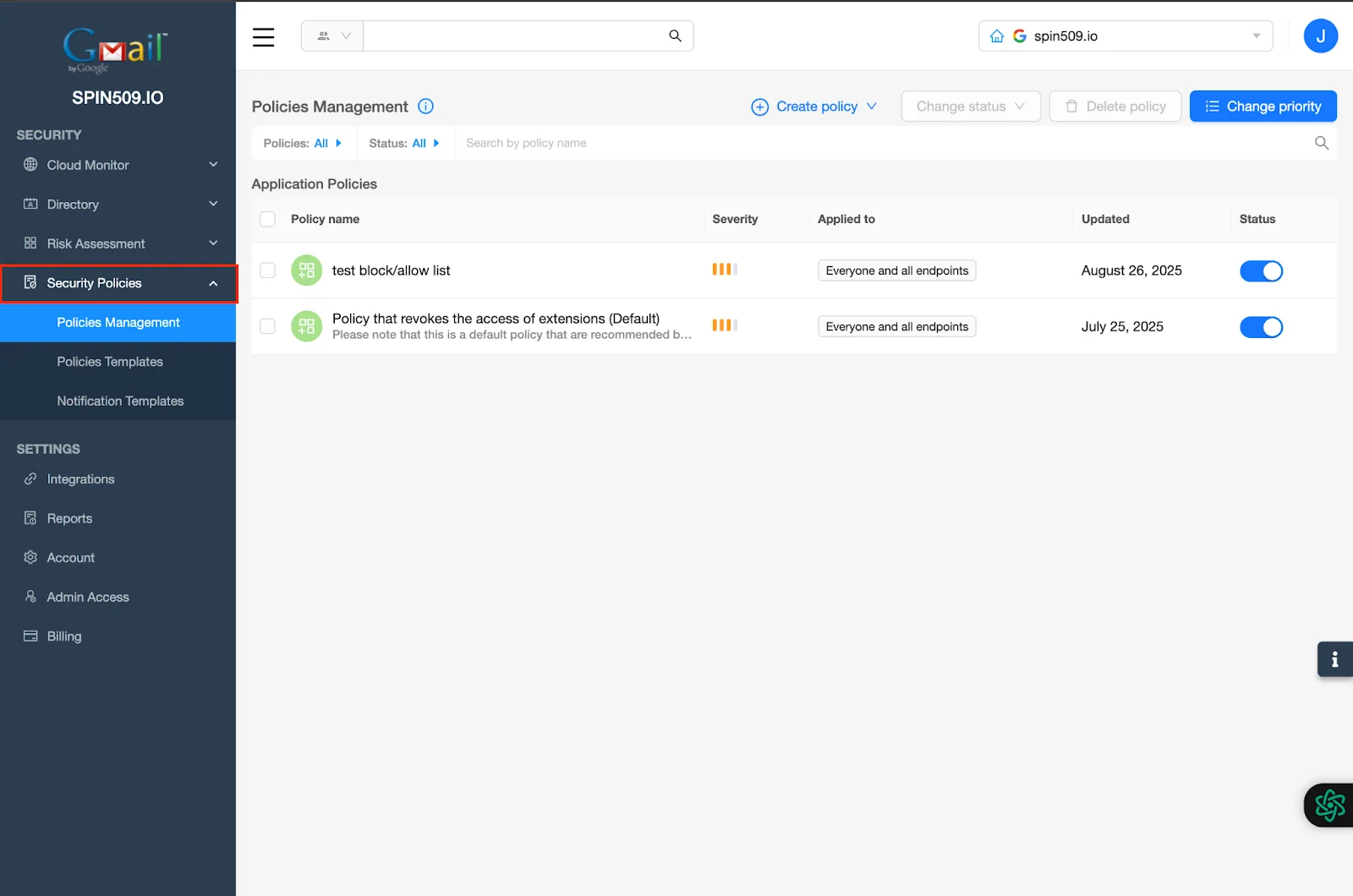
From here, select Security Policies on the left hand toolbar – You will automatically be directed to the Policies Management menu…
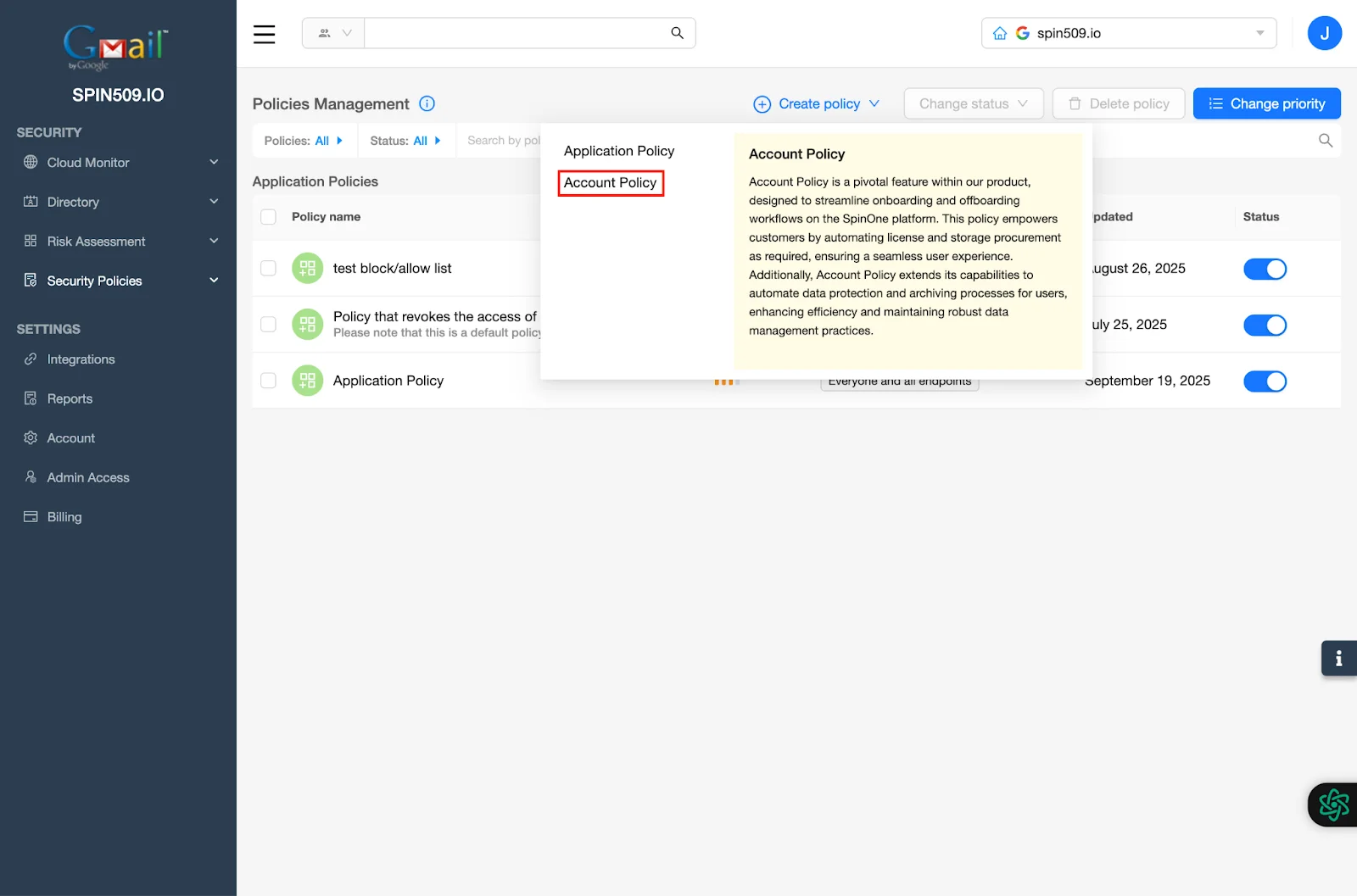
Now, select Create Policy and select Account Policy…
Now, you should see the Security Policy creation menu… start by giving your Account Security Policy a name by navigating to Policy Name and a brief summary found under Description…
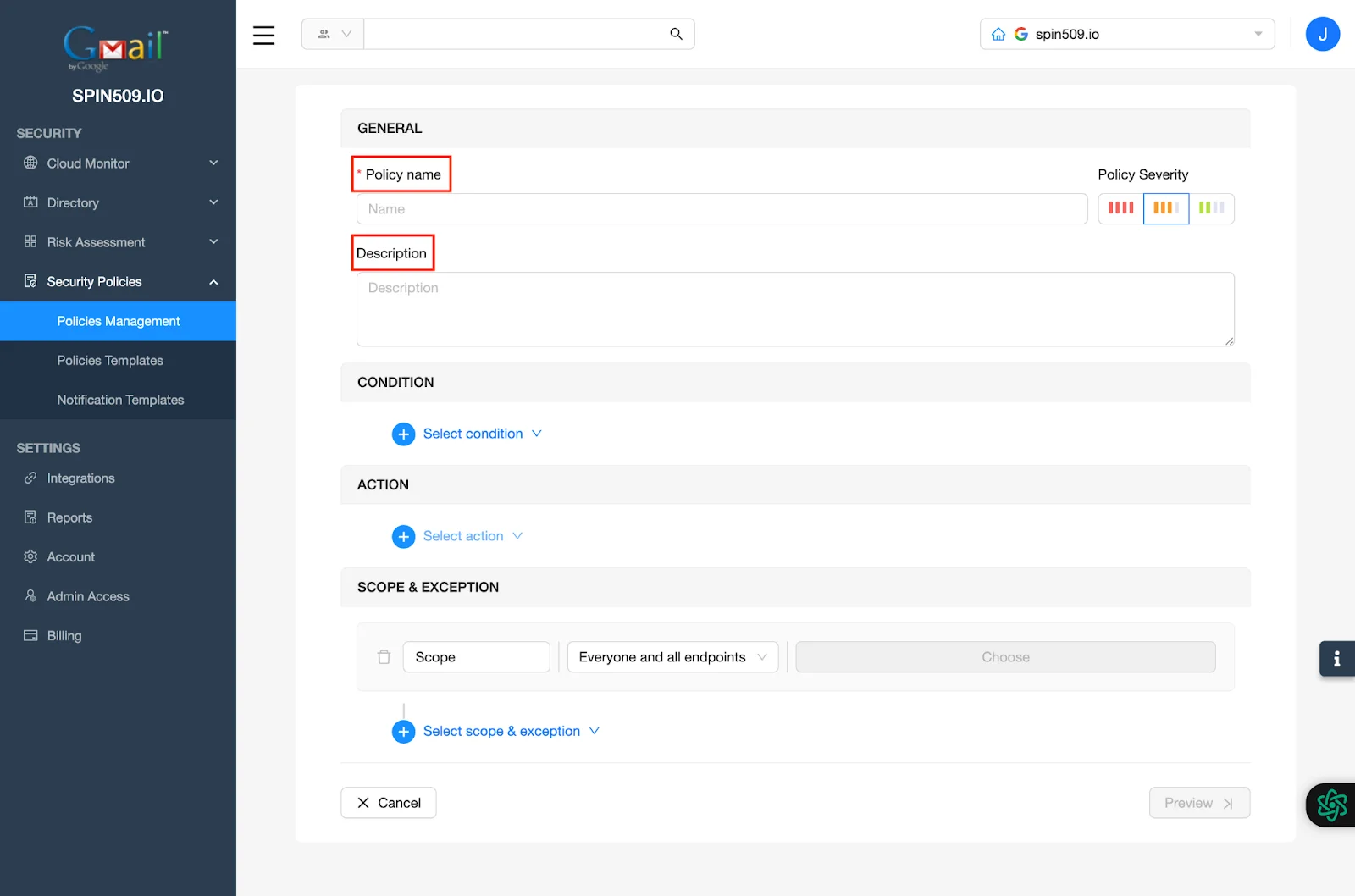
Next, navigate to the Condition section and click Select Condition…
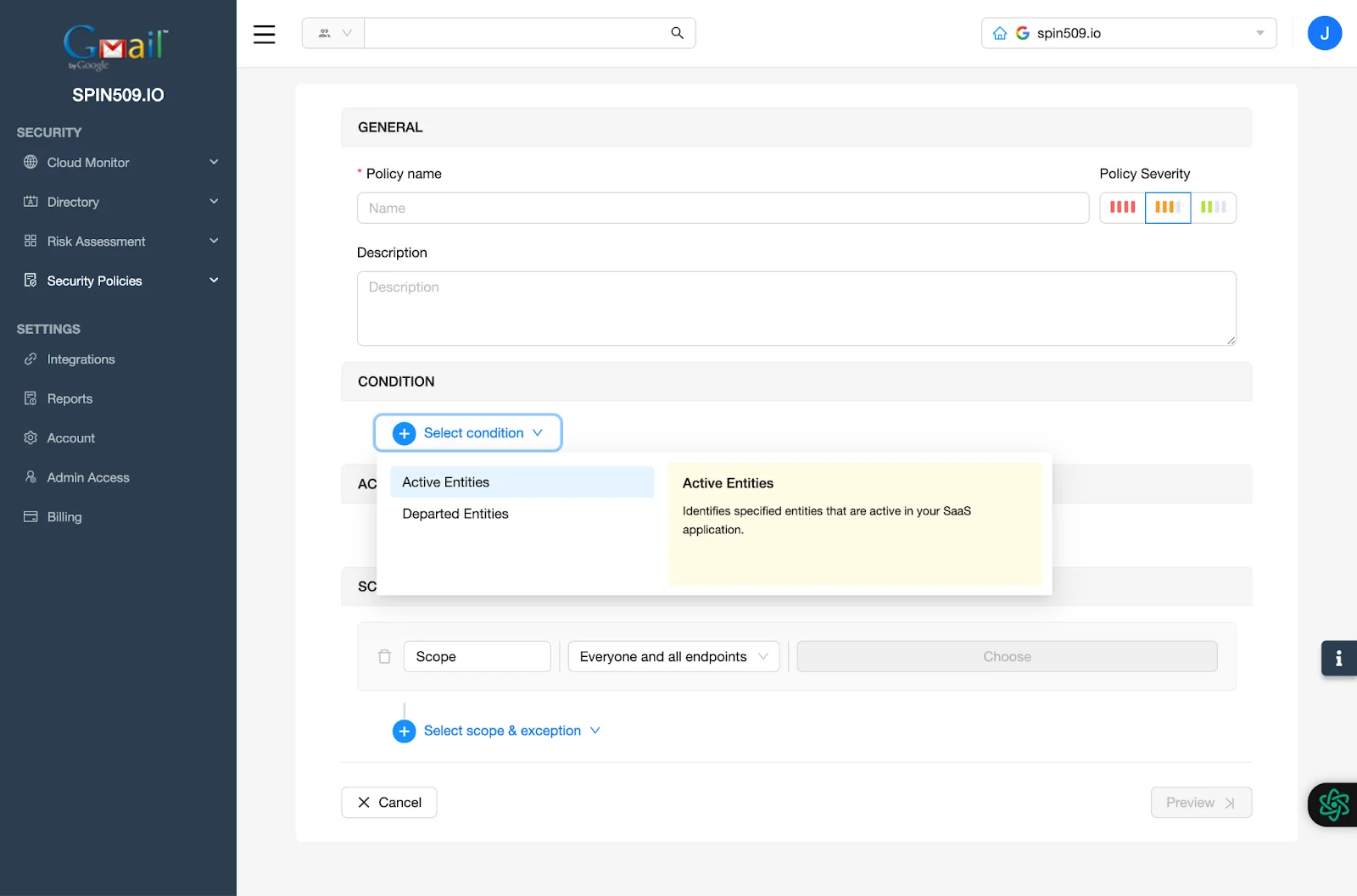
From here, you can determine if you want to create an automation rule for managing the onboarding of Users or Endpoints (Active Entities) or the offboarding of Endpoints or Users (Departed Entities).
For this article, we will demonstrate how to automate the onboarding of Endpoints or Users.
To do this, click Active Entities and select All Users and All Endpoints…
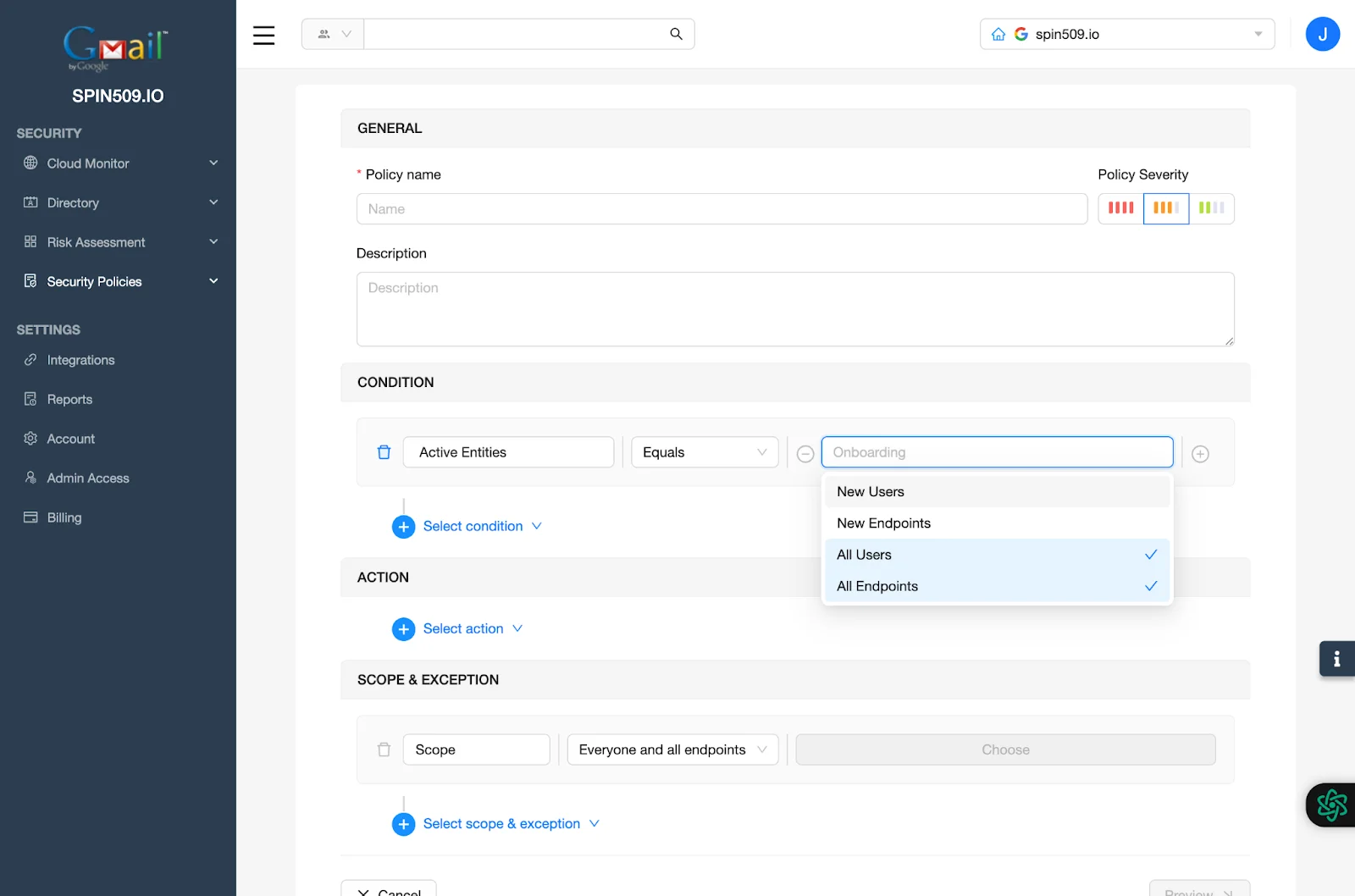
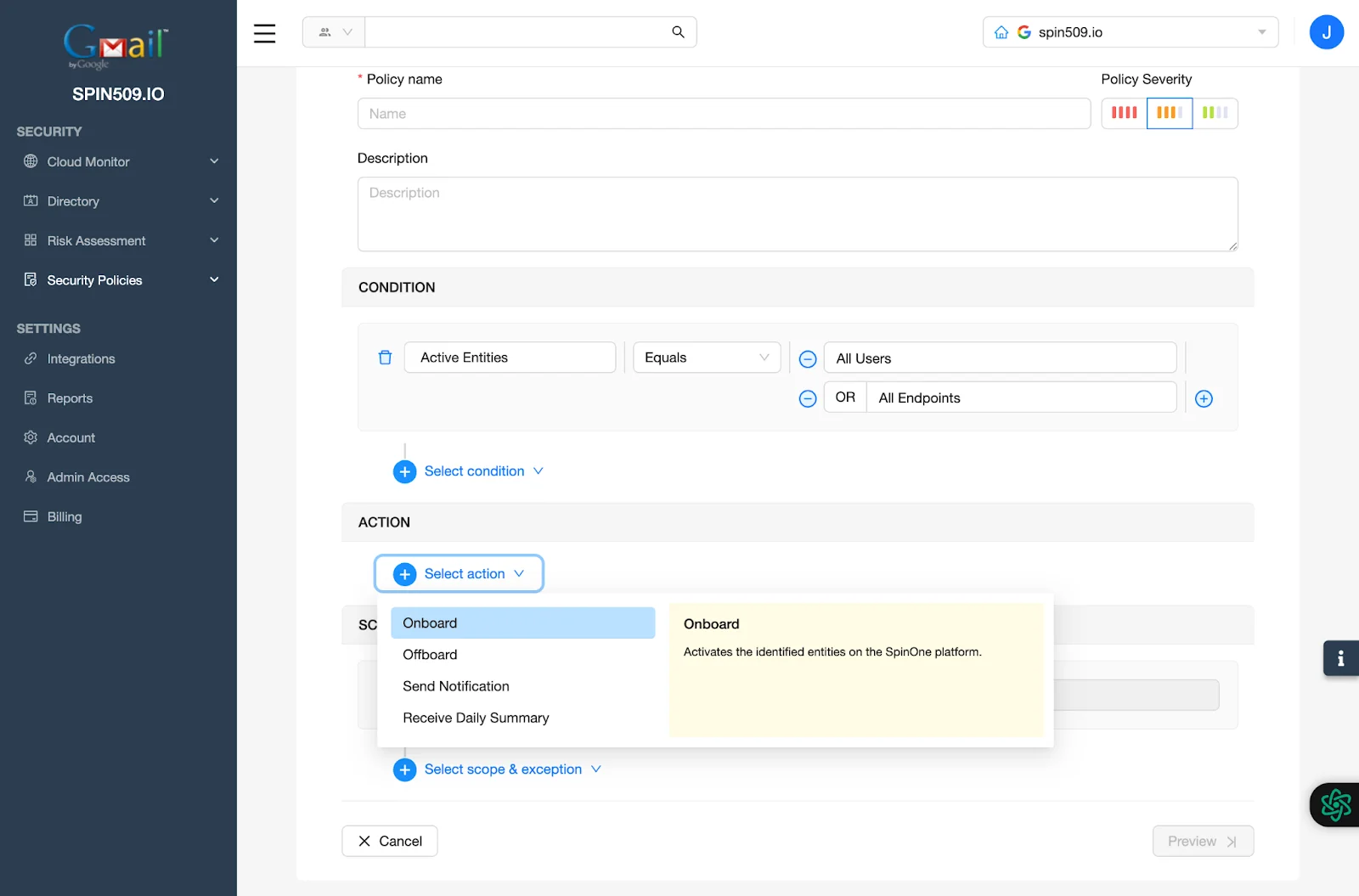
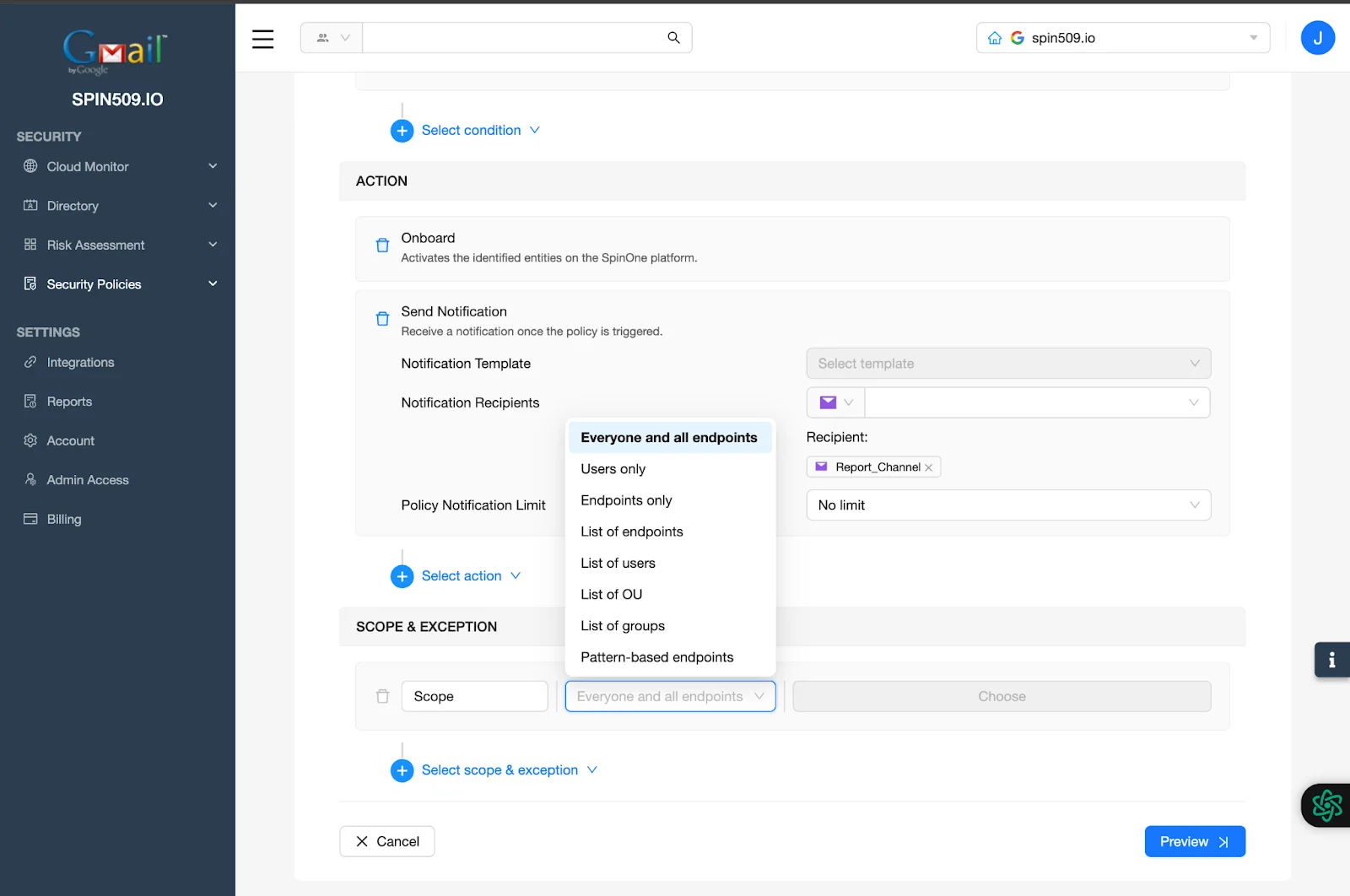
Now, navigate to the Action menu to determine what this Security Policy should do if triggered.
Click Select Action and select Onboard and Send Notification…
Your Account Policy should now look like this…
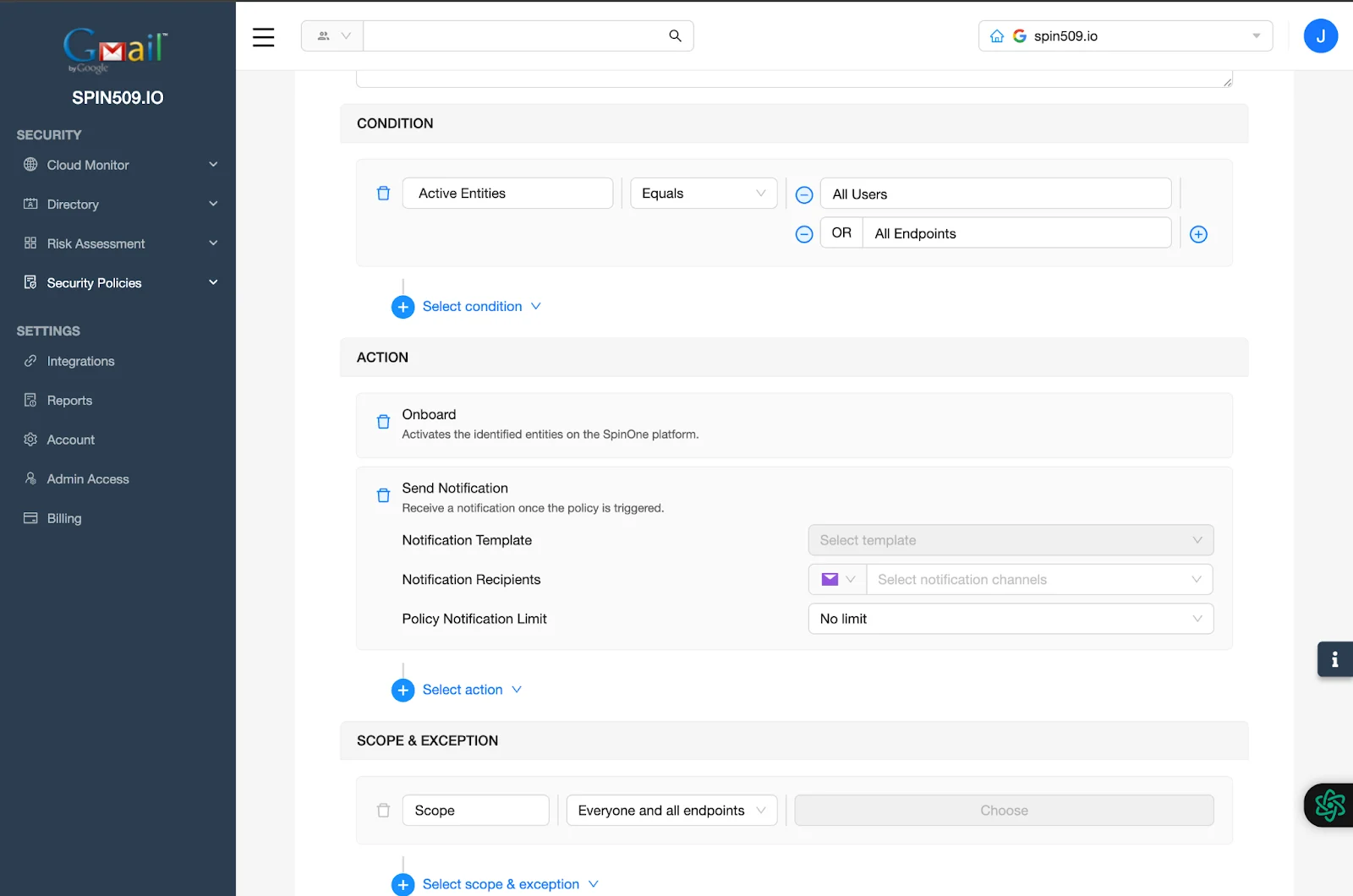
Now that you’ve determined you want a Security Policy to automatically identify unlicensed Users and Endpoints and onboard those entities to SpinCRX, it is time to wrap up by specifying the Scope and Exception of the Security Policy…
Lastly, navigate to Scope & Exception and determine the scope of the entities to which this Security Policy should apply and once completed, select Preview and then Save.
Congratulations! You have successfully created your Application Security Policy!
Be sure to reference other Knowledge Base articles; showing how to onboard Endpoints as well as Users from your Directory and other automation tips and tricks!