
The only platform that unifies
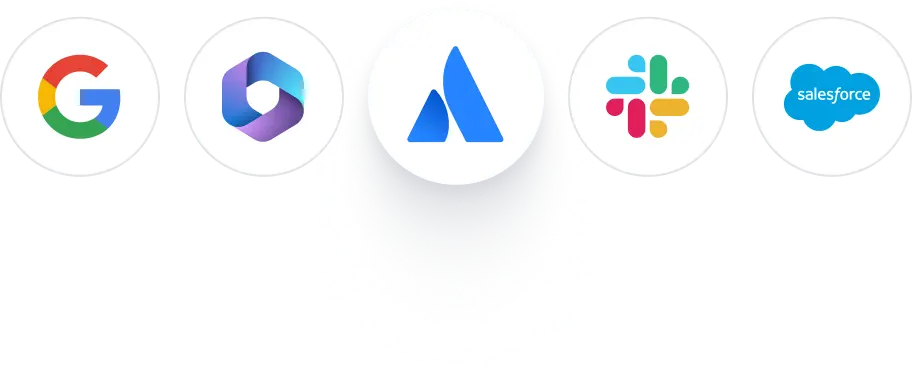
SpinOne secures all your browsers, including Chrome, Edge, Firefox, and Safari, provides cloud backup and recovery for Google Workspace, Microsoft 365, Salesforce, Slack, Jira, and Confluence, and helps organizations govern AI.

IN STRATEGIC BROWSER SECURITY PARTNERSHIPS WITH:

Google Chrome Enterprise

Fortinet

Menlo Security
Trusted by 2,000+ organizations across 100+ countries — from mid-market software companies to global enterprises




What DOES SpinOne DO?
Take control of SaaS Security with Chrome Enterprise and SpinOne
SpinOne is an AI-powered security and backup platform built by Spin.AI for cloud-first, midmarket and large enterprise organizations and MSPs. It protects business-critical cloud data in Google Workspace, Microsoft 365, Salesforce, Slack and, with the 2026 acquisition of Revyz, Atlassian Jira and Confluence. SpinOne combines three solutions in one console: automated SaaS backup with the industry’s fastest ransomware recovery SLA (SpinBackup), SaaS Security Posture Management (SSPM), and enterprise browser security (SpinCRX) delivered in partnership with Google, Fortinet, and Menlo Security.

SOC 2 Type II · HIPAA · GDPR
Cloud software is powerful, but carries inherent risk.
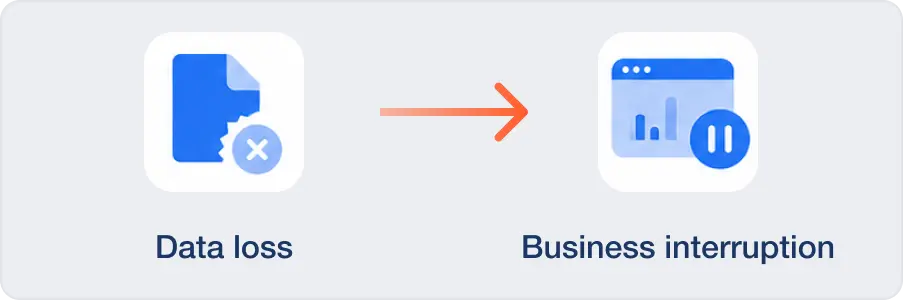
Data Loss
Challenge
Data loss from accidental deletion, a provider issue, or an attack can halt business operations.
Solution
Business delivery can’t wait days or weeks, and backing up your data is just one piece of the puzzle. Without rapid recovery, you can get caught in API throttling delays or other slowdowns that can bring your business to a halt. You need access to your data all the time, every day. SpinBackup gives you automated, 1x or 3x daily backups with granular restore capabilities. With SpinBackup, you can recover only the data you lost, so you don’t have to roll back your entire SaaS environment
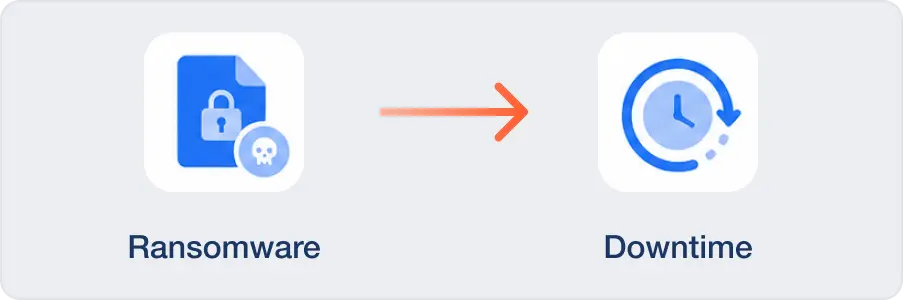
Ransomware
Challenge
Ransomware is an ever-present threat.
Solution
Industry vendors claim the average recovery time for a ransomware attack is 21 to 24 day, but the truth is, most organizations are still recovering 100 days later (Verizon DBIR 2025). Most backup solutions only protect your backed-up data, not the data in your live applications. SpinBackup uses AI and heuristics to detect ransomware behavior in your live SaaS data, isolates and minimizes the blast radius, and restores clean versions fast. Our solution is so effective that we even offer a 2 hour ransomware recovery SLA, the fastest in the industry, so downtime doesn’t become the story.
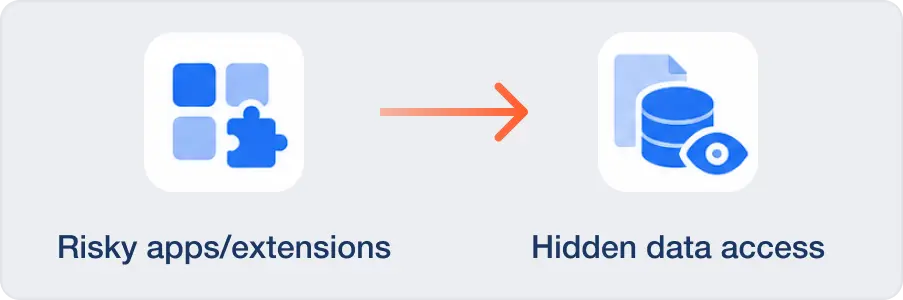
Third-party apps
Challenge
Users can unknowingly connect risky third-party apps and browser extensions to your corporate data.
Solution
If just one in two employees installs a single LLM-powered browser extension, your threat landscape includes hundreds if not thousands of potentially suspicious extensions with direct access to your corporate data. Considering the prolific use of AI-enabled work tools, that number is growing daily. Researching each one manually can create a months or even years-long backlog. SpinCRX gives you comprehensive browser security management with flexible deployment models to meet enterprise requirements. As a key partner, Spin.AI works with Google Chrome Enterprise™, integrating Spin’s risk assessments directly with the Google Admin Console to provide instant and continuous risk evaluation on all extensions.
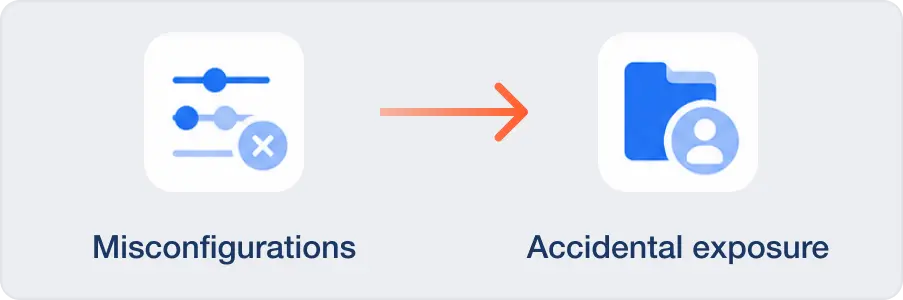
Misconfigurations
Challenge
Software misconfigurations can expose data users didn’t mean to share.
Solution
A single public link, an overly broad sharing rule, or a mis-set admin permission can create a quiet, costly exposure. SpinSPM continuously monitors posture, flags misconfigurations, and guides you to fix them before auditors or attackers find them, security posture management minus the guesswork and finger-crossing.
Insider threats
Challenge
Insider threats and departing employees represent real risk to your data.
Solution
Experts at Carnegie Mellon, a leading cybersecurity research university, recommend that organizations must identify, classify, and protect their most critical assets from insider threats, whether malicious or accidental. That includes your critical SaaS data. DLP and SSPM from Spin.AI help you spot suspicious behavior patterns and reduce data exposure with policy-based controls and fast rollback, so one click doesn’t turn into a headline. Detecting anomalous activity early and limiting access quickly can be the difference between a near-miss and a breach.
Fragmented tools
Challenge
Fragmented tools slow down your team.
Solution
75% of enterprise organizations have started consolidating toolsets to reduce portal overload and vendor management burdens. Spin.AI brings the cloud essentials together: backup, ransomware detection and response, posture management, archiving, eDiscovery, and enterprise browser security. With SpinOne, your team can move faster with fewer moving parts. One product for backup, another for app risk, another for browser security… and another for posture. Integration gaps, inconsistent data, and multiple contracts add cost and complexity while creating security blind spots.
Challenge
Data loss from accidental deletion, a provider issue, or an attack can halt business operations.
Solution
Business delivery can’t wait days or weeks, and backing up your data is just one piece of the puzzle. Without rapid recovery, you can get caught in API throttling delays or other slowdowns that can bring your business to a halt. You need access to your data all the time, every day. SpinBackup gives you automated, 1x or 3x daily backups with granular restore capabilities. With SpinBackup, you can recover only the data you lost, so you don’t have to roll back your entire SaaS environment
Challenge
Ransomware is an ever-present threat.
Solution
Industry vendors claim the average recovery time for a ransomware attack is 21 to 24 day, but the truth is, most organizations are still recovering 100 days later (Verizon DBIR 2025). Most backup solutions only protect your backed-up data, not the data in your live applications. SpinBackup uses AI and heuristics to detect ransomware behavior in your live SaaS data, isolates and minimizes the blast radius, and restores clean versions fast. Our solution is so effective that we even offer a 2 hour ransomware recovery SLA, the fastest in the industry, so downtime doesn’t become the story.
Challenge
Users can unknowingly connect risky third-party apps and browser extensions to your corporate data.
Solution
If just one in two employees installs a single LLM-powered browser extension, your threat landscape includes hundreds if not thousands of potentially suspicious extensions with direct access to your corporate data. Considering the prolific use of AI-enabled work tools, that number is growing daily. Researching each one manually can create a months or even years-long backlog. SpinCRX gives you comprehensive browser security management with flexible deployment models to meet enterprise requirements. As a key partner, Spin.AI works with Google Chrome Enterprise™, integrating Spin’s risk assessments directly with the Google Admin Console to provide instant and continuous risk evaluation on all extensions.
Challenge
Software misconfigurations can expose data users didn’t mean to share.
Solution
A single public link, an overly broad sharing rule, or a mis-set admin permission can create a quiet, costly exposure. SpinSPM continuously monitors posture, flags misconfigurations, and guides you to fix them before auditors or attackers find them, security posture management minus the guesswork and finger-crossing.
Challenge
Insider threats and departing employees represent real risk to your data.
Solution
Experts at Carnegie Mellon, a leading cybersecurity research university, recommend that organizations must identify, classify, and protect their most critical assets from insider threats, whether malicious or accidental. That includes your critical SaaS data. DLP and SSPM from Spin.AI help you spot suspicious behavior patterns and reduce data exposure with policy-based controls and fast rollback, so one click doesn’t turn into a headline. Detecting anomalous activity early and limiting access quickly can be the difference between a near-miss and a breach.
Challenge
Fragmented tools slow down your team.
Solution
75% of enterprise organizations have started consolidating toolsets to reduce portal overload and vendor management burdens. Spin.AI brings the cloud essentials together: backup, ransomware detection and response, posture management, archiving, eDiscovery, and enterprise browser security. With SpinOne, your team can move faster with fewer moving parts. One product for backup, another for app risk, another for browser security… and another for posture. Integration gaps, inconsistent data, and multiple contracts add cost and complexity while creating security blind spots.



Book a Demo with Spin.AI
Schedule a 30-minute personalized demo with our security engineer
Three solutions. One console.
Every SaaS you run on.
Replace three tools with one. Cover SaaS posture, backup, and browser security with consistent
policies across Google, Microsoft, Salesforce, Slack, and Atlassian.


How does SpinOne protect data in Atlassian?
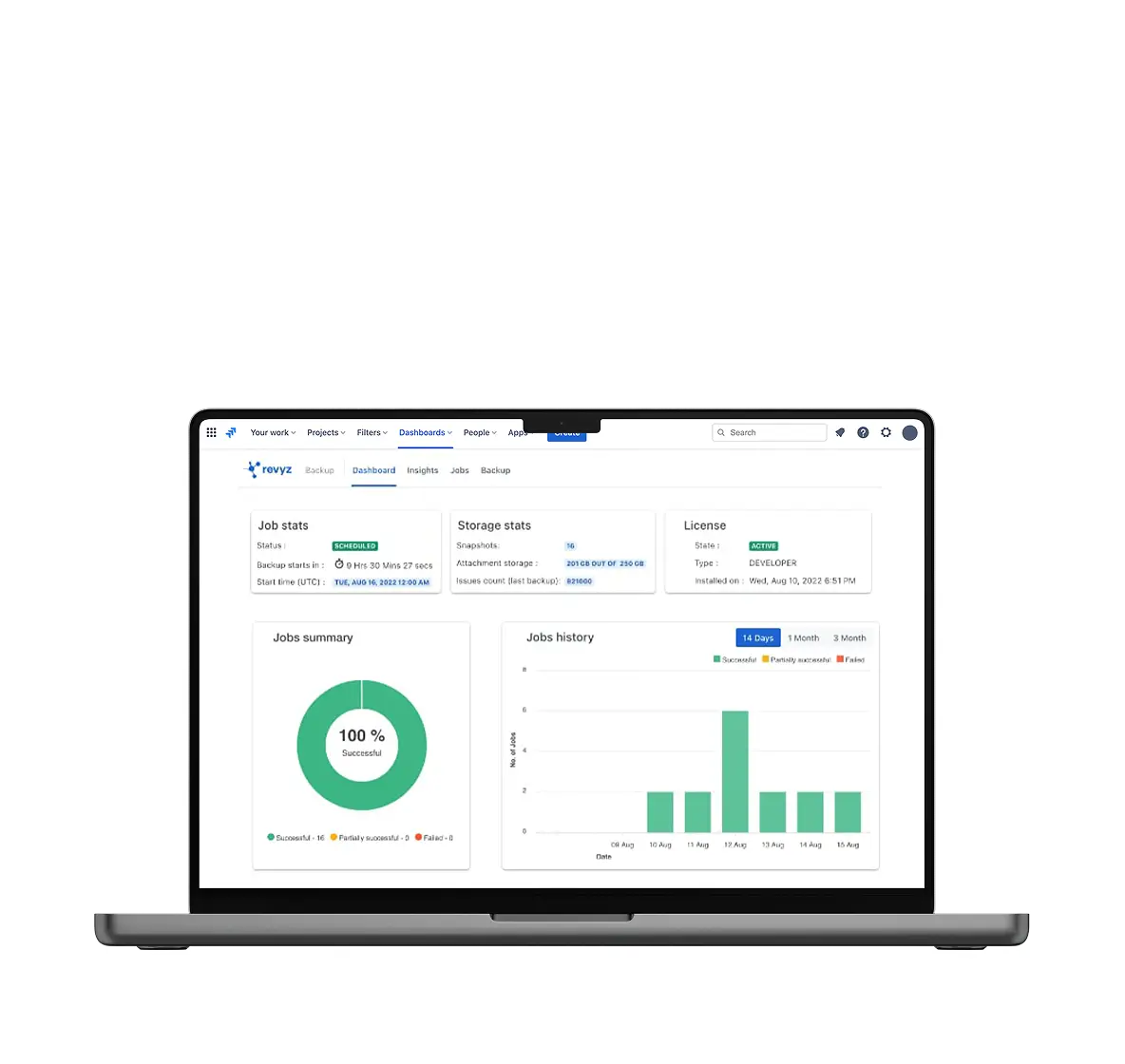
In April 2026, Spin.AI acquired Revyz, an Atlassian Gold Marketplace Partner, to bring enterprise-grade backup and configuration management to Jira and Confluence. SpinOne’s Revyz Command Center for Atlassian fills the gap left by Atlassian’s shared responsibility model: your data and configuration are your responsibility, and we make protecting them as automatic as everything else we back up.
- Granular Jira and Confluence restore at the project, page, attachment, and configuration level
- HTML archiving for instant read-only access without spinning up a full instance
- Comprehensive resilience for your data in Jira, JSM, JWM, JPD, Assets, and connected third-party apps.
- Backup & Granular Restore, Data Deletion Log, Audit Logs Backup, & Data Cloning for Jira & Confluence

What key product options does Spin.AI offer?
Spin.AI offers 4 key product offerings: SpinOne comprehensive protection, SpinCRX, SpinBackup, and SpinSPM.
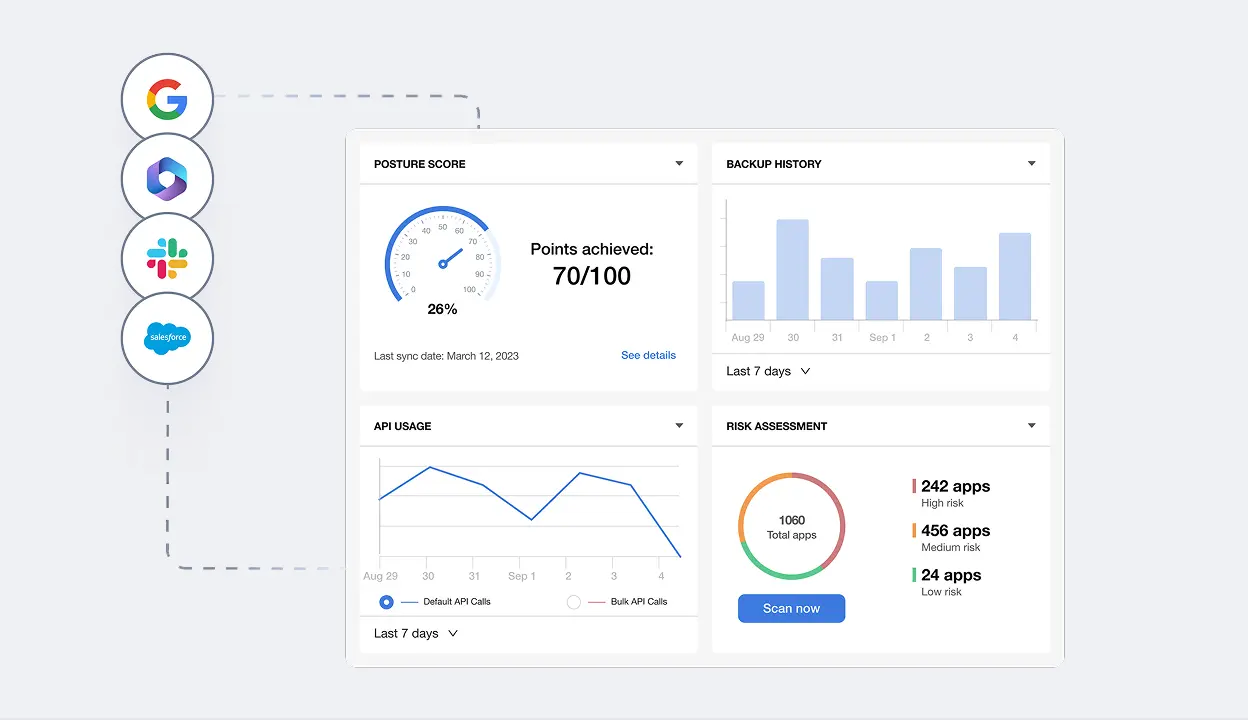

All-in-one SaaS security and data protection
- Automated, 3× daily backups with rapid restore for Google Workspace, Microsoft 365, Salesforce, and Slack
- Ransomware detection and response that isolates affected data, limits spread, and recovers fast
- Archiving and eDiscovery to preserve, search, and export data for legal and regulatory needs
- Outcome: reduce downtime, protect business continuity, and prove you’re in control
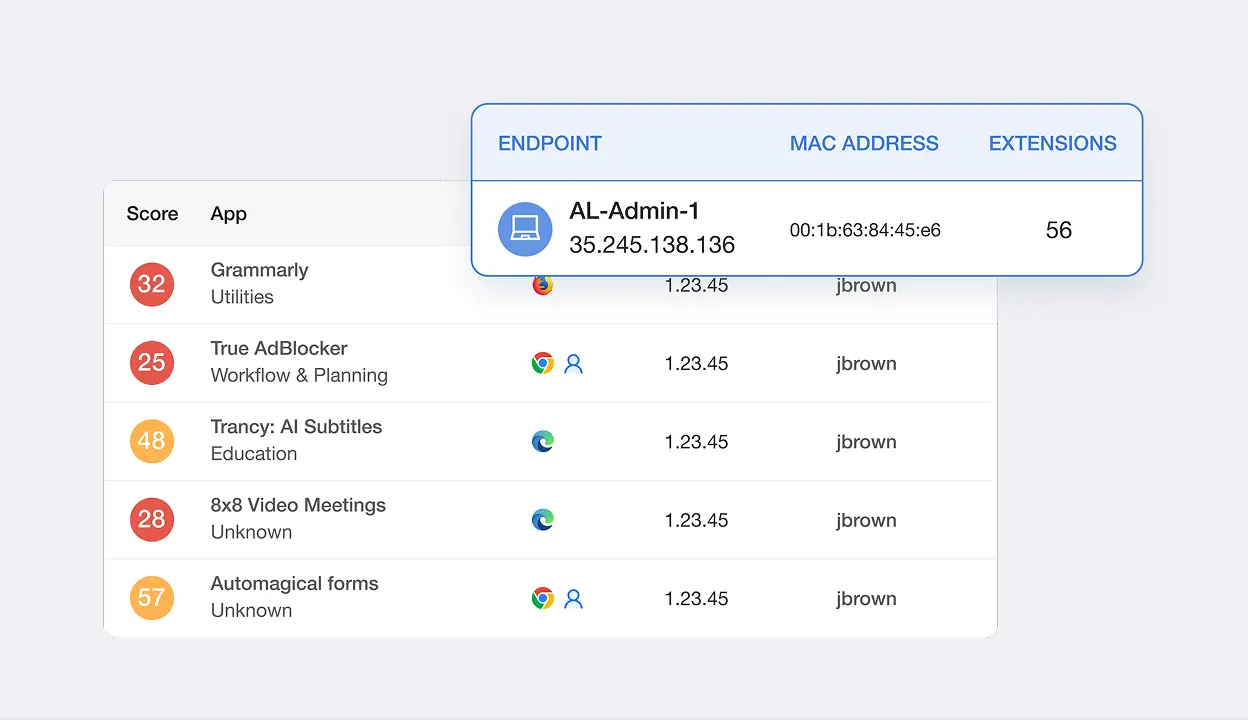

Enterprise Browser Security
- Enforce secure browsing and block risky add-ons without changing the browser
- Control extension permissions and streamline approvals aligned with your risk threshold
- Stop data leaks at the source with real-time visibility into browser-to-cloud risks
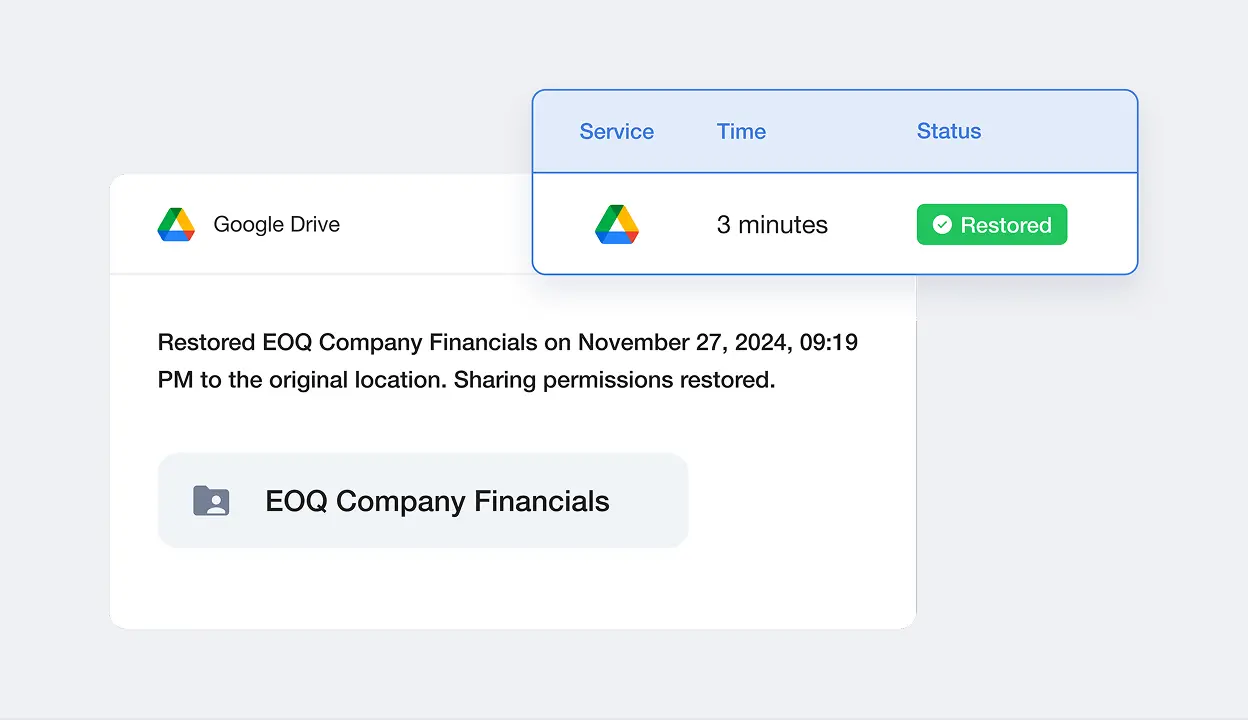

Backup and Recovery with Ransomware Protection
- Ransomware Protection for your live SaaS environment
- 99.99% recovery success rate
- 2 hour ransomware recovery SLA
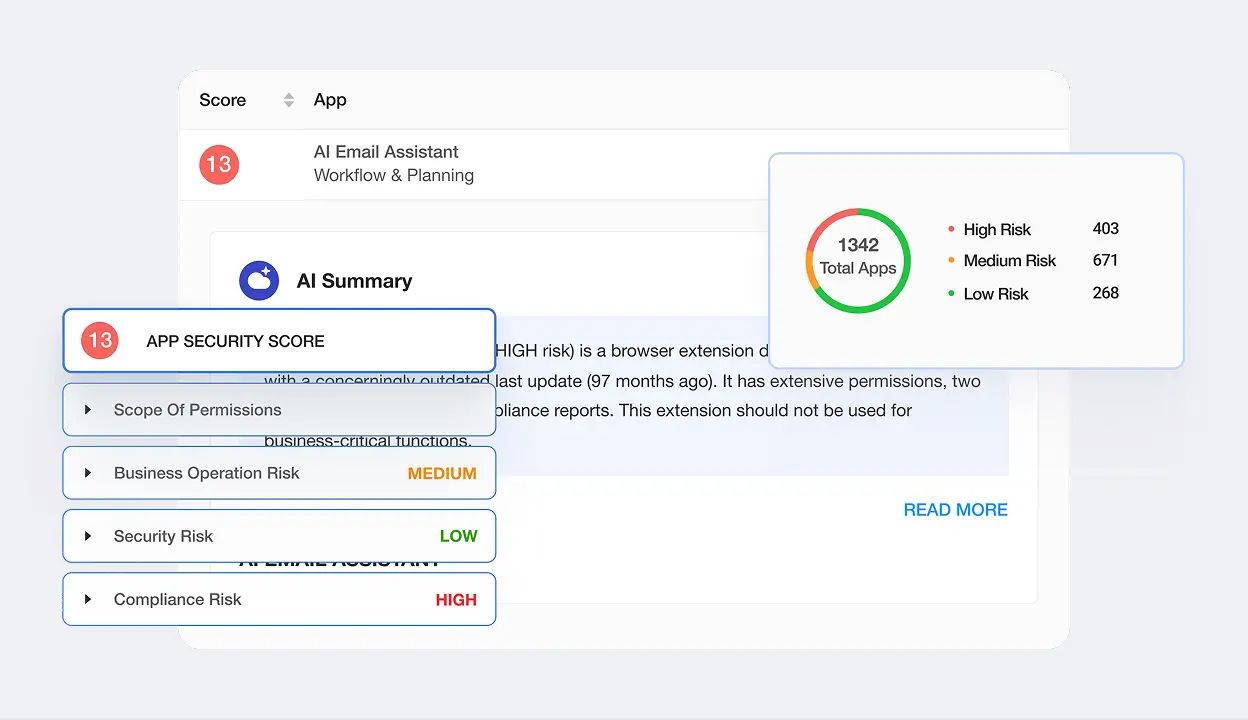

SaaS Security Posture Management (SSPM)
- Continuous monitoring for misconfigurations and risky third-party applications
- Clear remediation guidance and policy enforcement to reduce attack surface proactively
- Coverage for 50+ SaaS applications
- Outcome: prevent SaaS security threat exposure before incidents and simplify compliance reporting
Who are Spin.AI’s browser security partners?
SpinCRX is built into the browser security stack you already trust — partnered with Google,
Fortinet, and Menlo Security to extend native controls with deeper extension and OAuth
governance.

Recommended Partner
Native Chrome Enterprise integration
SpinCRX is part of Chrome Enterprise’s recommended security architecture. Google selected Spin.AI’s risk assessment to extend native Chrome Enterprise controls with deeper extension governance and OAuth app risk scoring.
Security Fabric Partner
FortiSASE + Perception Point integration
SpinCRX integrates with Fortinet’s FortiSASE and Perception Point platforms to extend browser risk intelligence into the broader Fortinet Security Fabric — giving SOC teams unified visibility from edge to cloud to browser.

Secure Browser Partner
Secure Enterprise Browser integration
SpinCRX and Menlo Security’s Secure Enterprise Browser combine cloud-isolated browsing with deep extension and OAuth app governance — a complete defense against browser-borne threats targeting SaaS data.
Five reasons enterprises consolidate on SpinOne.
1
Industry’s largest SaaS risk engine
OAuth apps and browser extensions scored by AI — with explainable allow/deny decisions your auditors can verify.
2
Industry’s fastest SaaS ransomware recovery SLA
Sub-2-hour recovery for SaaS data, backed by 99.99% recovery success
4
Automated 3× daily backup
Practical RPOs, not aspirational ones, for every app we protect
3
Broadest app coverage in the mid-market
Google, Microsoft 365, Salesforce, Slack, and Atlassian: protected from one console with consistent policies and reporting
5
Browser-to-cloud coverage
The only SaaS security platform combining backup, SSPM, and enterprise browser security – partnered with Google, Fortinet, and Menlo Security
SpinOne now provides SSPM for over 50 applications
We have dozens of integrations across SpinOne, SpinBackup, and SpinSPM, including your favorite Security Operations Tools – and we’re always adding more.
Benefits you can count on
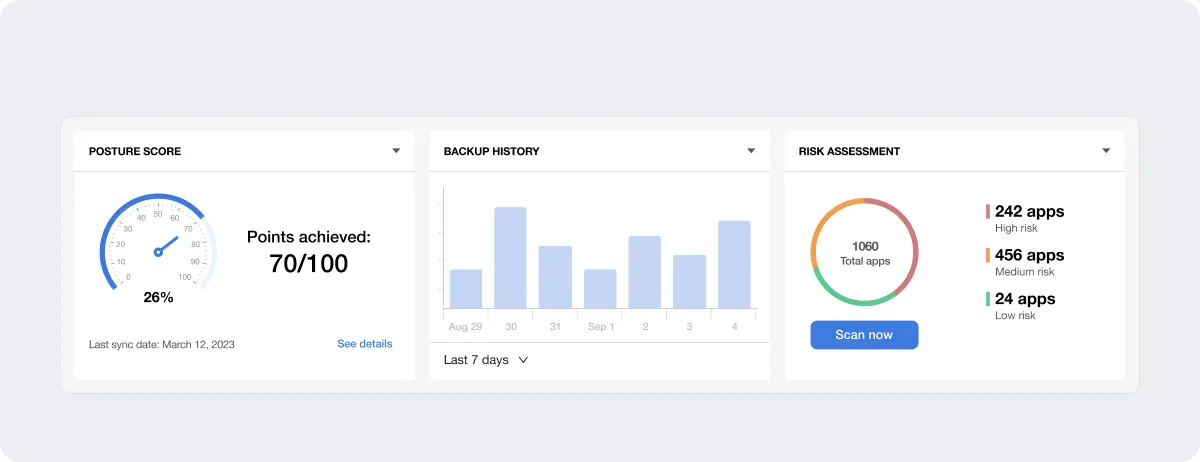
One platform, fewer headaches. Consolidate SaaS security, data backup, data governance, and posture management with one, AI-powered platform. Fewer vendors and consoles means faster workflows and lower operational overhead. Your team spends more time preventing incidents and less time stitching tools together.
-
1. Fast ransomware recovery you can prove
Ransomware is a when, not an if. SpinOne pairs real-time detection with automated, 3× daily backups to restore clean data quickly and confidently. The industry’s fastest ransomware recovery SLA for SaaS means you can set expectations with the business—and meet them.
-
2. Compliance-ready from day one
Auditors ask for evidence, not opinions. With immutable backups, archiving, and eDiscovery, you can preserve, search, and retrieve data across Google Workspace, Microsoft 365, Salesforce, and Slack. Posture monitoring and reporting make it easier to demonstrate control—without scrambling.
-
3. AI-driven risk decisions at scale
Manual reviews don’t scale when you’re staring at hundreds of thousands of apps and events. Spin.AI uses AI-driven analysis to assess third‑party app risk and surface what matters. You get consistent, explainable decisions that reduce risk without strangling productivity.
-
4. Protection that matches how your teams work
Your data lives in SaaS and flows through browsers. Spin.AI protects both, giving you end-to-end coverage from browser to cloud. Users keep using the tools they love while you keep sensitive data where it belongs.
-
5. Coverage for the platforms you depend on
Whether your core stack is Google Workspace or Microsoft 365—or you run Salesforce and Slack alongside them — Spin.AI meets you where you are with our security tools. Crossplatform coverage means consistent policies and visibility across your environment. No more solving the same problem four different ways.

Why Customers Choose SpinOne


SpinOne is a powerful and reliable platform that brings peace of mind by continuously monitoring your environment and providing strong security. One of its key strengths is its ability to set up a wide range of detection rules to automatically prevent risky applications and browser extensions from gaining access.
The platform also offers robust backup and ransomware protection, ensuring that your data remains safe and recoverable in the event of an attack. Overall, SpinOne is a great choice for organizations looking to enhance their security and minimize risk.
Hadayat Y.
Mid-Market IT Specialist
Our analysis and experience with SpinOne have revealed a platform that excels in its simplicity and user-centric design, making it a standout solution for SaaS data protection. The overall ease of use, from installation and initial configuration to ongoing management, is a significant advantage that we believe warrants recognition.Customer support is outstanding. Managing our overall risk daily, it is perfect for reporting, managing.


Users Love Us
Independently recognized by the analysts CISOs read.
Representative Vendor, Backup as a Service

SourceForge Top Performer Award badge 2026
Executive FAQs, and how to answer them:
Have more questions about SpinOne and Google Workspace™ Data Protection?
Learn more from our FAQ section or contact our support.
How fast can we recover from a SaaS ransomware incident with this solution?
With SpinOne’s rapid restore and recovery SLA, you can answer in hours, not days.
Are we exposed by risky OAuth apps?
Spin.AI continuously evaluates third‑party apps and automates safe allow/deny decisions you can explain.
Can we prove compliance without a fire drill?
Yes—immutable backups, archiving, eDiscovery, and posture reports give you the artifacts auditors expect.
Will this solution slow users down?
No. Policies are precise, automated, and designed to preserve productivity while reducing risk, and we offer a variety of solutions with deployment models designed to meet your use case.
Can we start with one platform and expand?
Absolutely. Many teams begin with Google Workspace or Microsoft 365 and add Salesforce and Slack over time.
Do we need to rip and replace our stack?
No. Spin.AI layers onto your existing SaaS, bringing security and recovery without forcing big changes.
Ready to protect your SaaS data?
Join 2,000+ organizations using SpinOne to secure and back up their business-critical SaaS applications
No credit card required • Setup in minutes • SOC 2 Type II certified