
How to Install the SpinMonitor Extension for Safari

This article explains how you can deploy SpinMonitor across your organization’s Safari browsers using Microsoft Intune. Upon successful deployment, SpinMonitor is force installed and enabled across all Safari browsers, including in private browsing mode. Similar steps can be followed with most Mobile Device Management (MDM) solutions.
Microsoft Intune – Device Enrollment
As a required first step, ensure that your organization is utilizing Active Directory and that all devices are enrolled in Microsoft Intune. You can head to Devices – Microsoft Endpoint Manager admin center to ensure that all devices are successfully connected.
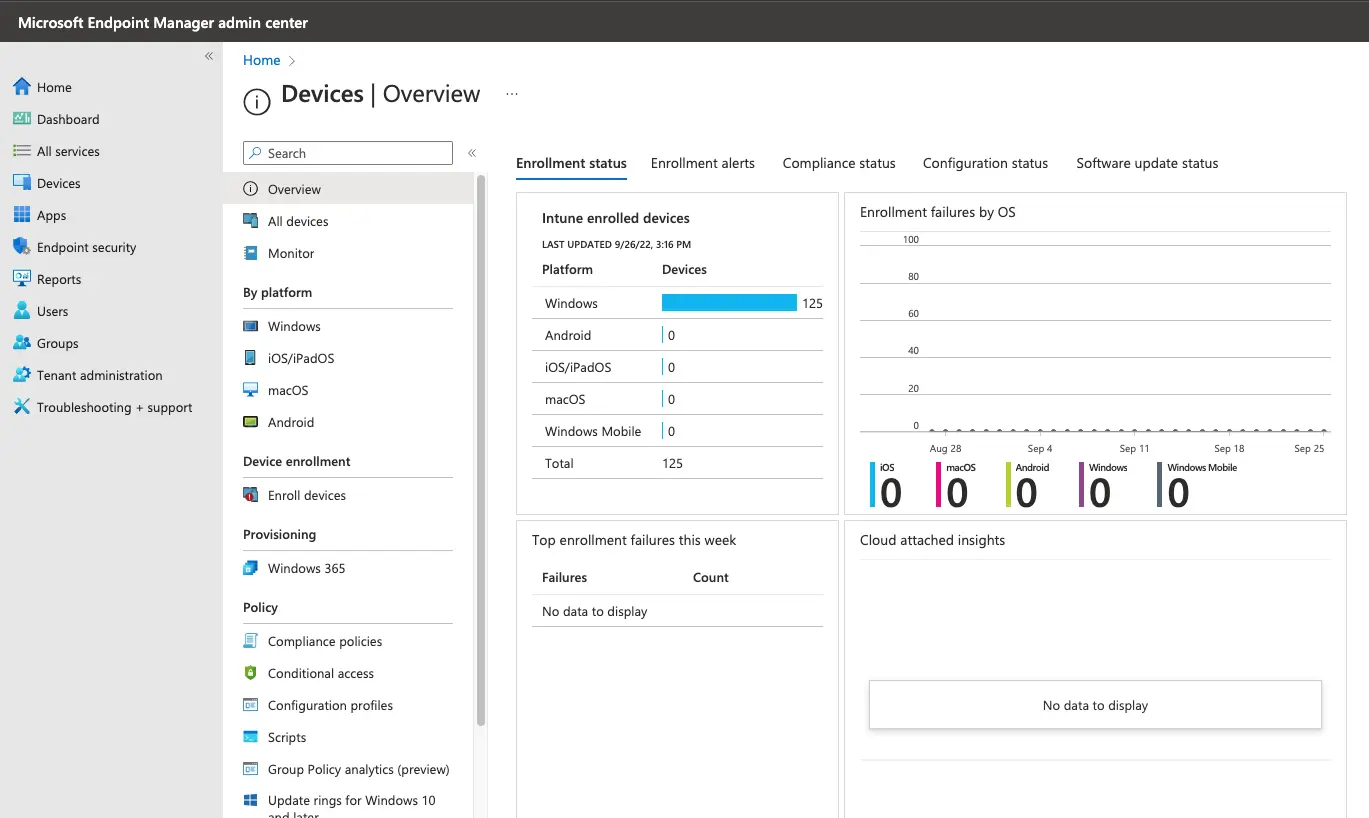
In case devices aren’t enrolled, follow these guides to begin:
- For Windows devices: https://learn.microsoft.com/en-us/mem/intune/enrollment/windows-enrollment-methods
- For macOS devices: https://learn.microsoft.com/en-us/mem/intune/enrollment/macos-enroll
SpinMonitor Safari Extension
- Download SpinMonitor Safari extension here: https://static-st.spinbackup.com/safari/SpinMonitor_v1.0.pkg
- Navigate to Microsoft Intune admin center
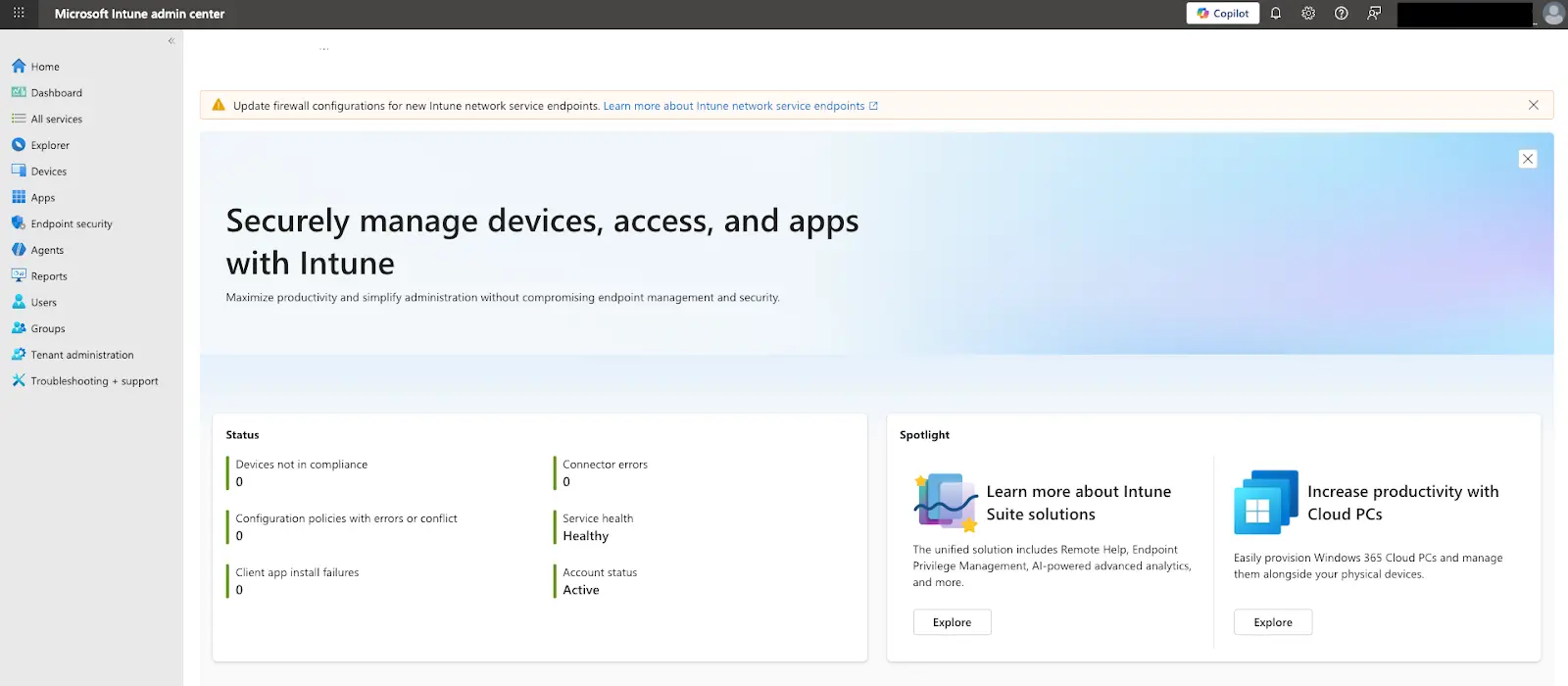
- Select Apps
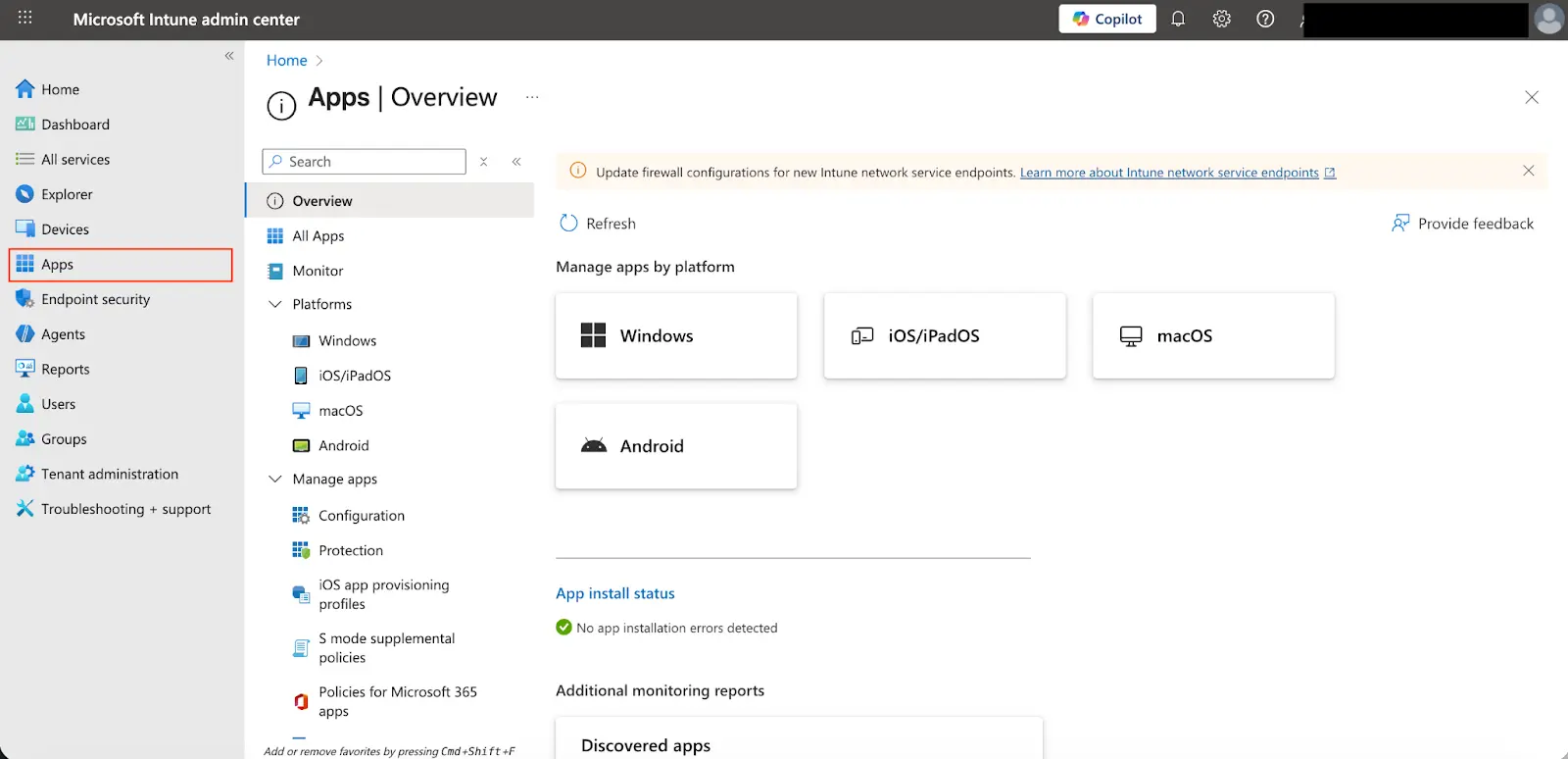
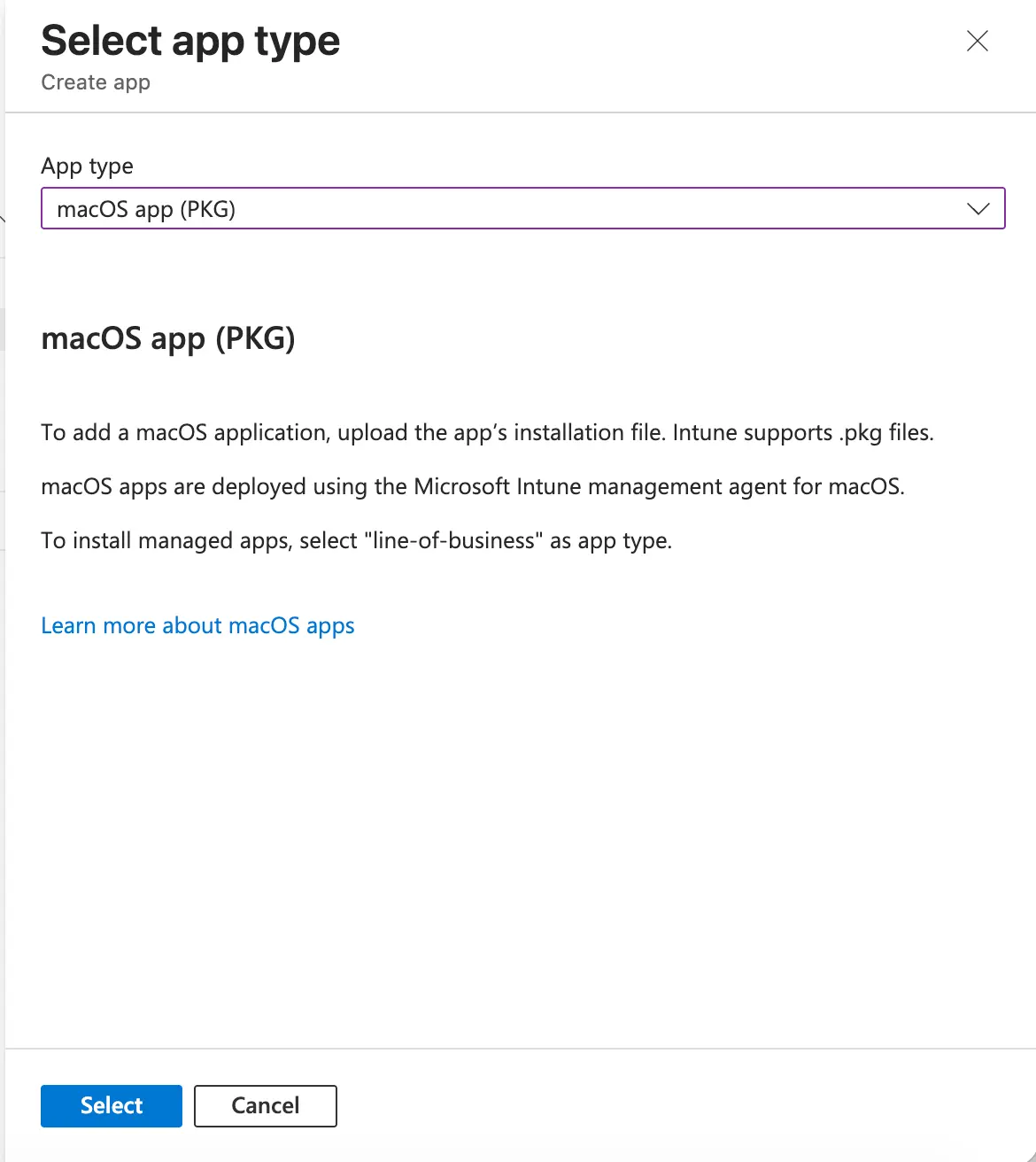
- Navigate to All Apps > Create > macOS app (PKG)
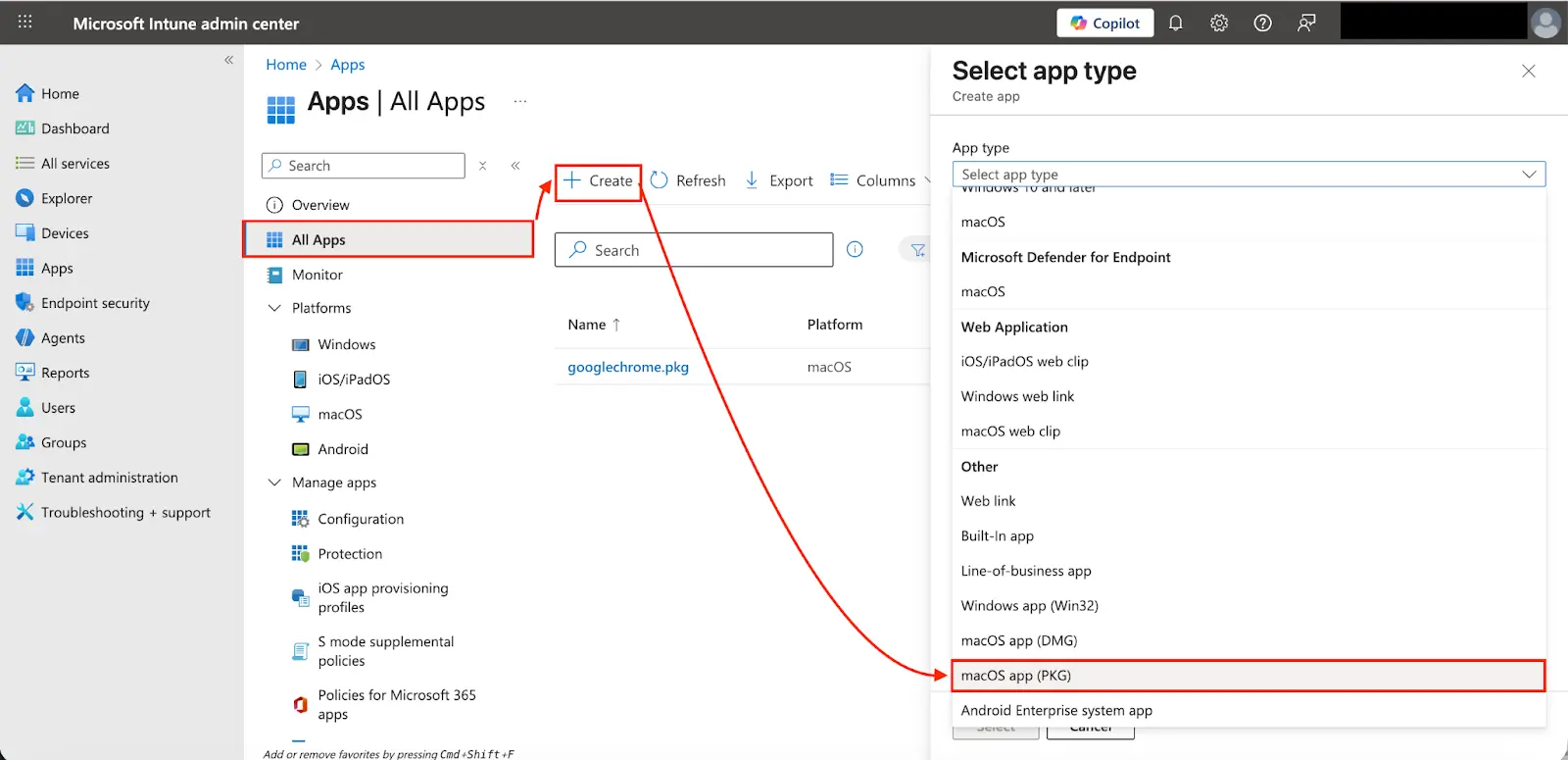
- Press Select
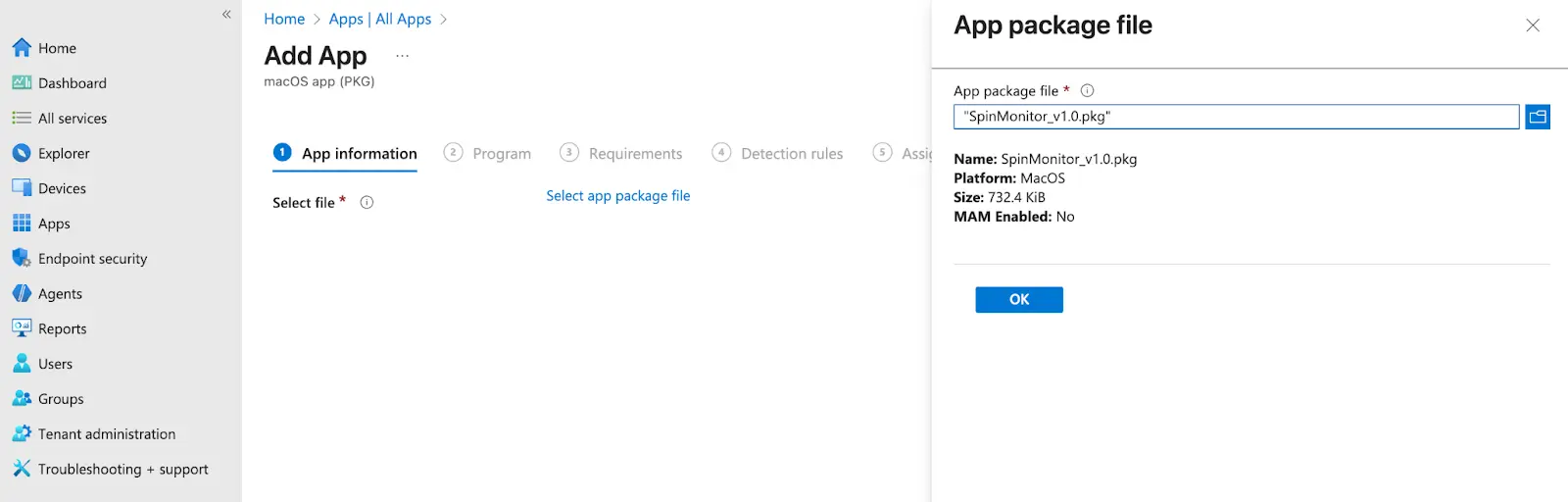
- Upload the SpinMonitor .pkg file
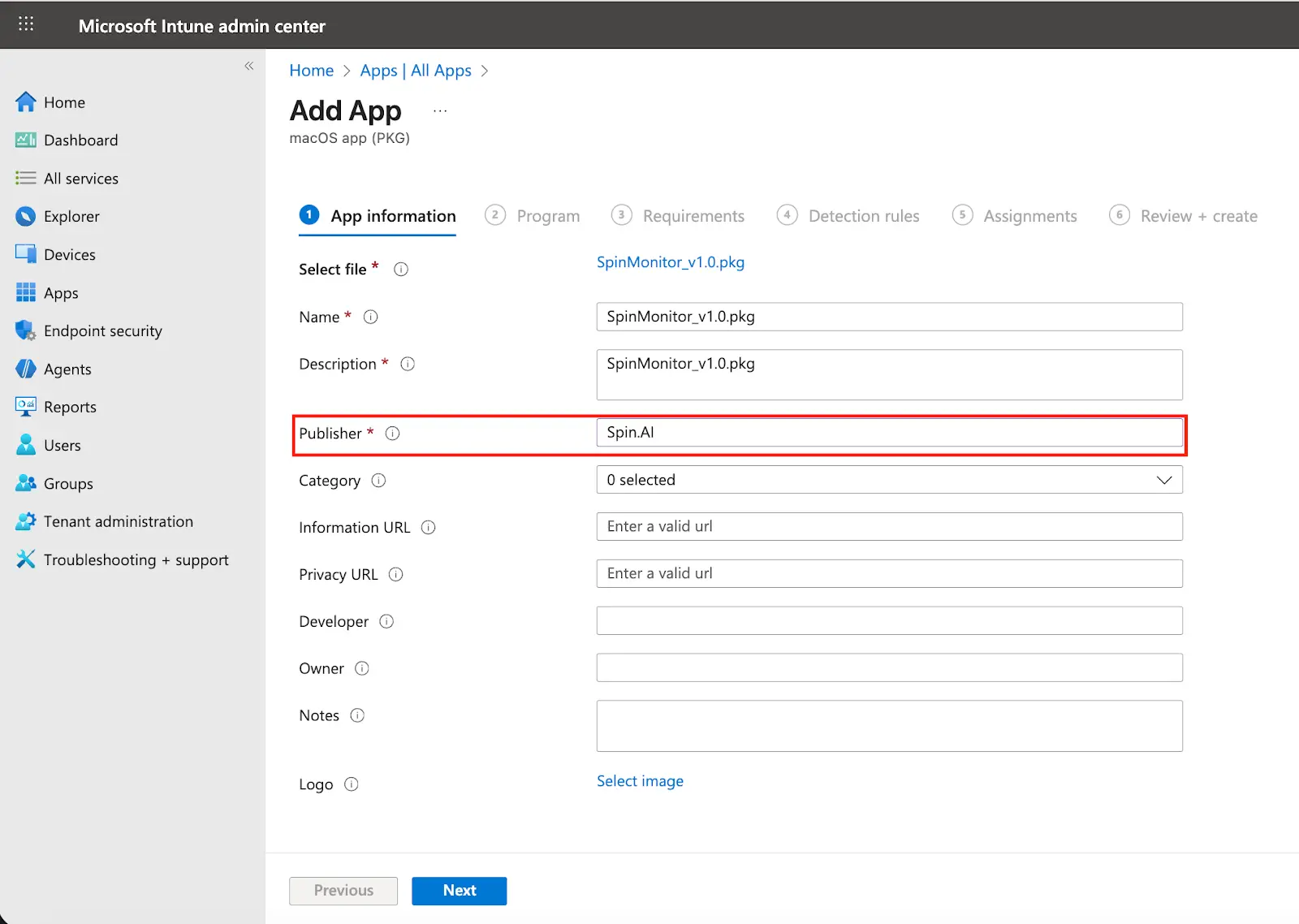
- Under App Information, enter Spin.AI as the Publisher, then select Next
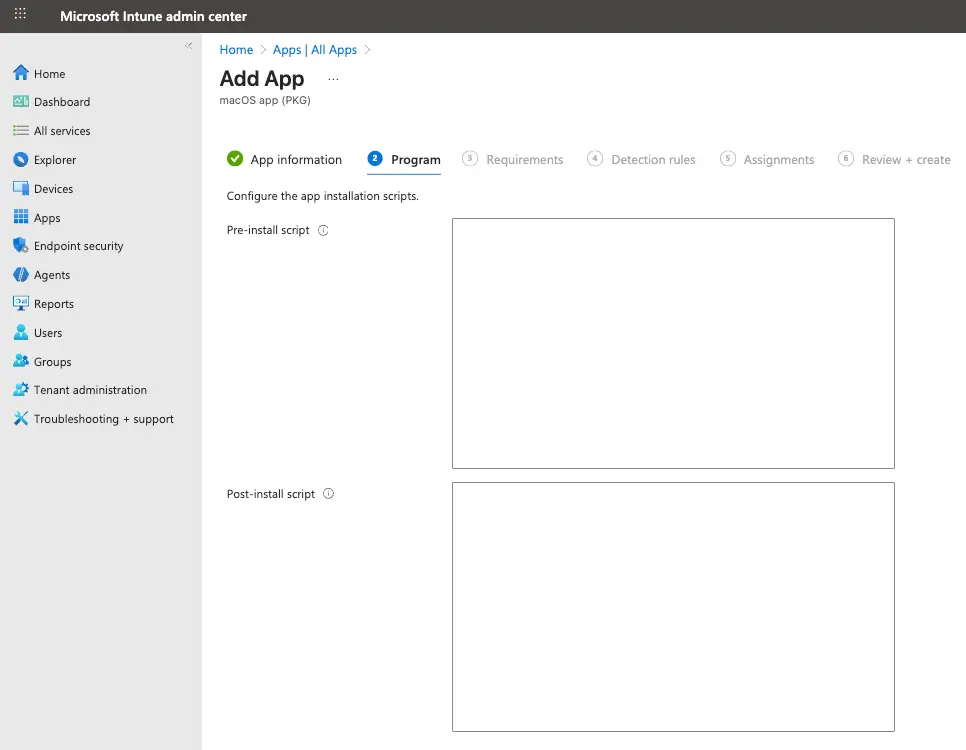
- Under Program, ensure pre-install and post-install scripts are blank, then select Next
- Under Requirements, select macOS Tahoe 26.0, then select Next
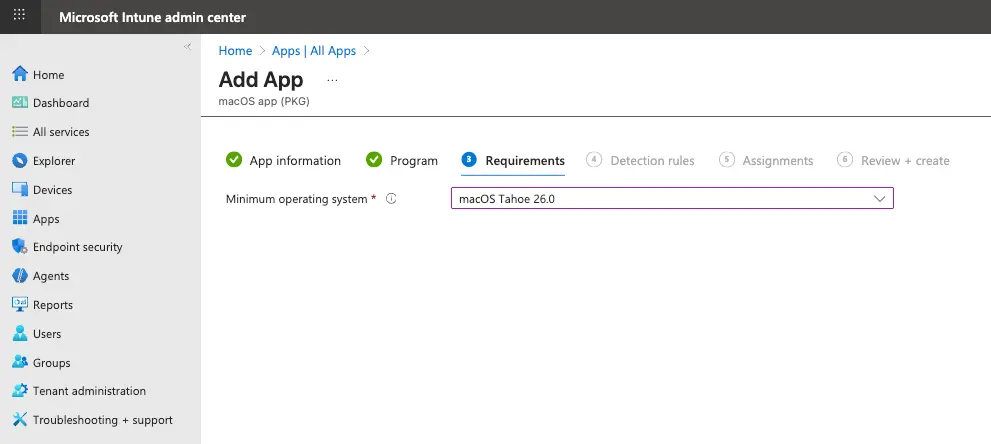
- Under Detection rules, ensure Yes is selected for Ignore App Version, then select Next
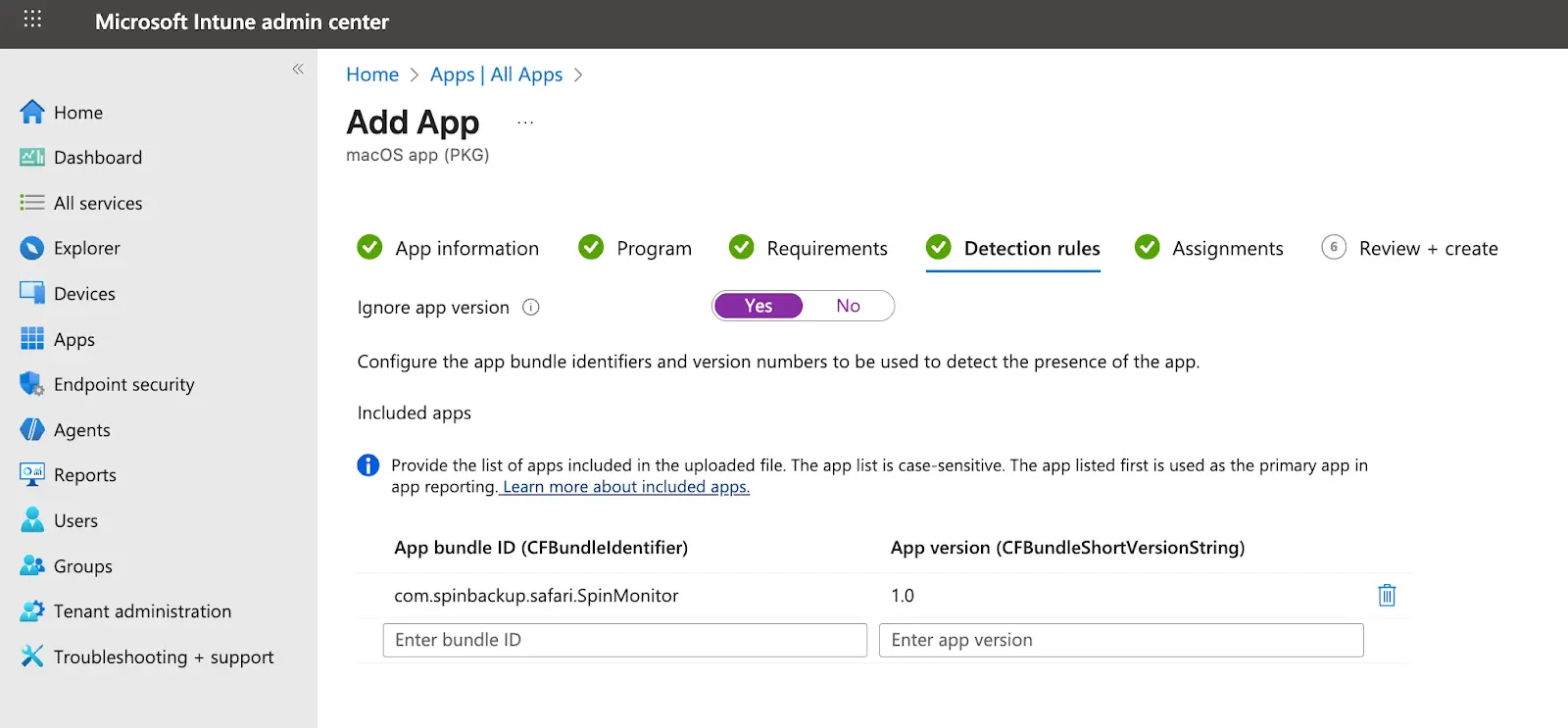
- Complete the remaining policy settings, including the device assignments, and save the app.
Configuration Profile
- Navigate to Microsoft Intune admin center
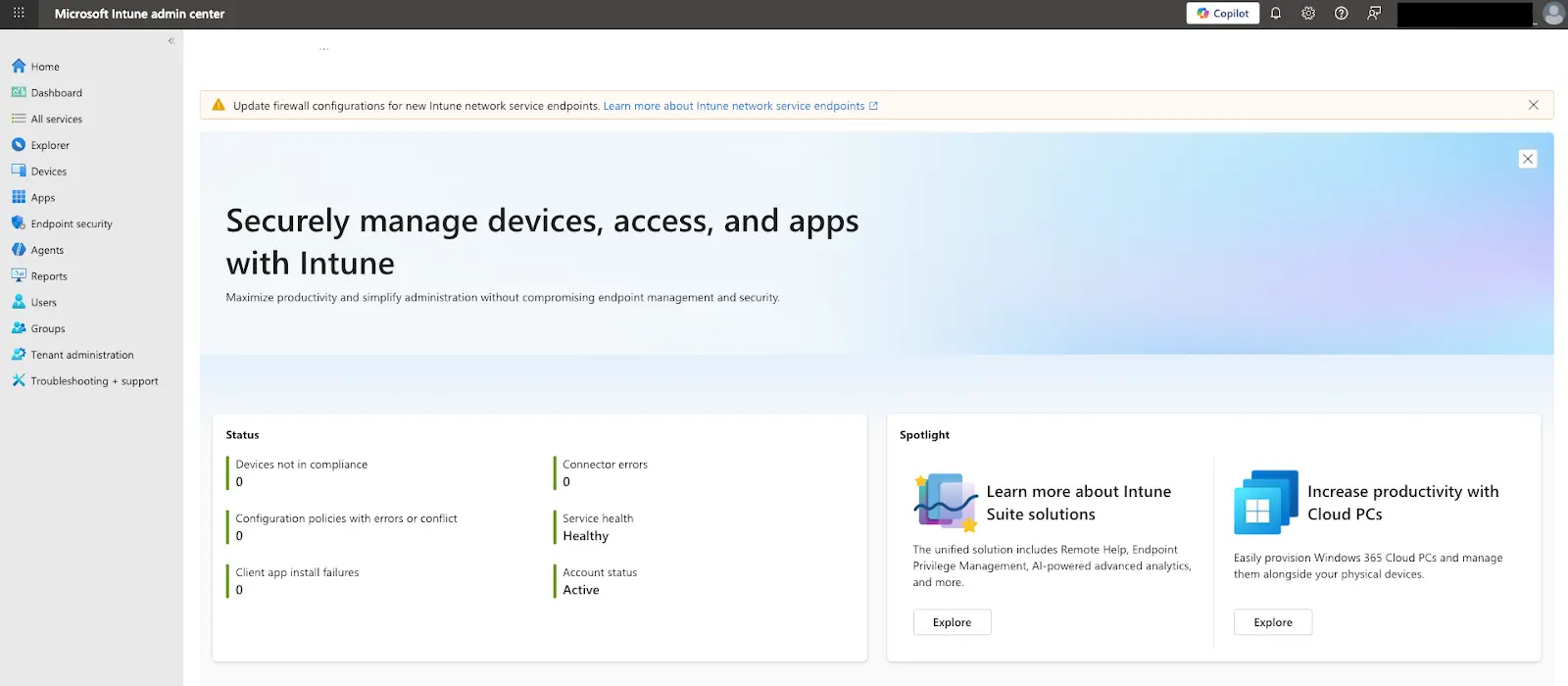
- Select Devices
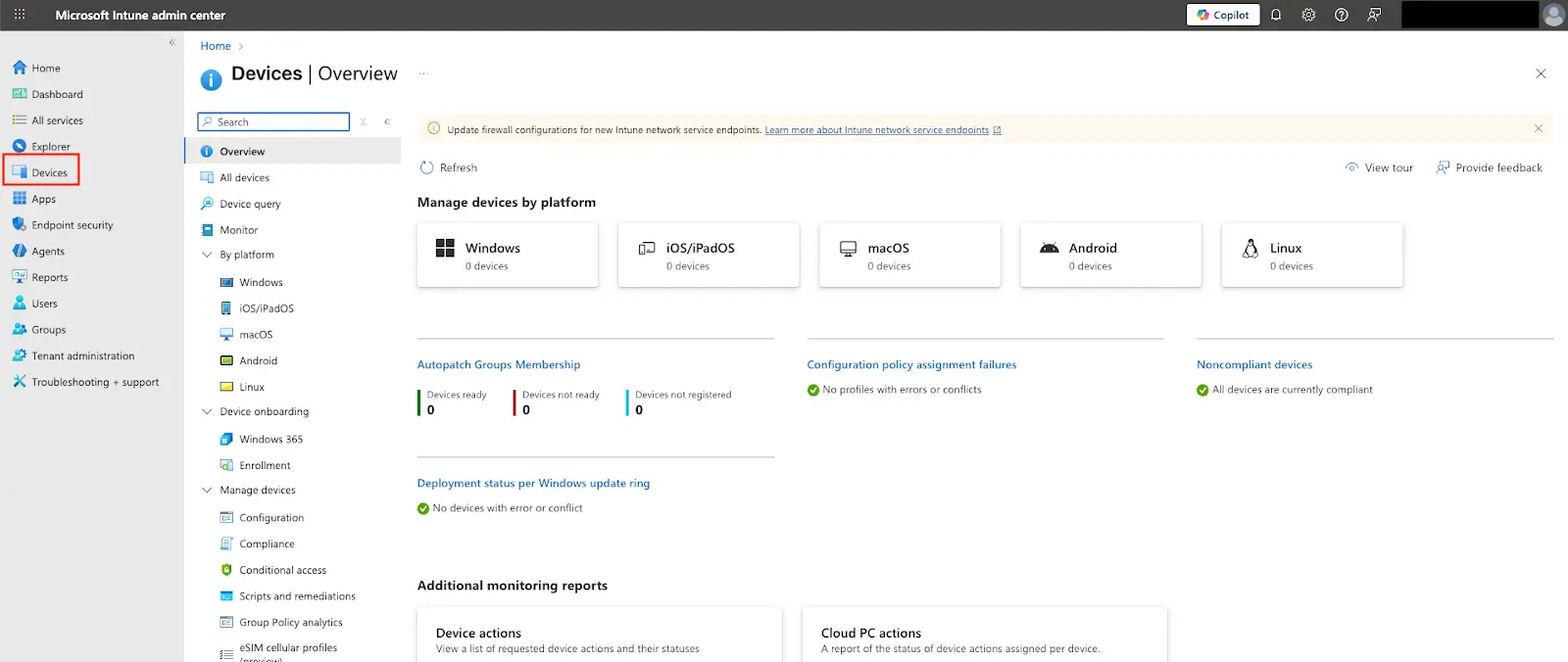
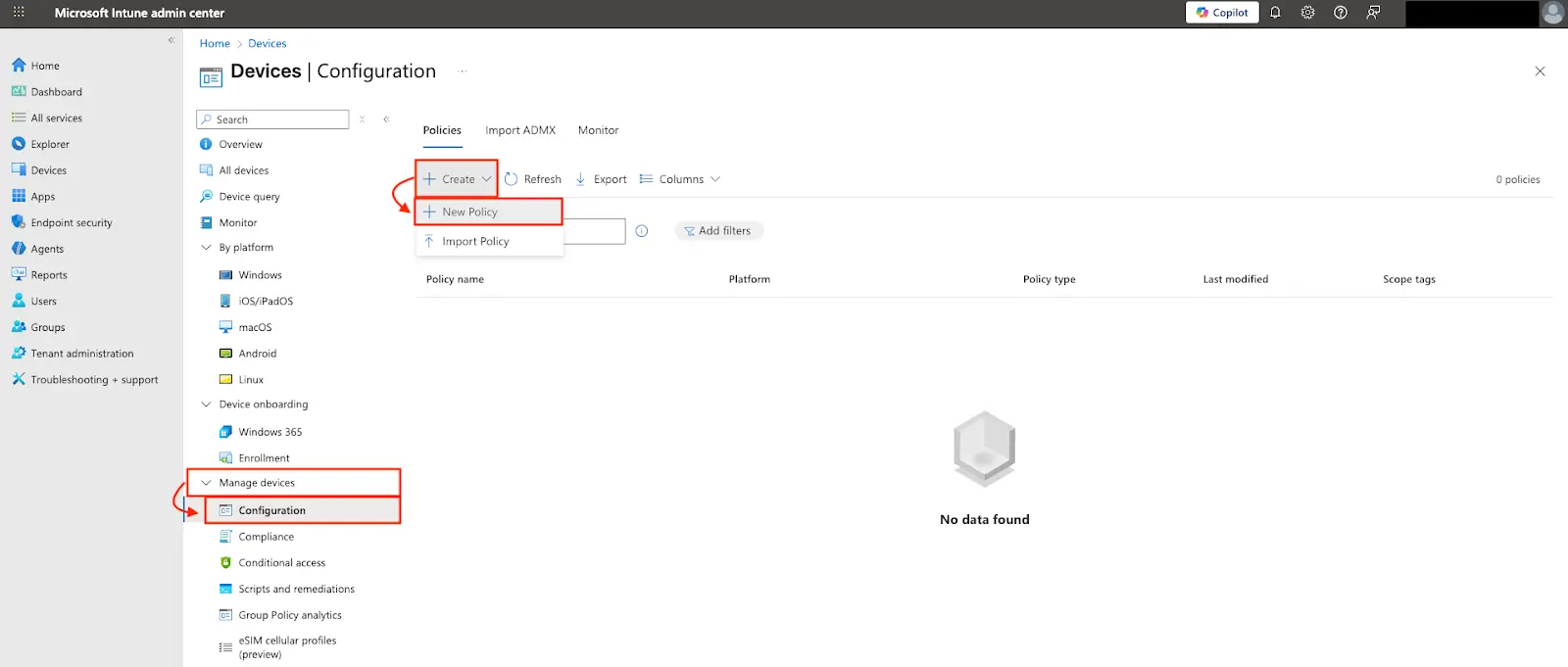
- Navigate to Manage Devices > Configuration > Policies > Create > New Policy
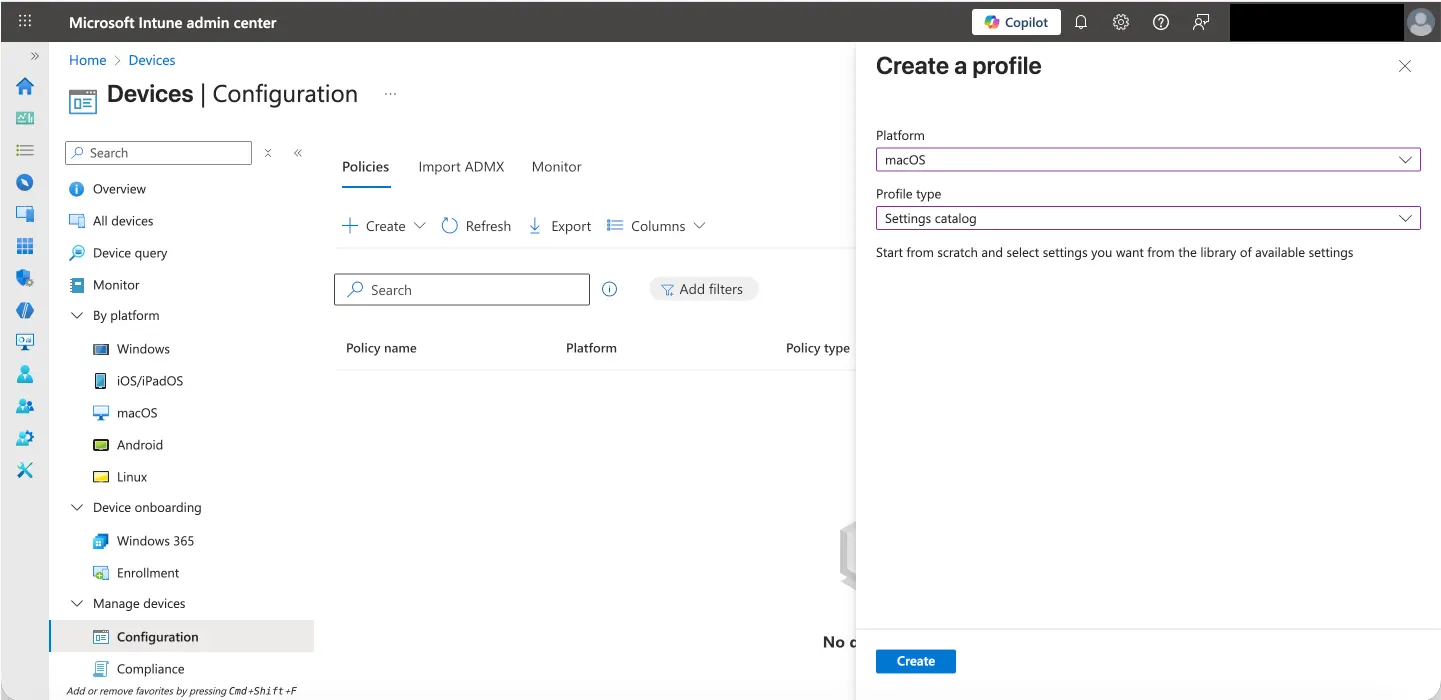
- Create a profile by:
- Setting Platform to: macOS
- Setting Profile type to: Settings catalog
- Select Create
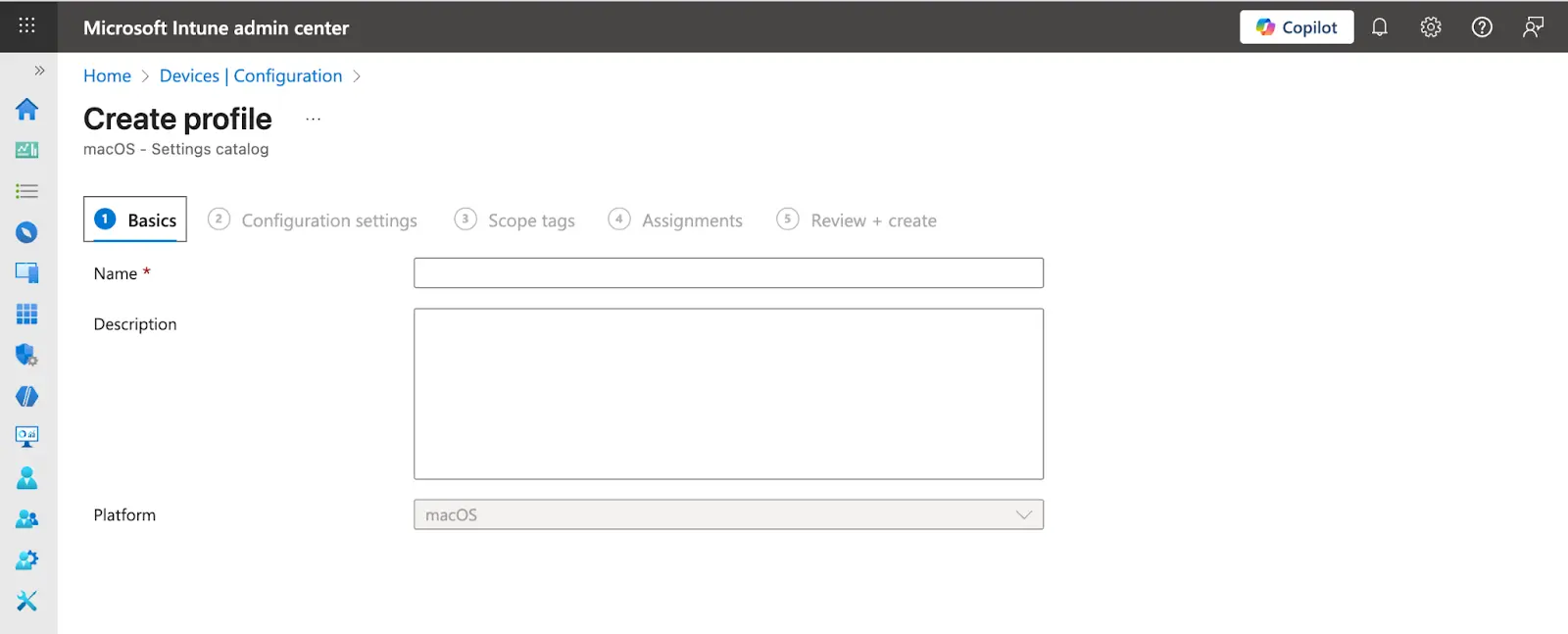
- Complete the Basics section by entering Name and Description (optional).
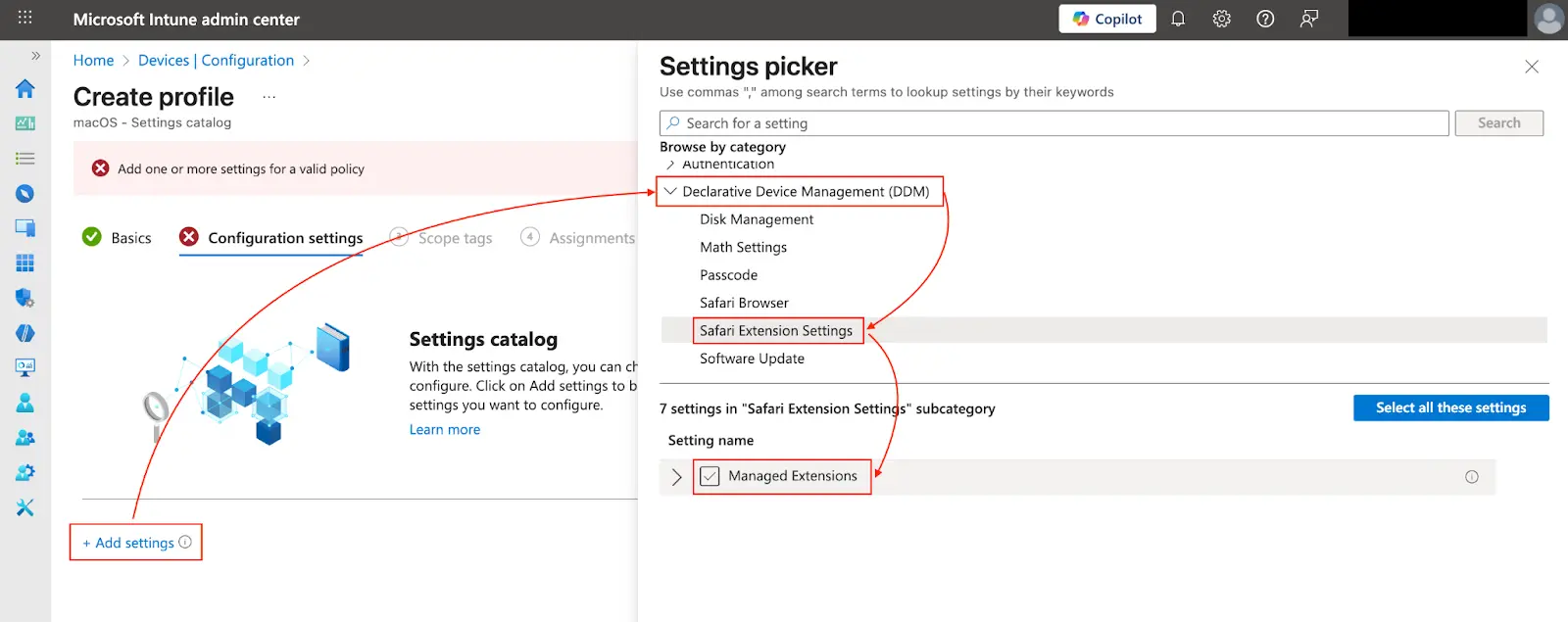
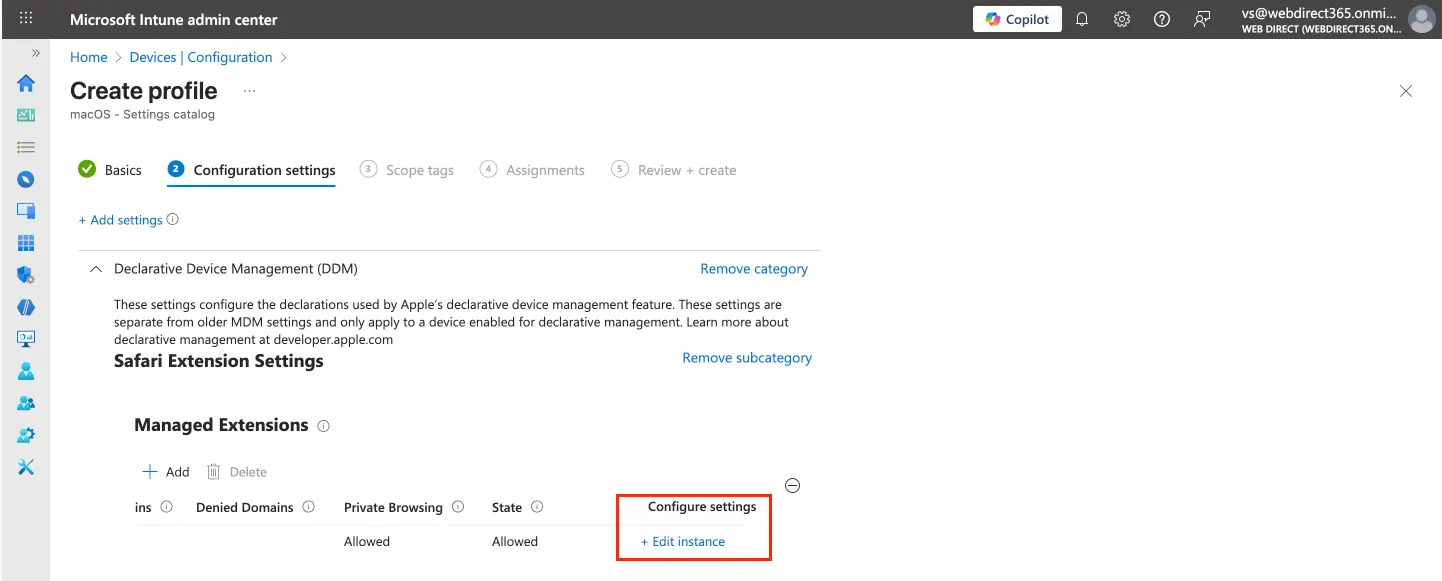
- Under Configuration settings section, select +Add settings > Declarative Device Management (DDM) > Safari Extension Settings > Managed Extensions
- In the Managed Extensions section, scroll to the right and select +Edit instance
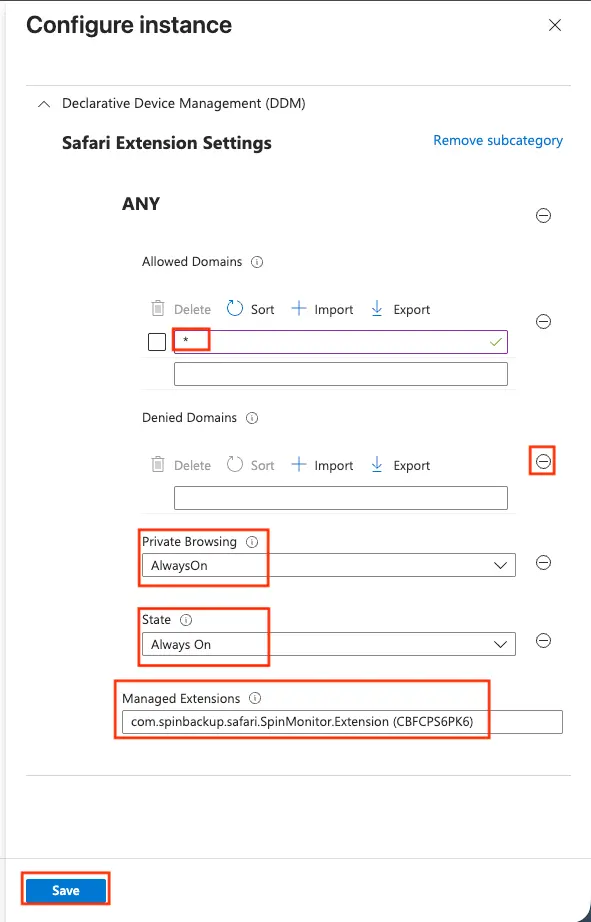
- Configure the instance by:
- Setting Allow Domains to: * (this allows all domains)
- Removing Denied Domains
- Setting Private Browsing to: Always On
- Setting State to: Always On
- Setting Managed Extensions to: com.spinbackup.safari.SpinMonitor.Extension (CBFCPS6PK6)
- Select Save
- Once the instance is configured, select Next
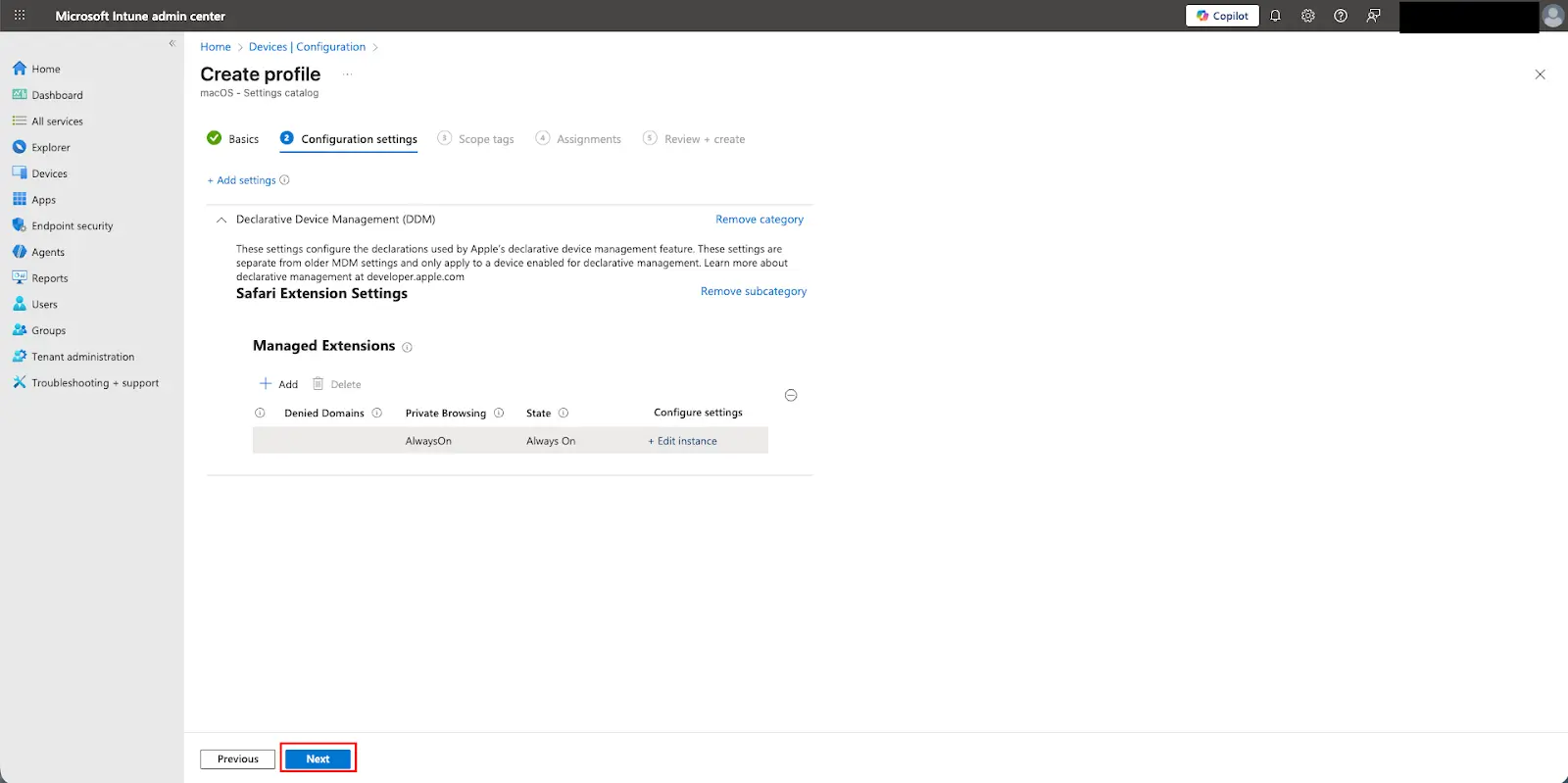
- Complete the remaining policy settings, including the device assignments, and save the profile.
Get more information on Google Workspace™ Backup Solutions
Was this helpful?