
Versioning: Go Back in Time!

We offer easy and simple backup and restore of lost or deleted Google Workspace™ data. You can benefit from our best-of-breed restore-in-time machine, which gets you the most from every Google Workspace™ data backup. Here is how it works.
We perform automated backups of all your data for every Google Workspace™ service and a snapshot, or a Version, of your account. This is the exact state of your account as of the moment of the backup process.
This means that you can view, restore, and cross-restore data not only from the latest backup, but from the exact version of files, folders, contacts, events, etc.
To view, restore, or migrate files, using our restore-in-time machine, go to spin.ai
and follow these steps:
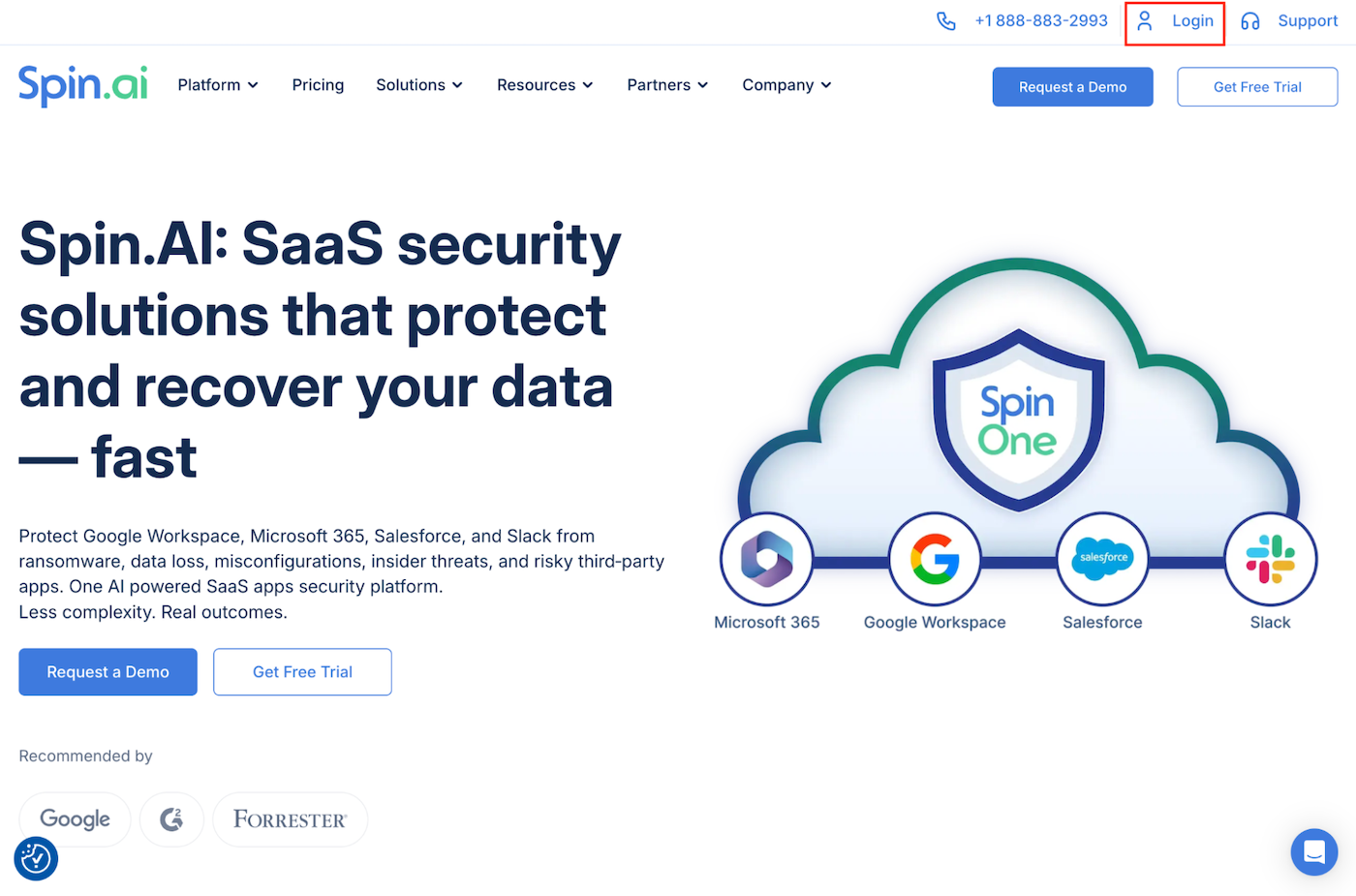
- Click the Log in button in the upper right-hand corner of the Spin.AI website…
- Insert your e-mail and password or sign in with Google…

- On the left of your dashboard click on Users…
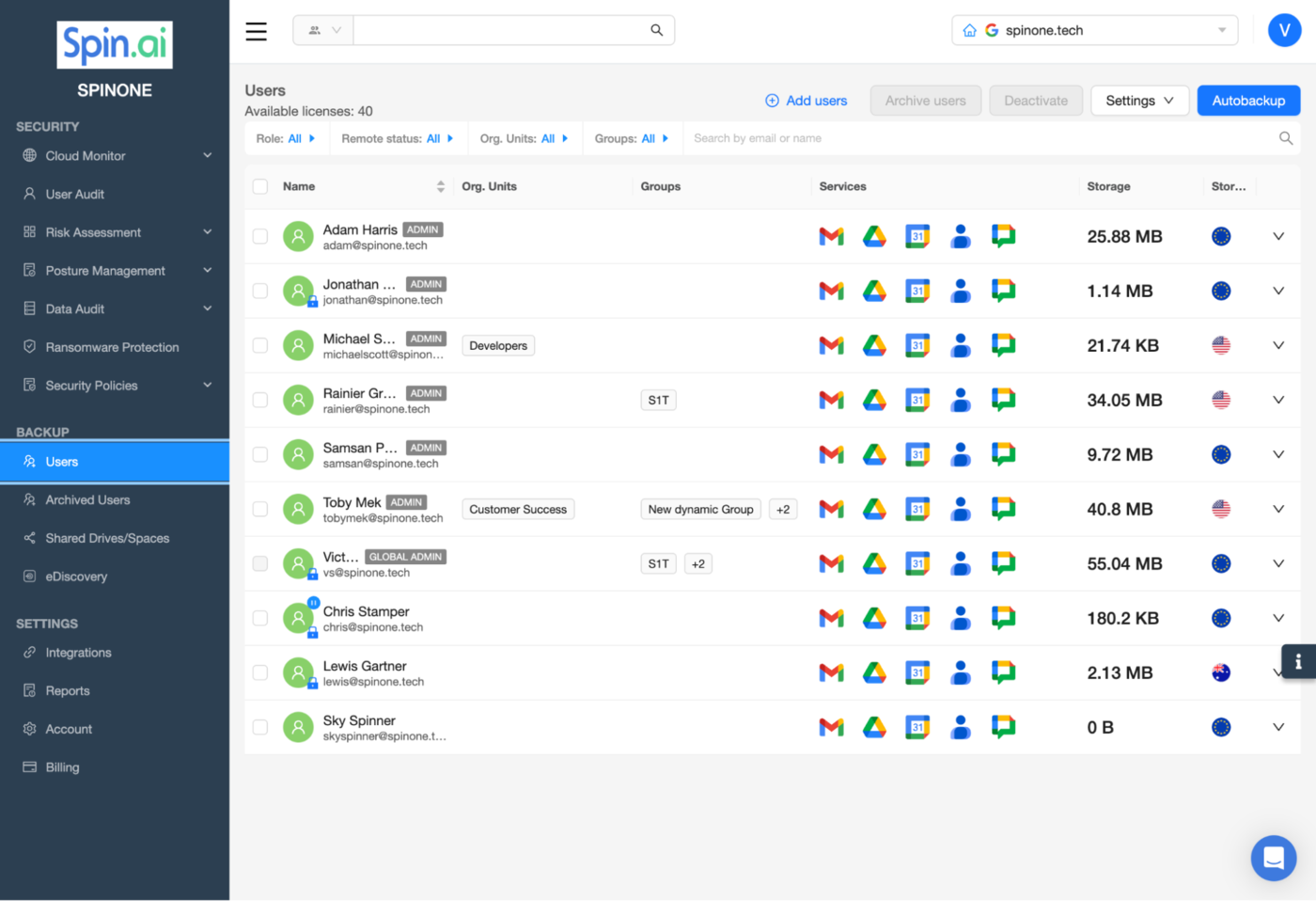
- In a new window you will see a list of all your domain users.
Find the name of the user, whose data needs to be viewed or restored. Then open the specific application you want to view by clicking into the Google service…
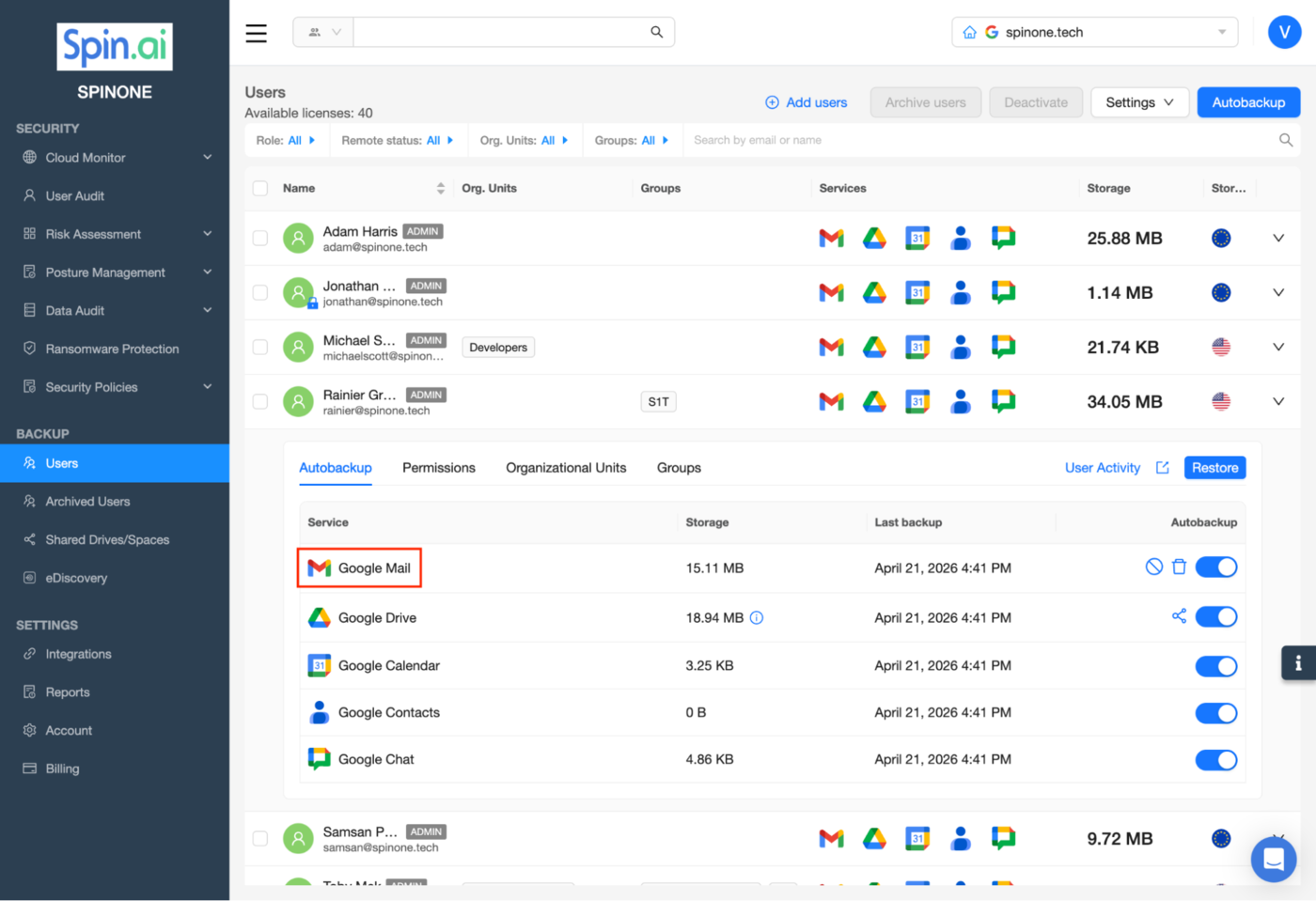
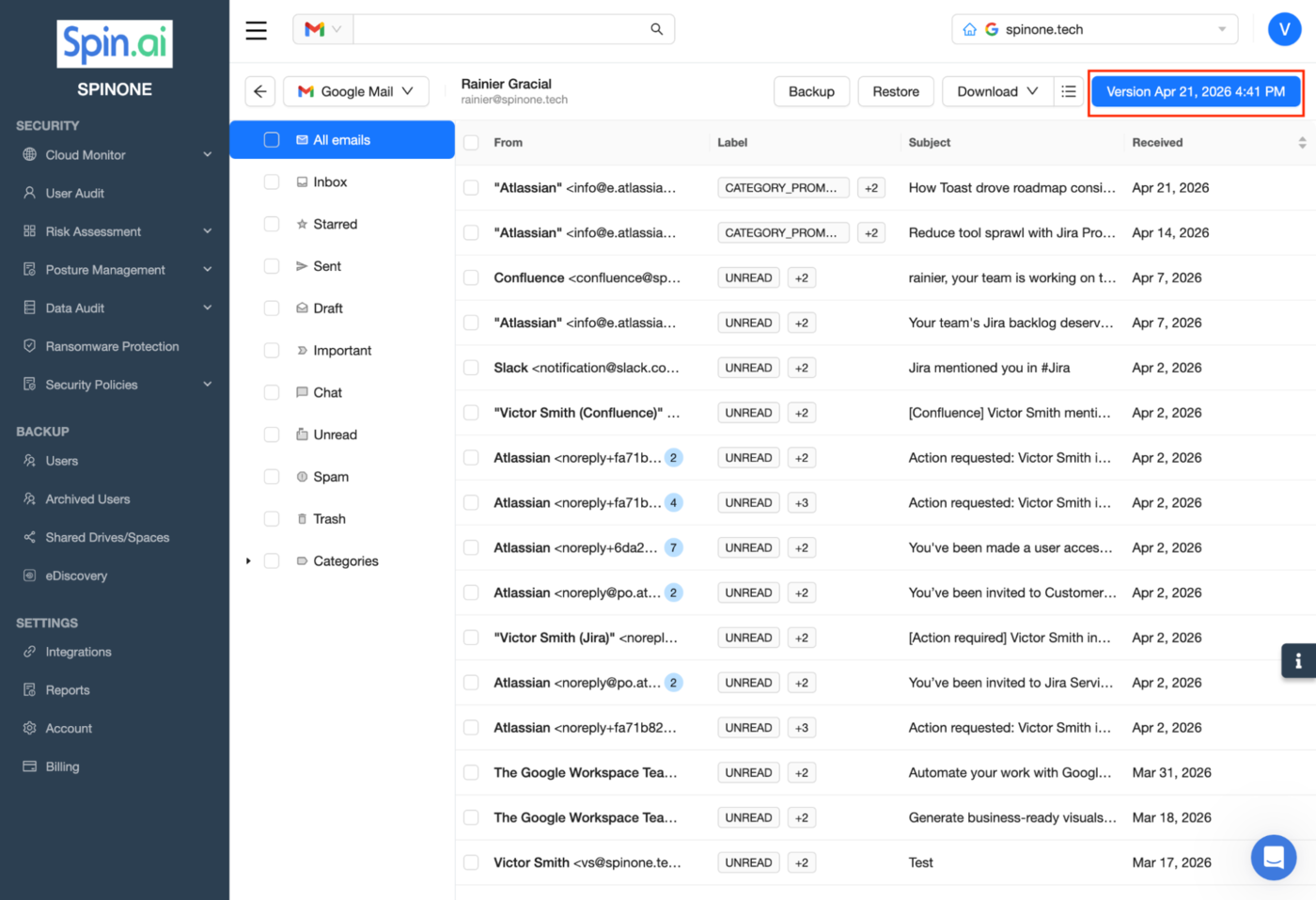
- In another new window you will see your latest backup version.
Click on the Version button in order to change it to any other date…
- In a pop-up window you can choose the required version by finding it in the list or choosing the required date in the calendar. When the version is chosen, press Ok…
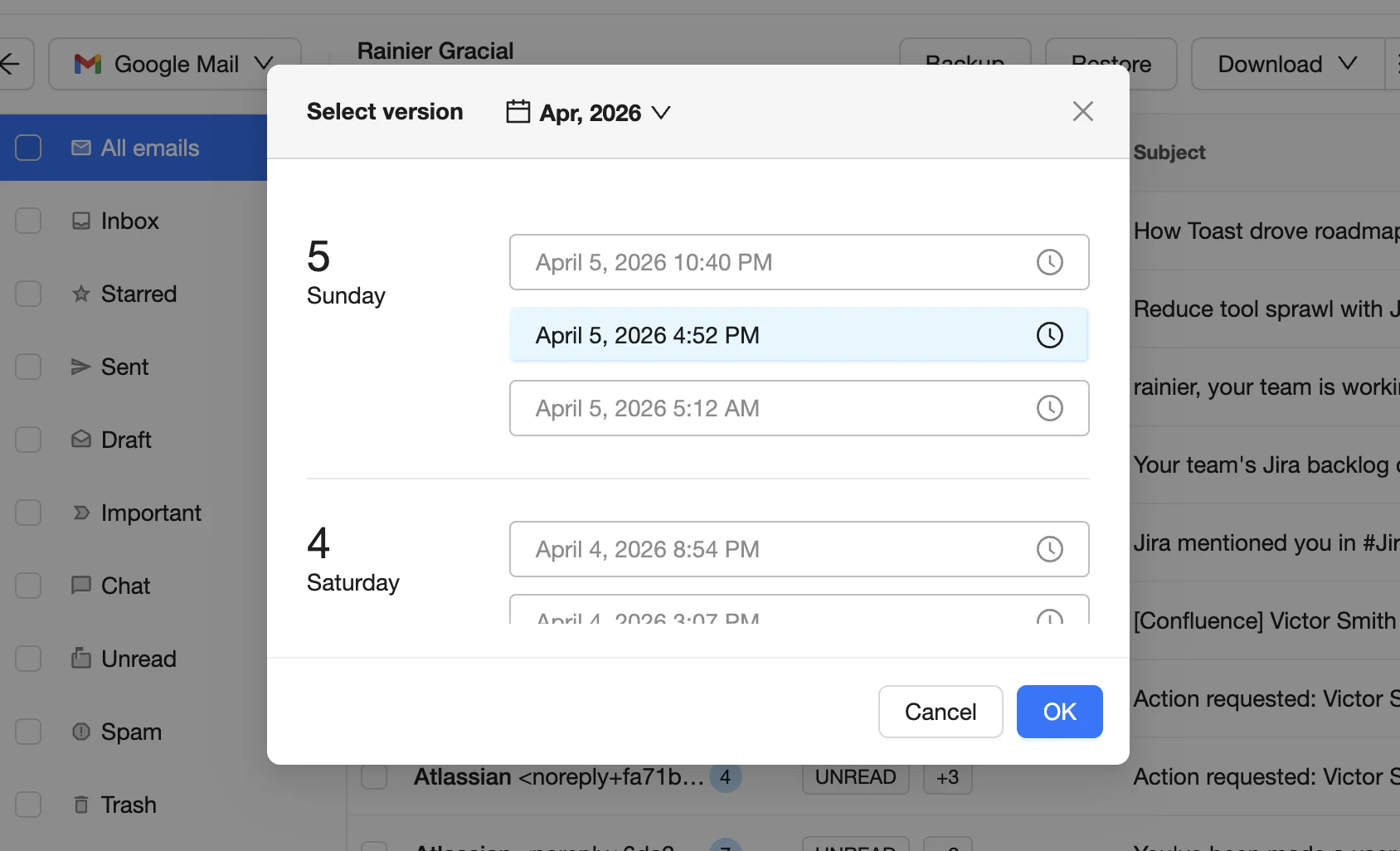
- Now you can see the backup version you have selected. You can click on a file to open it and view the content, to make sure that this is the file you need.
Get more information on Google Workspace™ Backup Solutions