
How to Detect Domain Applications Using SpinProtect

SpinProtect is a browser extension that extends the SpinOne SaaS security platform, enabling organizations to view, manage, and block access to unsanctioned website domains, also referred to as Domain Applications.
The following outlines the contents of this article:
- SpinProtect for Google Workspace Organizations
- Deploying on Chrome
- Deploying on Edge
- SpinProtect for Microsoft 365 Organizations
- Deploying on Chrome
- Deploying on Edge
- Domain Applications in the SpinOne Platform
- FAQs
SpinProtect for Google Workspace Organizations
This section contains instructions for deploying SpinProtect to Chrome and Edge for organizations using Google Workspace.
Deploying on Chrome
- Open Google Admin Console
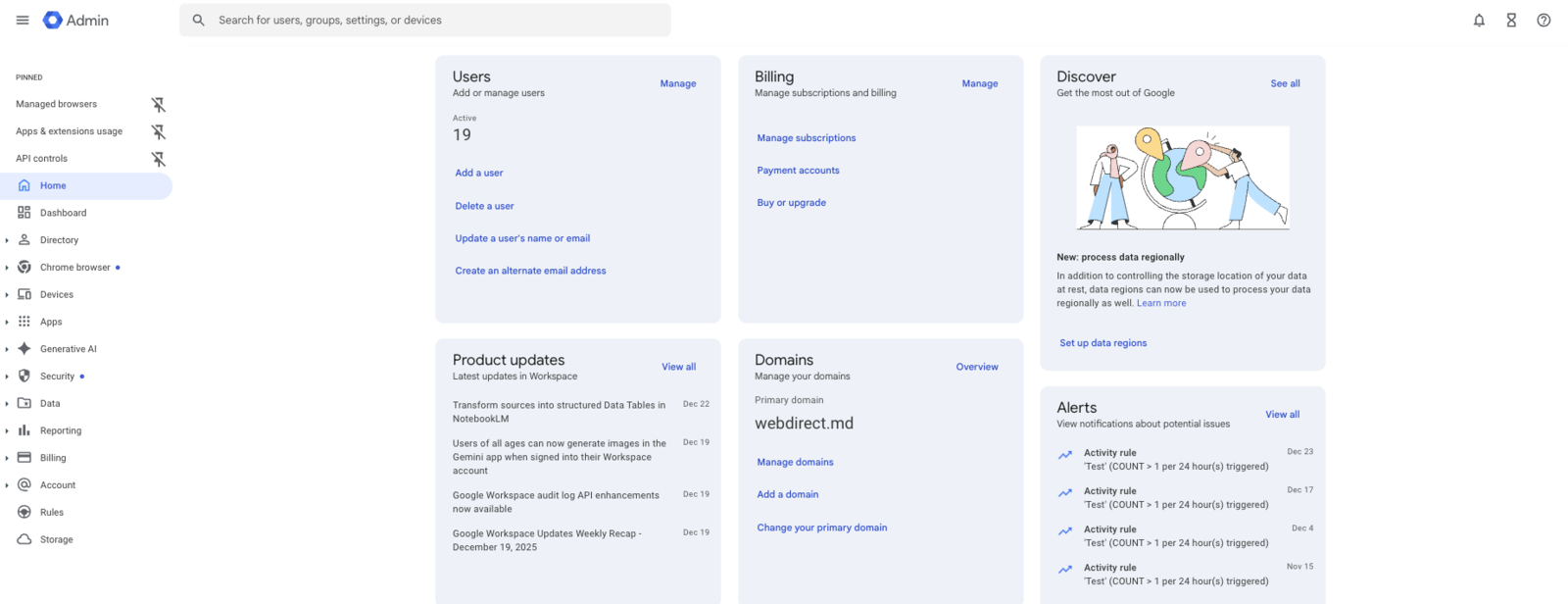
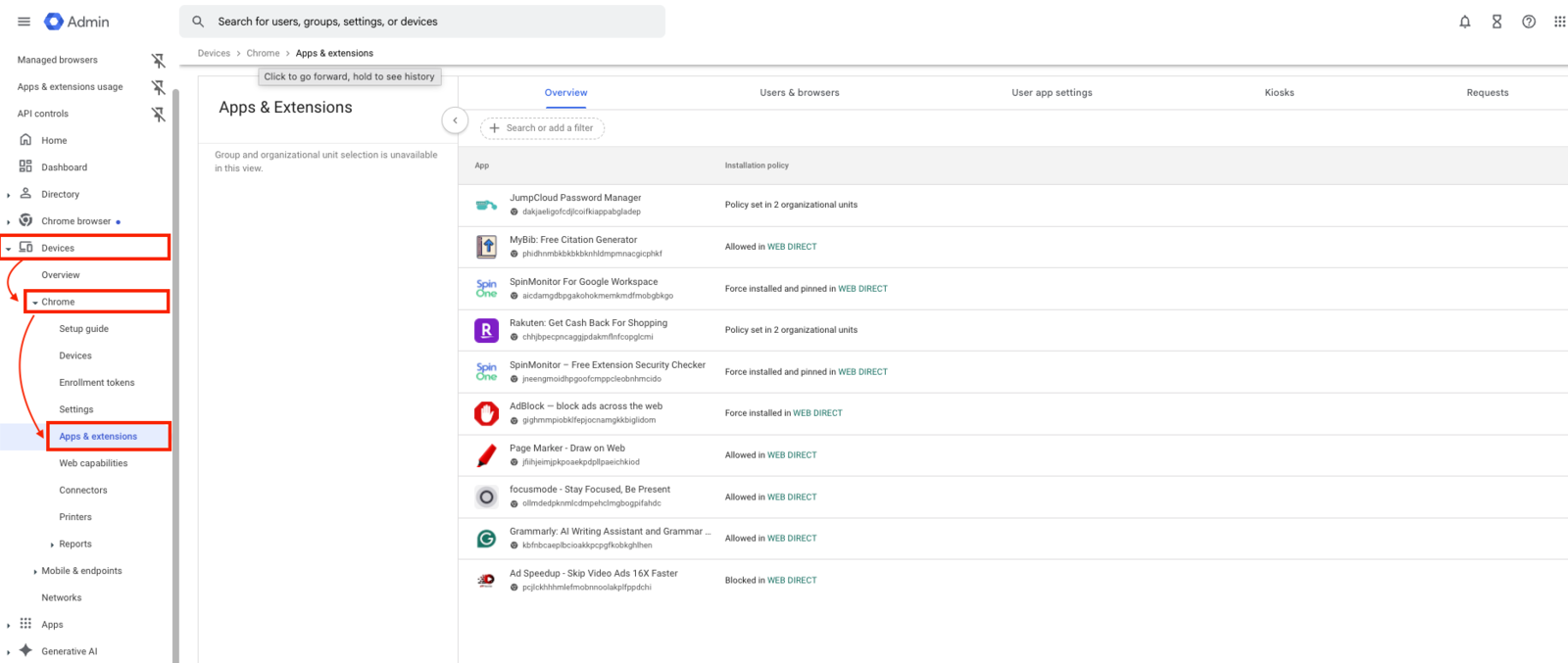
- Navigate to Devices > Chrome > Apps & extensions
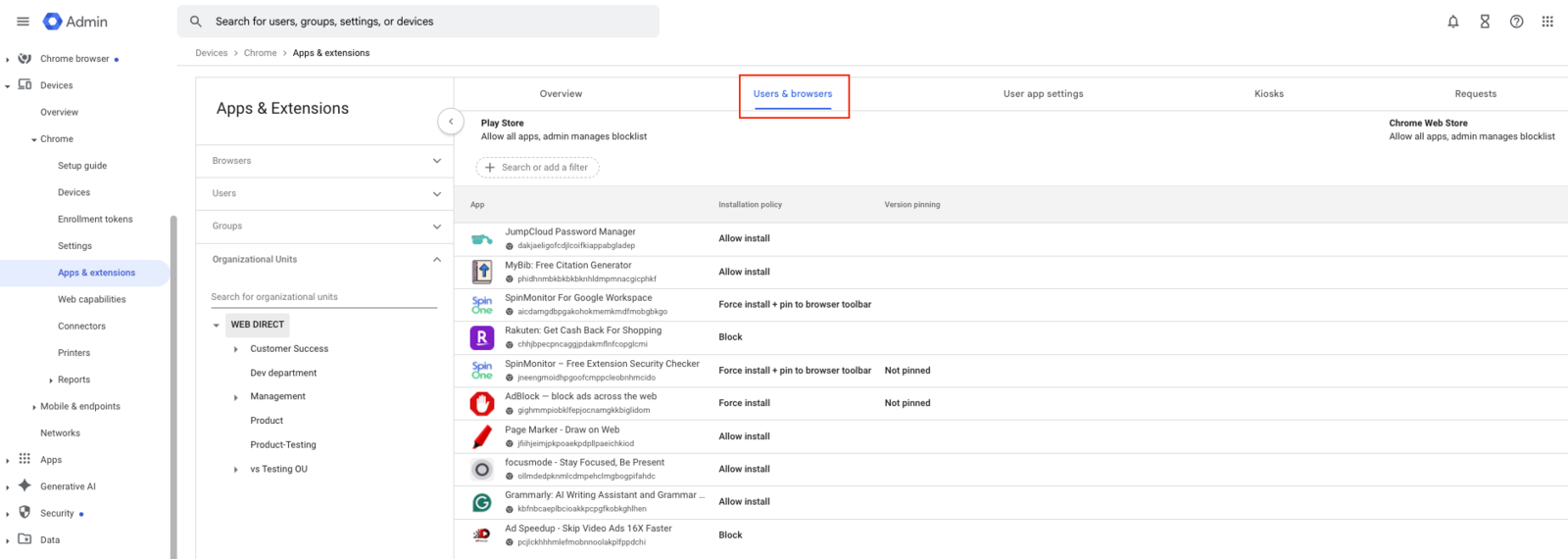
- Select Users & browsers
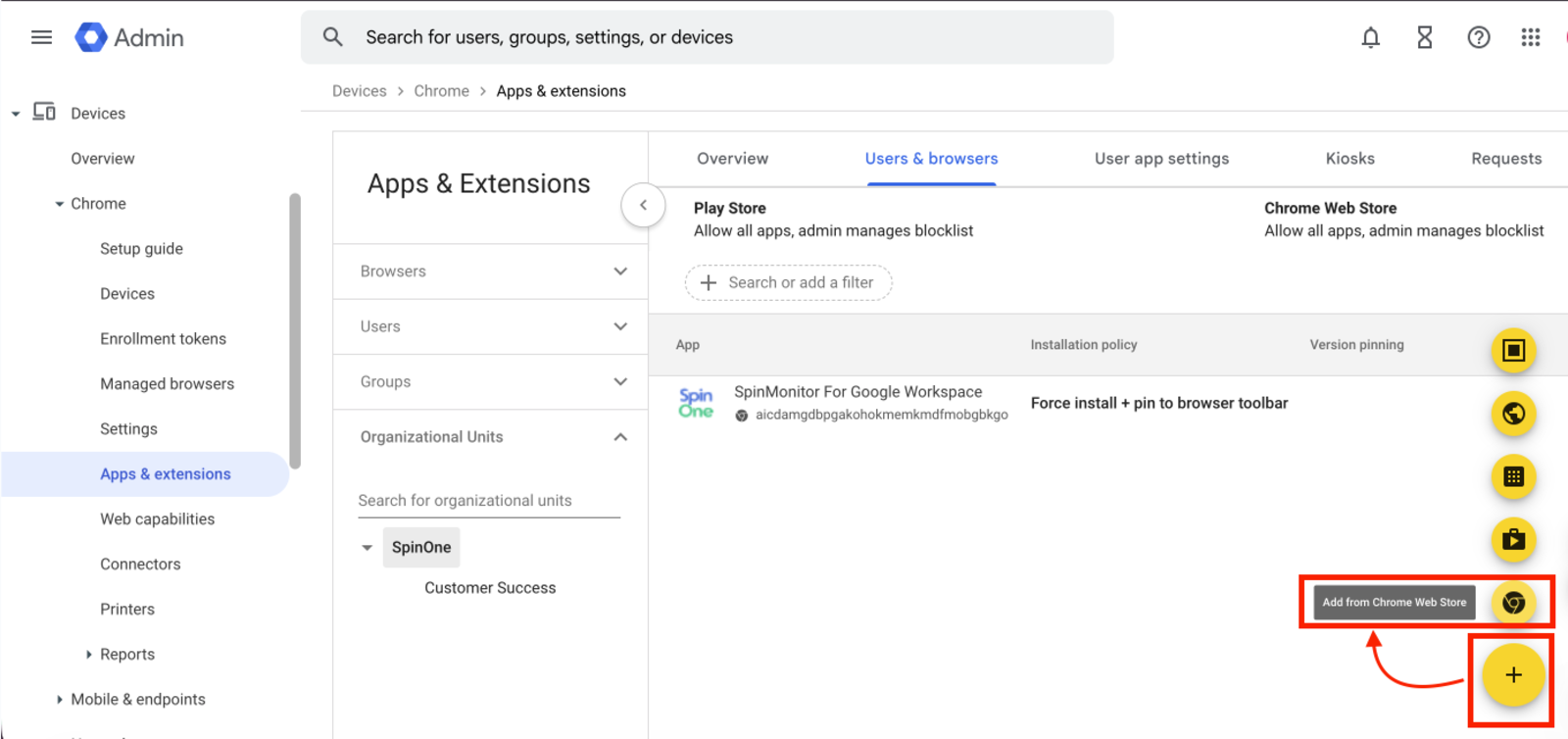
- Select the yellow plus icon, then select Add from Chrome Web Store
- In the pop-up window, enter the SpinProtect extension App ID: pjdkicnffioipghpfkejfmnpbhffbmea then press Select
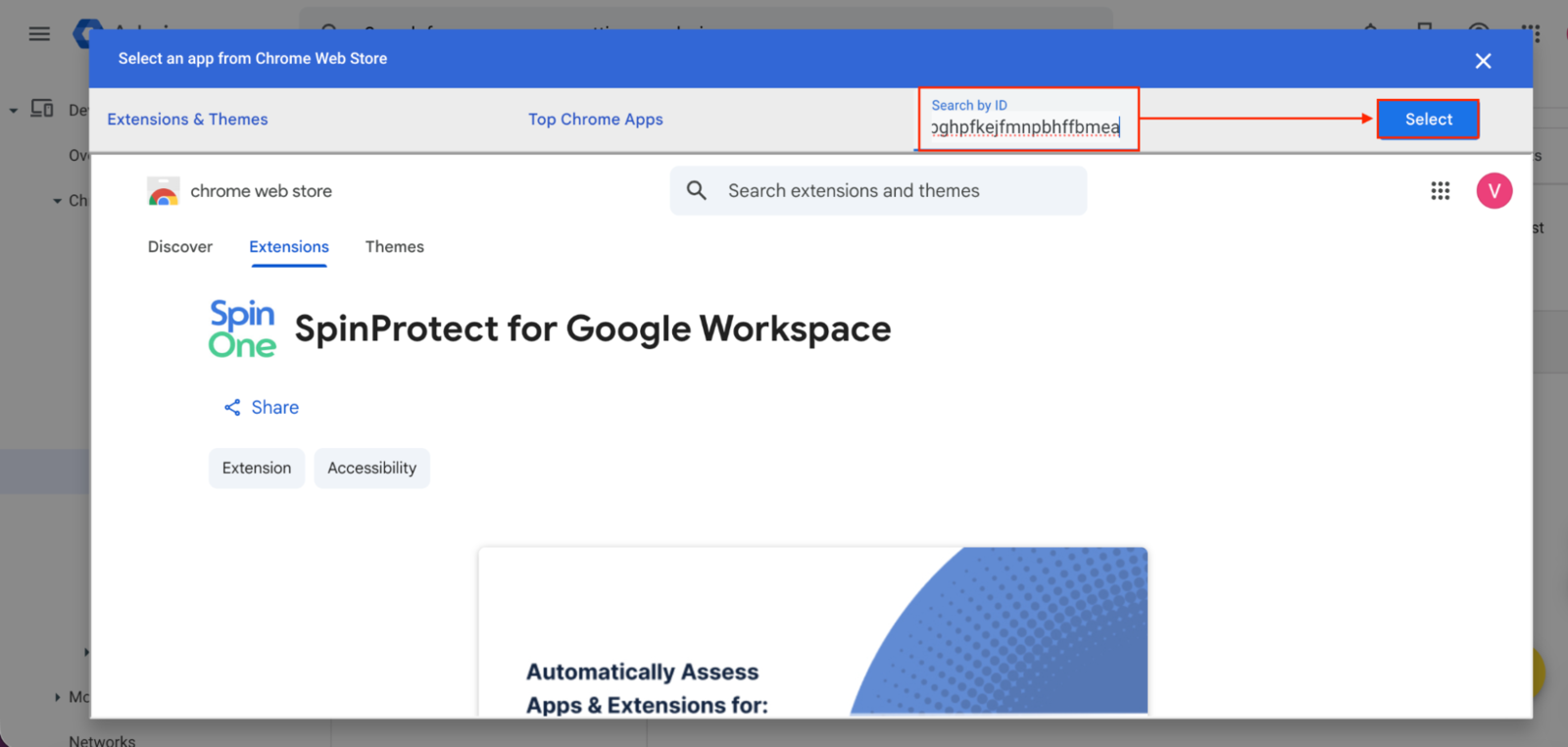
- On the new page, under “Installation policy”, select Force install + pin to browser toolbar, then press Save
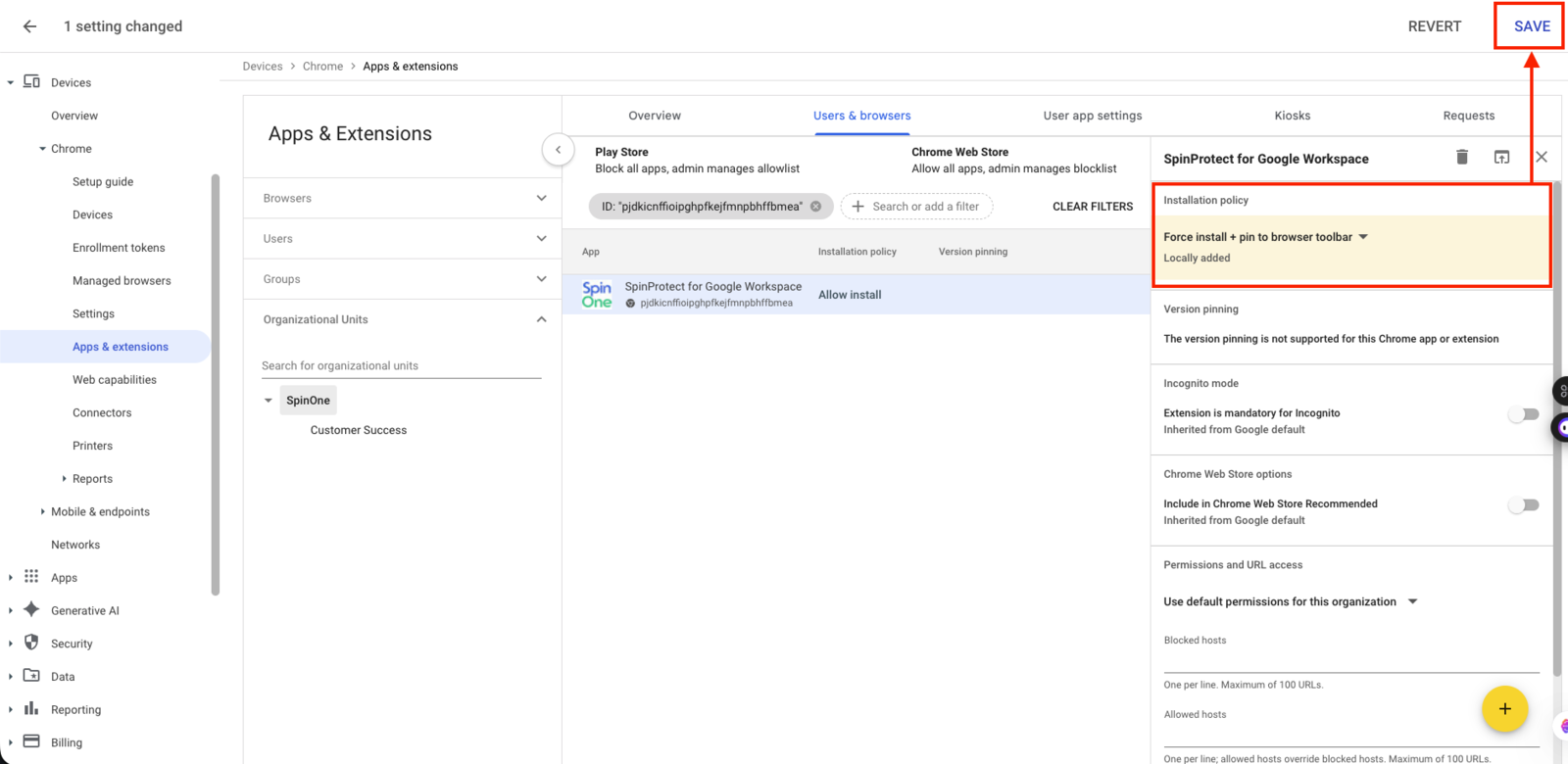
- The SpinProtect for Google Workspace Chrome extension will now automatically install to every managed Chrome profile within your Google Workspace organization.
Why didn’t my application appear?
- The Chrome browser is not updated.
- The synchronization function in the Chrome browser is disabled.
- The user is not signed into their corporate Google Workspace account on the Chrome browser.
Deploying on Edge
As a required first step, ensure that your organization is utilizing Active Directory and that all devices are enrolled in Microsoft Intune. You can head to Devices – Microsoft Endpoint Manager admin center to ensure that all devices are successfully connected.
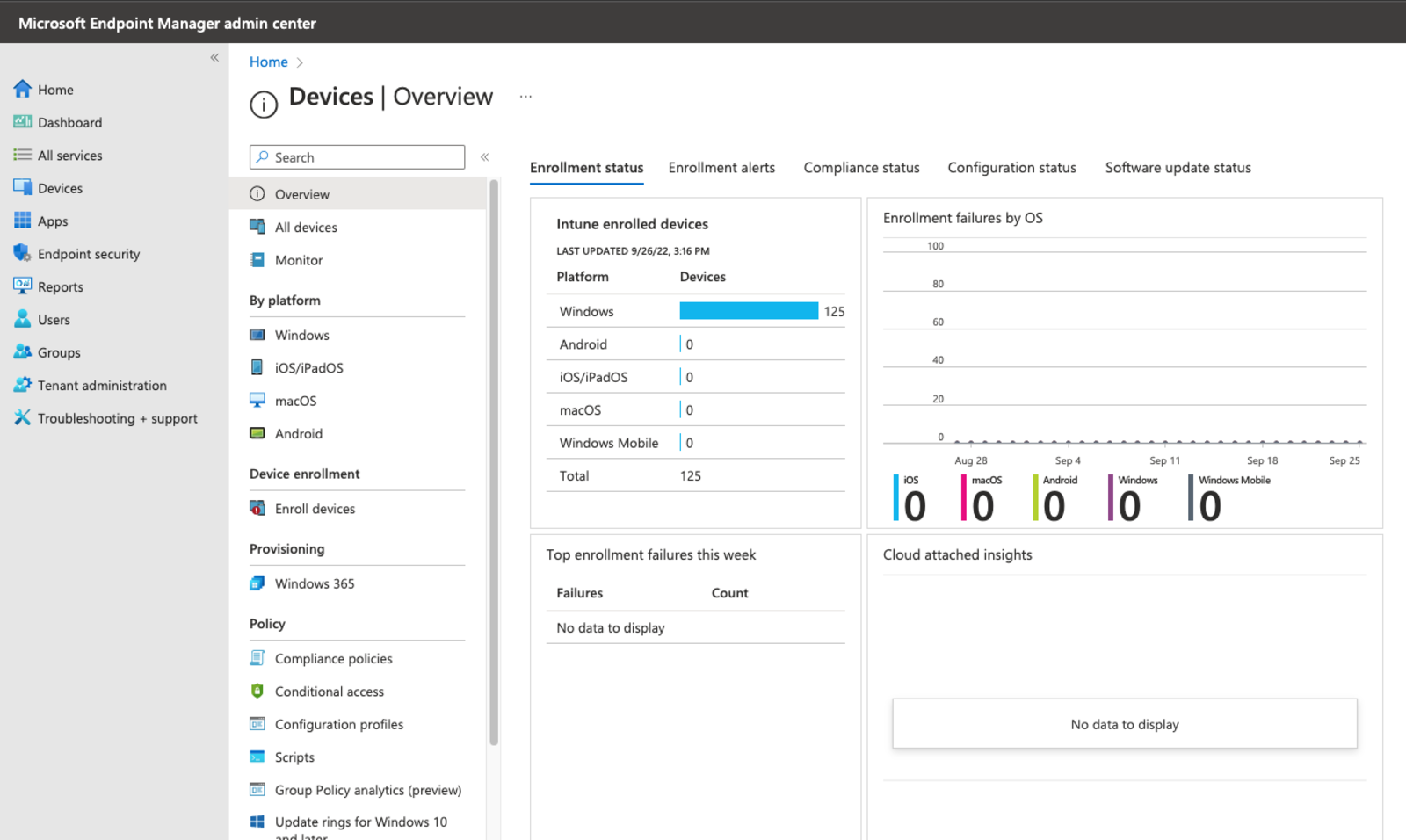
In case devices aren’t enrolled, follow these guides to begin:
- For Windows devices: https://learn.microsoft.com/en-us/mem/intune/enrollment/windows-enrollment-methods
- For macOS devices: https://learn.microsoft.com/en-us/mem/intune/enrollment/macos-enroll
- Navigate to Microsoft Intune admin center
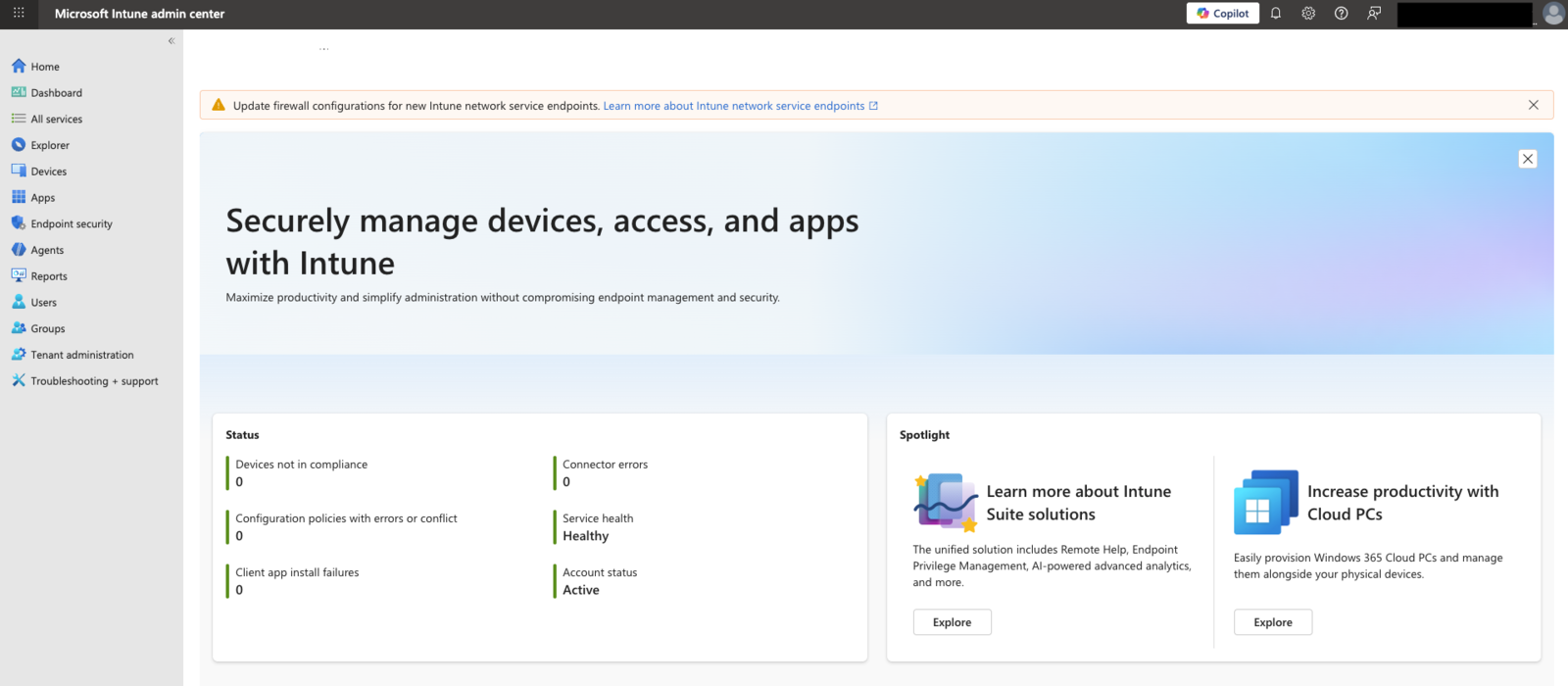
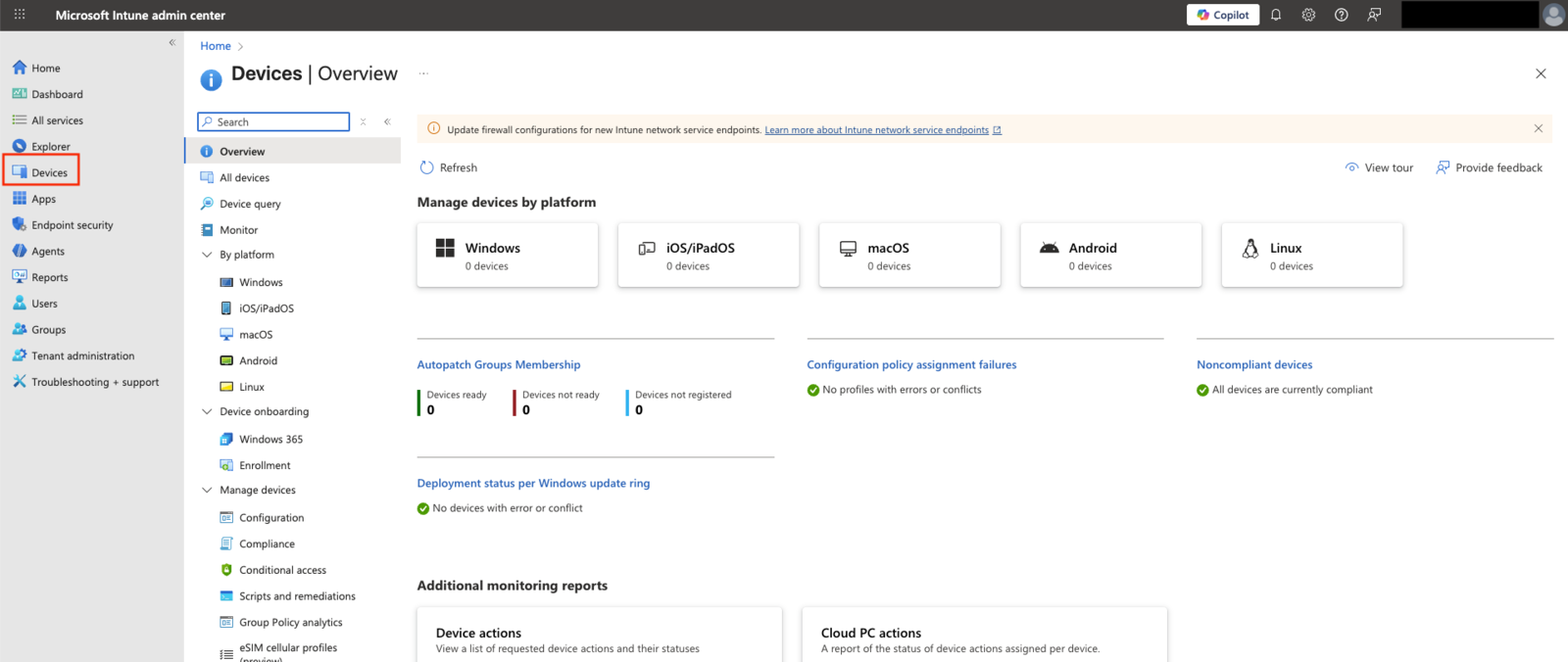
- Select Devices
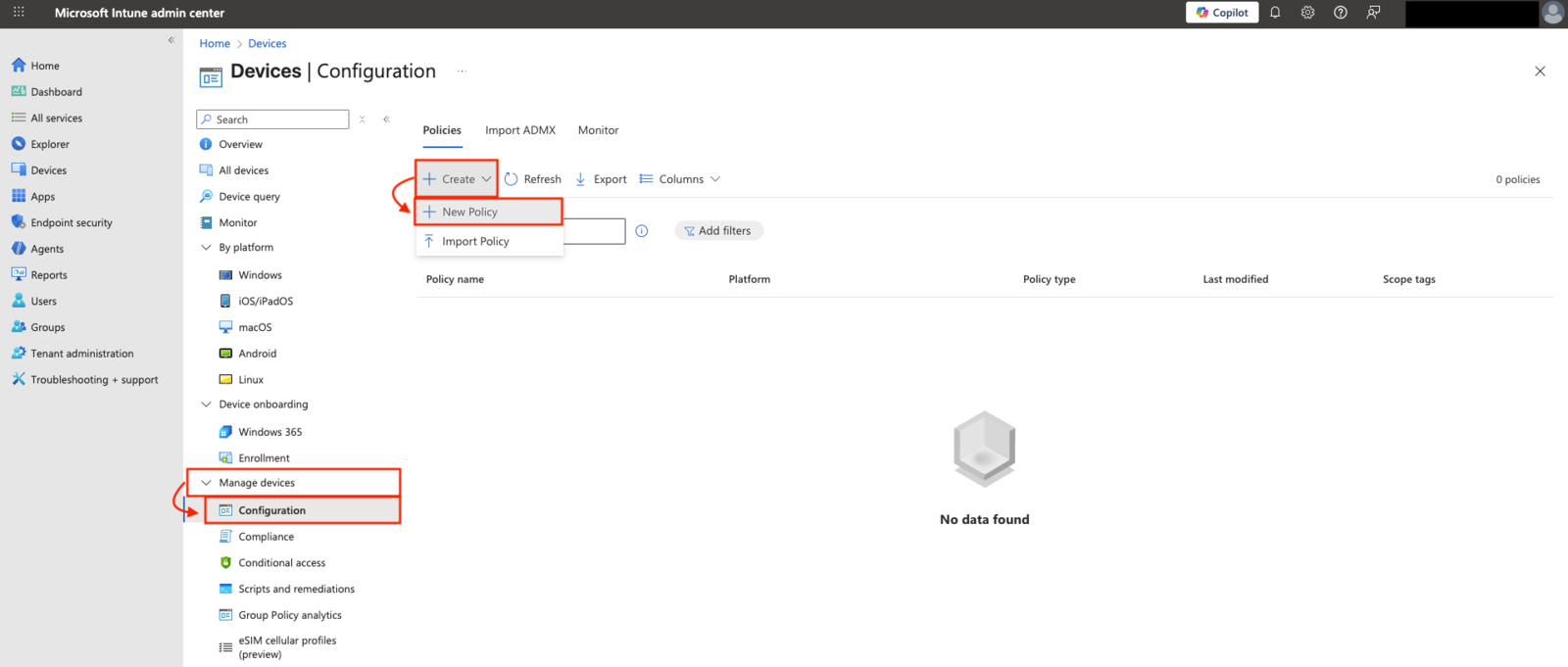
- Navigate to Manage Devices > Configuration > Policies > Create > New Policy
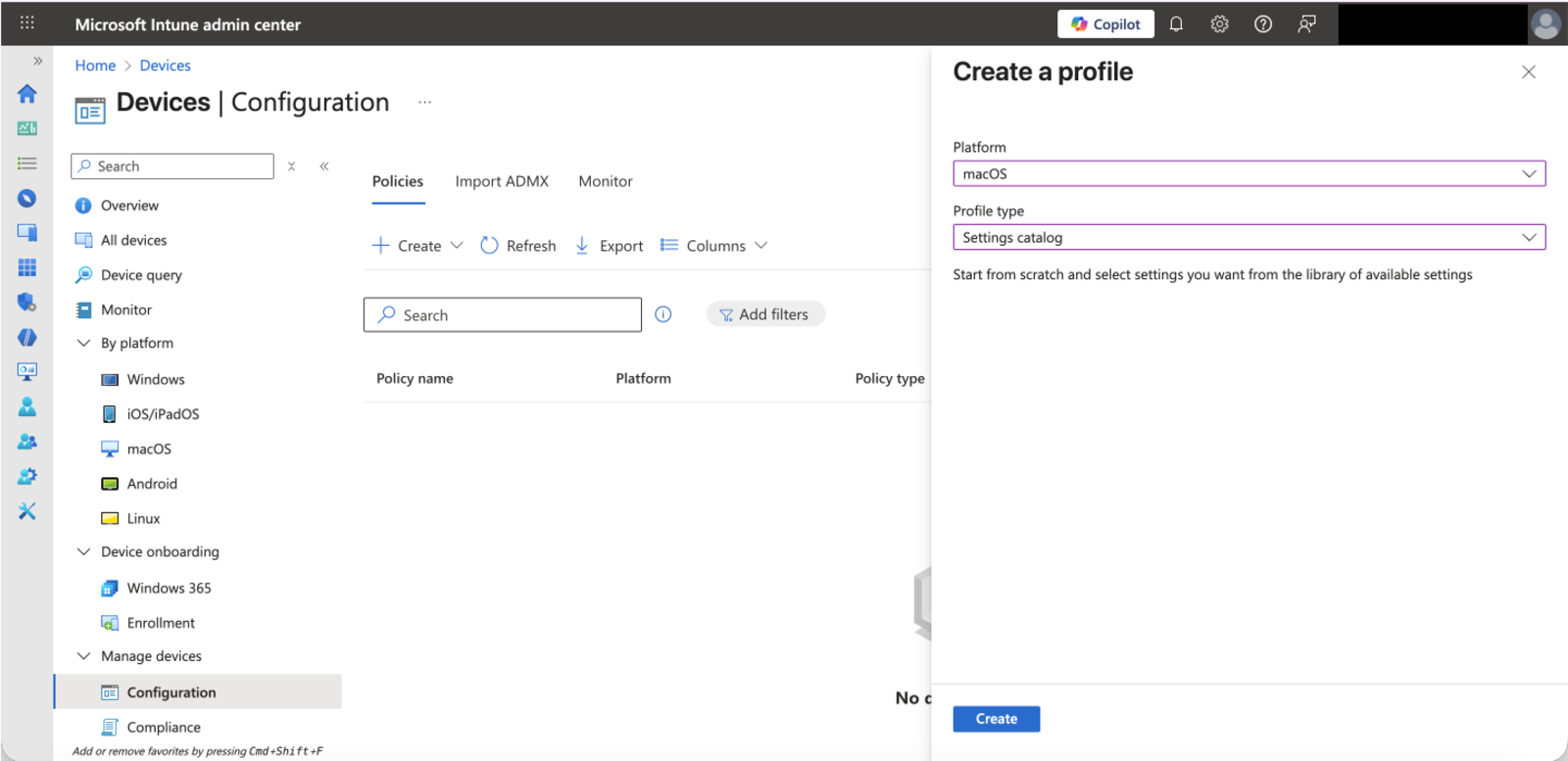
- Create a profile by:
- Setting Platform accordingly: Windows 10 and later, macOS, Linux, etc…
- Setting Profile type to: Settings catalog
- Select Create
Note: Separate profiles are required if your organization uses multiple platforms. If another profile needs to be created, complete the following steps for the selected platform and return to this step to create a different profile for other platforms.
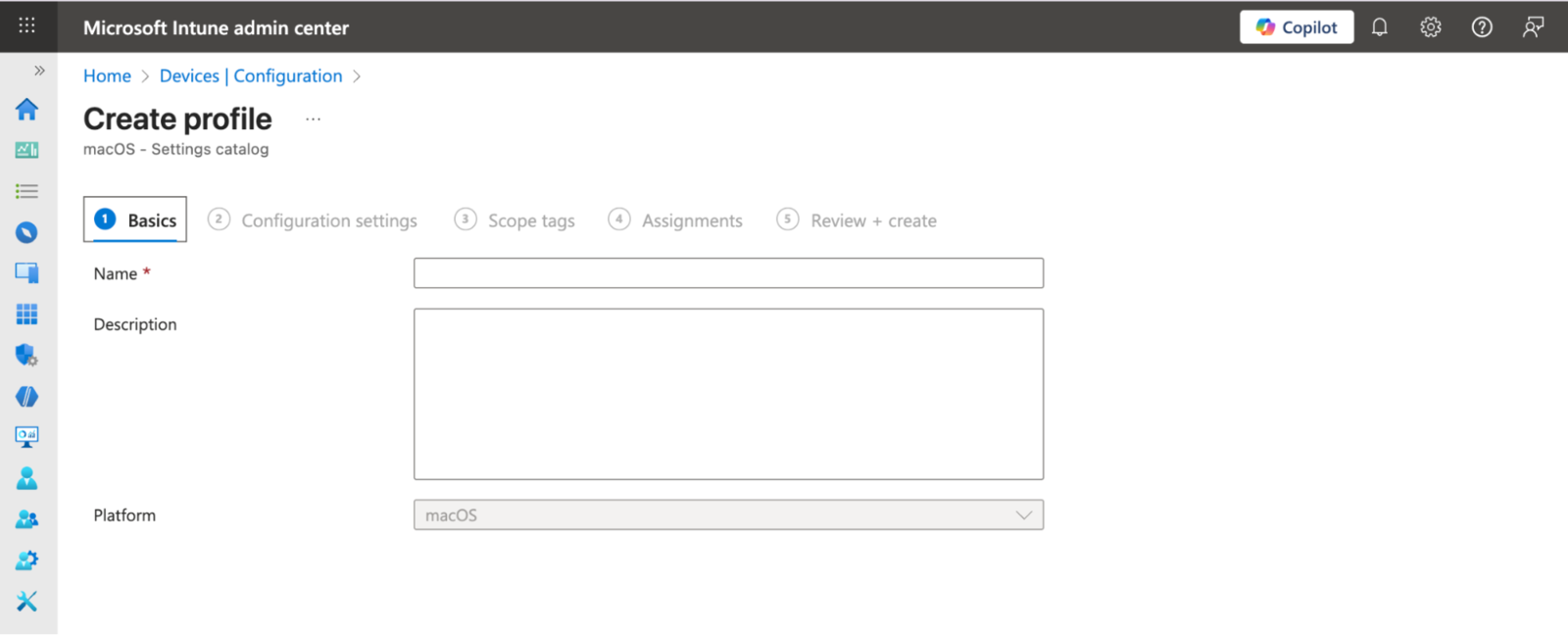
- Complete the Basics section by entering Name and Description (optional).
- Under Configuration settings section, select +Add settings > Locate the category for Microsoft Edge\Extensions (the category name may vary depending on the selected platform) > Select Control which extensions are installed silently
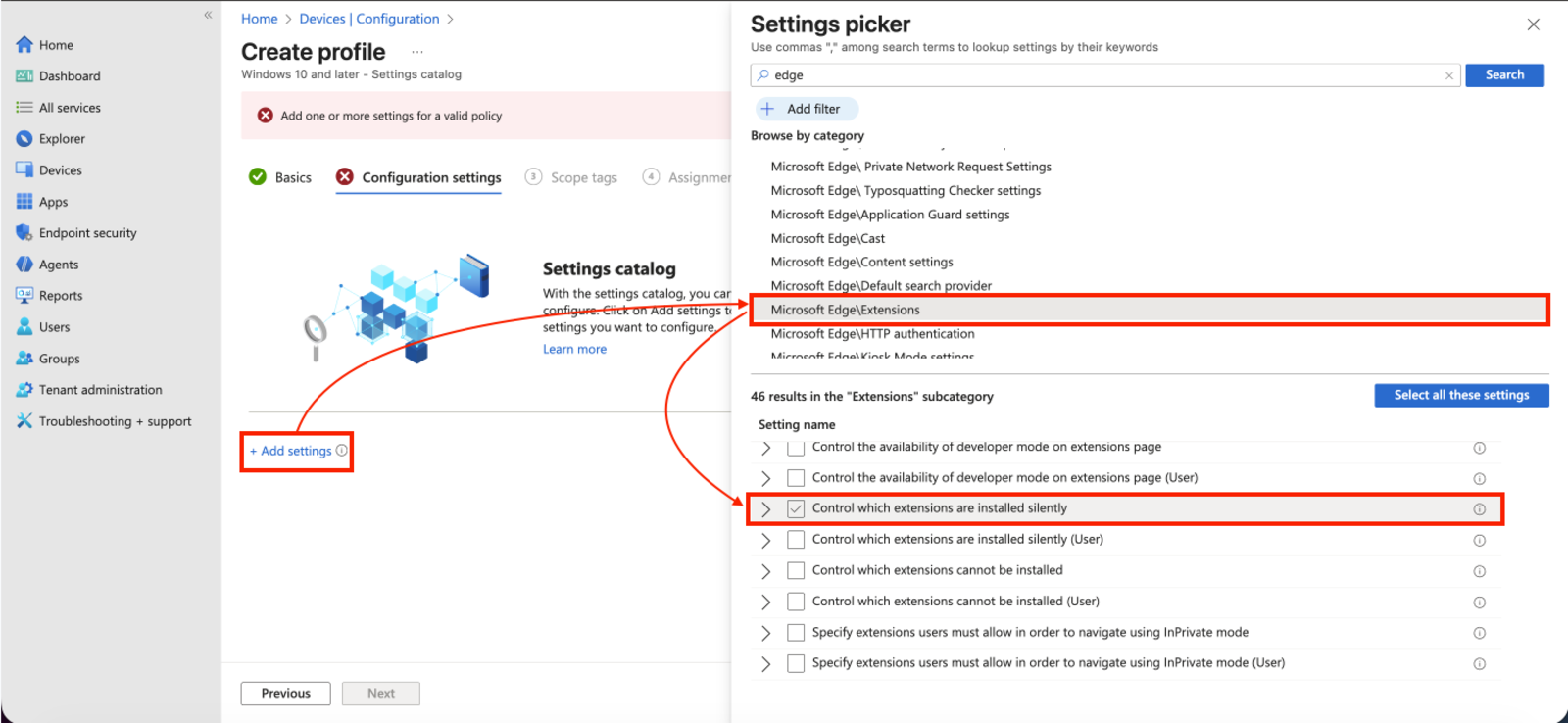
- In the Configuration Settings section, ensure the “Control which extensions are installed silent” setting is enabled and enter the following information:
pjdkicnffioipghpfkejfmnpbhffbmea;https://clients2.google.com/service/update2/crx
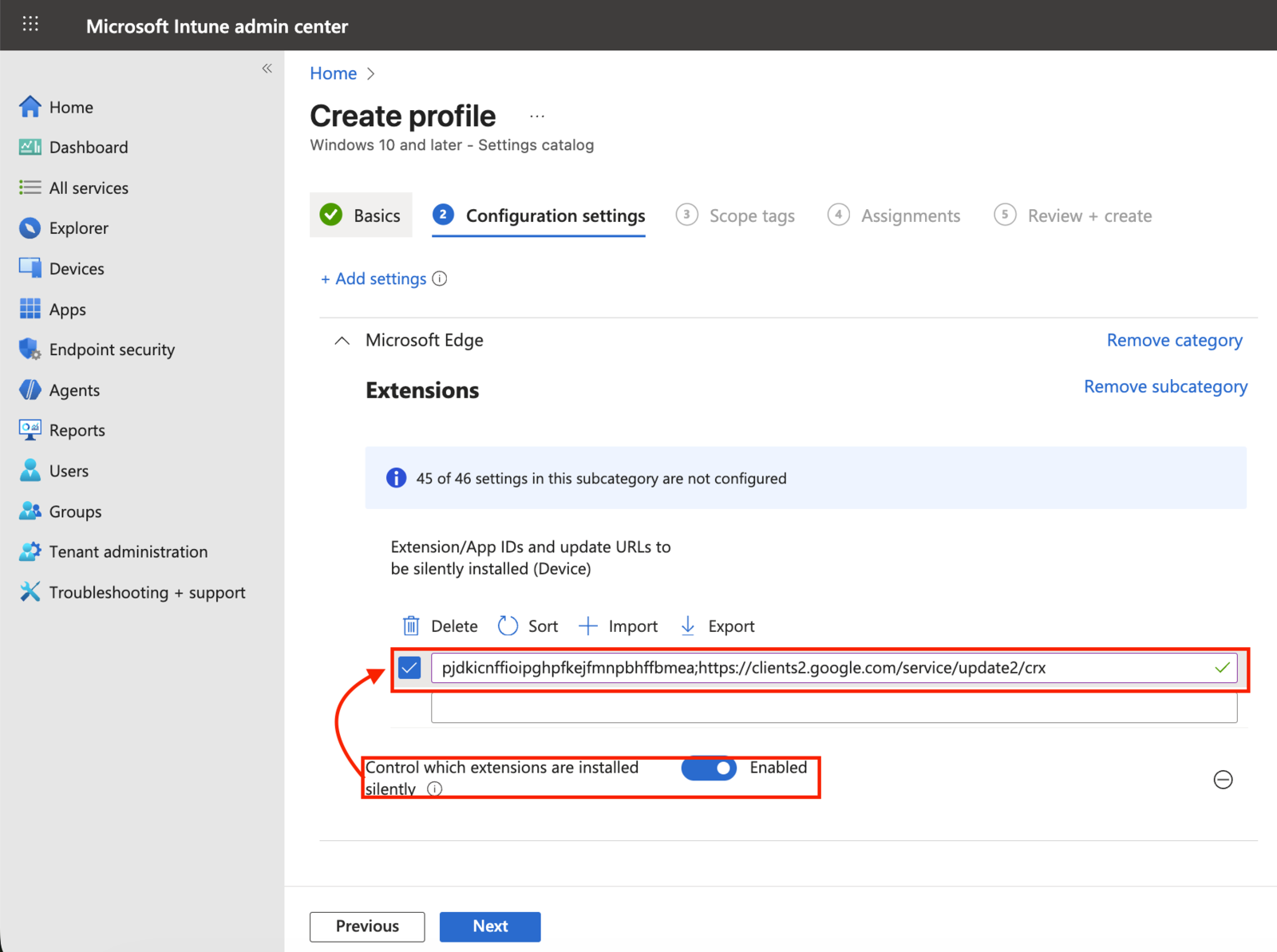
- Complete the remaining policy settings, including the device assignments, and save the profile.
SpinProtect for Microsoft 365 Organizations
This section contains instructions for deploying SpinProtect to Chrome and Edge for organizations using Microsoft 365.
Deploying on Chrome
As a required first step, ensure that your organization is utilizing Active Directory and that all devices are enrolled in Microsoft Intune. You can head to Devices – Microsoft Endpoint Manager admin center to ensure that all devices are successfully connected.
In case devices aren’t enrolled, follow these guides to begin:
- For Windows devices: https://learn.microsoft.com/en-us/mem/intune/enrollment/windows-enrollment-methods
- For macOS devices: https://learn.microsoft.com/en-us/mem/intune/enrollment/macos-enroll
- Navigate to Microsoft Intune admin center
- Select Devices
- Navigate to Manage Devices > Configuration > Policies > Create > New Policy
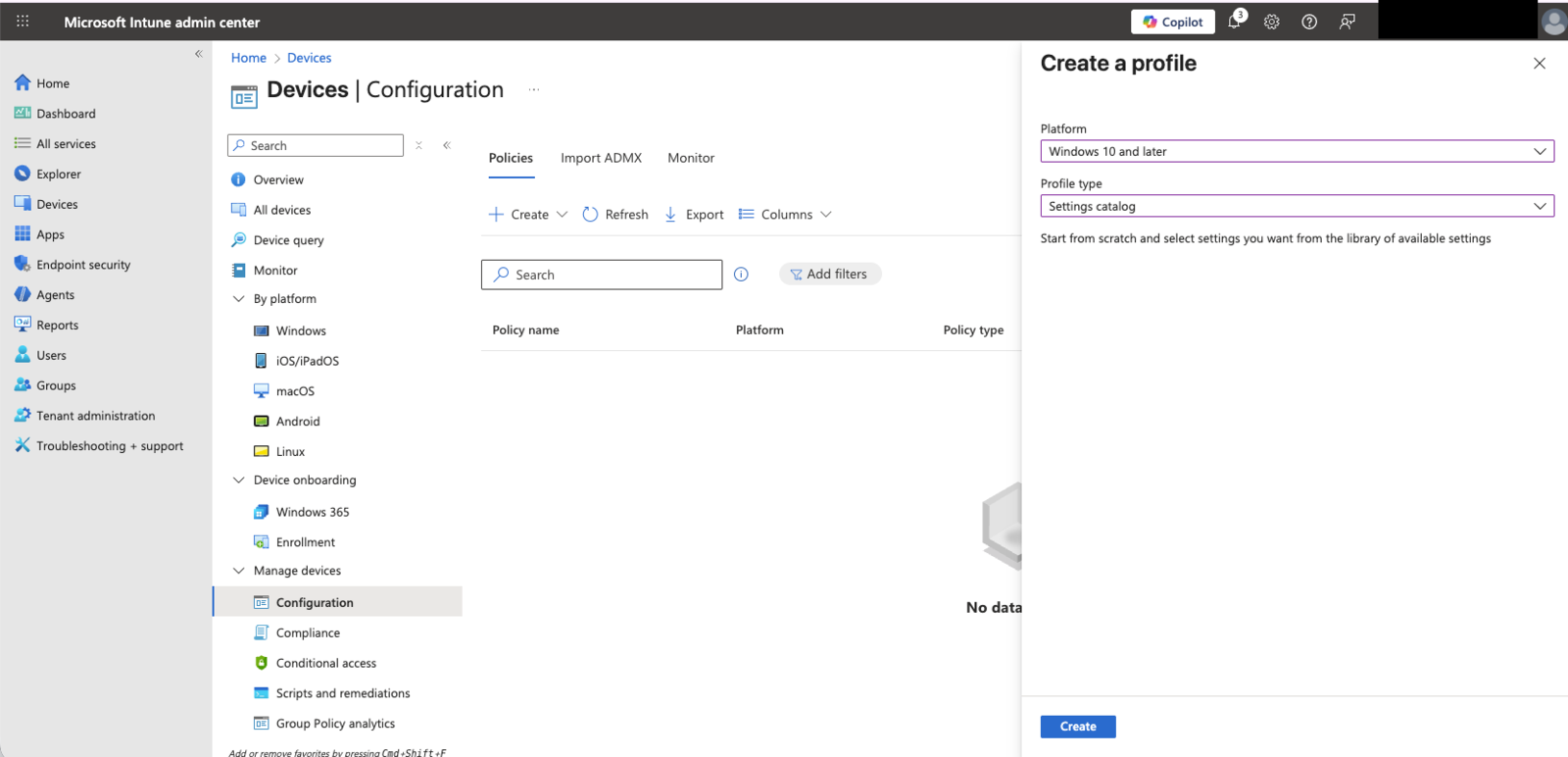
- Create a profile by:
- Setting Platform accordingly: Windows 10 and later, macOS, Linux, etc…
- Setting Profile type to: Settings catalog
- Select Create
Note: Separate profiles are required if your organization uses multiple platforms. If another profile needs to be created, complete the following steps for the selected platform and return to this step to create a different profile for other platforms.
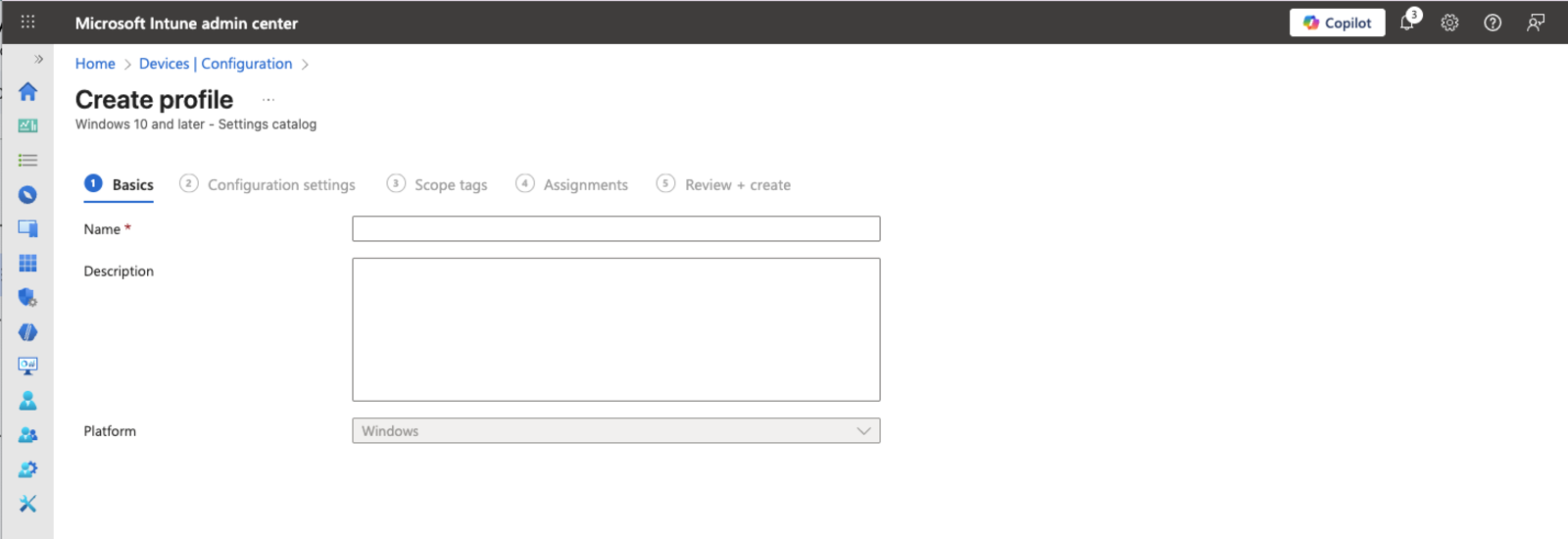
5. Complete the Basics section by entering Name and Description (optional).
6. Under Configuration settings section, select +Add settings > Locate the category for Google Chrome Extensions (the category name may vary depending on the selected platform) > Select Configure the list of force-installed apps and extensions > Select Extension/App IDs and update URLs to be silently installed (Device)
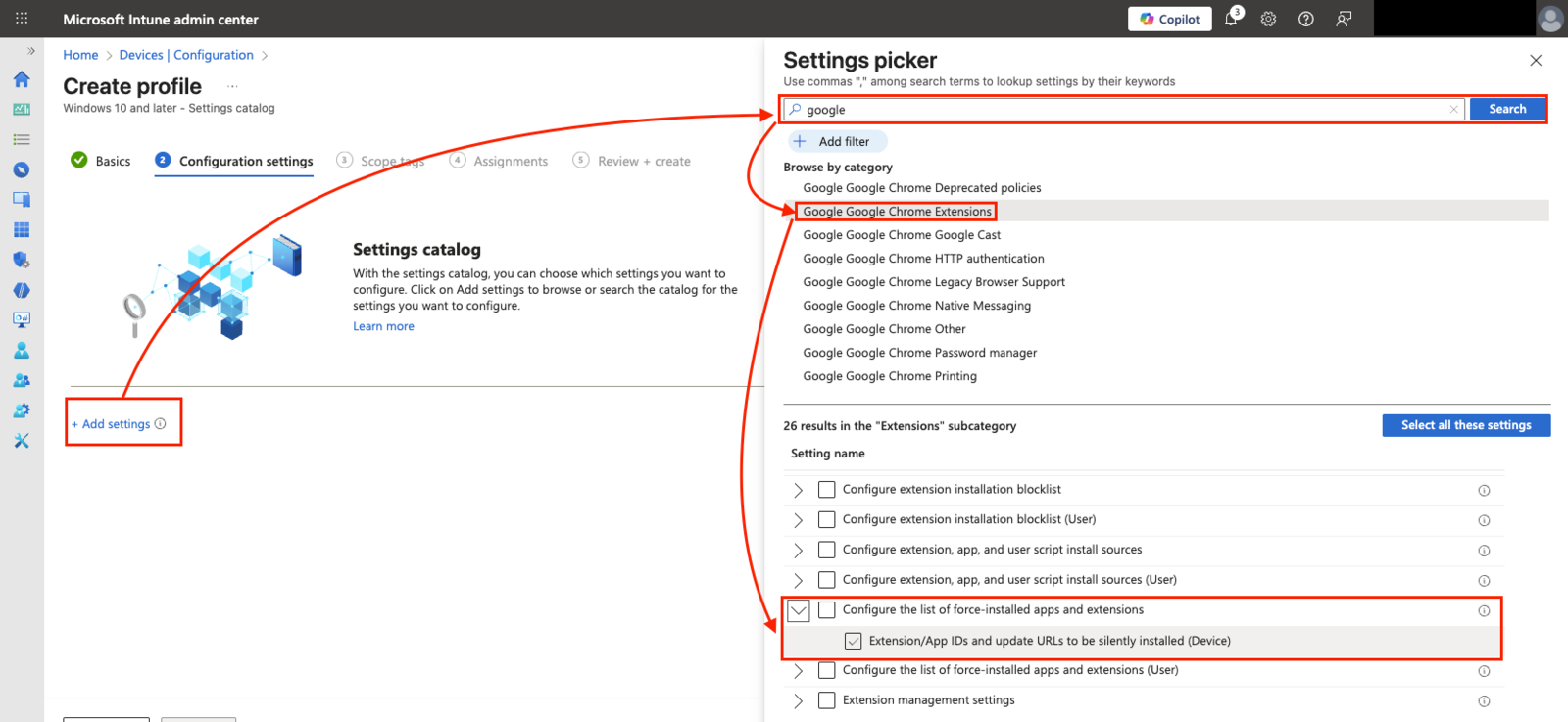
7. In the Configuration Settings section, ensure the “Control which extensions are installed silent” setting is enabled and enter the following information:
albelcopcckbhpemmbppkgnbpbglmgac;https://clients2.google.com/service/update2/crx
8. Complete the remaining policy settings, including the device assignments, and save the profile.
Deploying on Edge
As a required first step, ensure that your organization is utilizing Active Directory and that all devices are enrolled in Microsoft Intune. You can head to Devices – Microsoft Endpoint Manager admin center to ensure that all devices are successfully connected.
In case devices aren’t enrolled, follow these guides to begin:
- For Windows devices: https://learn.microsoft.com/en-us/mem/intune/enrollment/windows-enrollment-methods
- For macOS devices: https://learn.microsoft.com/en-us/mem/intune/enrollment/macos-enroll
- Navigate to Microsoft Intune admin center
- Select Devices
- Navigate to Manage Devices > Configuration > Policies > Create > New Policy
- Create a profile by:
- Setting Platform accordingly: Windows 10 and later, macOS, Linux, etc…
- Setting Profile type to: Settings catalog
- Select Create
Note: Separate profiles are required if your organization uses multiple platforms. If another profile needs to be created, complete the following steps for the selected platform and return to this step to create a different profile for other platforms.
5. Complete the Basics section by entering Name and Description (optional).
6. Under Configuration settings section, select +Add settings > Locate the category for Microsoft Edge\Extensions (the category name may vary depending on the selected platform) > Select Control which extensions are installed silently
7. In the Configuration Settings section, ensure the “Control which extensions are installed silent” setting is enabled and enter the following information:
albelcopcckbhpemmbppkgnbpbglmgac;https://clients2.google.com/service/update2/crx
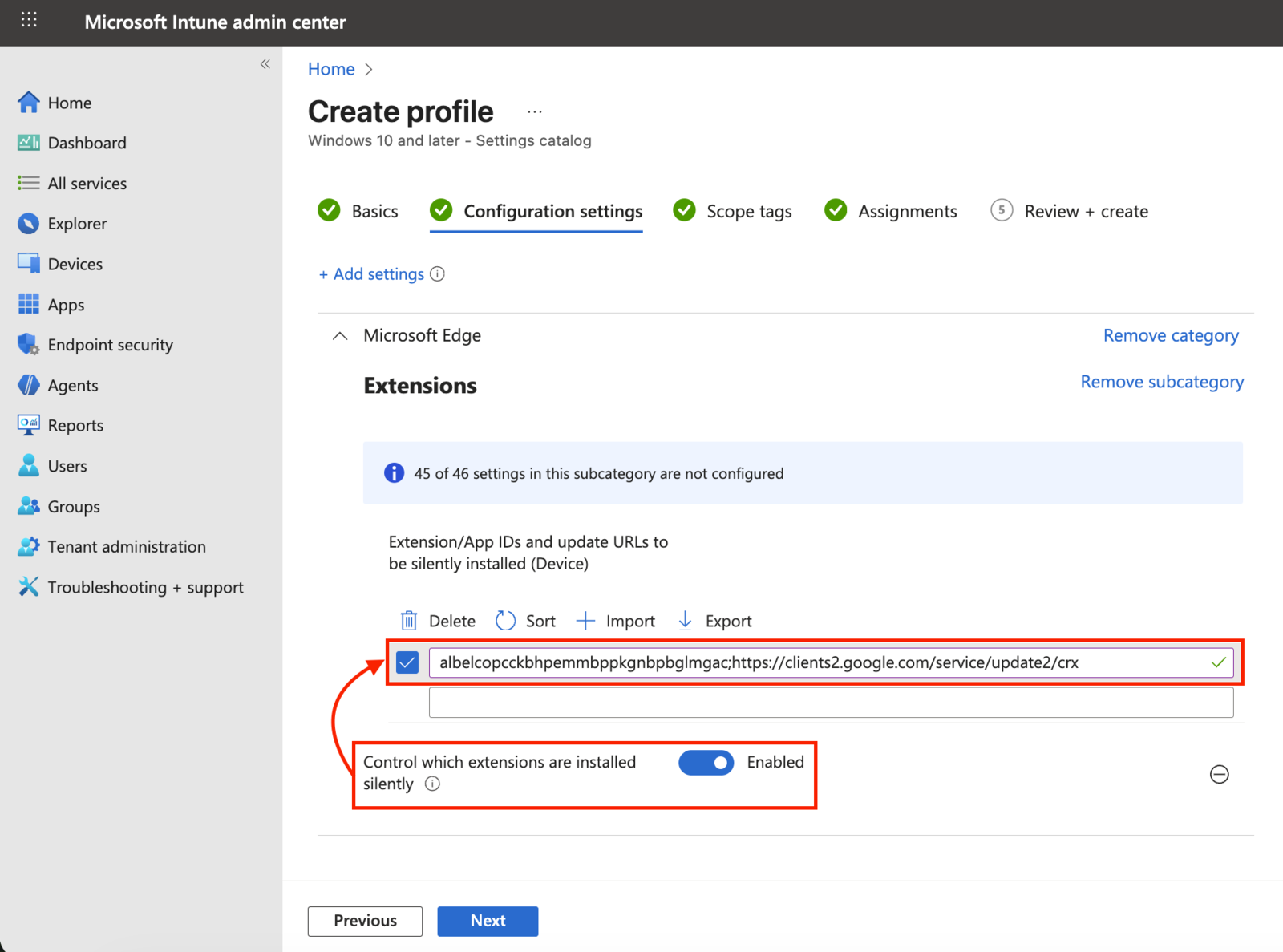
Complete the remaining policy settings, including the device assignments, and save the profile.
Domain Applications in the SpinOne Platform
SpinProtect detects website domain visits using the Domain Apps listed in the Apps by Domain page, which serves as a centralized location to manage Domain Apps. By default, SpinOne has preconfigured a short list of potentially unwanted Domain Apps. This list can be edited or deleted.
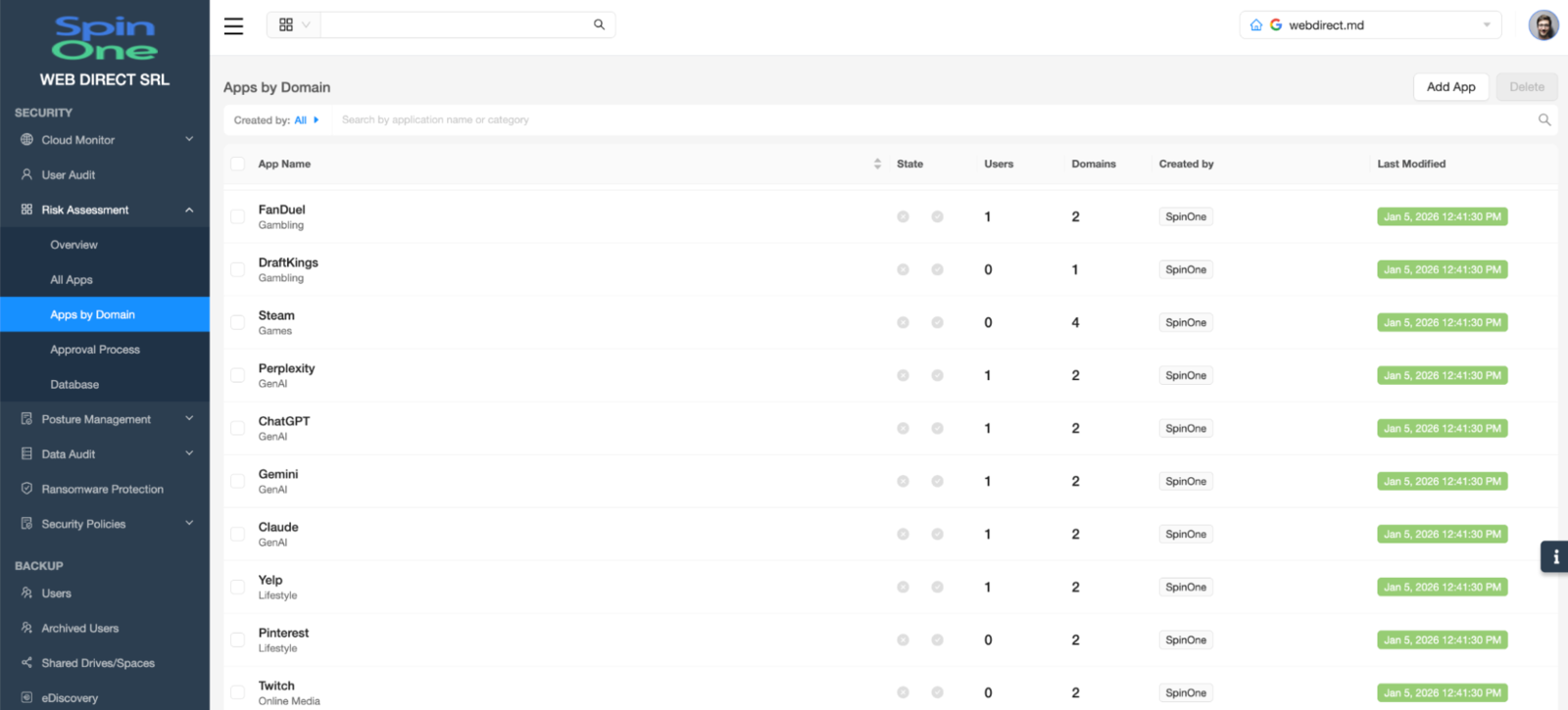
To add a Domain App to this list, select the Add App button. Complete the required information and select Add.
Notes:
- Only domains are supported at this time
- The hostname may vary depending on the domain (i.e. spin.ai vs www.spin.ai) so it is encouraged to add the domain and a wildcard (i.e. spin.ai and *.spin.ai)
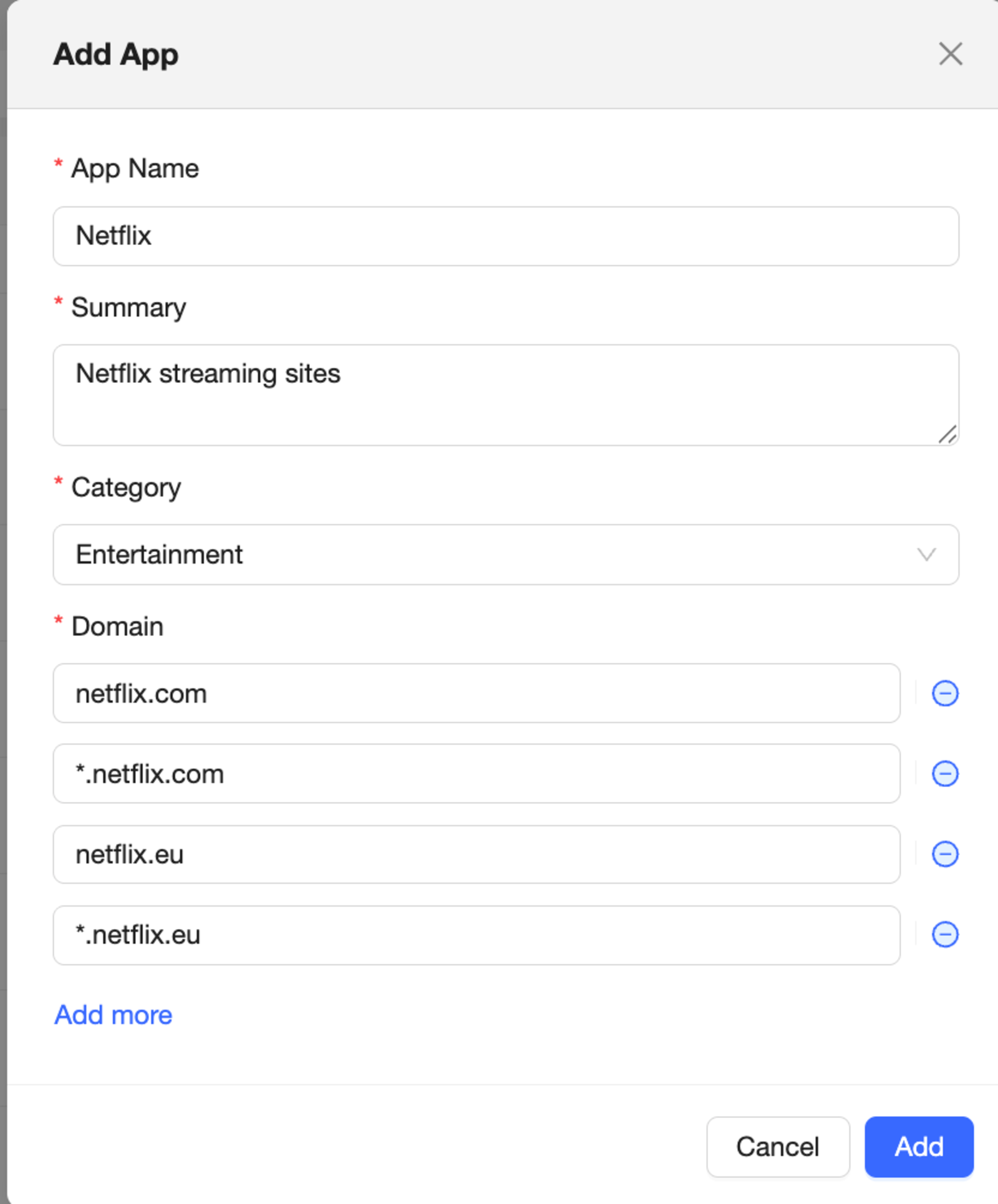
Once a Domain App is added to the list, SpinProtect will begin monitoring visits to the observed domains.
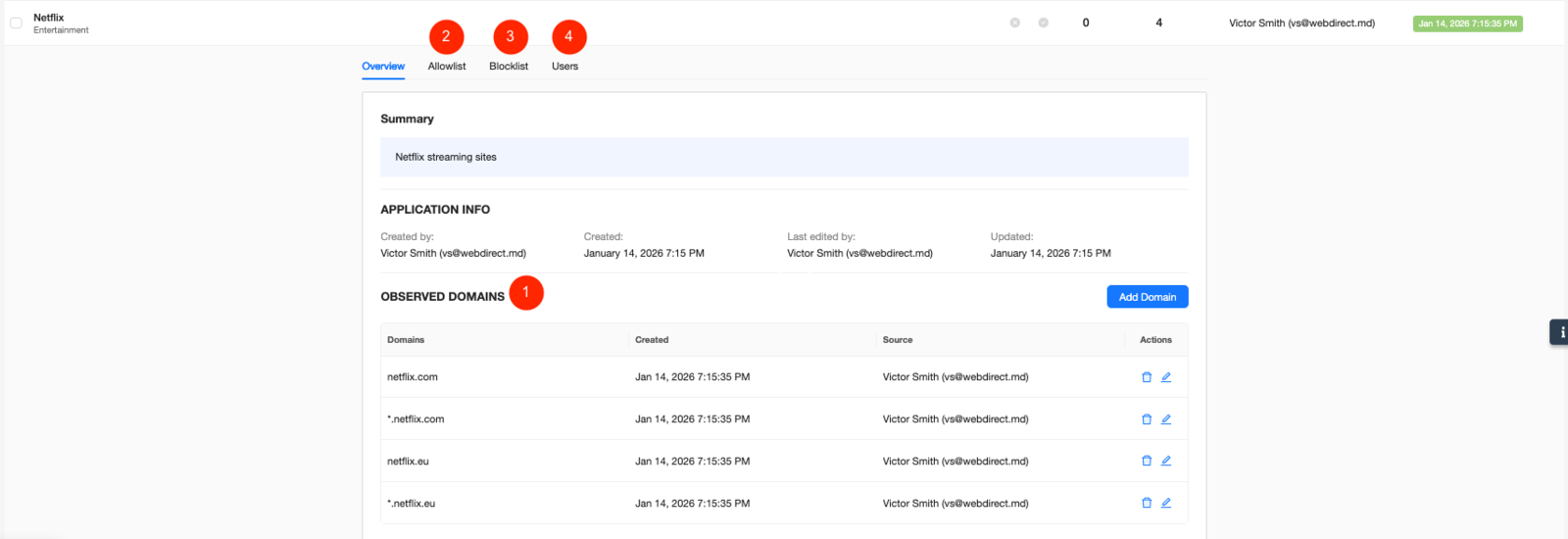
- Observed Domains – These are the domains associated with the Domain App. This list can be added, edited, or deleted.
- Allowlist – The Domain App can be added to an Allowlist.
- Blocklist – The Domain App can be added to a Blocklist.
- Users – A list of users using the Domain App.
Once SpinProtect detects a user using a Domain App, that Domain App is reported in the All Apps page, along with all other detected applications and browser extensions.
FAQs
What are common use cases for SpinProtect?
By combining SpinOne and SpinProtect, customers can manage the full security lifecycle of OAuth applications and browser extensions – detection, remediation, prevention.
For example, organizations that discover high risk OAuth applications or browser extensions may want to completely prevent end users from accessing anything related to it. SpinOne manages the application itself, while SpinProtect manages browser extensions and prevents end users from accessing the websites associated with the blocked application or browser extension.
SpinProtect can also be used to simply block unsanctioned websites that may not be safe for work (adult, gambling, etc…).
What is the difference between SpinMonitor and SpinProtect?
SpinMonitor provides visibility and management over installed browser extensions. SpinProtect includes SpinMonitor’s capabilities, as well as the ability to manage website domains, also known as Domain Applications.
Which subscription plans support SpinProtect?
SpinOne, SpinSPM, and SpinCRX customers have access to SpinProtect.
How should I notify my organization about SpinProtect deployment?
For your convenience, we’ve drafted the following draft note that can be used as an internal memo regarding the deployment of SpinProtect: SpinProtect Extension Communication Draft.pdf
Get more information on Google Workspace™ Backup Solutions