
Guide to Protect All Slack Users on SpinOne

Head to the Users page from the left panel of your SpinOne account to see the Status of your Slack Users on SpinOne.
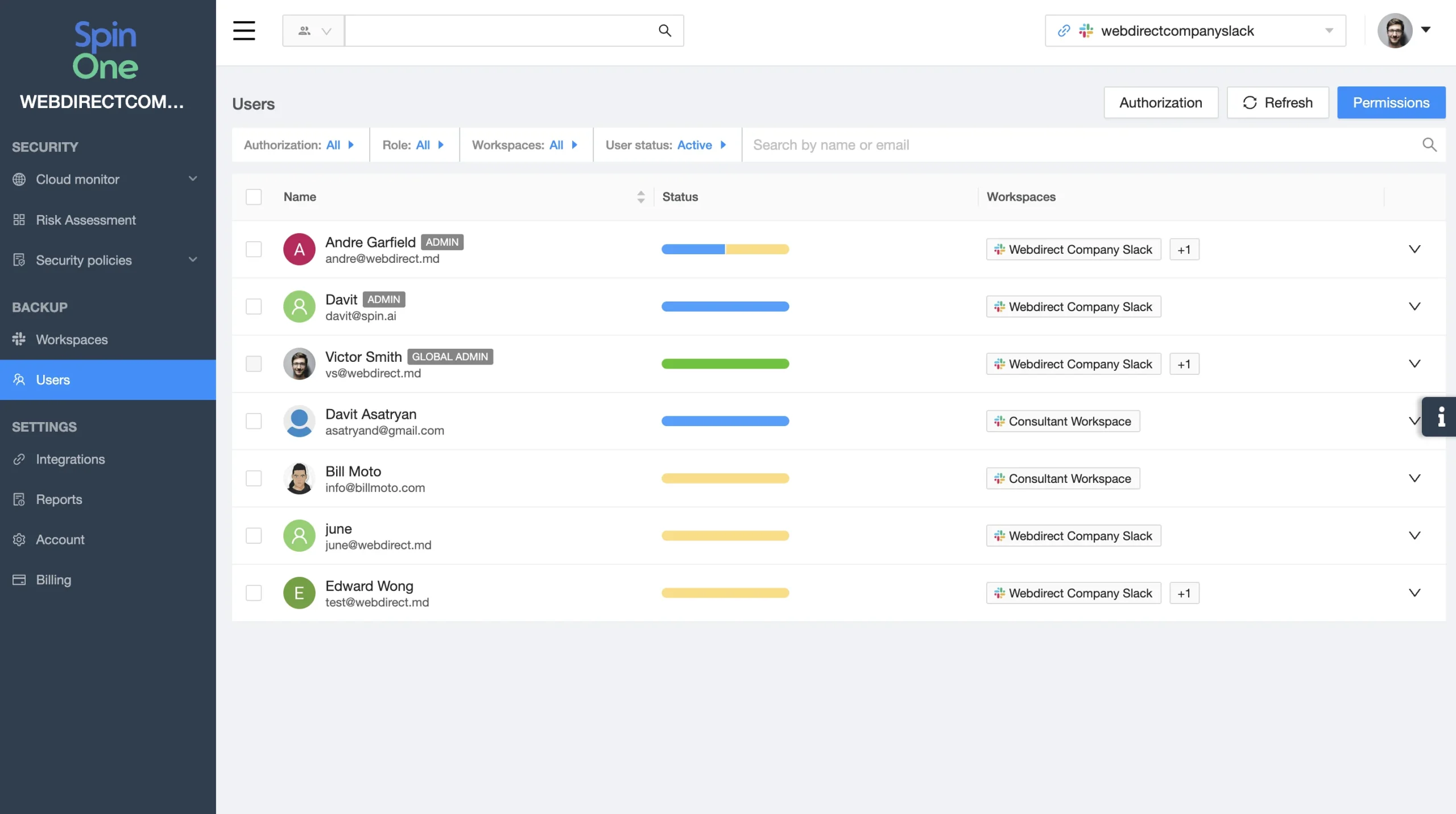
Status is used for administrators to see if their users have authorized the SpinOne application to their Workspace or not. Use the provided filters and actions to complete your desired outcome.
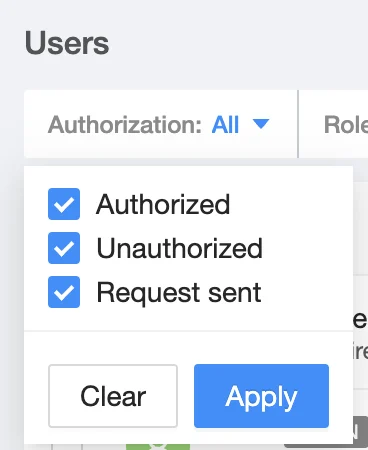
The Authorization filter has 3 categories:
- Authorized (GREEN) – user has successfully authorized the SpinOne application to the Slack Workspace
- Unauthorized (YELLOW) – user has not authorized the SpinOne application to the Slack Workspace
- Request sent (BLUE) – an authorization request has been sent, but the user has not completed it
You can also click on a user to see their authorization status.
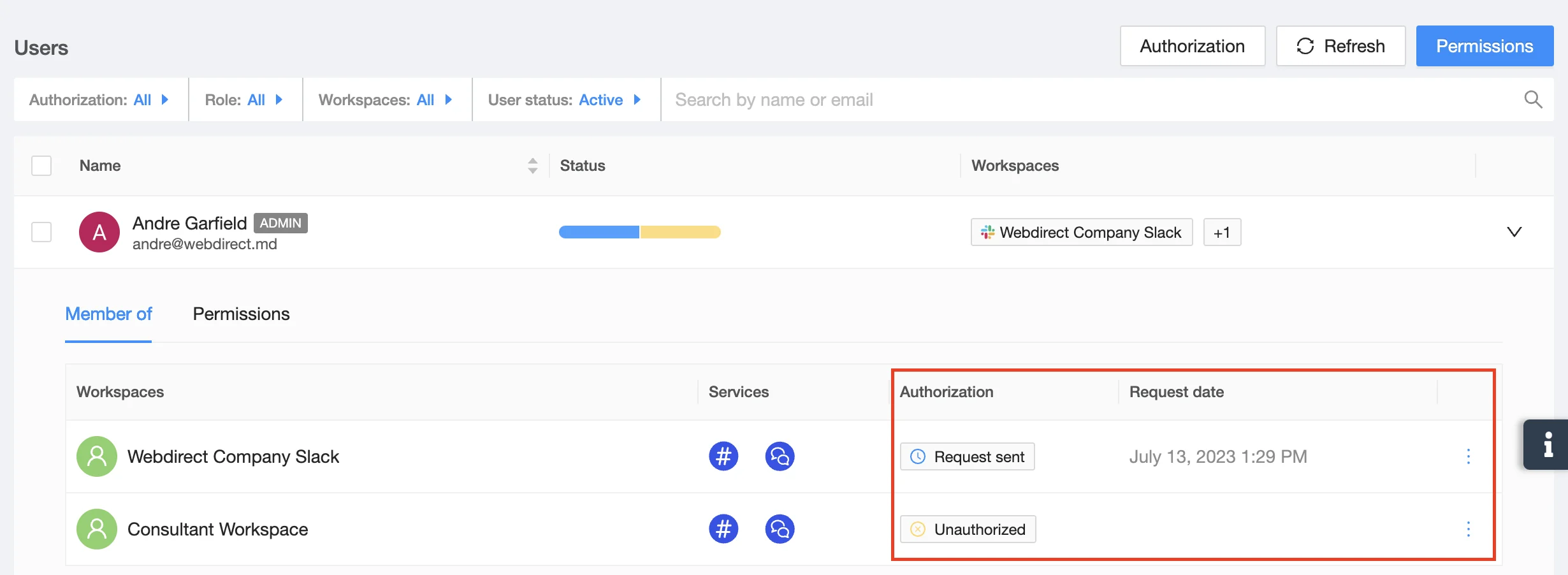
Now that you have the visibility of which users are connected and which aren’t, you can send Authorization requests to your users.
To send a request to an individual user, click on the three dots on the right hand side of the Workspace you want them to connect and click Send request. If you have already sent the user a request, you can still send a new request by clicking Resend request.
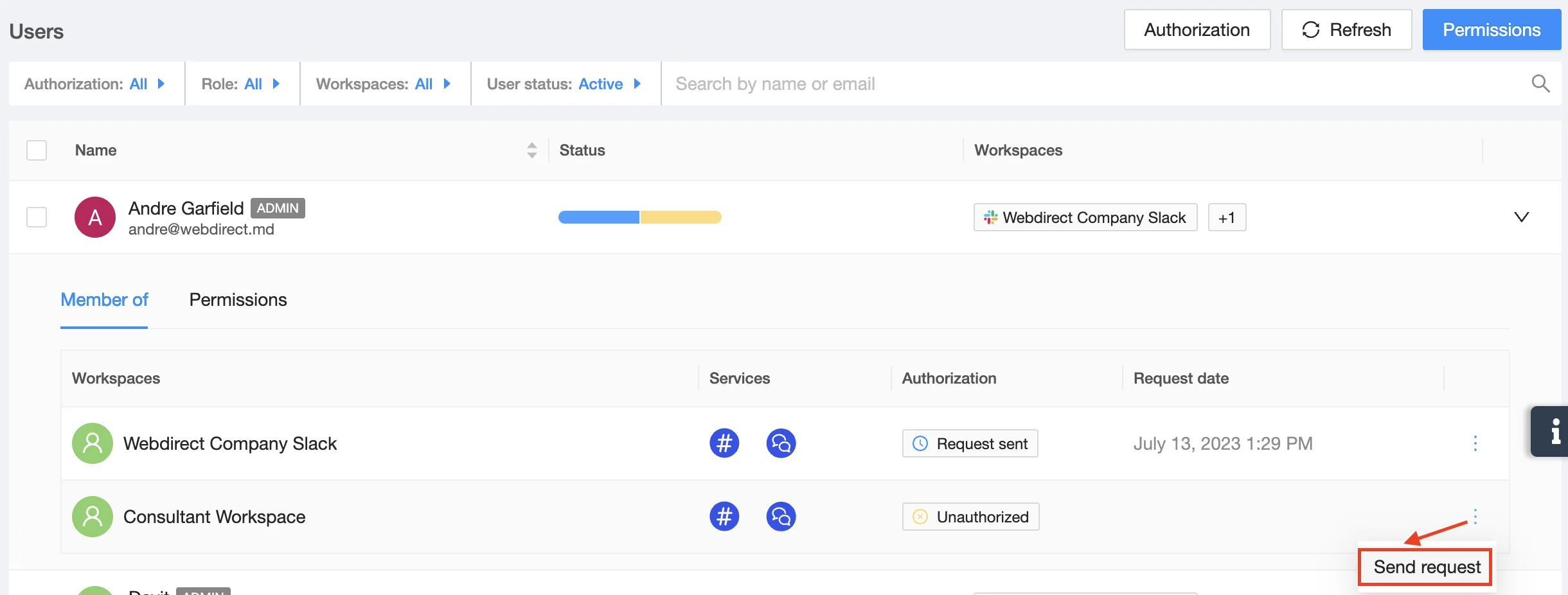
To send a request to all Unauthorized users, click on the Authorization button on the top right of your screen.
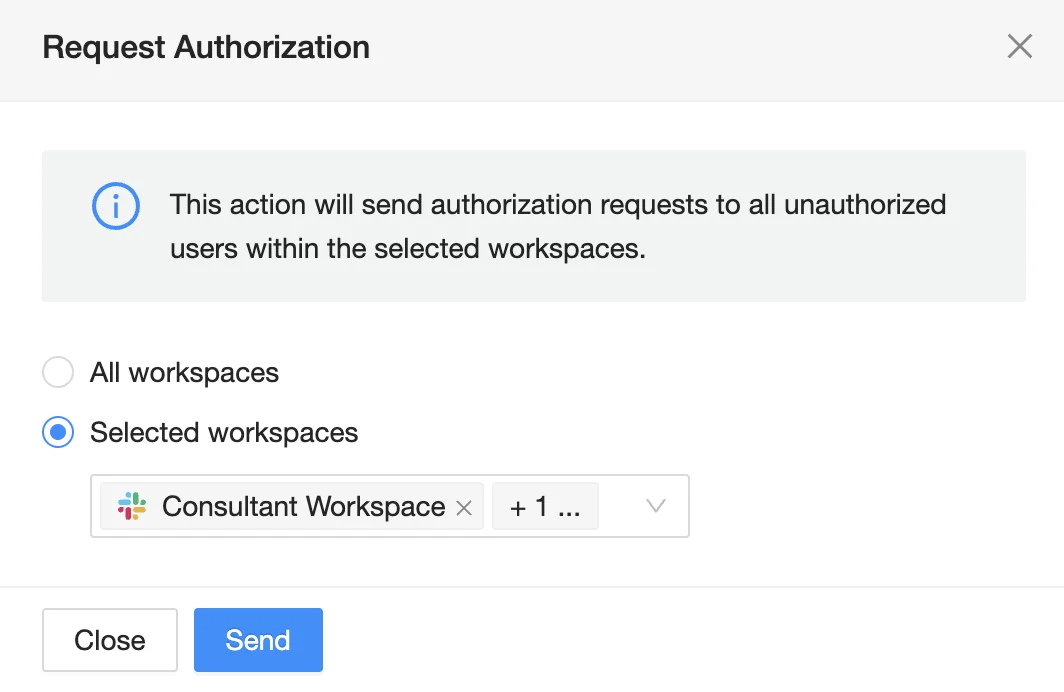
This action will send an authorization request to all unauthorized users with the selected workspaces. You also have the option to send an authorization request to All workspaces if you are protecting multiple environments on the SpinOne platform.
To automate this process, you can also enable the Auto-notify users to connect setting in the Billing → License settings section of your SpinOne platform.
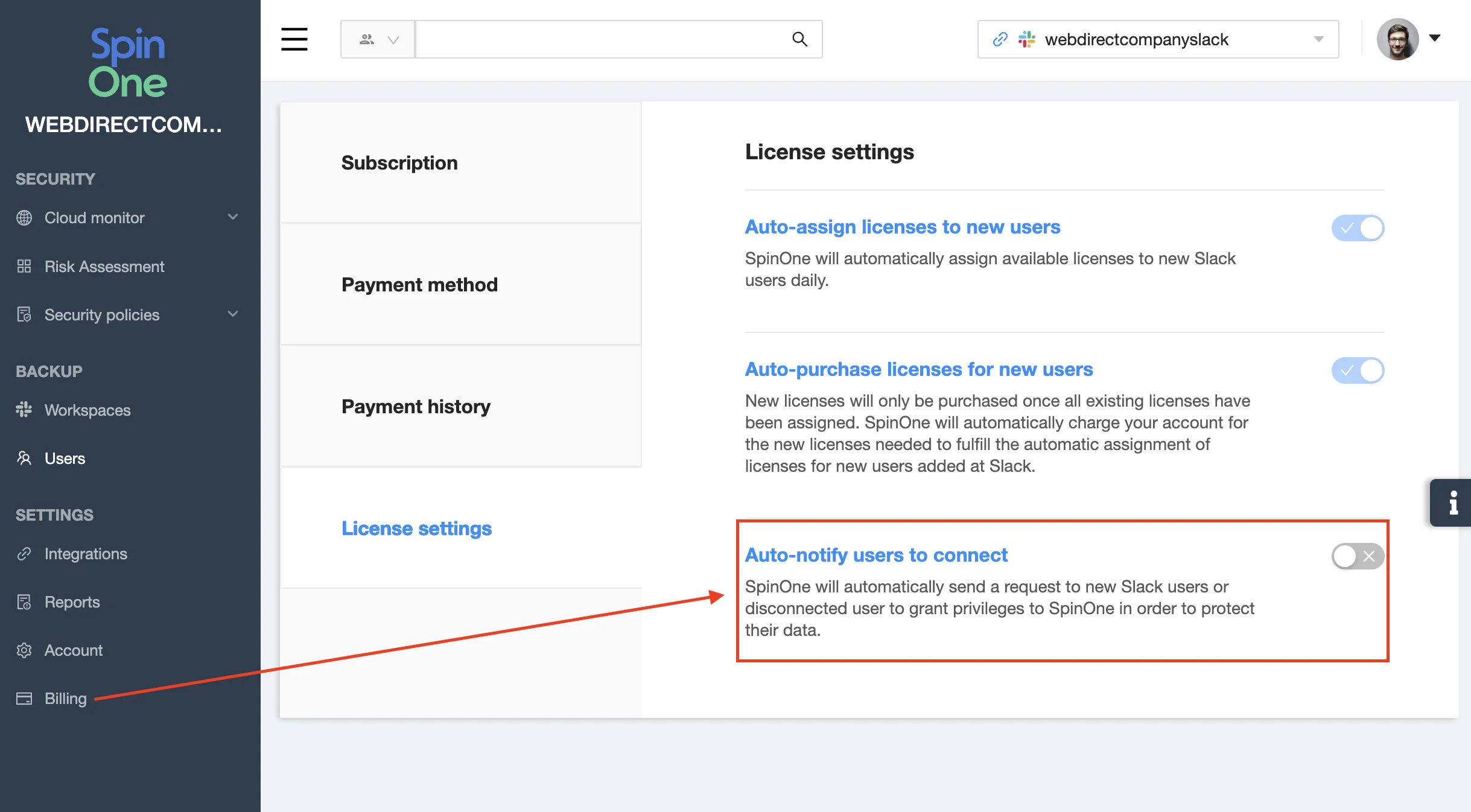
Once enabled, SpinOne will send an authorization request to any unauthorized user for your protected Slack workspaces.
Authorization requests will be sent on the administrator’s behalf in the form of a Slack message.
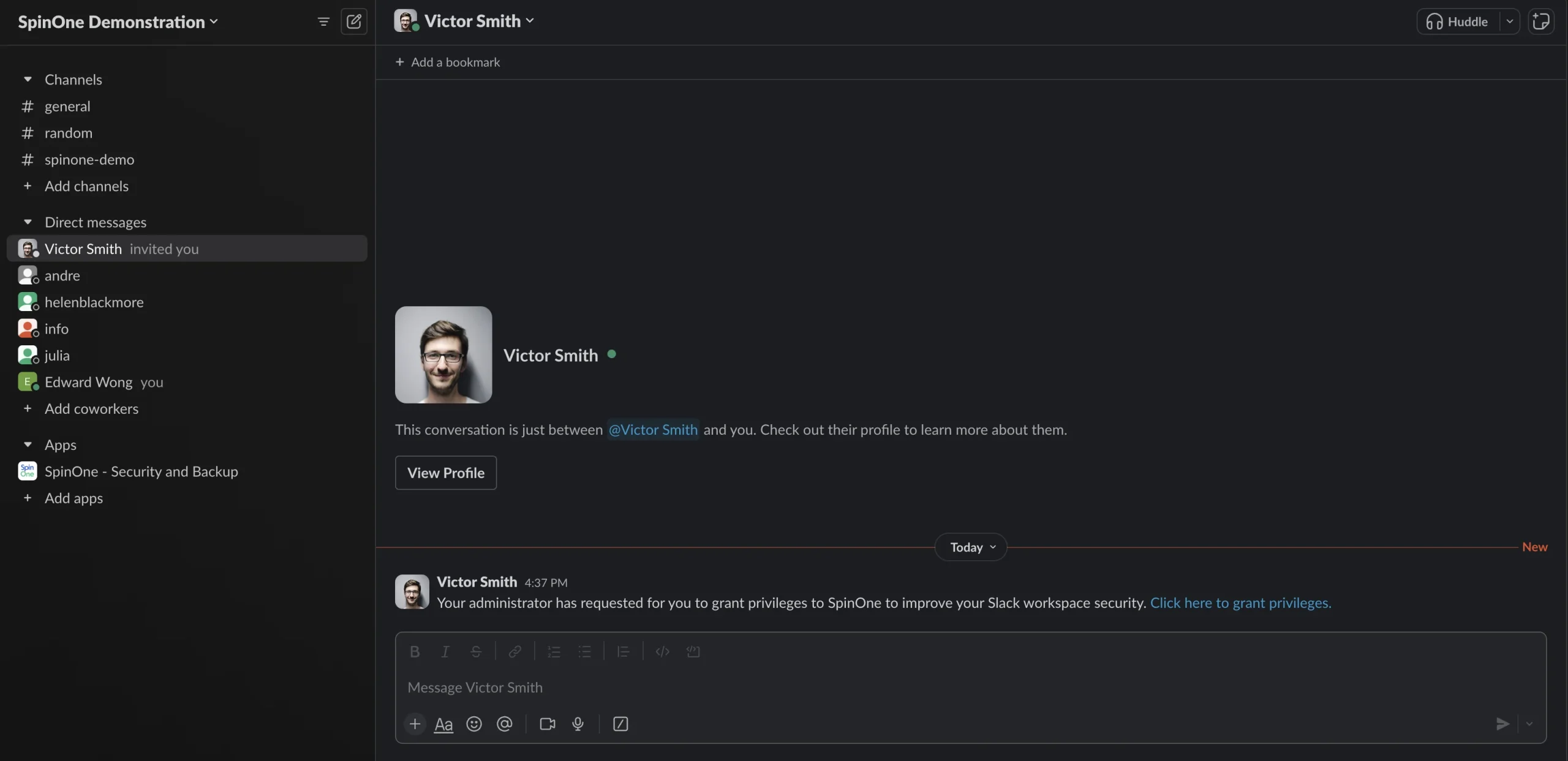
A business user simply needs to click on the link and click on Grant Privileges. If they are redirected to Slack, they need to make sure they are authorizing the correct Slack Workspace you are trying to protect.
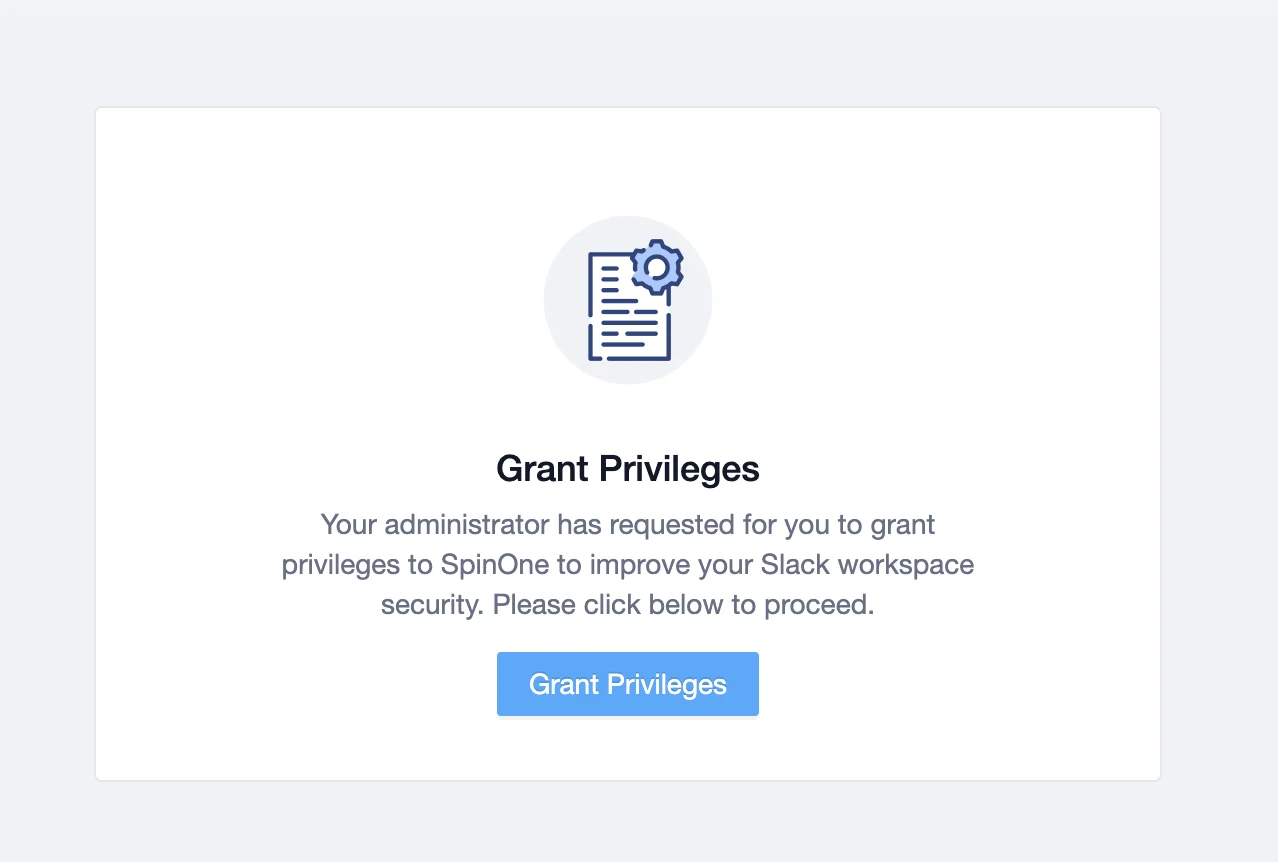
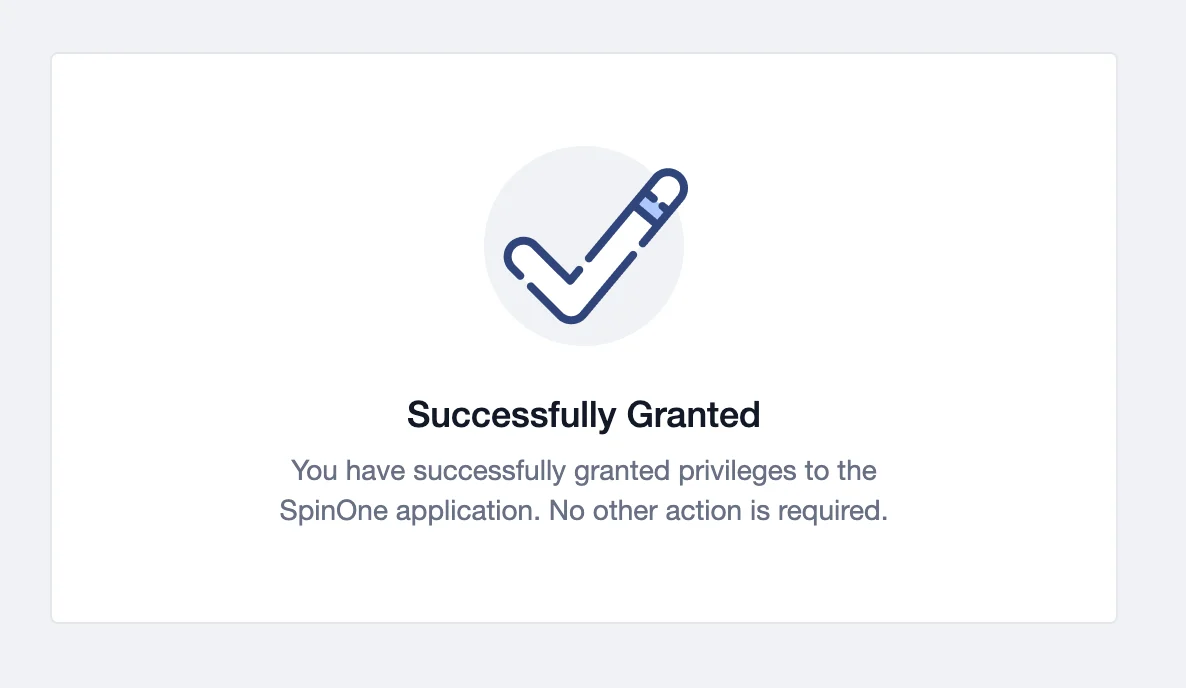
Once a user has successfully provided privileges, they can simply close the window, and you’ll see the changes on your SpinOne platform.
Get more information on Slack Backup Solutions