
How to Restore Google Drive Files from Backups

Follow the steps in this article to restore a User’s Google Drive files from their SpinOne backups.
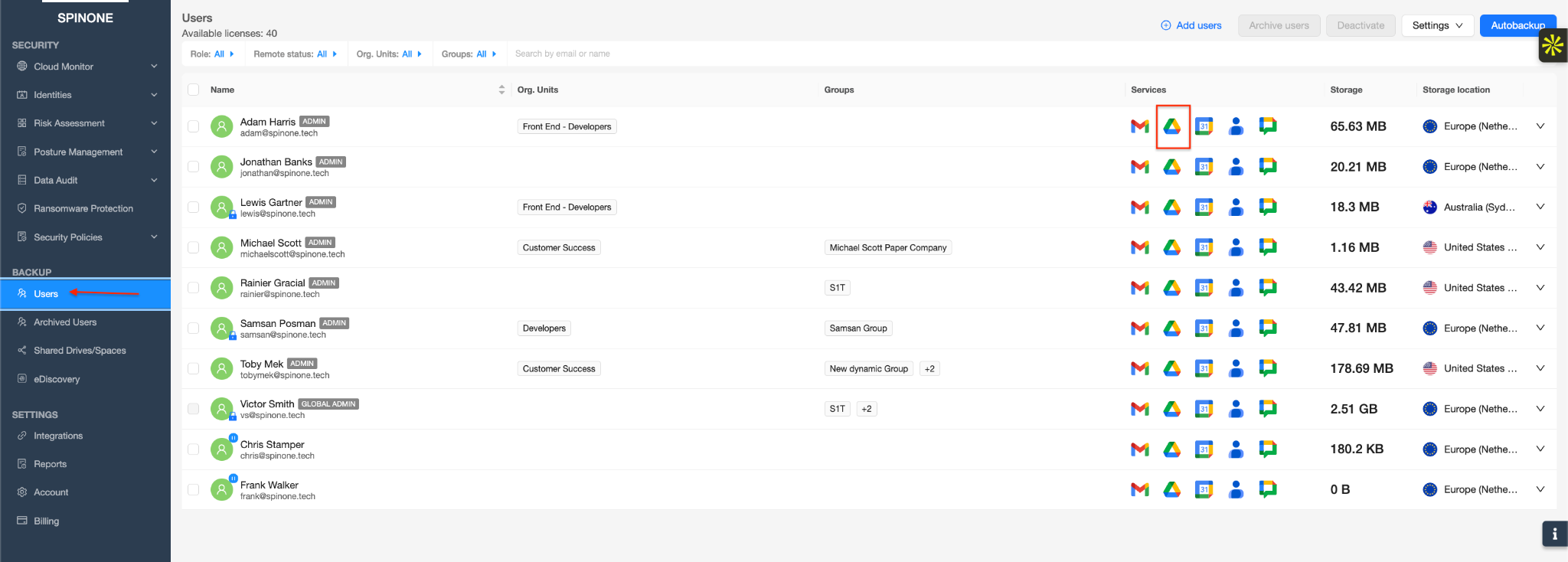
Log in to your SpinOne account. From the left navigation panel, head to Backup > Users. Locate the User and click the Google Drive icon in the Services column of their row.
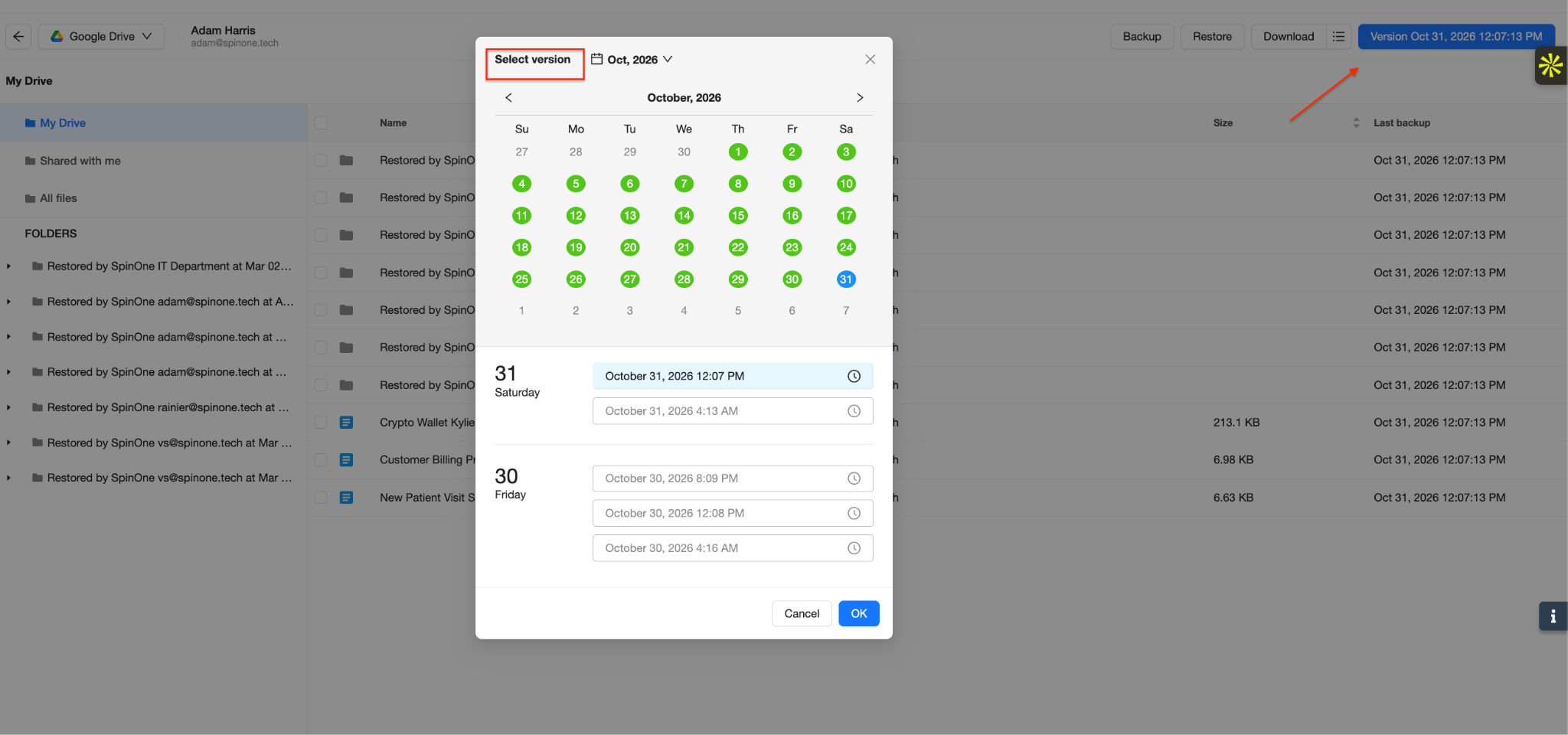
To choose which backup to restore from, click the version button at the top right of the page (for example, Version Oct 31, 2026 12:07:13 PM). In the Select version window, pick a date on the calendar, select a backup time, and click OK.
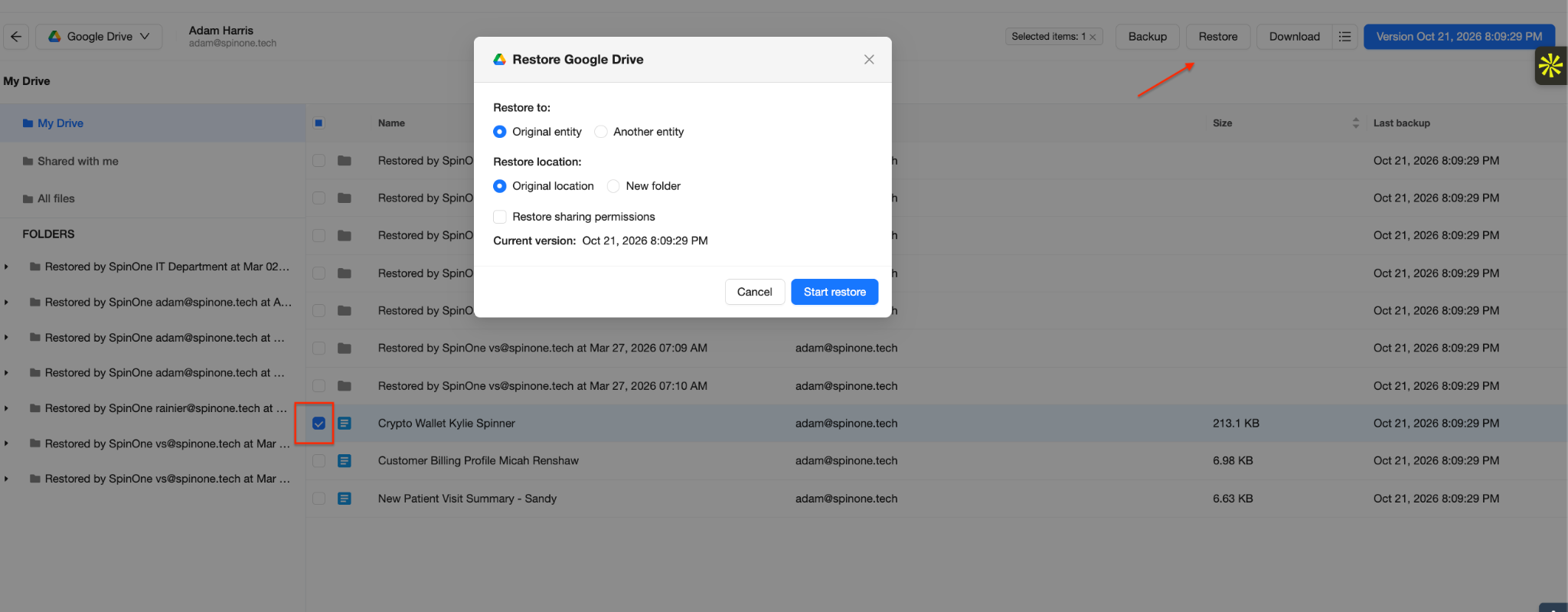
Check the box next to the file(s) you want to restore, then click Restore at the top right. In the Restore window, choose your restore options:
Restore to: restore to the Original entity(Snapshot owner) or to Another entity.
Restore location: restore to the Original location or to a New folder.
Restore sharing permissions: check this box to also restore the files’ sharing settings.
Then click Start restore.
Note: To restore every file in the selected backup version, click Restore without selecting any files.
Note: If a file belongs to another user and was only shared with the User whose backups you are viewing, it will be restored only if the file owner is also protected in SpinOne. Otherwise, the file will be skipped during the restore.
Find a File Across Backup Versions
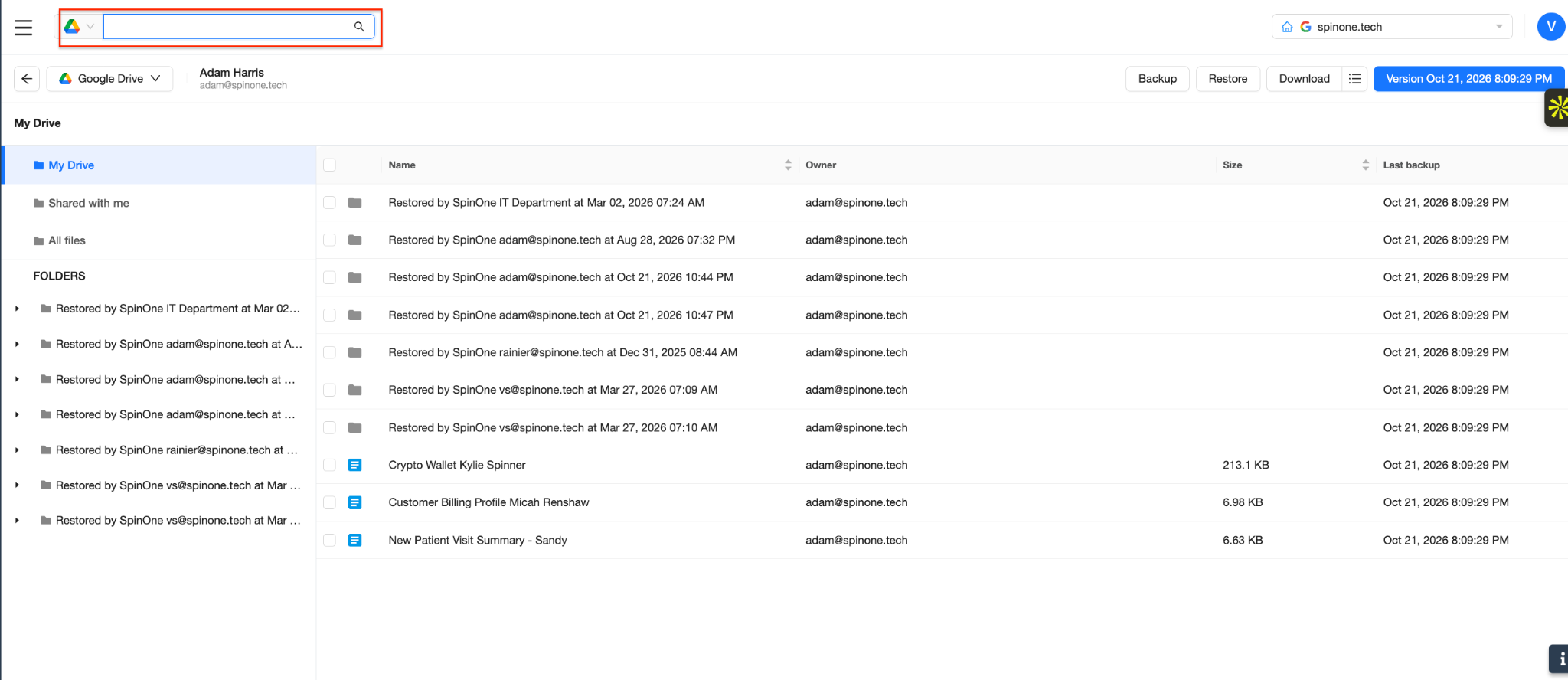
If you are not sure which backup version contains the file you need, use the search bar at the top of the page to look for it by name.
Get more information on Google Workspace™ Backup Solutions