
Managing and Monitoring Backups and Backup Reports in SpinOne

This article explains how to check when your users and Shared Drives were last backed up, run a backup manually, and set up the reports that keep your team informed about backup activity.
Check When an Entity Was Last Backed Up
SpinOne backs up your users and Shared Drives™/Spaces automatically, once or three times a day depending on your plan. Please keep in mind that the entities need to be onboarded to Spin in order for the backups to run.
Shared Drives/Spaces: head to Backup > Shared Drives/Spaces. The Last backup column shows when each entity was most recently backed up.
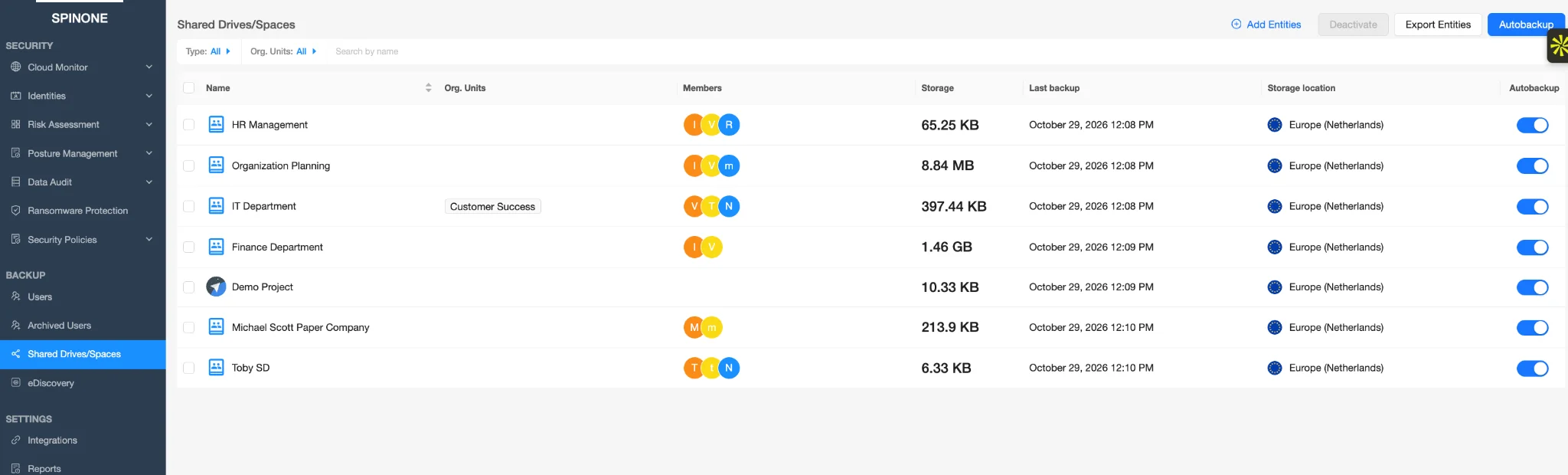
Users: head to Backup > Users and click a service icon in the Services column for the user. The Last backup column shows when each item was last backed up.
To get a list of all your entities in one file, head to Backup >Users, click Settings, and choose Export Entities.

Run a Backup Manually
If you need a more recent backup before the next automatic one, you can start one at any time. Head to Backup > Users (or Shared Drives/Spaces), open the service you want to back up (for example, Gmail or Google Drive), and click Backup at the top of the page.

The backup runs in the background, so you can keep working while it completes. How long it takes depends on how much data has changed.
Backup Reports
SpinOne offers two reports that help you keep track of backup activity:
| Report | How often | What it covers |
|---|---|---|
| Backup Summary | Daily/Weekly/Monthly | A summary of your backup activity. |
| Account Summary Reports | Weekly or monthly | A summary of all changes to your SaaS data, entities, applications, and other security aspects. |
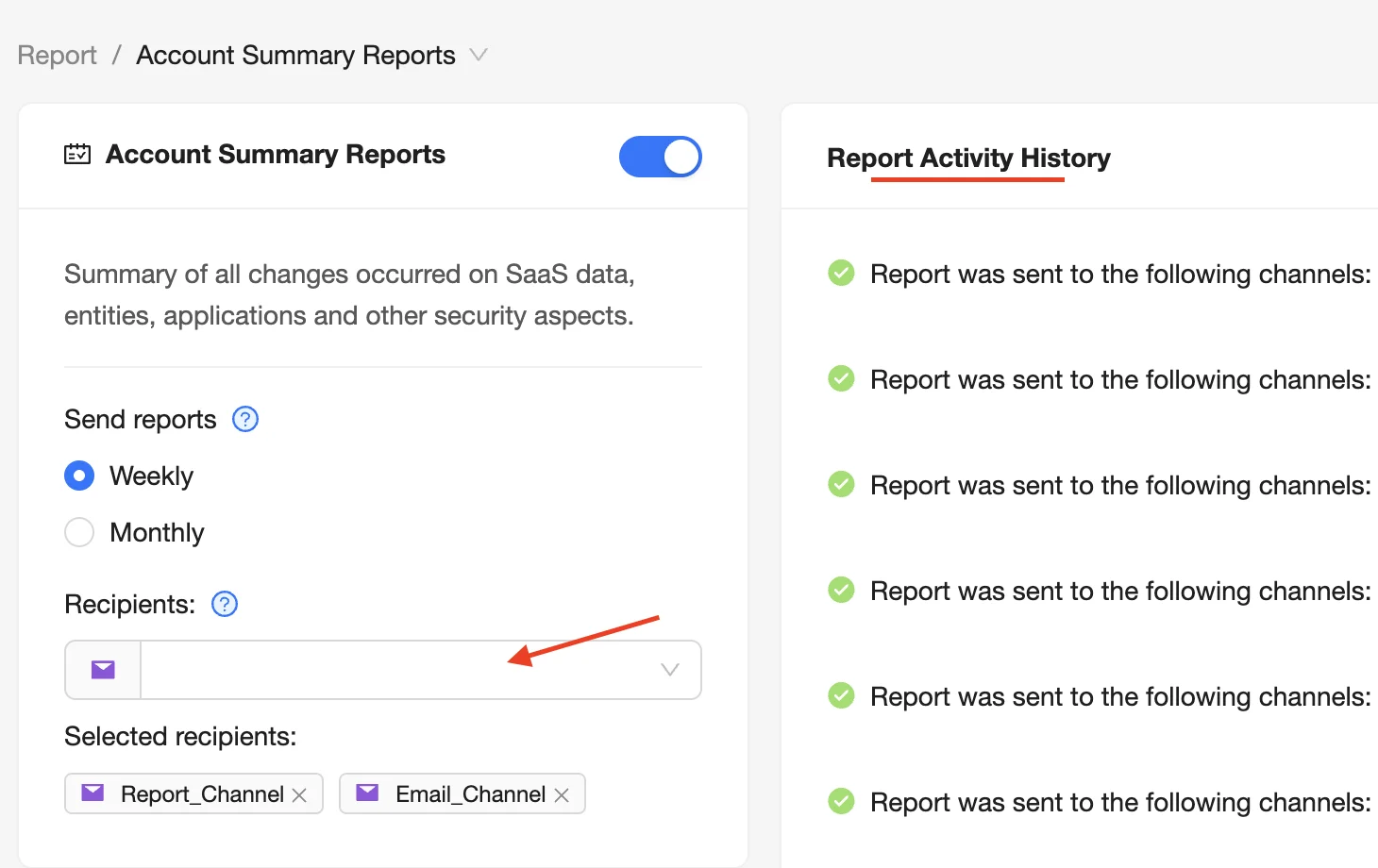
To set either report up, head to Settings > Reports and open the report. Use the toggle to turn it on, then choose the email channel that should receive it under Recipients.
Recipients are managed as email channels. To add or remove people from a channel, head to Settings > Integrations, open the External Integrations tab, and click View connections under Email. For step-by-step instructions, see Available Reports in SpinOne: How to Schedule Them and Adjust Recipients.
Don’t see Backup Summary? If Backup Summary isn’t listed on your Reports page, contact us at support@spin.ai and we’ll enable it for your account.
Check Where a Report Was Sent
Each report keeps a record of where it was delivered. Head to Settings >Reports and open the report (for example, Account Summary Reports). The Report Activity History panel on the right lists each report that was sent and the channels it was sent to.
If you have any questions or concerns, please contact us at support@spin.ai.
Get more information on Google Workspace™ Backup Solutions