
How to Create a Policy to Track Mass Deletion Activity

A large number of permanent deletions in a short period of time can be a sign of a compromised account, a malicious insider, or an accidental bulk cleanup. Follow the steps in this article to create a policy that alerts you, or takes action, when a user permanently deletes more files than expected.
Create the Policy
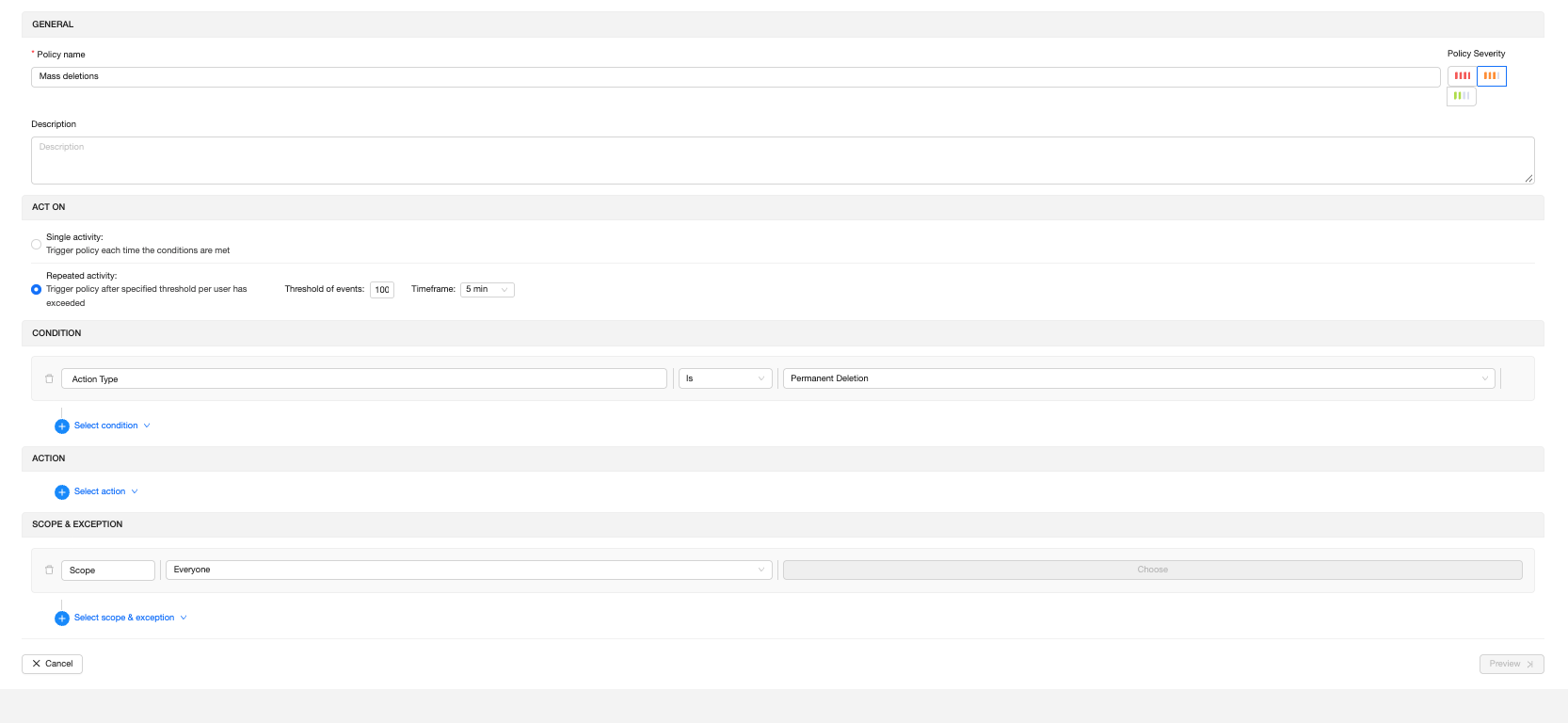
Log in to your SpinOne account. From the left navigation panel, head to Security Policies > Policy Management, click + Create Policy, and choose Activity Policy.
General: Enter a policy name (for example, Mass deletions) and choose the Policy Severity. A description is optional.
Act On: Select Repeated activity so the policy triggers only after a user exceeds a set number of deletions. Then set the Threshold of events and Timeframe. For example, a threshold of 100 with a timeframe of 5 min triggers the policy when a user permanently deletes more than 100 items within 5 minutes.
Condition: Click Select condition and add Action Type Is Permanent Deletion.
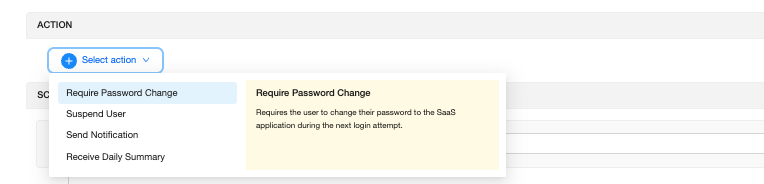
Action: Click Select action and choose how SpinOne should respond. You can simply be notified, or have SpinOne take action. You can select more than one:
- Require Password Change: the user must change their password at their next login.
- Suspend User: blocks the user’s access until you investigate.
- Send Notification: alerts your team each time the policy triggers.
- Receive Daily Summary: sends one daily email with all triggered incidents.
Scope & Exception: The policy applies to Everyone by default. To limit it to specific users or groups, or to exclude someone (for example, an admin who regularly cleans up data), click Select scope & exception.

Click Preview to review your policy, then save it. That’s it!
If you have any questions or concerns, please contact us at support@spin.ai.
Get more information on Google Workspace™ Backup Solutions