
Insufficient Permissions in Microsoft 365

Do you have problems with insufficient permissions as you try to set up SpinOne for Microsoft Office 365? Learn how to fix them!
To make sure SpinOne is installed properly in your Microsoft 365 organization, please perform the following 2 steps:
Step 1: Regrant Access from the SpinOne console
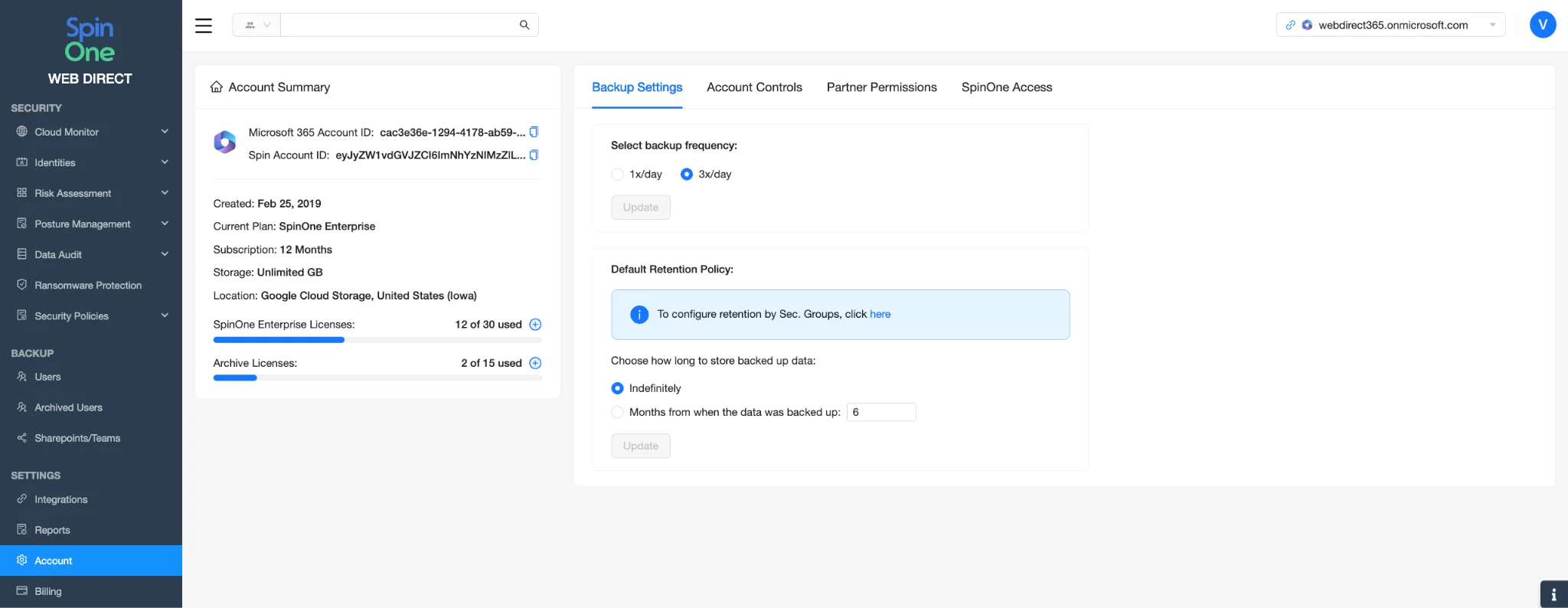
Go to Account beneath Settings, on the left hand toolbar…
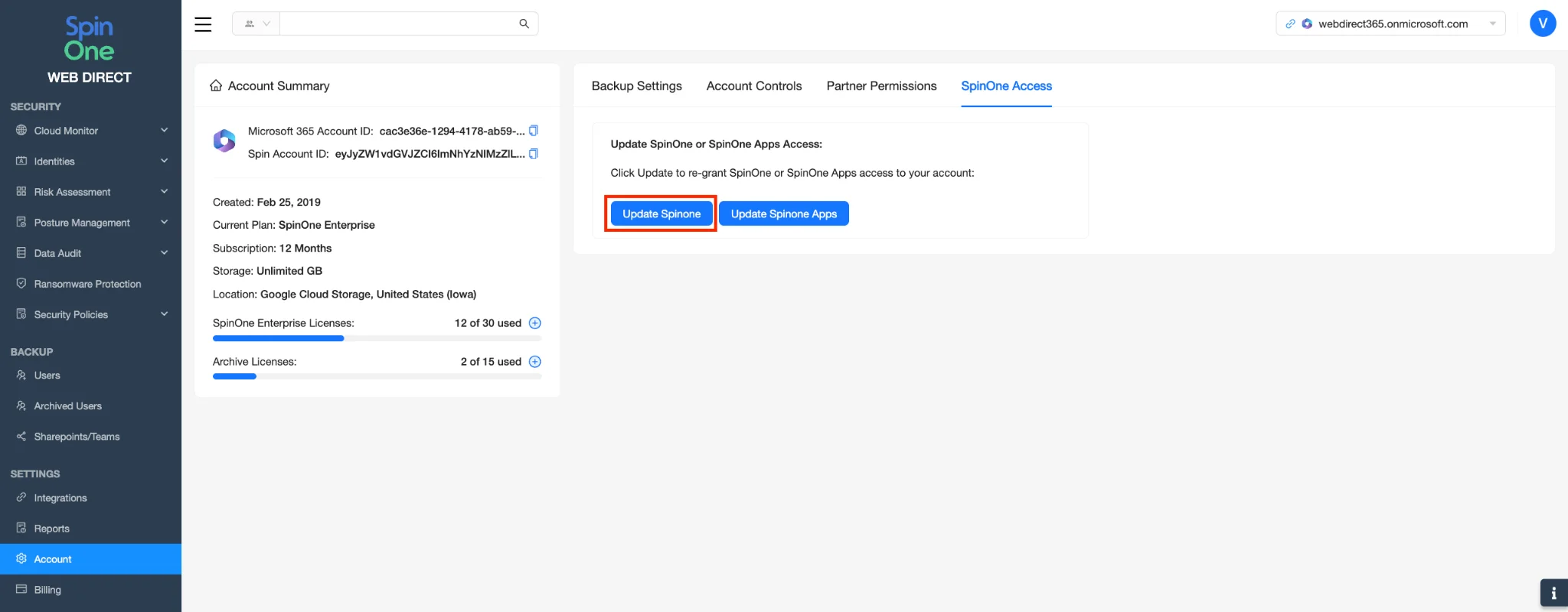
Select SpinOne Access from the top right menu and click Update SpinOne…
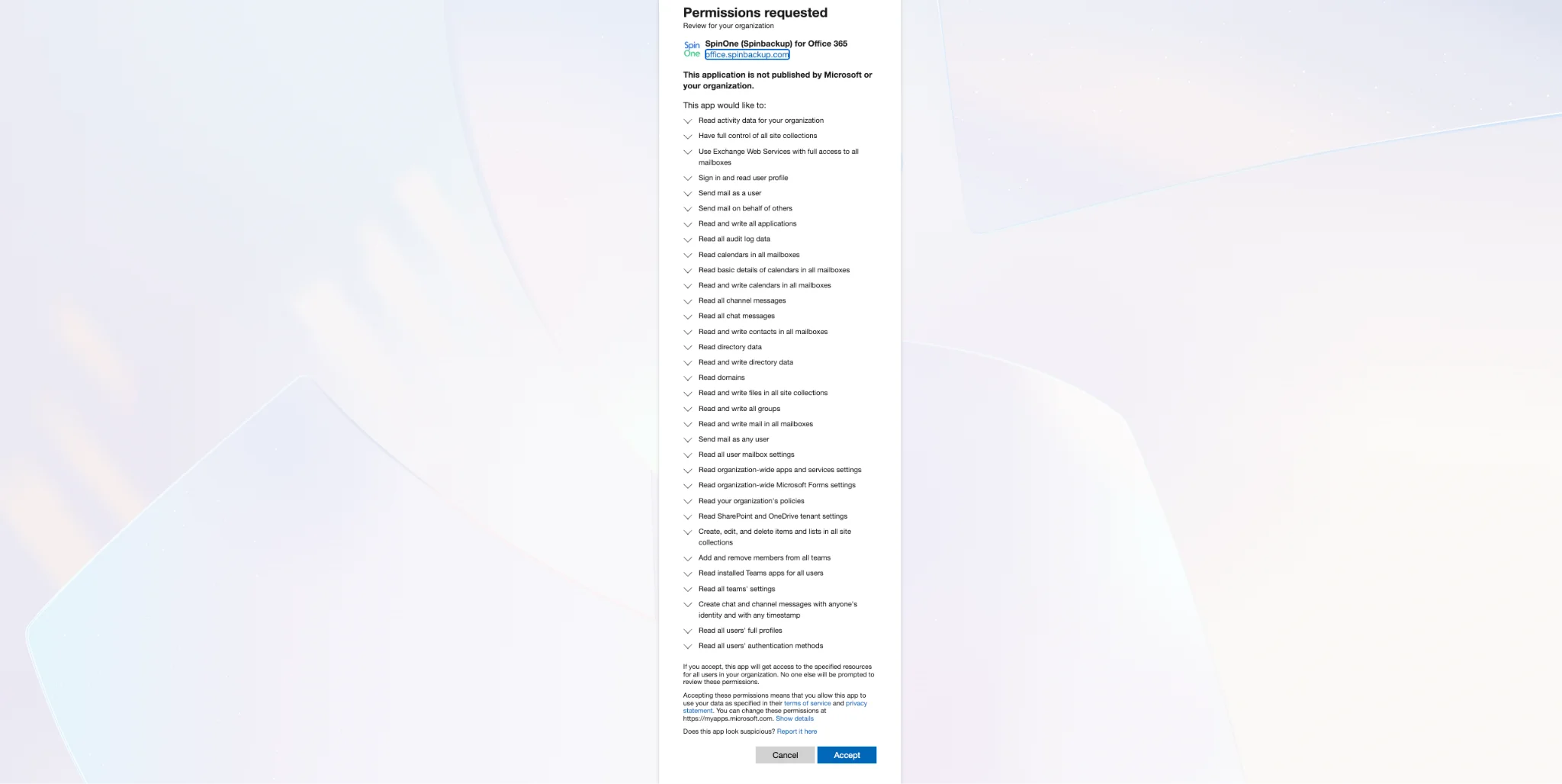
Confirm access for the SpinOne app by logging in with the Global Admin account and clicking Accept…
Step 2: Re-grant permissions from the AAD Portal
Head to https://aad.portal.azure.com/ and login with the Global Administrator of your M365 organization.
From the left hand panel, select Global Secure Access → then Applications → then Enterprise Applications…
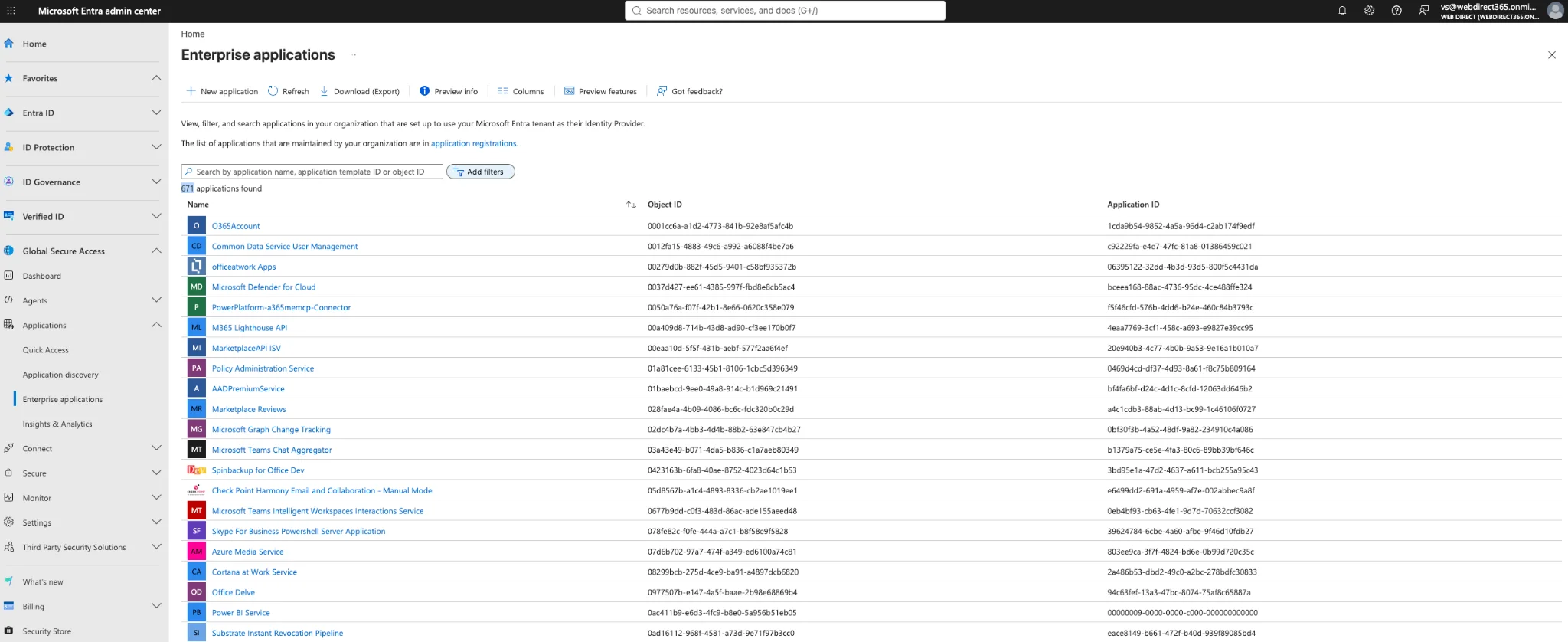
Find and open the app SpinOne (Spinbackup) for Office 365 from the application list. After opening the app, click on Permissions under the Security dropdown…
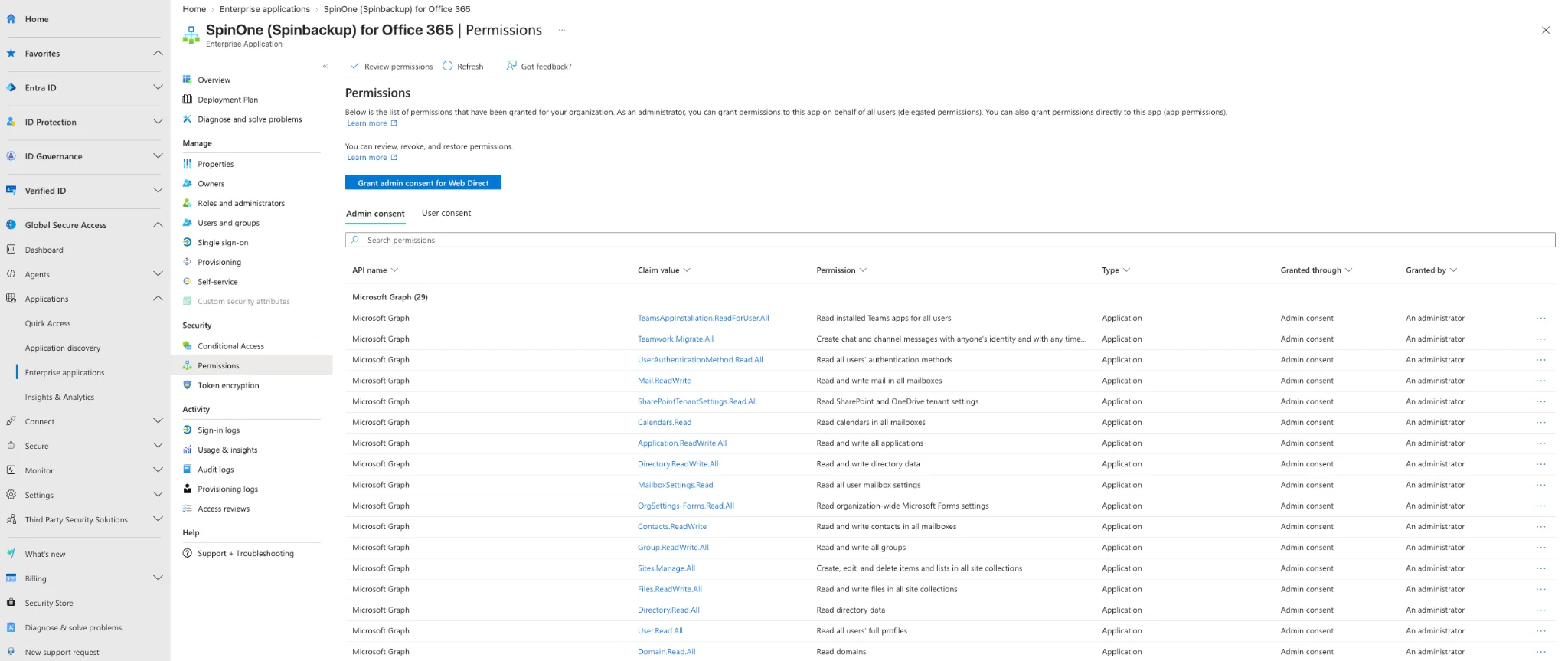
Press Grant admin consent in the middle of your screen and select the Super Administrator to provide the necessary permissions…

Congratulations! You have successfully refreshed the permissions for SpinOne on Microsoft 365.
Get more information on Microsoft 365 Backup Solutions