
Set Up the MCP Integration in SpinOne

The Model Context Protocol (MCP) is an open standard that lets AI assistants read data from external systems. Adding an MCP connection in SpinOne gives your AI tool read-only access to the incident and activity data you select.
Available plans: SpinSPM, SpinCRX, SpinOne, SpinOne Enterprise
No Root Admin privileges are required — any user with access to the Integrations section can create a connection.
Guide
Head to the Integrations center from the left panel of your SpinOne console.
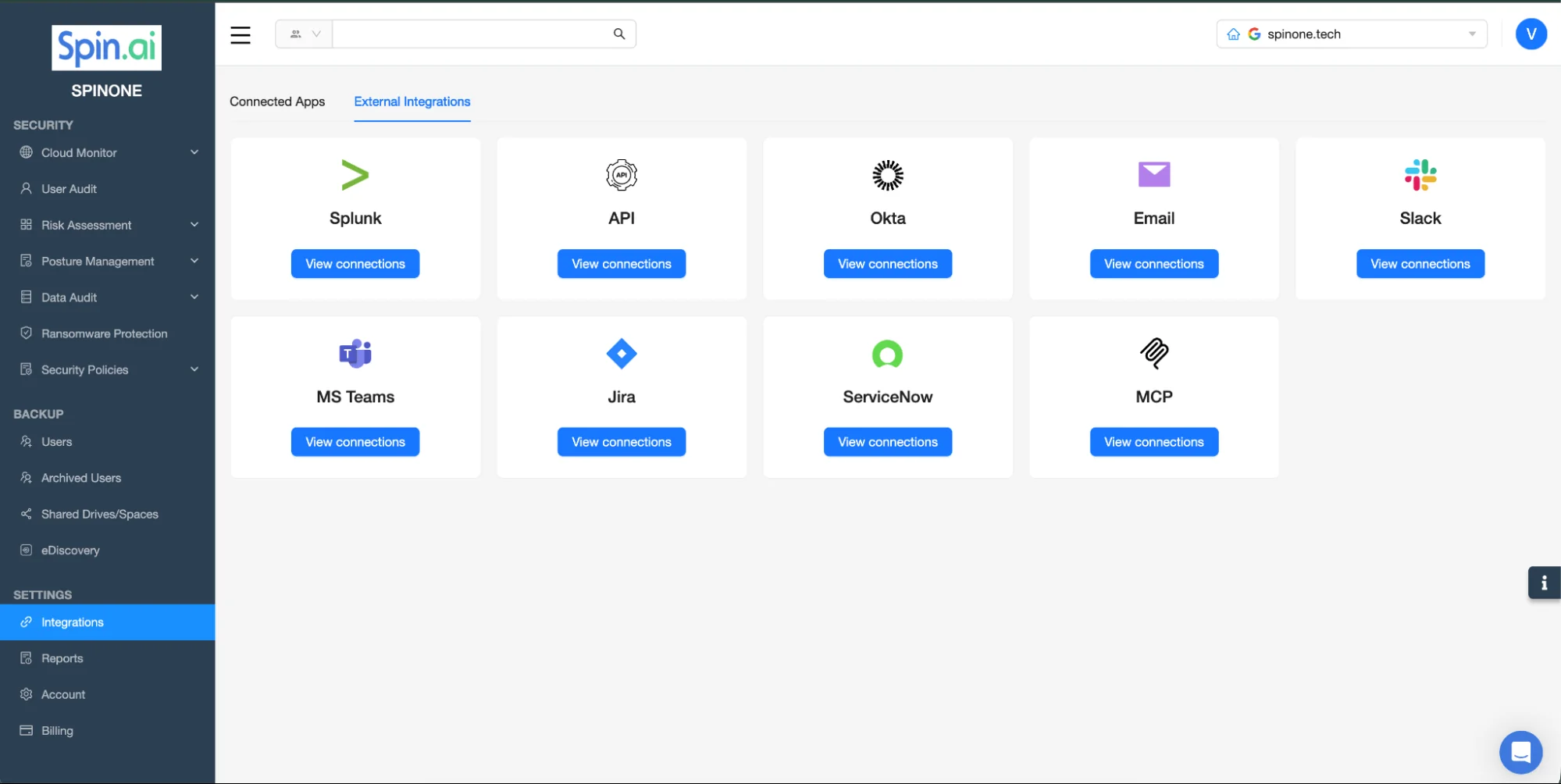
Click View connections on the MCP widget.
Click Add connection from the top right.
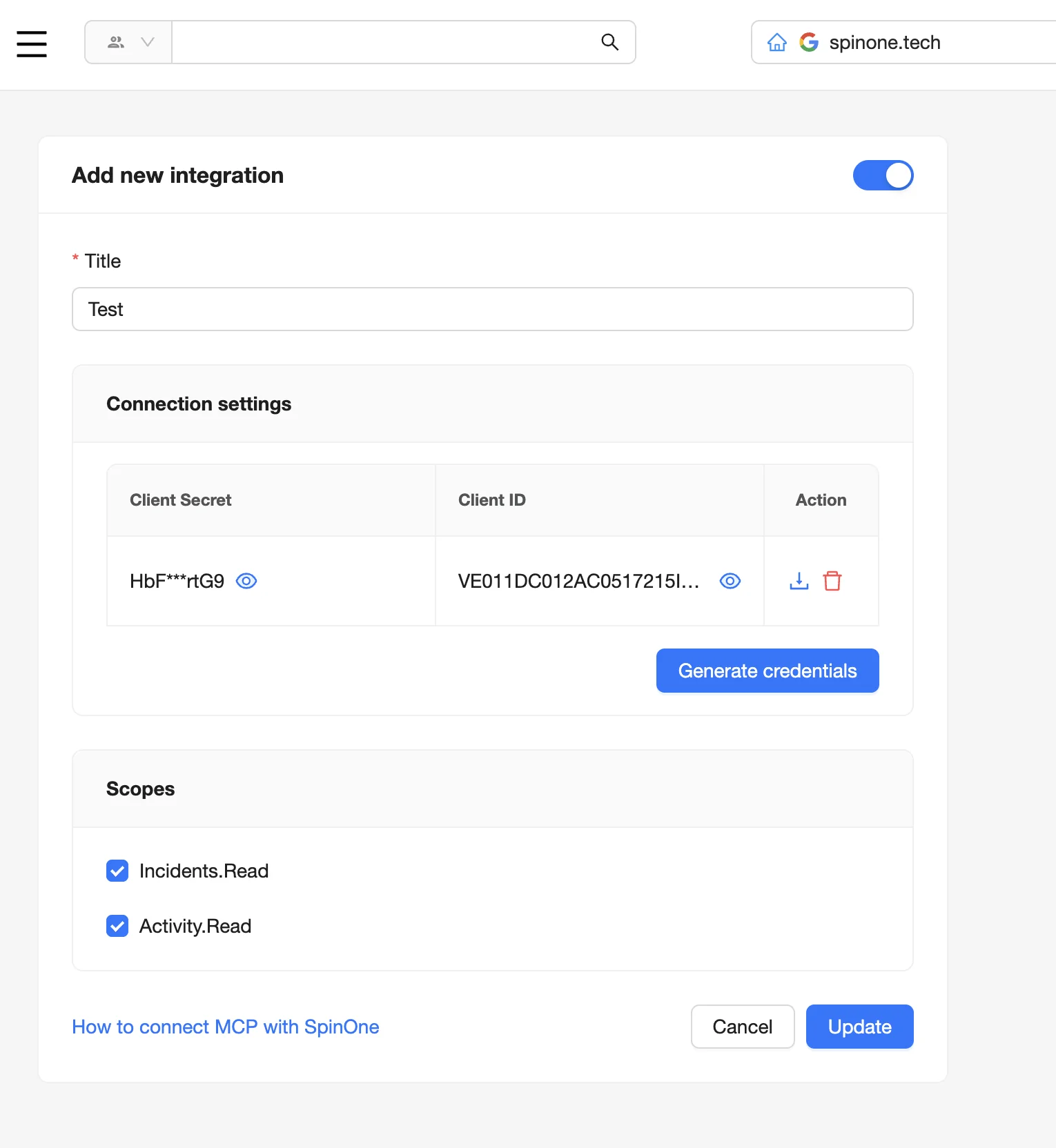
- Enter a Title for the integration name
- Select the necessary Scopes for the integration:
- Incidents.Read — read access to security incident data
- Activity.Read — read access to user activity logs
- Click Generate credentials
- Click the download icon in the Action column to save your connection details as a JSON file
- Make sure the integration is toggled on at the top right
- Click Create
Your connection now appears in the MCP connections list with an ACTIVE status.
Connecting Your AI Tool
Use the downloaded JSON file to add the connection in your AI tool. Refer to your tool’s documentation for where to add an MCP server.
Note: the Client Secret is shown in full only once. If the file is lost, delete the connection and create a new one.
Managing Connections
- Edit — change the Title, Scopes, or Status at any time. Credentials cannot be changed.
- Disable — toggle a connection off to block access without deleting it. Re-enabling restores access immediately.
- Delete — permanently revokes access for any client using that connection.
If you have any questions or are unable to complete the integration, please email us at support@spin.ai.
Learn more about our SaaS Security Products – SpinOne Platform