
What’s Included in My Slack Export?

SpinOne can import a Slack export to back up your workspace’s message history. Because the import is processed from files rather than through the Slack API, your history is backed up much faster than a standard full backup.
What your export contains is decided by Slack and your Slack plan, not by SpinOne. Check the tables below before you export, so you know exactly what will be backed up.
What’s included by Slack plan
| Slack plan | Public channels | Private channels and DMs | Good to know |
|---|---|---|---|
| Free | Yes | No | File links are included for the last 90 days only. |
| Pro | Yes | No | |
| Business+ | Yes | Yes, with approval | A Workspace Owner must apply to Slack for the All channels and conversations export. Without approval, the export covers public channels only. |
| Enterprise | Yes | Yes, with approval | An Org Owner must request access to Slack’s export tools from Slack Support. |
NOTE: Slack’s approval for full exports can take time and requires the Workspace Primary Owner’s sign-off. If you need private channels and DMs backed up, start the application before you plan to import. See Export your workspace data on Slack’s Help Center.
What SpinOne imports from your export
| Content | Imported? | Notes |
|---|---|---|
| Public channel messages | Yes | Available on all Slack plans. |
| Private channel messages | Yes | Only if your export includes them (Business+ and Enterprise, with approval). |
| Direct messages (DMs) | Yes | Only if your export includes them (Business+ and Enterprise, with approval). |
| File attachments | Details and links only | Slack exports contain links to files, not the files themselves. SpinOne stores the file details and links as they appear in the export. |
| Edit history | Yes | Where included in the export. |
| Deleted messages | Yes | Where included in the export. |
What isn’t included
- The contents of files. Only file details and links are imported.
- Private channels and DMs, unless your Slack plan and approval allow them in the export.
- Messages Slack has already removed under your workspace’s retention settings.
- In Slack Connect channels, files shared by people outside your organization. Slack only includes links to files shared by members of your workspace.
How to export your Slack data
You need to be a Slack Workspace Owner or Admin (or an Org Owner or Admin on Enterprise plans) to export data.
Free, Pro and Business+ plans
- In the Slack desktop app, click Admin in the sidebar.
- Select Workspace settings, then click Security.
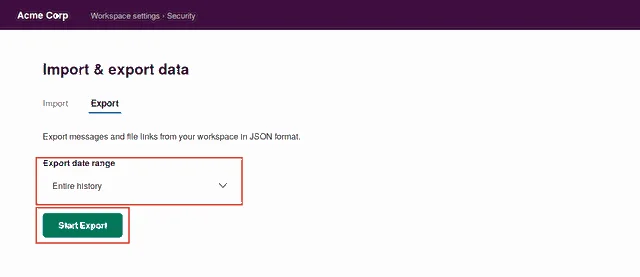
- Click Import & export data, then open the Export tab.
- Under Export date range, choose the range you want SpinOne to back up. To cover your full history, choose the widest range available.
- Click Start Export. Slack emails you when the export is ready.
- Open the email, click Visit your workspace’s export page, and download the ZIP file.
Enterprise plans
- Click your organization name in the sidebar and select Tools & settings, then Organization settings.
- Click Security, then select Exports.
- Choose an export, set its scope to the workspace connected to SpinOne, and select JSON format.
- Start the export. When Slack emails you, open the export page’s Downloads tab and download the ZIP file.
NOTE: Don’t unzip, rename or edit the export. SpinOne only accepts ZIP files created by Slack’s own export tool, and changes to the files can cause the import to fail.
How to import your Slack export into SpinOne
Only a SpinOne Root Admin can import Slack data.
- Log in to SpinOne and go to Import in the left panel.
- Click Upload files from the top right of your screen.
- Upload the export of your Slack workspace and wait for the import to finish.
Before you import
- One import per workspace. The import is a one-time backfill of your history. After that, SpinOne’s regular backups keep your workspace protected.
- Same workspace only. The export must come from the Slack workspace connected to SpinOne.
If you have any questions or get stuck, please contact us at support@spin.ai.
Get more information on Slack Backup Solutions