
SpinOne Integration with Okta Directory

SpinOne’s Okta Directory integration lets SpinOne read users, groups and devices from your Okta tenant. Once connected, you can see each endpoint’s Okta user and their respective groups in SpinOne.
The integration uses an Okta API Services app with read-only access. SpinOne never creates, updates or deletes anything in Okta.
Note: This is separate from SpinOne Okta SSO Integration, which lets your team sign in to SpinOne with Okta. The set up is separate.
Before you start
- An Okta Super Admin account is required so they can create app integrations and grant API scopes.
- Have your Okta domain ready (for example, yourcompany.okta.com).
How to connect your Okta directory
Step 1: Create a new app integration in Okta
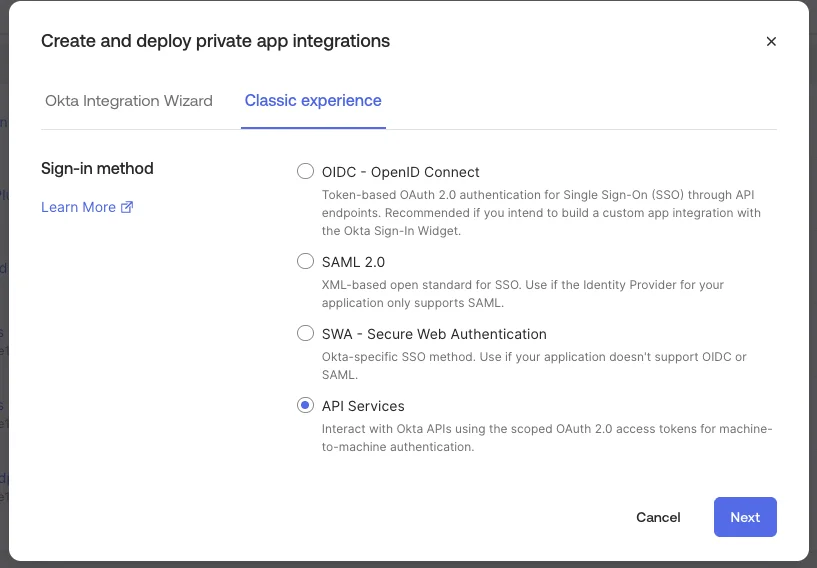
In your Okta Admin Console, go to Applications > Applications and click Create App Integration.
Switch to the Classic experience tab, select API Services as the sign-in method, and click Next.
Name the application (for example, SpinOne Directory Integration) and click Save.
Step 2: Set client authentication to Public key / Private key
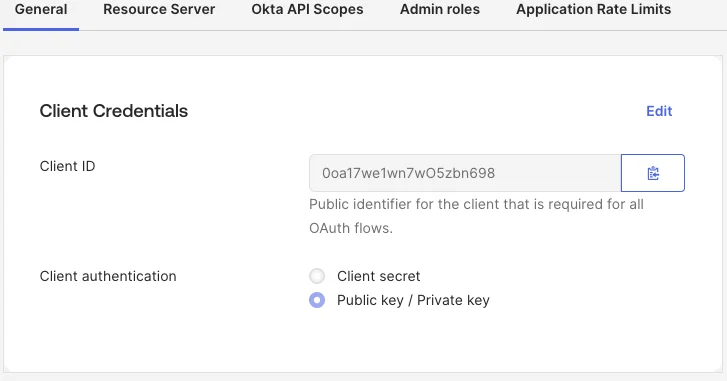
Open the General tab of the new application and click Edit under Client Credentials.
Under Client authentication, select Public key / Private key. Okta requires this method for service apps that use Okta API scopes.
Copy the Client ID from this tab. You will need it in the next step.
Step 3: Create the Okta integration in SpinOne
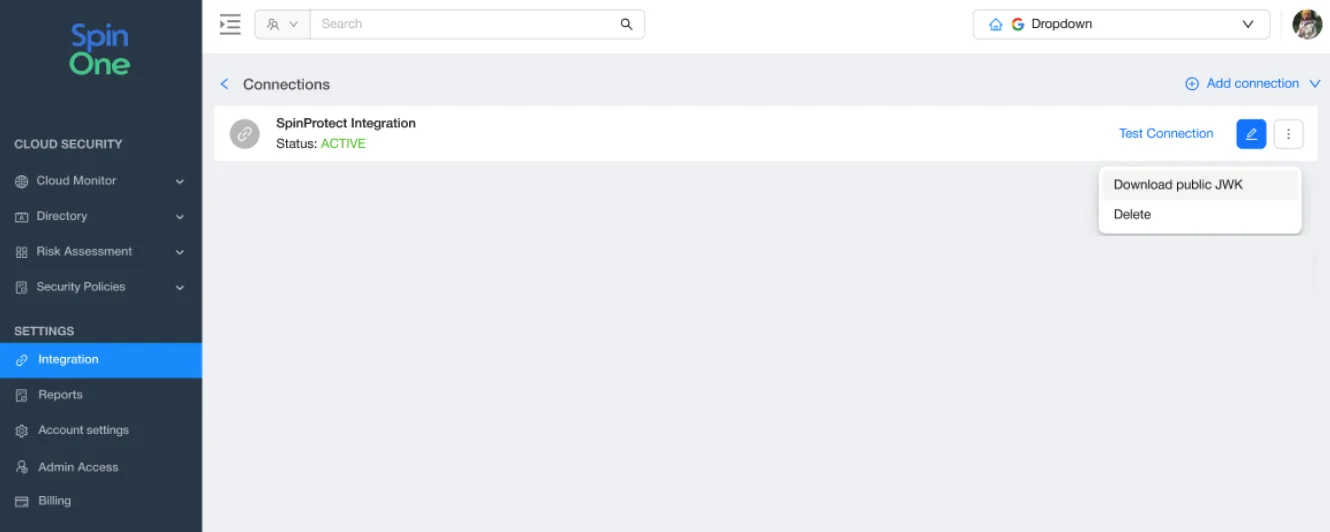
In your SpinOne console, go to Integrations > External Integrations in the left panel and add a new Okta Directory connection.
Enter your Okta domain and the Client ID you copied in Step 2, then click Create.
Once the integration is created, download the Public JWK file.
Note: No client secret is used for this integration. SpinOne signs its requests with a private key that never leaves SpinOne, and Okta checks them with the public key you add in the next step.
Step 4: Add the SpinOne public key in Okta
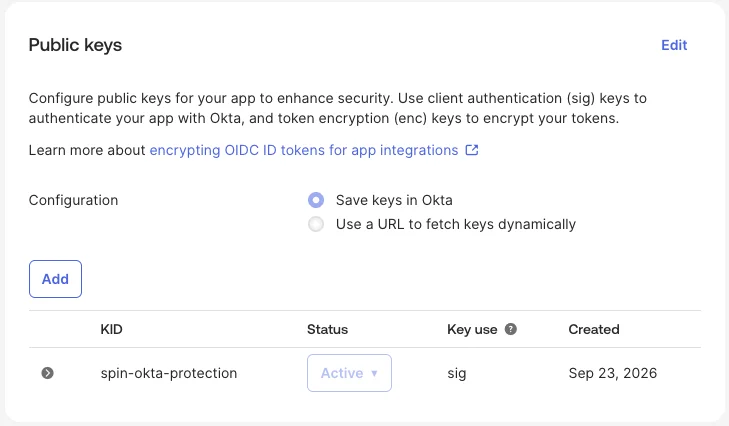
Go back to the application in Okta and scroll to the Public keys section.
Keep Configuration set to Save keys in Okta. Click Add, paste the contents of the Public JWK file you downloaded from SpinOne, and click Save.
The key appears in the list with Key use set to sig and Status set to Active.
Step 5: Grant the Okta API scopes
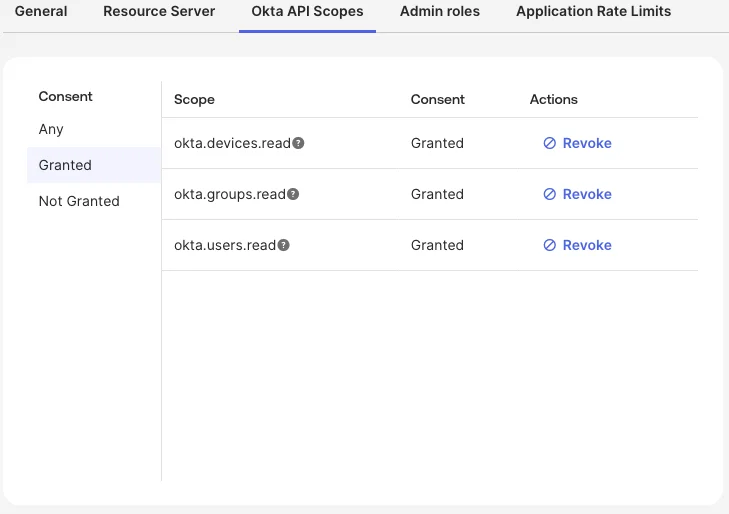
Open the Okta API Scopes tab and click Grant for each of these scopes:
- okta.users.read
- okta.groups.read
- okta.devices.read
All three are read-only.
Step 6: Assign the Read-only Administrator role
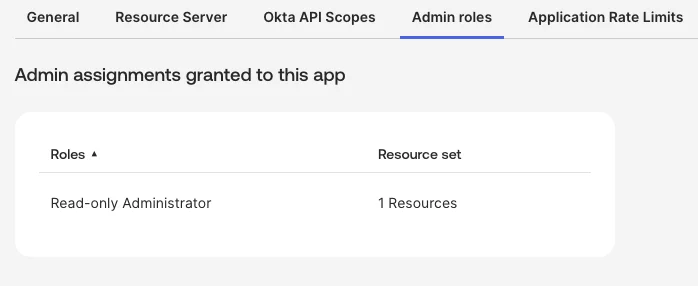
Open the Admin roles tab and assign Read-only Administrator to the application.
Note: This step is required in addition to the scopes. Okta grants access only where the role and the scopes overlap. Without a role, SpinOne’s requests fail with an HTTP 403 error.
Step 7: Confirm the connection in SpinOne
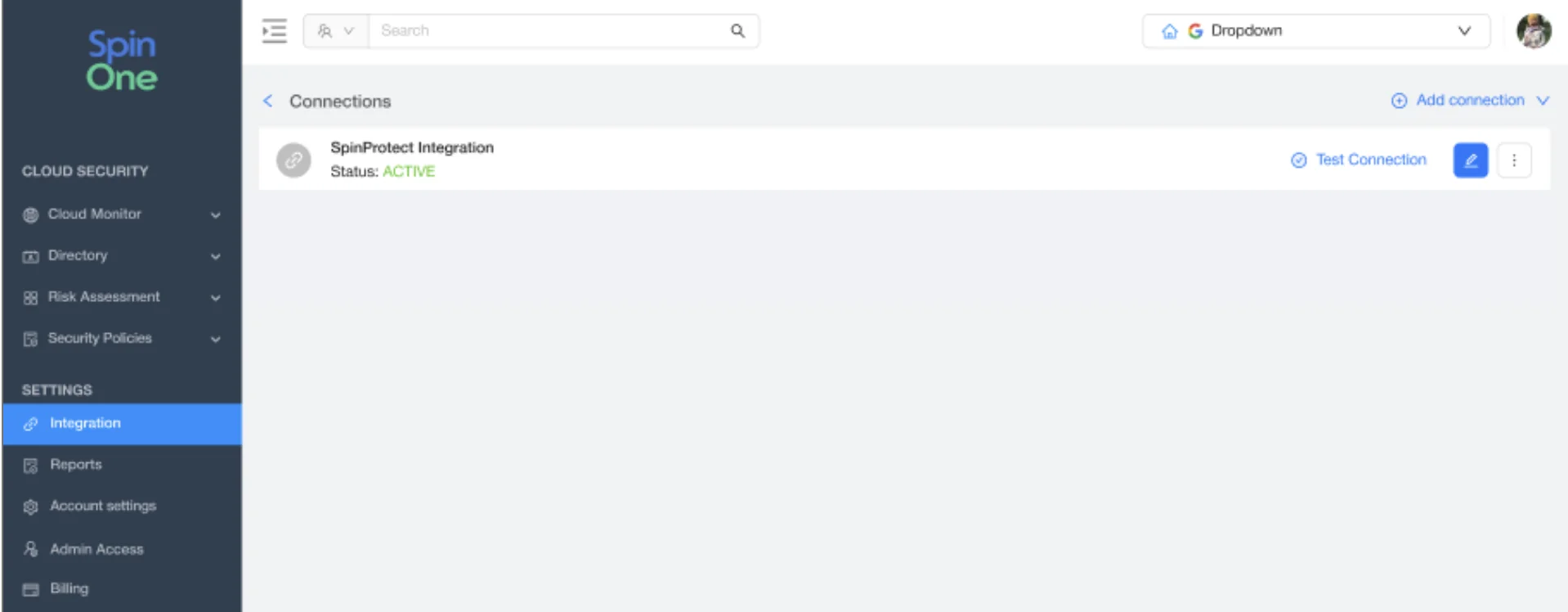
Return to the Okta Directory Integration in SpinOne and check that the Okta Directory connection shows as active. Confirm the connection is valid by running a test connection. SpinOne then imports your Okta users, groups and devices.
What happens after you connect
- The Endpoints page shows each device’s Okta user and Okta groups.
- On the All Apps Allowlist and Blocklist tabs, the Okta Groups tab becomes available.
Learn more about our SaaS Security Products – SpinOne Platform