
Available Reports in SpinOne: and How to Schedule Them and Adjust Recipients

SpinOne includes a set of pre-built reports that keep your team informed about changes, risks, and backup activity in your organization. This article lists the reports currently available, explains how to schedule them, and shows how to manage who receives them.
Available Reports
Log in to your SpinOne account. From the left navigation panel, head to Settings > Reports to see the full list of reports, grouped by category.
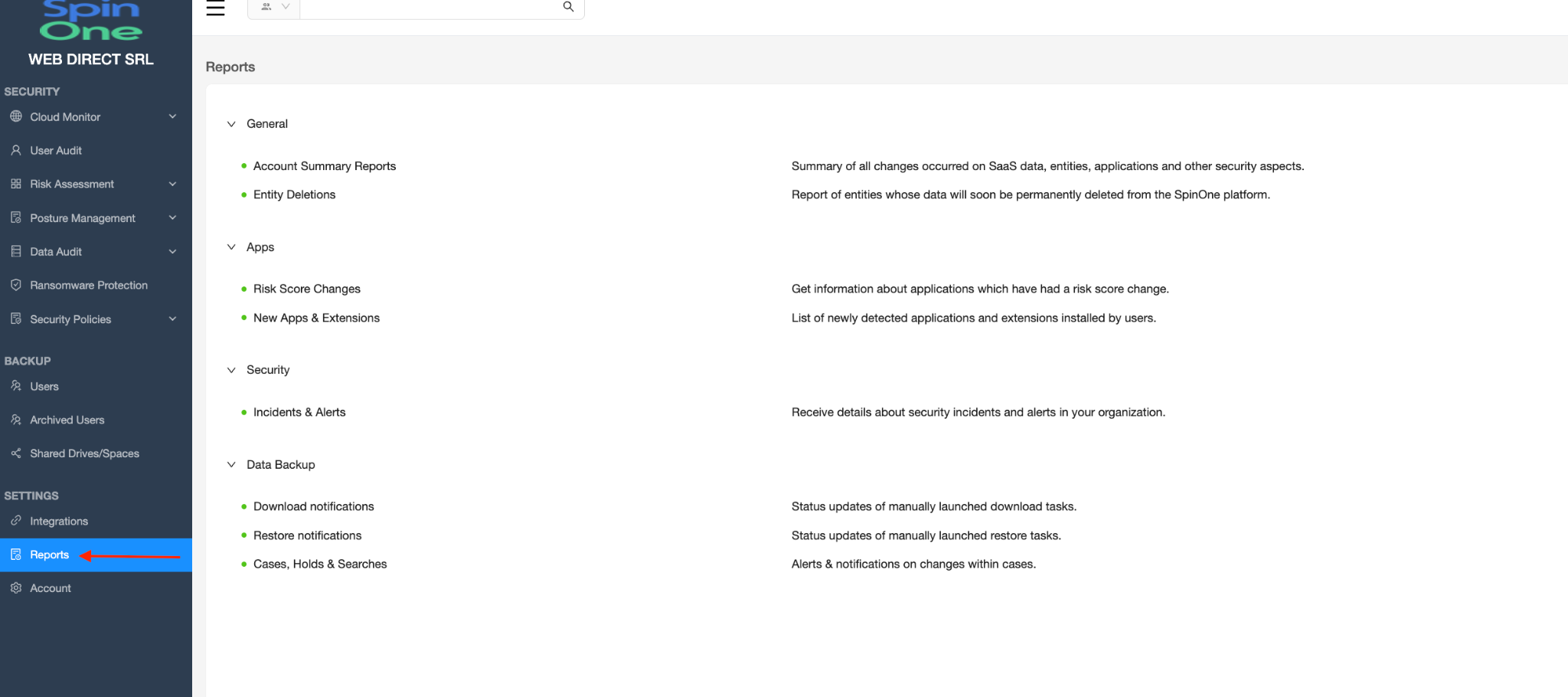
On the Reports page, click the report you would like to configure.
Use the toggle at the top right to turn the report on or off. Under Send reports, choose how often the report is sent (for example, Weekly or Monthly). Available options may vary by report. Under Recipients, select the email channel that should receive the report. The channels currently receiving the report are shown under Selected recipients.
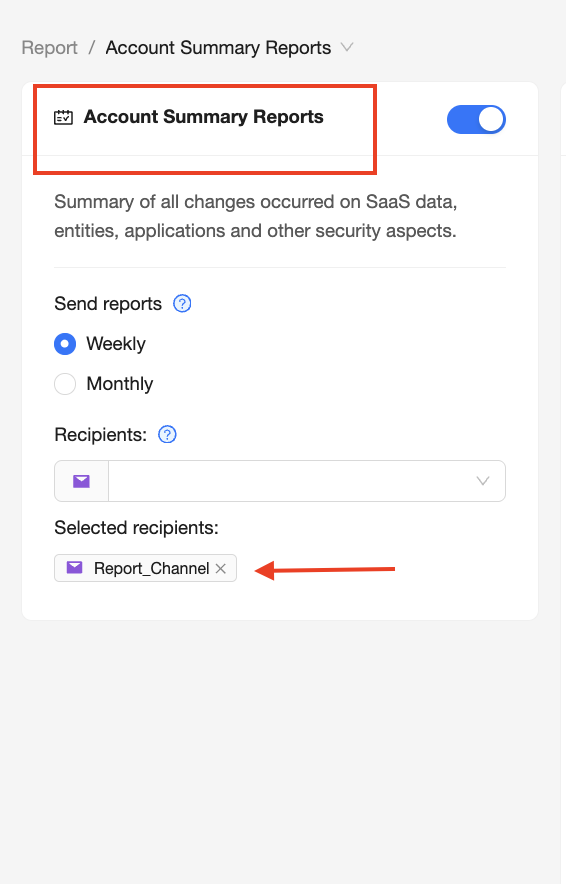
Update Report Recipients
To check or change who belongs to a channel, head to Settings > Integrations from the left navigation panel, open the External Integrations tab, locate Email, and click View connections.
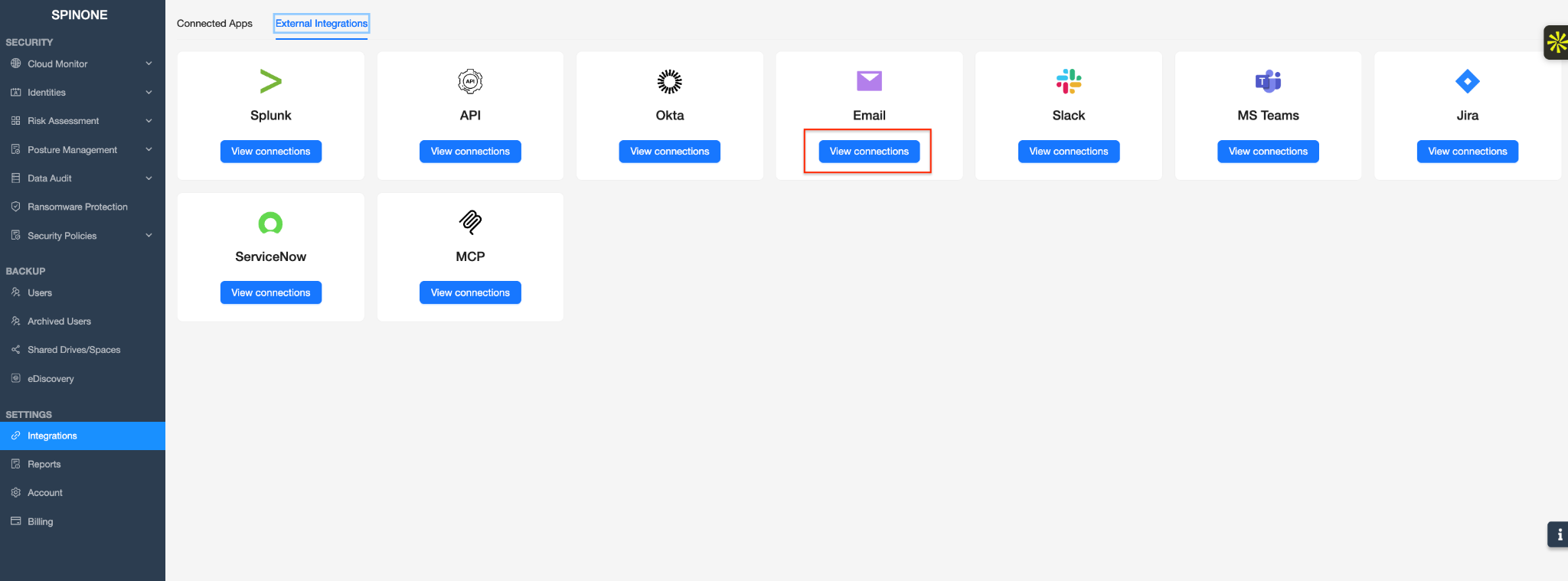
Locate the channel that receives the report and click Edit.

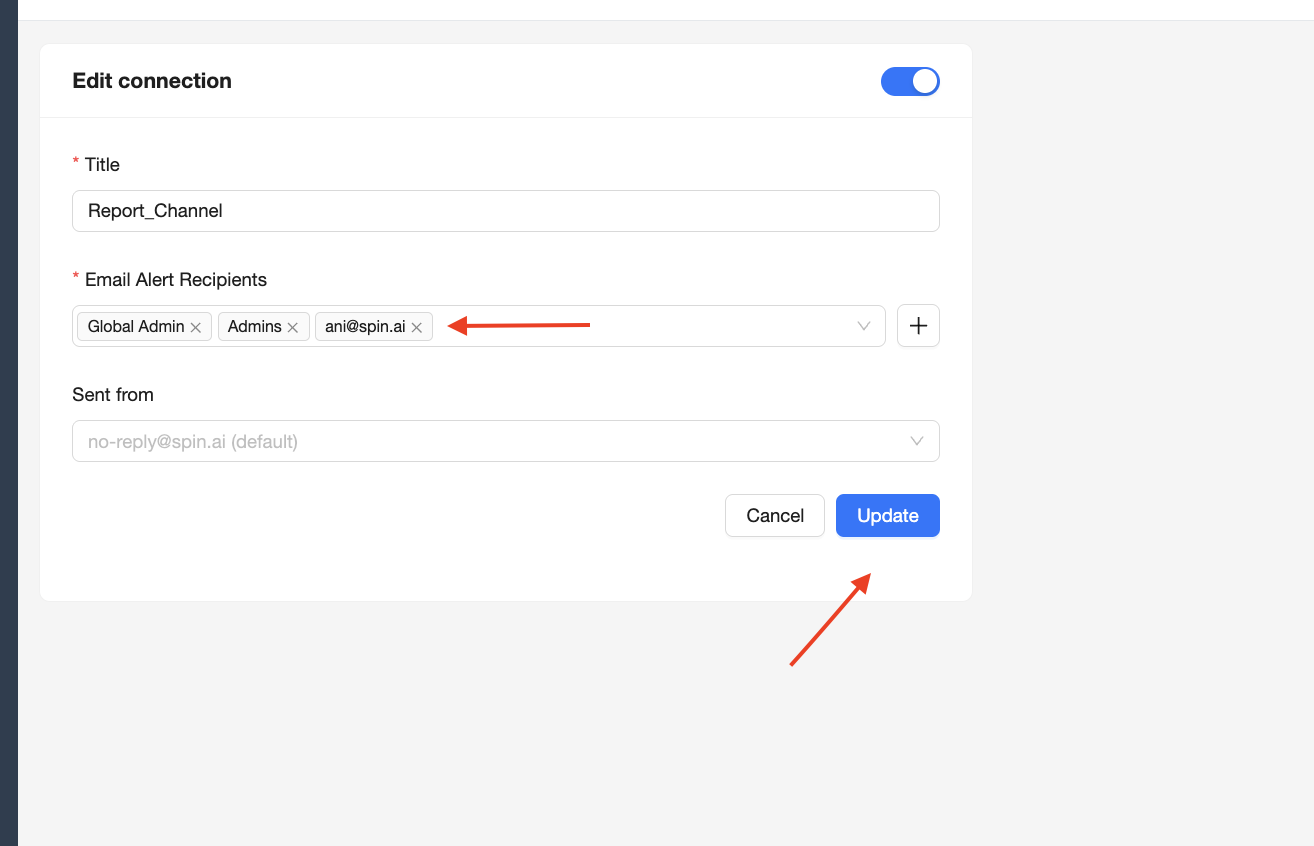
In the Edit connection window, add or remove addresses in the Email Alert Recipients field, then click Update to save your changes.
Get more information on Google Workspace™ Backup Solutions