
How to Create a Security Policy to Take Action Based on Domain Visits

With the SpinProtect browser extension, SpinOne can detect when users visit specific website domains, known as Domain Apps. By pairing Domain Apps with a Security Policy, you can have SpinOne automatically blocklist unsanctioned websites and alert your team when they’re visited.
Follow the steps in this article to choose which domains to monitor and create a policy that takes action on them.
Step 1: Add the Domains You Want to Monitor
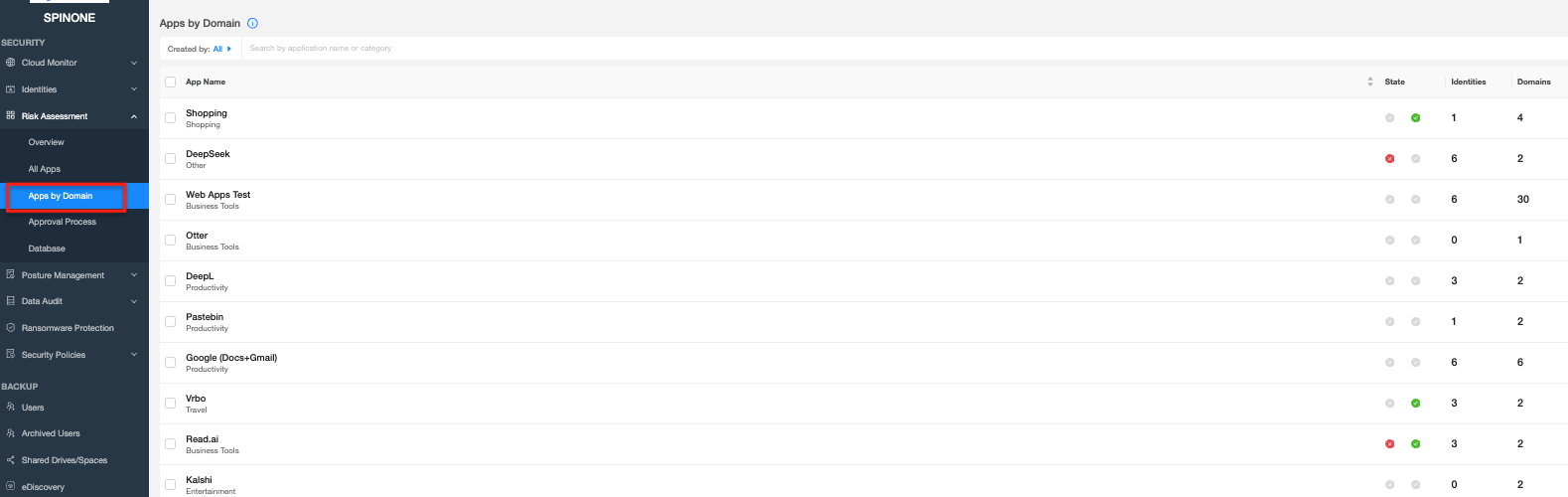
Log in to your SpinOne account. From the left navigation panel, head to Risk Assessment > Apps by Domain.
This page lists every Domain App SpinProtect monitors, along with its State, the number of Identities that have used it, and the number of Domains it includes. SpinOne comes with a short preconfigured list of potentially unwanted Domain Apps, which you can edit or delete.
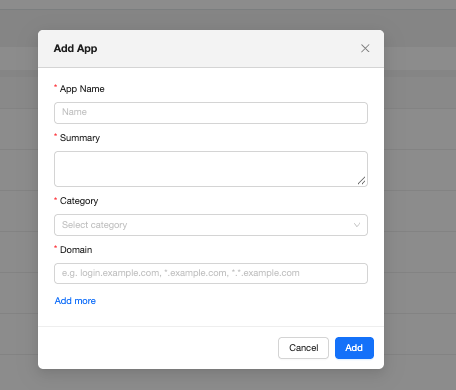
To monitor a new website, click Add App, complete the required information, and click Add. SpinProtect will begin monitoring visits to its domains, and any detected Domain App will appear on the All Apps page alongside your other applications and extensions.
Step 2: Create the Policy
- From the left navigation panel, head to Security Policies > Policy Management.
- Click + Create Policy and choose Application Policy.
- Give the policy a name.
- Add a condition that targets the Domain Apps you want the policy to act on.
- Under Actions, choose what SpinOne should do, such as changing the app’s status to Blocklist.
- Add a notification action so you’re alerted whenever the policy is triggered.
- Save the policy.
The most common actions for Domain Apps are:
| Action | What it does | What the user experiences |
|---|---|---|
| Blocklist | Moves the Domain App to the blocklist so users can no longer access its domains. | The site is blocked as soon as they try to visit it. No pop-up appears, and they can request access through the SpinProtect extension. |
| Notification | Alerts you whenever the policy is triggered, so you can review the visit. | Nothing. Notifications go to your admins, not the end user. |
What Users See
When a user visits a blocklisted domain, the site is blocked right away. SpinProtect doesn’t show a pop-up notification for blocked domains, since the user can see immediately that the site won’t load.
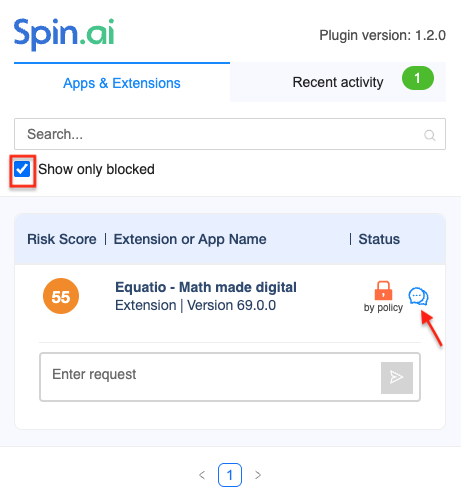
Users can view the blocklist in the SpinProtect extension and request access to a blocked site directly from it, so they have a clear path if they need a site for work.
If you have any questions or concerns, please contact us at support@spin.ai.
Get more information on Google Workspace™ Backup Solutions