
How to Revoke All Sharing Events with a Specific User or Domain at Once

When someone no longer works with your organization, such as a former contractor, partner, or vendor, you may want to remove their access to everything that was shared with them. Instead of stopping each share one file at a time, SpinOne lets you revoke every sharing event with a specific user or domain in a single step.
Follow the steps in this article to review what has been shared and revoke it in bulk.
Open Shared Users (Domains)
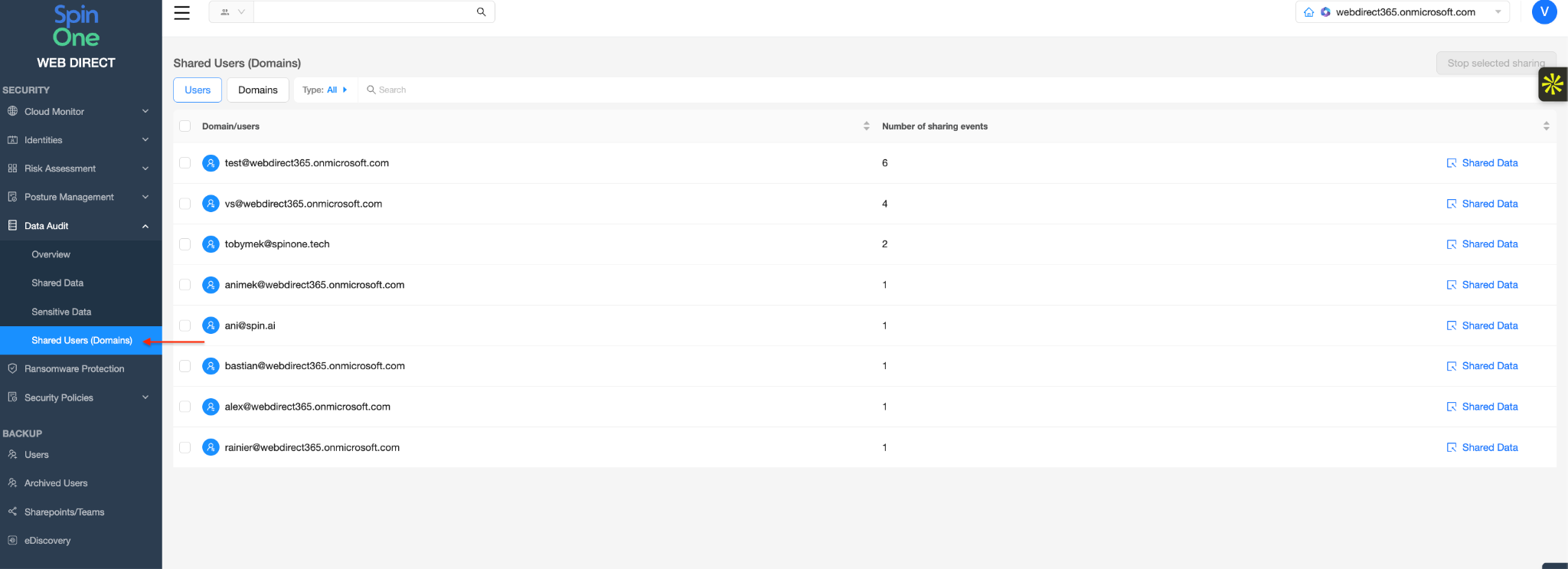
Log in to your SpinOne account. From the left navigation panel, head to Data Audit > Shared Users (Domains).
This page lists every user, both internal and external, that SpinOne has detected sharing events with. The Number of sharing events column shows how many files are shared with each one.
Review What Is Shared (Recommended)
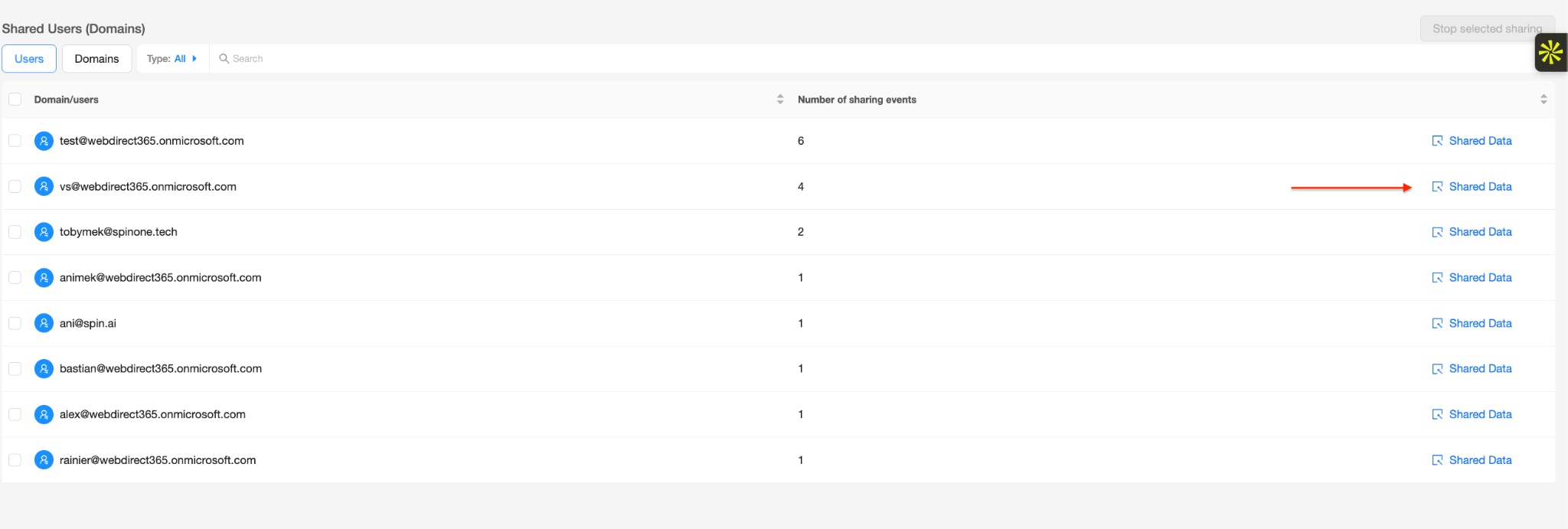
Before revoking access, it’s a good idea to check exactly what is shared. Click Shared Data next to the user or domain.
You’ll be taken to the Shared Data page, already filtered by Shared to for that user or domain. Here you can see each file or folder, its owner, who it’s shared with, and when it was shared.
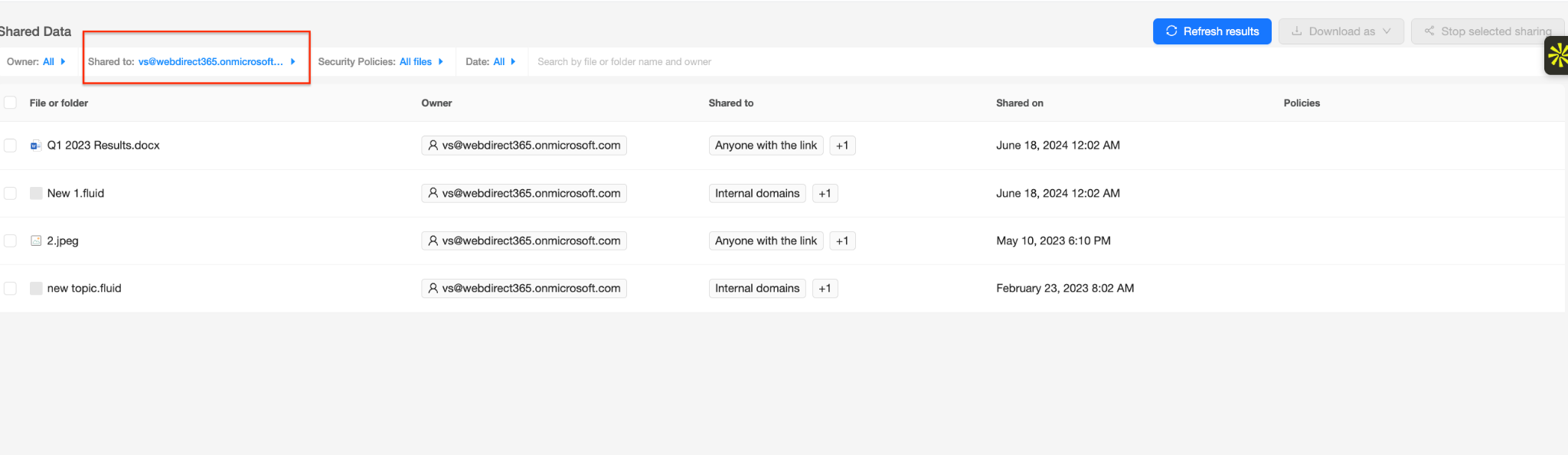
If you only want to stop sharing for some of these files, select them on this page and click Stop selected sharing. To revoke everything at once, go back to Shared Users (Domains) and continue below.
Revoke All Sharing with a User
On the Users tab, check the box next to the user(s) whose access you want to remove, then click Stop selected sharing at the top right.
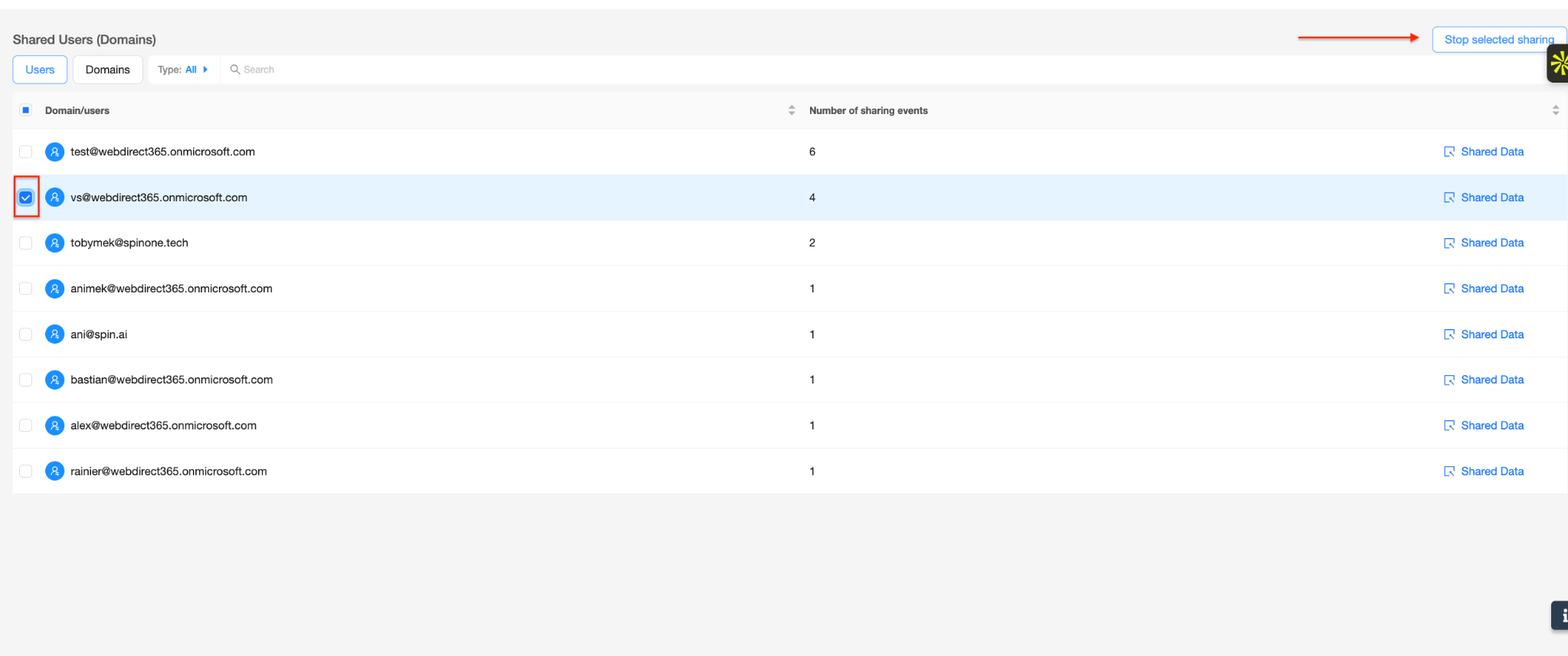
All sharing events with the selected user(s) will be revoked.
Revoke All Sharing with a Domain
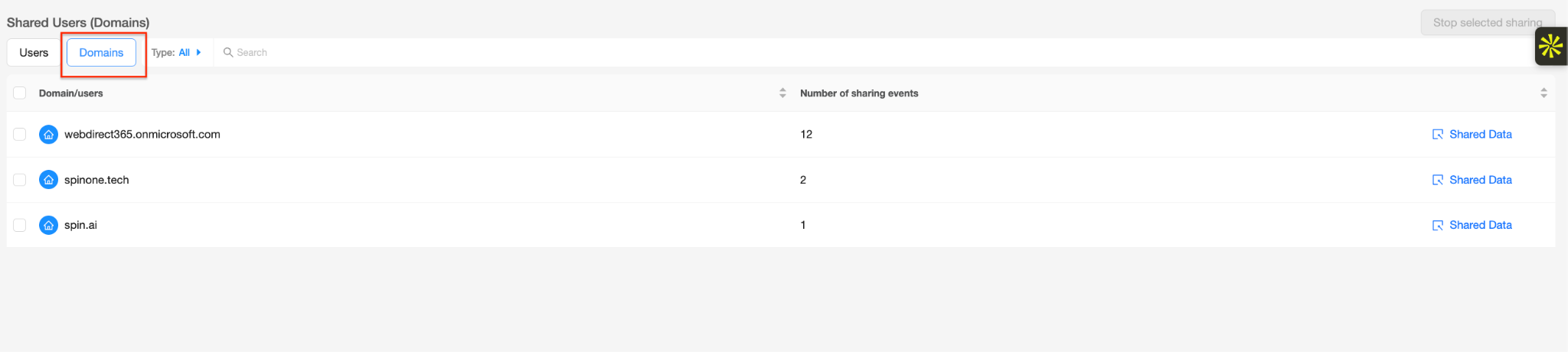
To remove access for everyone at an organization, click the Domains tab. Check the box next to the domain(s) and click Stop selected sharing.
If you have any questions or concerns, please contact us at support@spin.ai.
Get more information on Google Workspace™ Backup Solutions