
How to Create Custom Tags in SpinOne and Use Them in Security Policies

Custom tags let you label applications and browser extensions in SpinOne so they’re easier to track, filter, and annotate. You can then use those tags in Security Policies to automate how SpinOne handles each group of apps.
Follow the steps in this article to create tags, assign them to apps, use them in an Application Policy, and manage them.
Step 1: Create a Tag and Assign It to an App
Log in to your SpinOne account. From the left navigation panel, head to Risk Assessment > All Apps and click the application or extension you want to tag to open its details.
Under Custom Tag, click Assign tag. The Assign Custom Tag window will open.
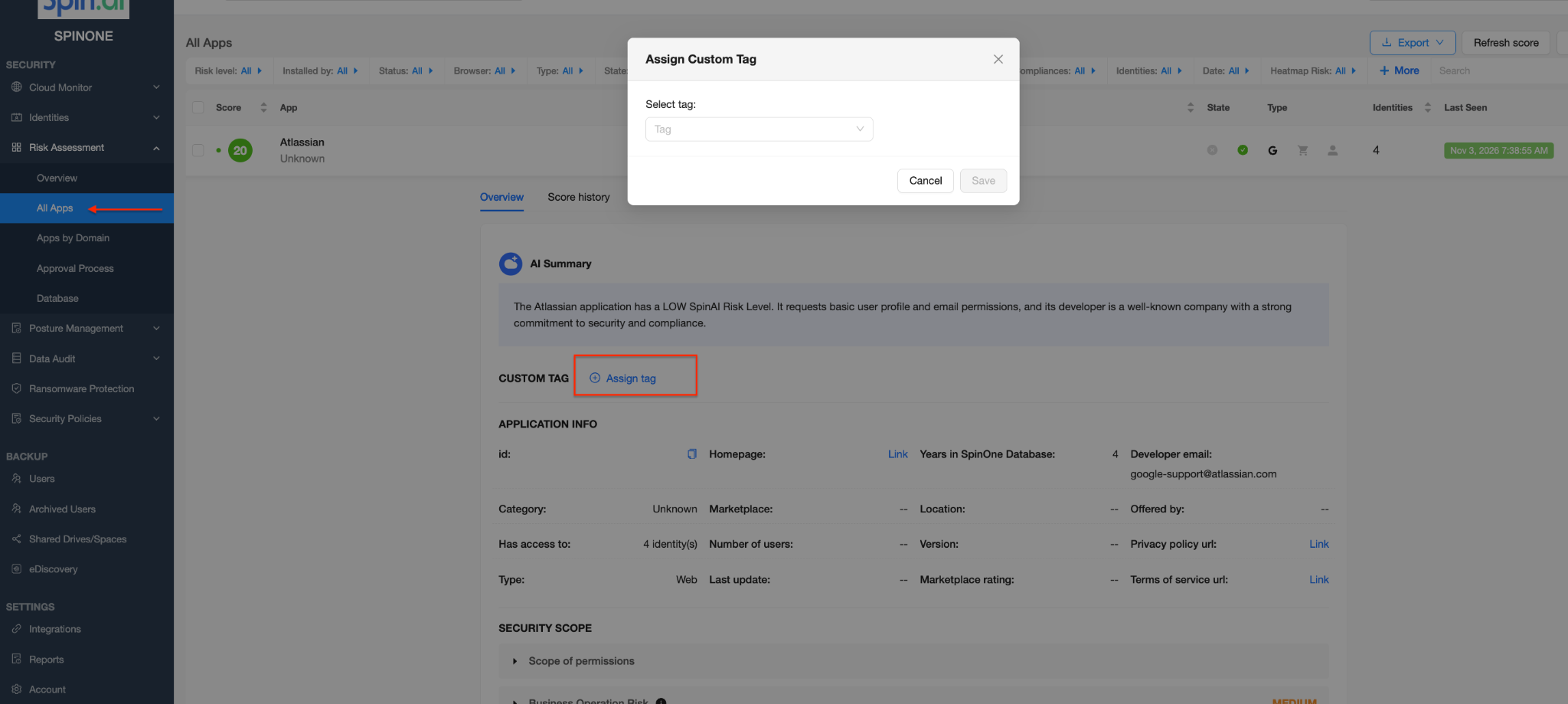
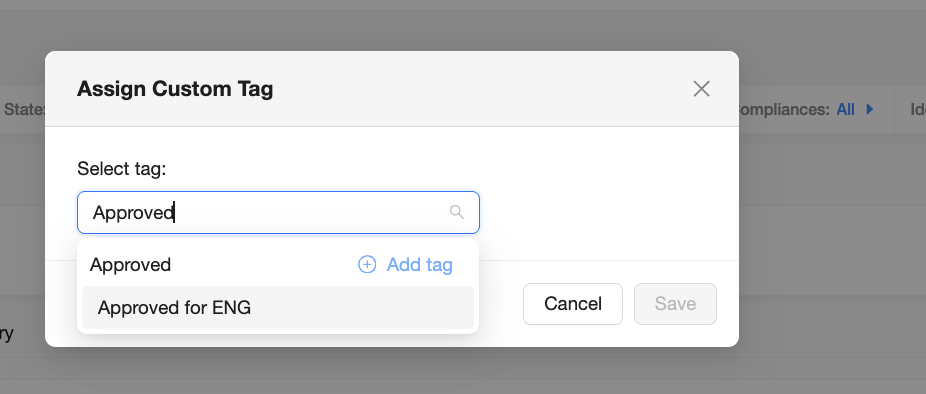
Under Select tag, type the name of your new tag and click Add tag. To use a tag you’ve already created, select it from the list instead. Then click Save.
The tag now appears next to the app on the All Apps page. Repeat these steps for any other apps you want to tag.
Step 2: Filter Apps by Tag
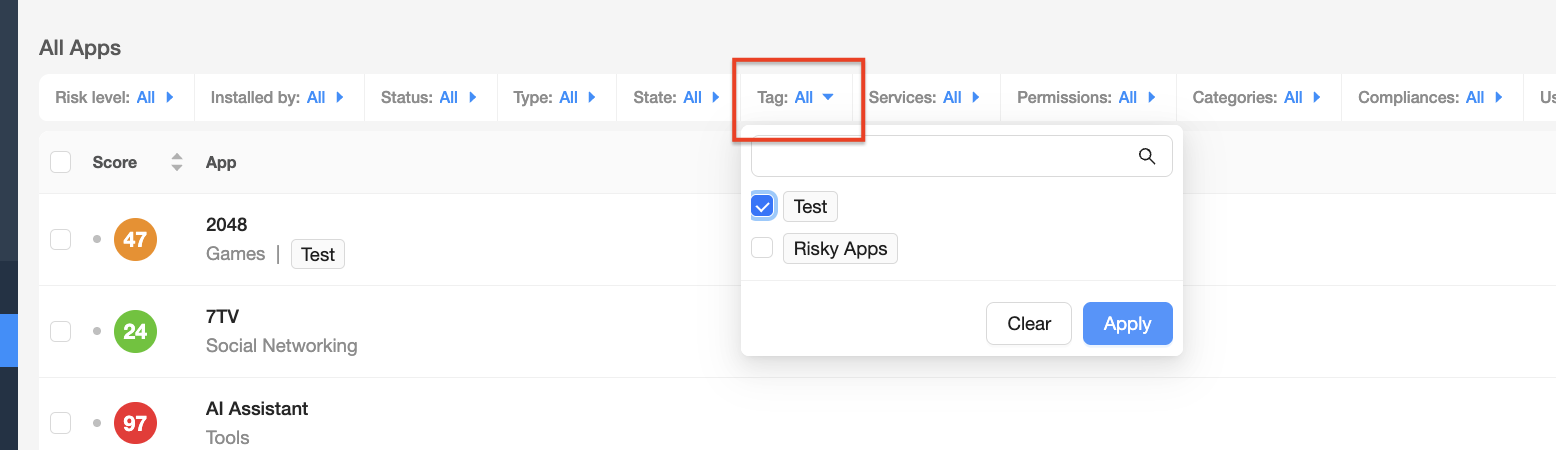
On the All Apps page, click the Tag filter, check the tag(s) you want to see, and click Apply. Only the apps and extensions with those tags will be shown.
Step 3: Use Tags in a Security Policy
Tags can work with Application Policies in two ways:
| Act on tagged apps | Tag apps automatically | |
|---|---|---|
| How it works | The tag is the condition. The policy acts on every app with that tag. | Applying a tag is the action. The policy tags every app that matches its conditions. |
| Use it when | You’ve already tagged apps by hand and want SpinOne to treat them consistently. | You want apps sorted into groups without tagging each one yourself. |
Create an Application Policy
- From the left navigation panel, head to Security Policies > Policy Management.
- Click + Create Policy and choose Application Policy.
- Give the policy a name.
- Add your conditions. To act on tagged apps, add a condition based on your tag.
- Add your actions. To tag apps automatically, add an action that applies your tag.
- Save the policy.
Every Application Policy is made up of the same three parts:
| Part | What it does | Example |
|---|---|---|
| Name | Identifies the policy in your policy list. | Internal tools |
| Conditions | Decide which apps and extensions the policy applies to. | Apps with the tag Internal |
| Actions | Decide what SpinOne does when an app matches, such as changing its status, revoking access, applying tags, or sending a notification. | Change status to Allowlist and send a notification |
Manage Existing Tags
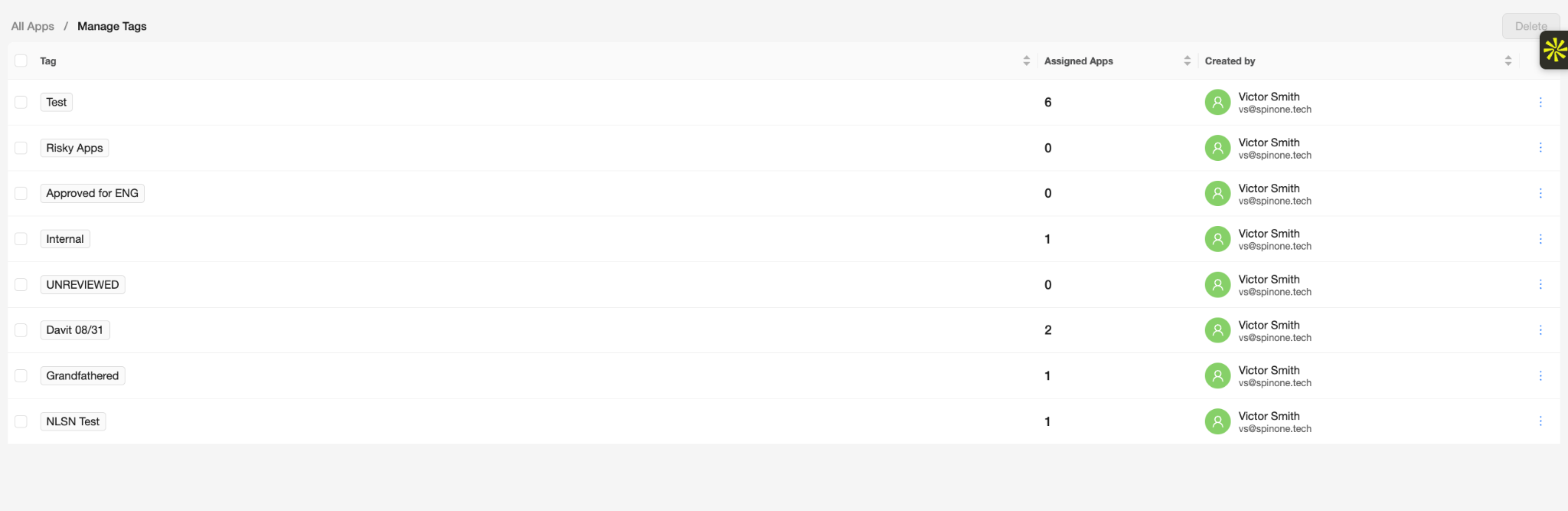
To update or delete your tags, click Manage tags at the top right of the All Apps page.
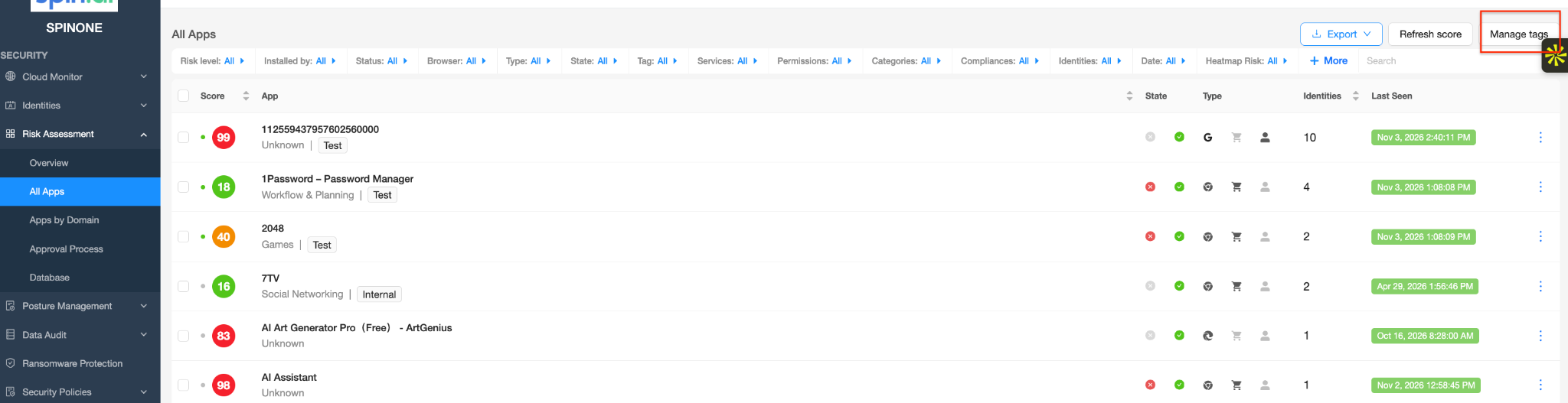
The Manage Tags page lists every tag, how many apps it’s assigned to, and who created it. To delete tags, check the box next to them and click Delete. To update a tag, use the menu (⋮) at the end of its row.
If you have any questions or concerns, please contact us at support@spin.ai.
Get more information on Google Workspace™ Backup Solutions