
How to Set Up 2-Step Verification (2FA) in SpinOne

Follow the steps in this article to enable 2-Step Verification (2FA) for your SpinOne account and add an extra layer of protection to your login.
Log in to your SpinOne account. You will land on the SpinOne Dashboard.
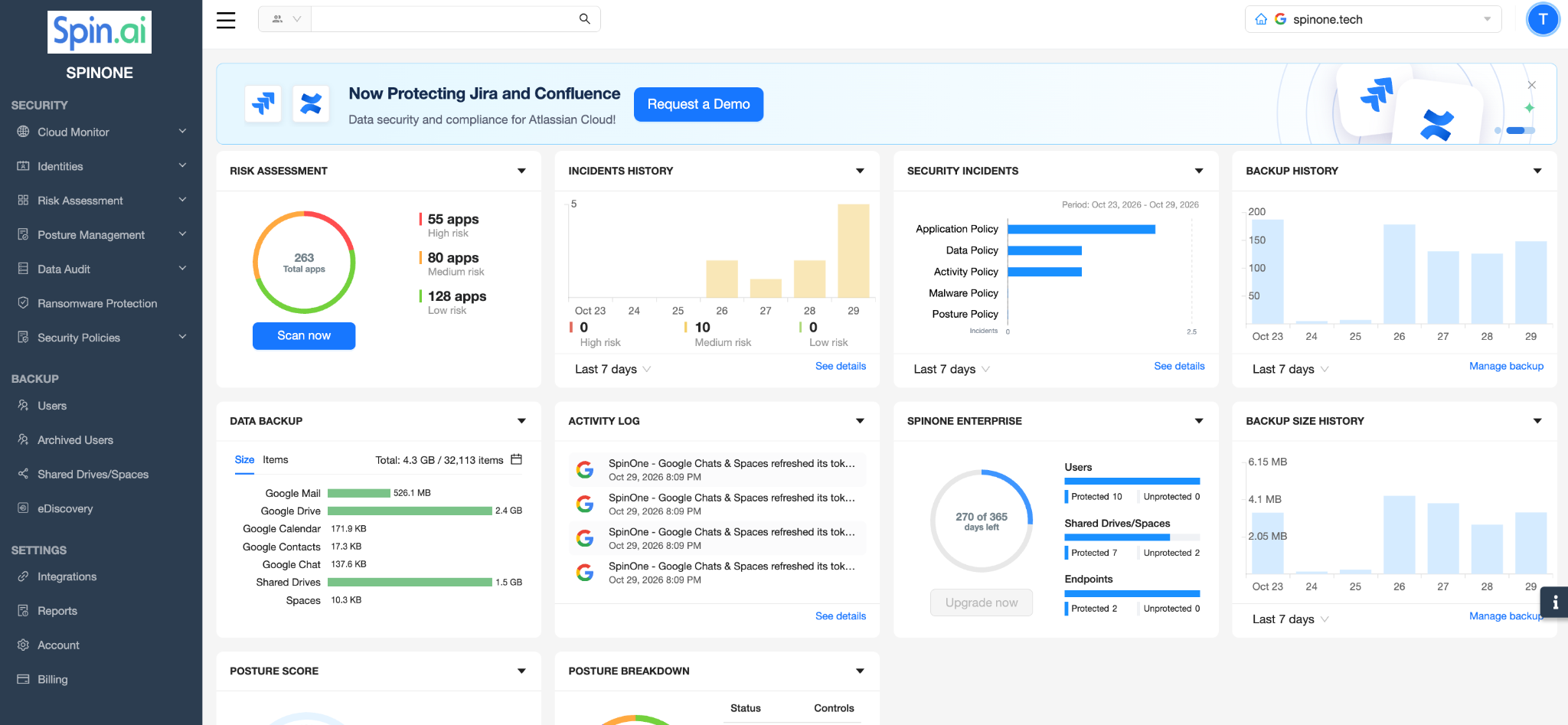
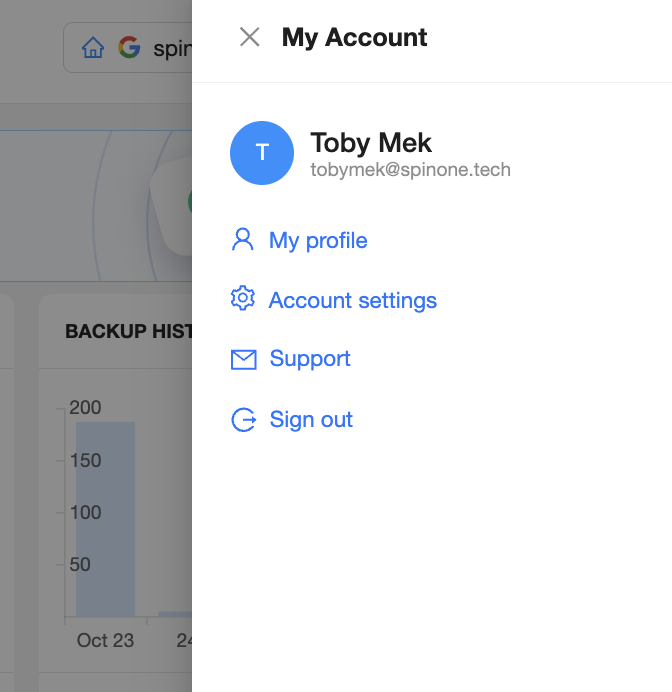
Click your user icon at the top right of the page to open the My Account panel, then click My profile.
On the Profile settings page, scroll down to the 2-Step Verification section and click Enable 2-Step Verification. Then follow the on-screen prompts to complete the setup.
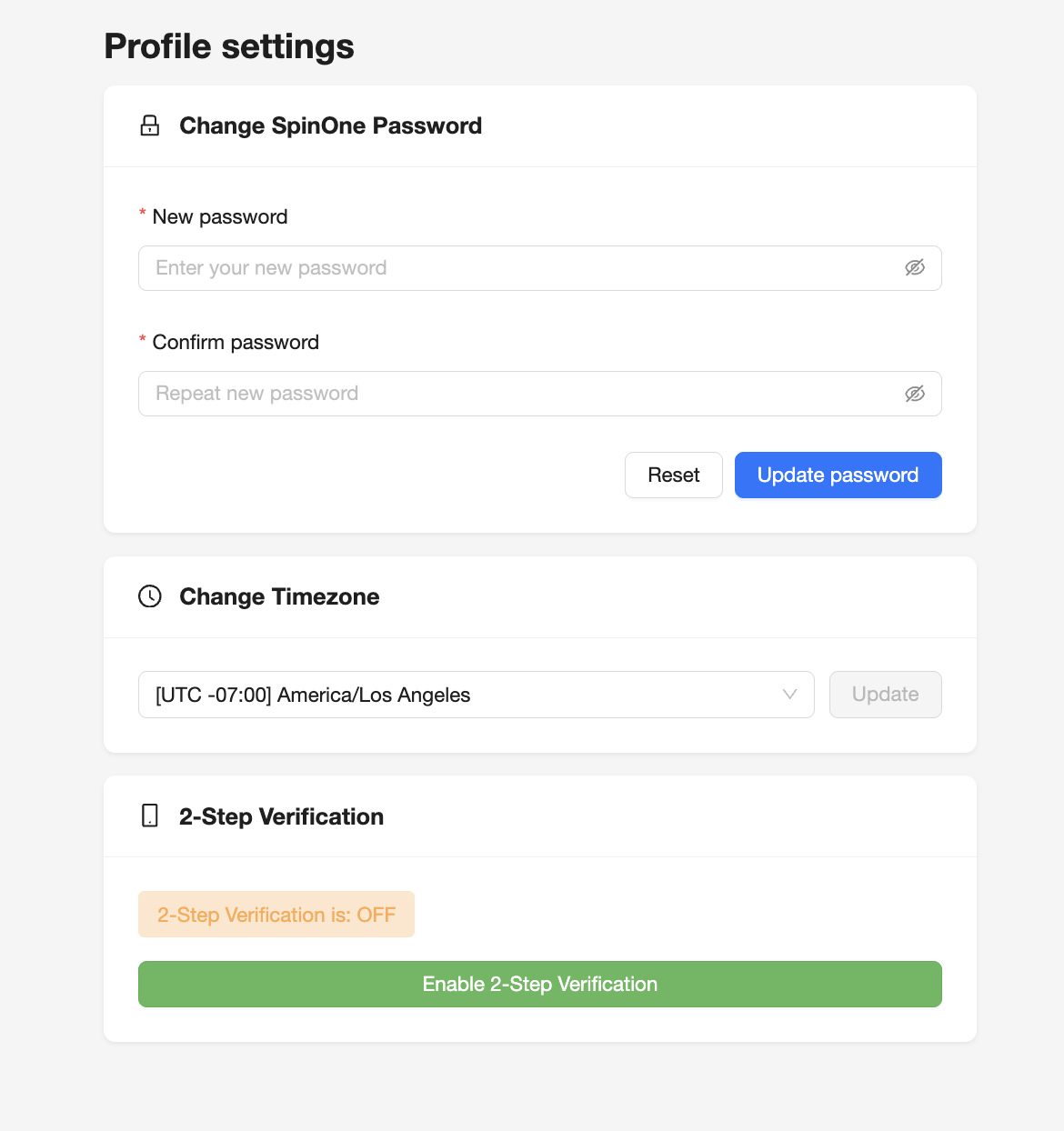
Once set up, the status in the 2-Step Verification section will change from OFF to ON.
Note: If you have issues with your 2FA code and need 2-Step Verification disabled for your account, contact our Support team via live chat or by submitting a ticket through our Support Portal. Our team will verify your account and then disable 2FA for you.
Get more information on Google Workspace™ Backup Solutions