
How to Reactivate a Disabled User or Shared Drive

Follow the steps in this article to reactivate a User or Shared Drive/Space that was unintentionally disabled in SpinOne. Reactivation follows the same process as manual onboarding: the entity is selected again from the Add users or Add Entities page and activated.
Reactivate a User
Log in to your SpinOne account. You will land on the SpinOne Dashboard.
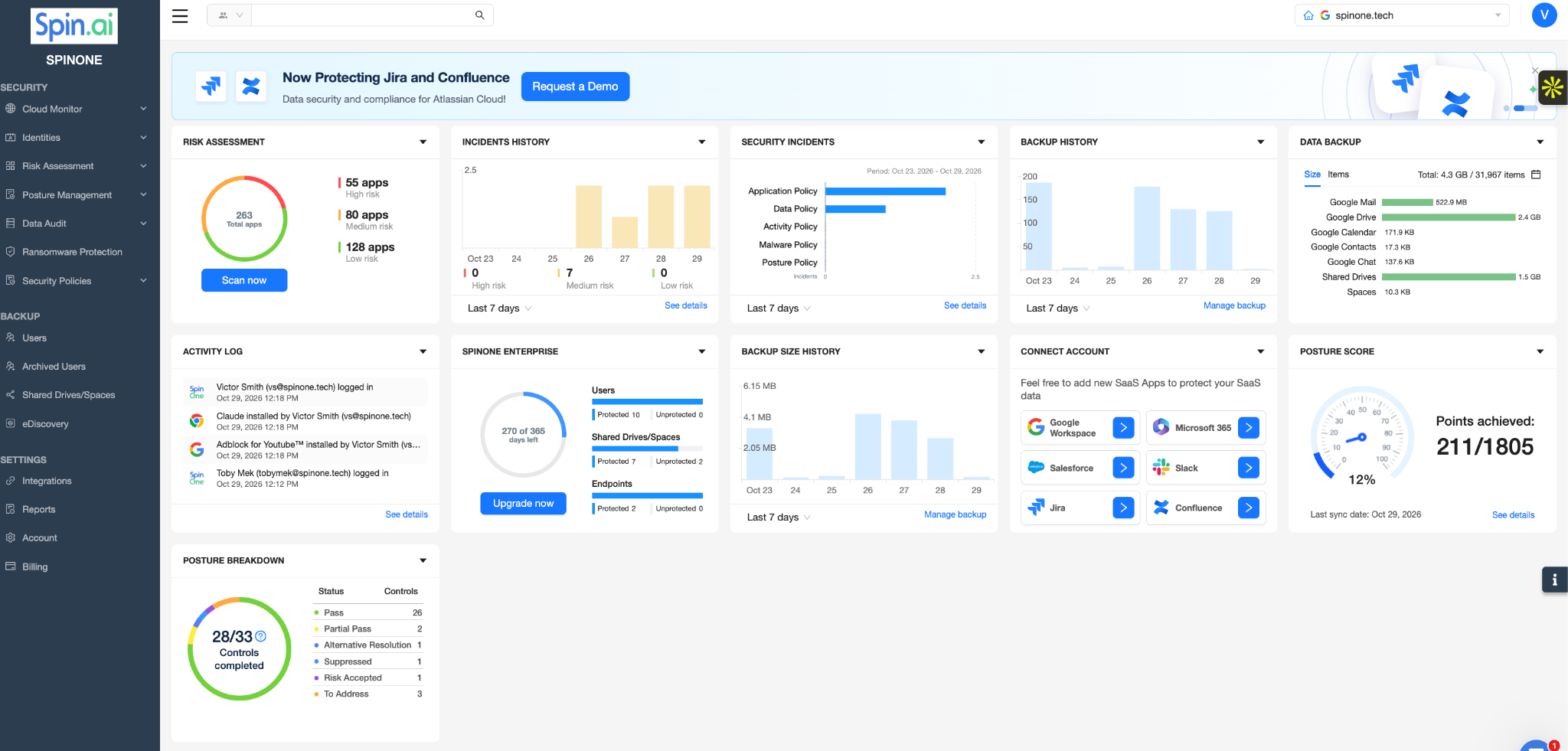
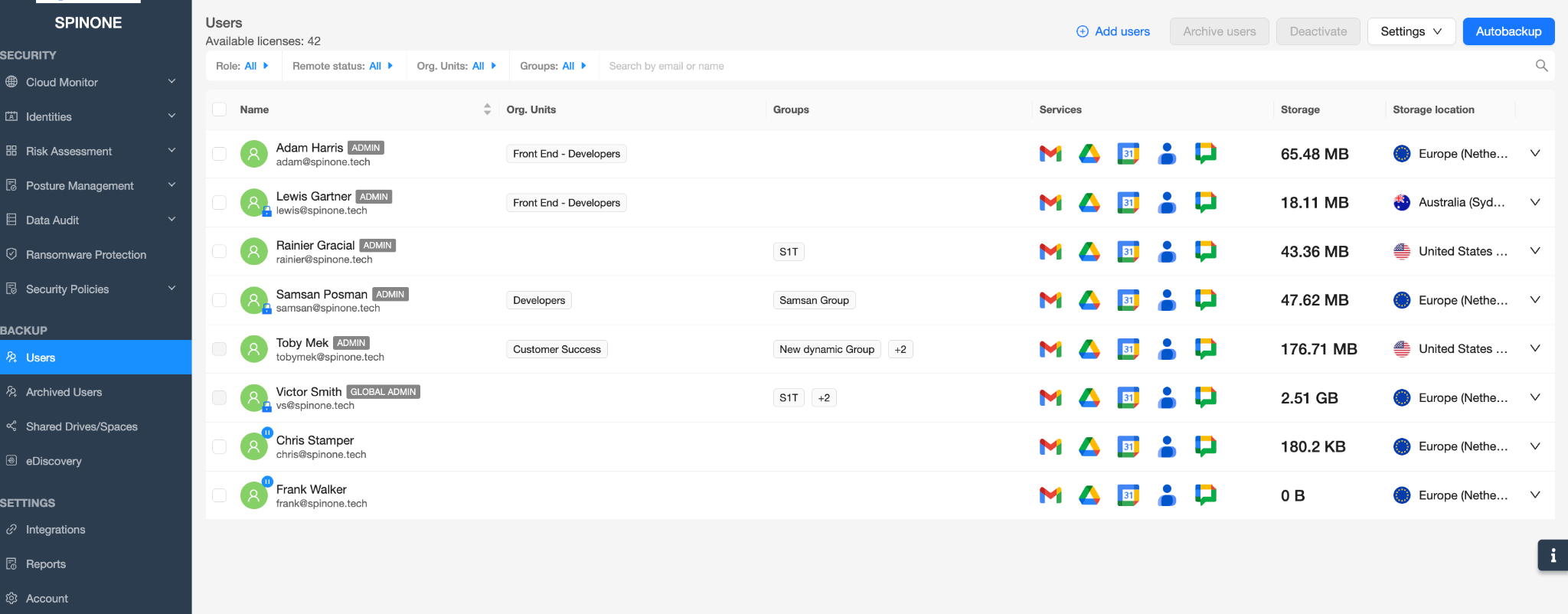
From the left navigation panel, head to Backup > Users, then click Add users at the top of the page.
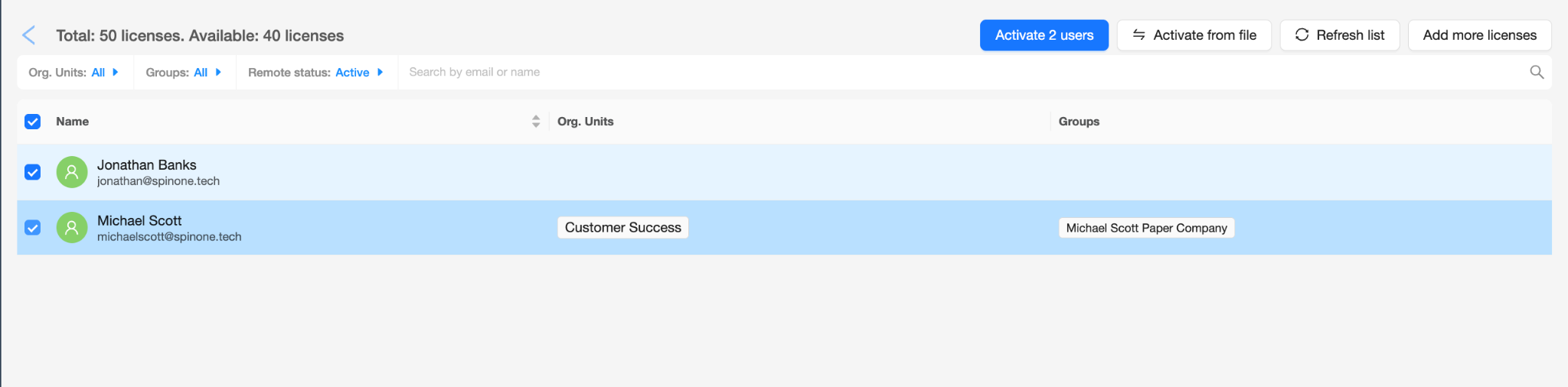
The Remote status filter is set to Active by default. If the user you are looking for does not appear in the list, update the Remote status filter. Select the user(s) you want to reactivate, then click Activate at the top. The button displays the number of users selected (for example, Activate 2 users).
Once activated, the selected users will be reactivated!
Reactivate a Shared Drive/Space
From the left navigation panel, head to Backup > Shared Drives/Spaces, then click Add Entities at the top of the page.
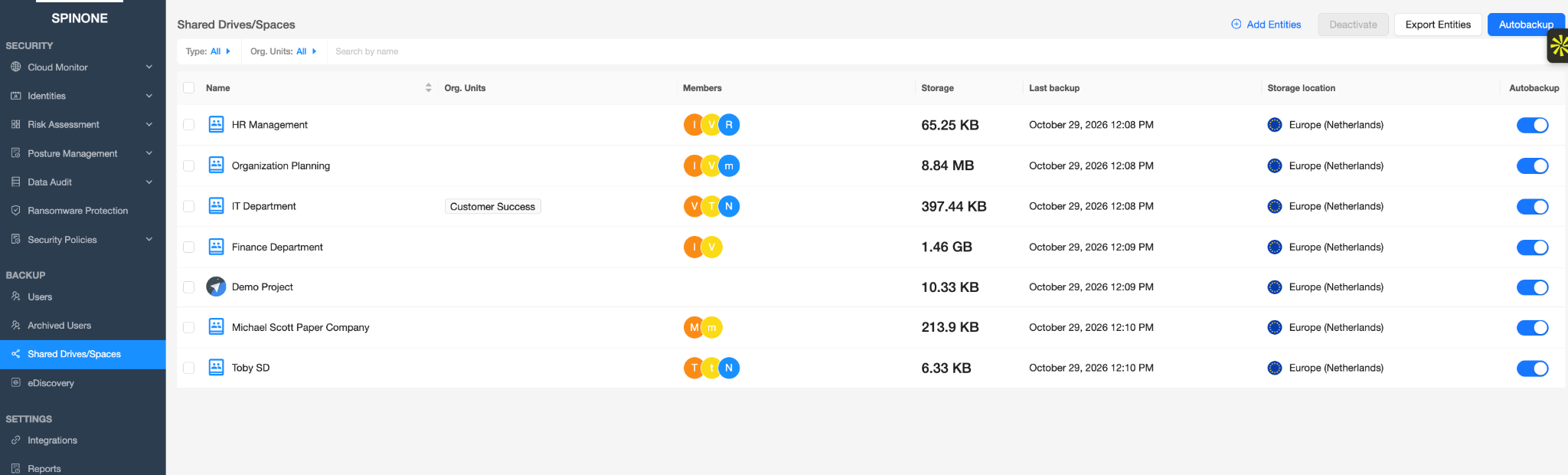
As with users, update the Remote status filter if the entity you are looking for does not appear. Select the Shared Drives and/or Spaces you want to reactivate, then click Activate at the top.
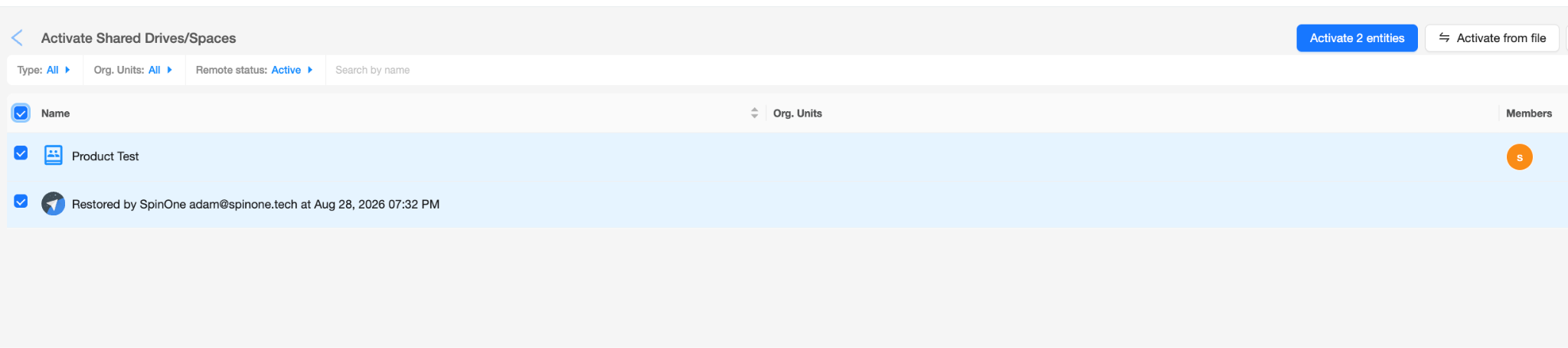
Once activated, the selected entities will be reactivated!
Get more information on Google Workspace™ Backup Solutions