
How to Connect Slack with SpinOne

SpinOne can send notifications to Slack in two ways:
- Channel notifications – Send SpinOne alerts to a Slack channel using a Slack webhook.
- Direct message notifications – Send direct messages to end users in Slack.
Before you start, create a webhook URL for your Slack channel using Slack’s Incoming WebHooks app.
- In SpinOne, go to Settings > Integrations and select the External Integrations tab.
- On the Slack tile, click View connections.
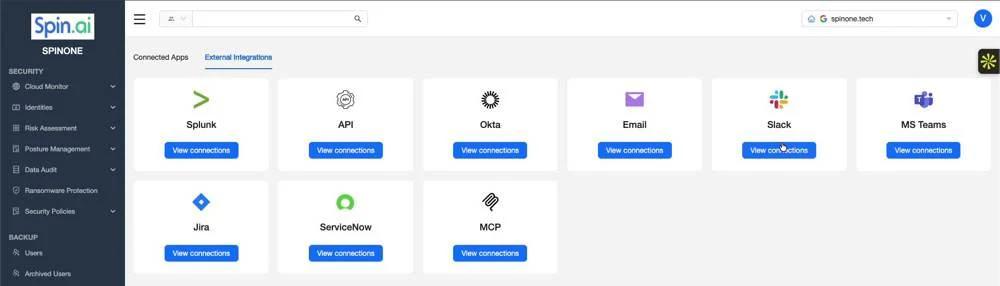
- Click Add connection at the top right.

- Enter a Title for the integration.
- Paste your webhook URL into the Slack URLs field.
- Click Create.
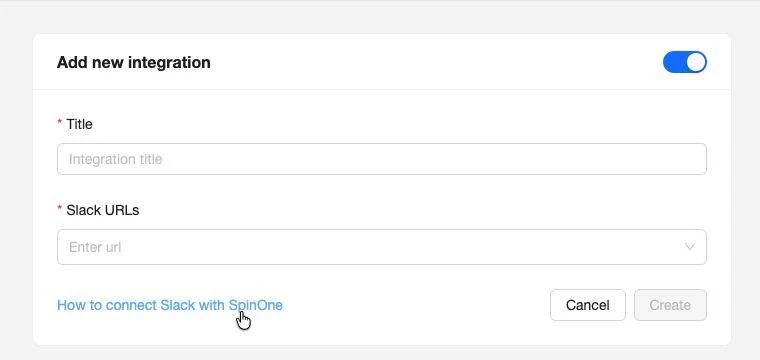
Your new connection now shows in the Connections list and can be selected as a notification recipient in your Security Policies.
End-user notifications use a Slack app that sends direct messages on SpinOne’s behalf. Setup includes three steps:
- Create the Slack app
- Approve it for your organization
- Add its token to SpinOne
These direct messages are sent to the user when any of the following cases occur: application is blocked, approval request is approved, approval request is declined, and approval request is updated.
Step 1: Create the Slack App
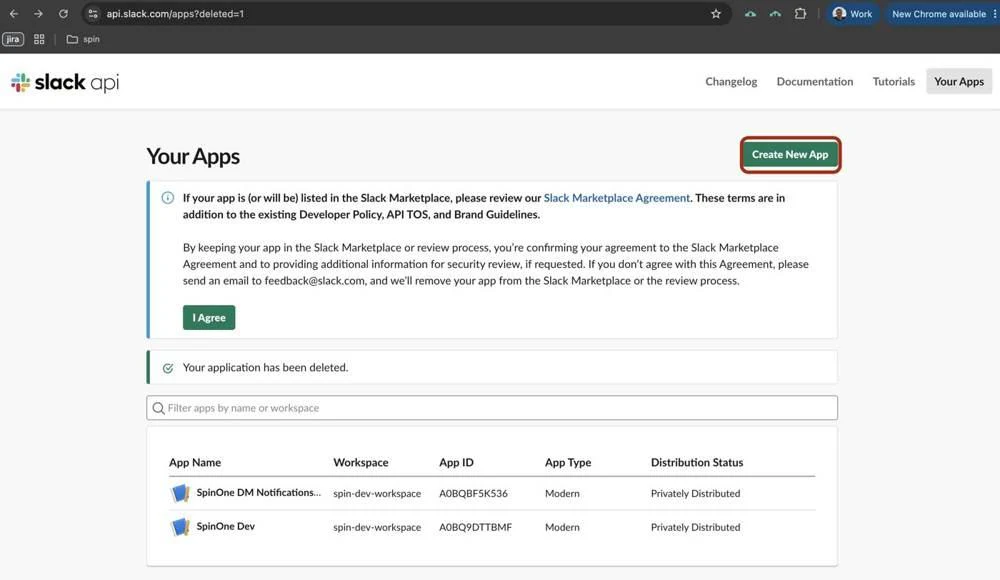
- Go to https://api.slack.com/apps and click Create New App.
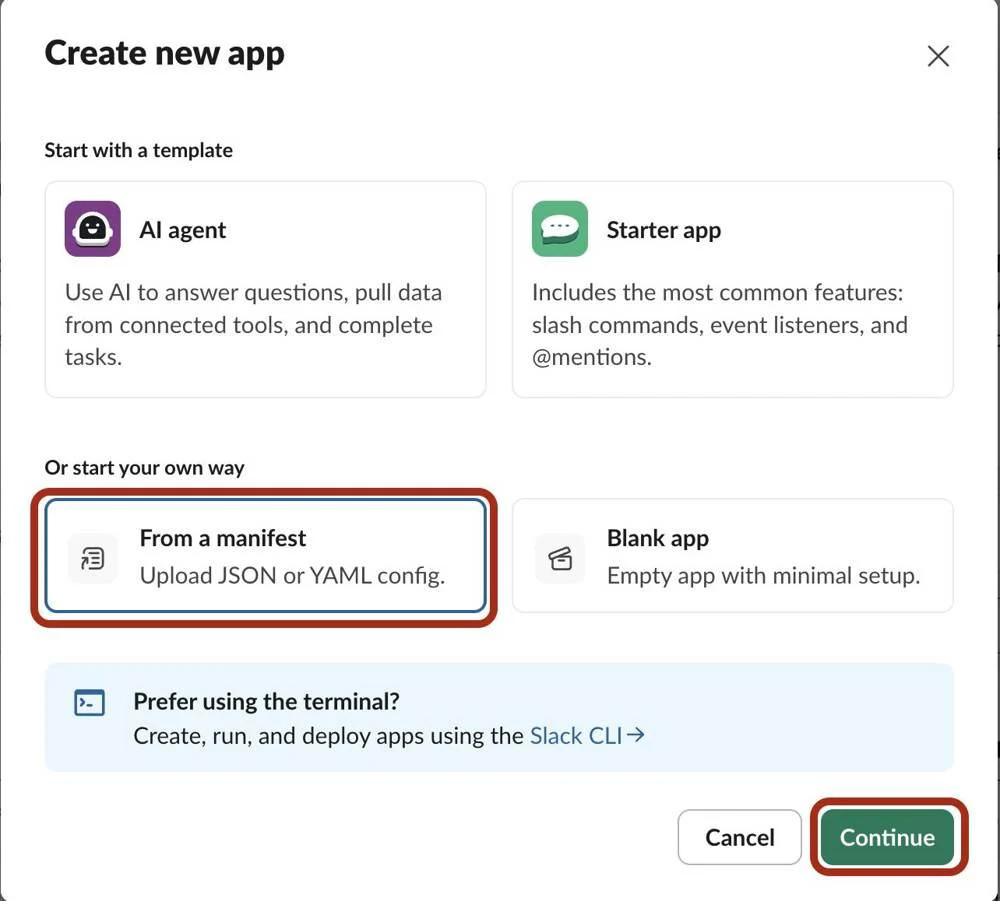
- Select From a manifest and click Continue.
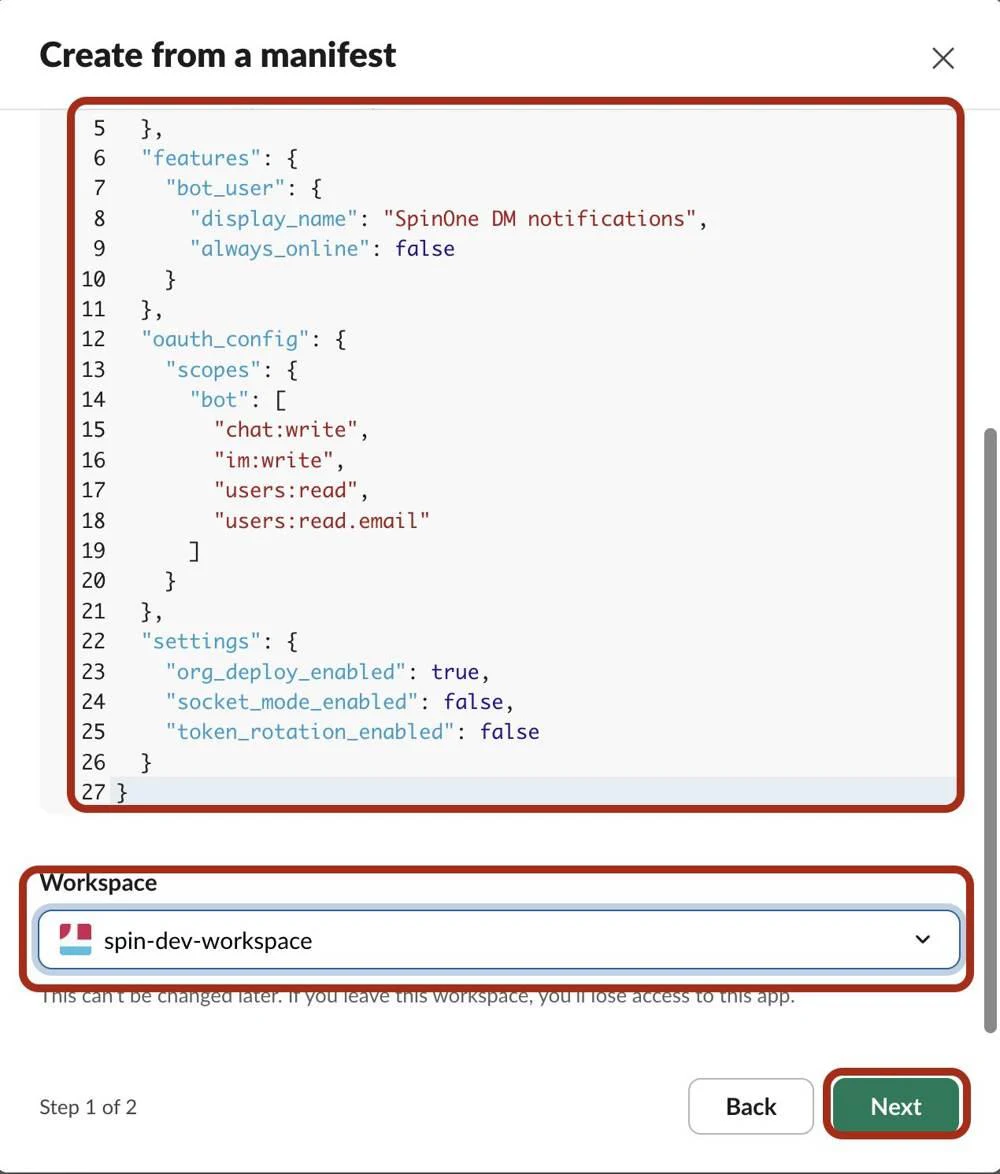
- Select the JSON tab and paste the manifest below.
{
  "display_information": {
    "name": "SpinOne DM notifications",
    "description": "SpinOne notifications"
  },
  "features": {
    "bot_user": {
      "display_name": "SpinOne DM notifications",
      "always_online": false
    }
  },
  "oauth_config": {
    "scopes": {
      "bot": ["chat:write", "im:write", "users:read", "users:read.email"]
    }
  },
  "settings": {
    "org_deploy_enabled": true,
    "socket_mode_enabled": false,
    "token_rotation_enabled": false
  }
}- Select your Workspace and click Next.
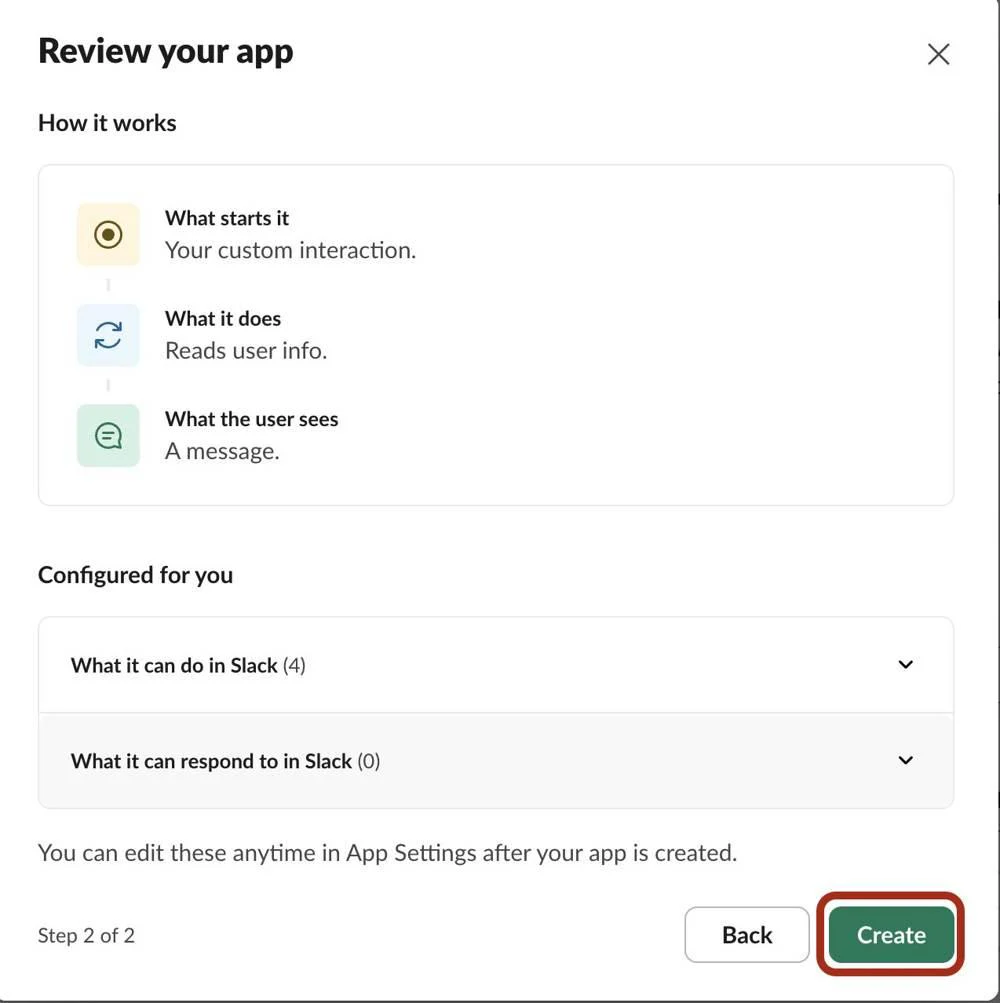
- Review the app and click Create.
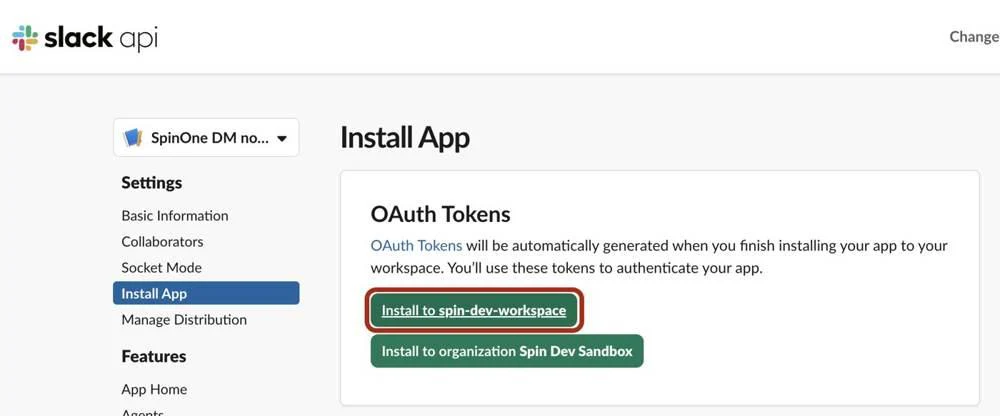
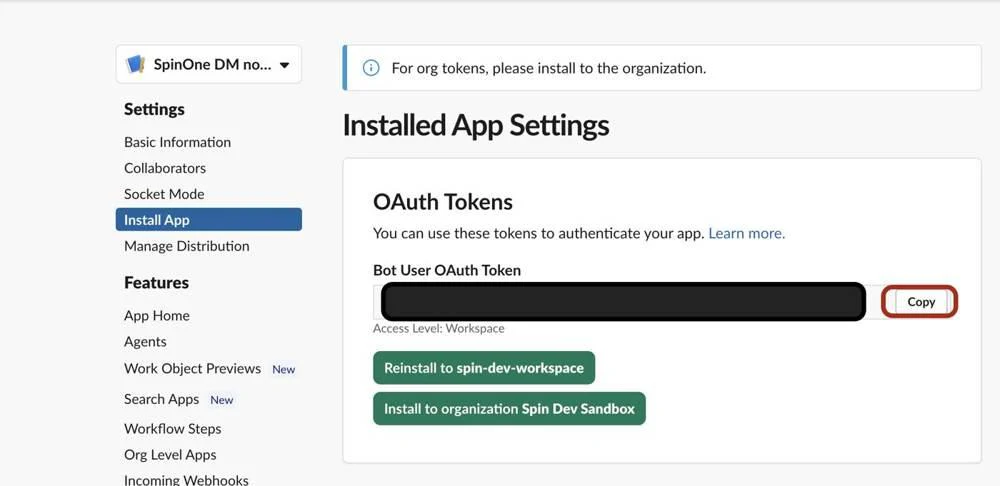
- In the left sidebar, click Install App, then click Install to [your workspace].
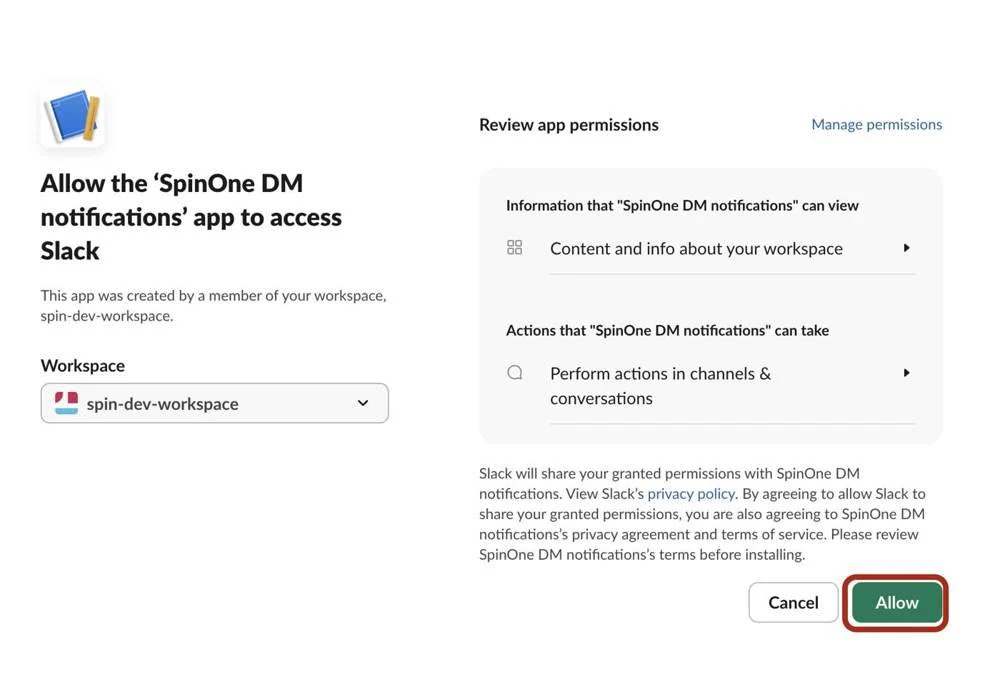
- Click Allow.
- Copy the Bot User OAuth Token. You’ll need it in Step 3.
Step 2: Approve the App for Your Organization
This step applies if your Slack uses an Enterprise Grid organization.
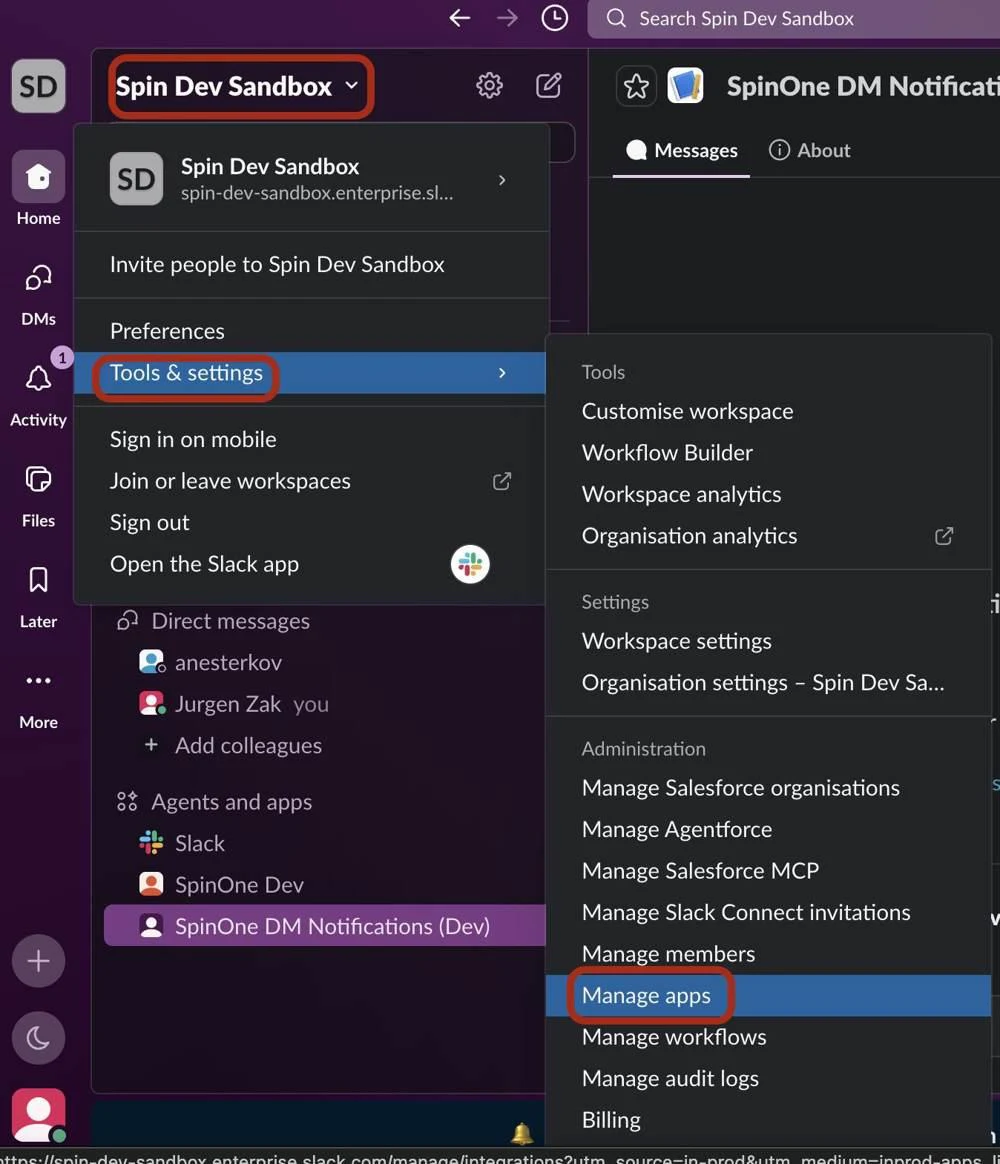
- In the Slack app, click your organization name in the top left.
- Go to Tools & settings > Manage apps. This opens your Slack admin page in the browser.
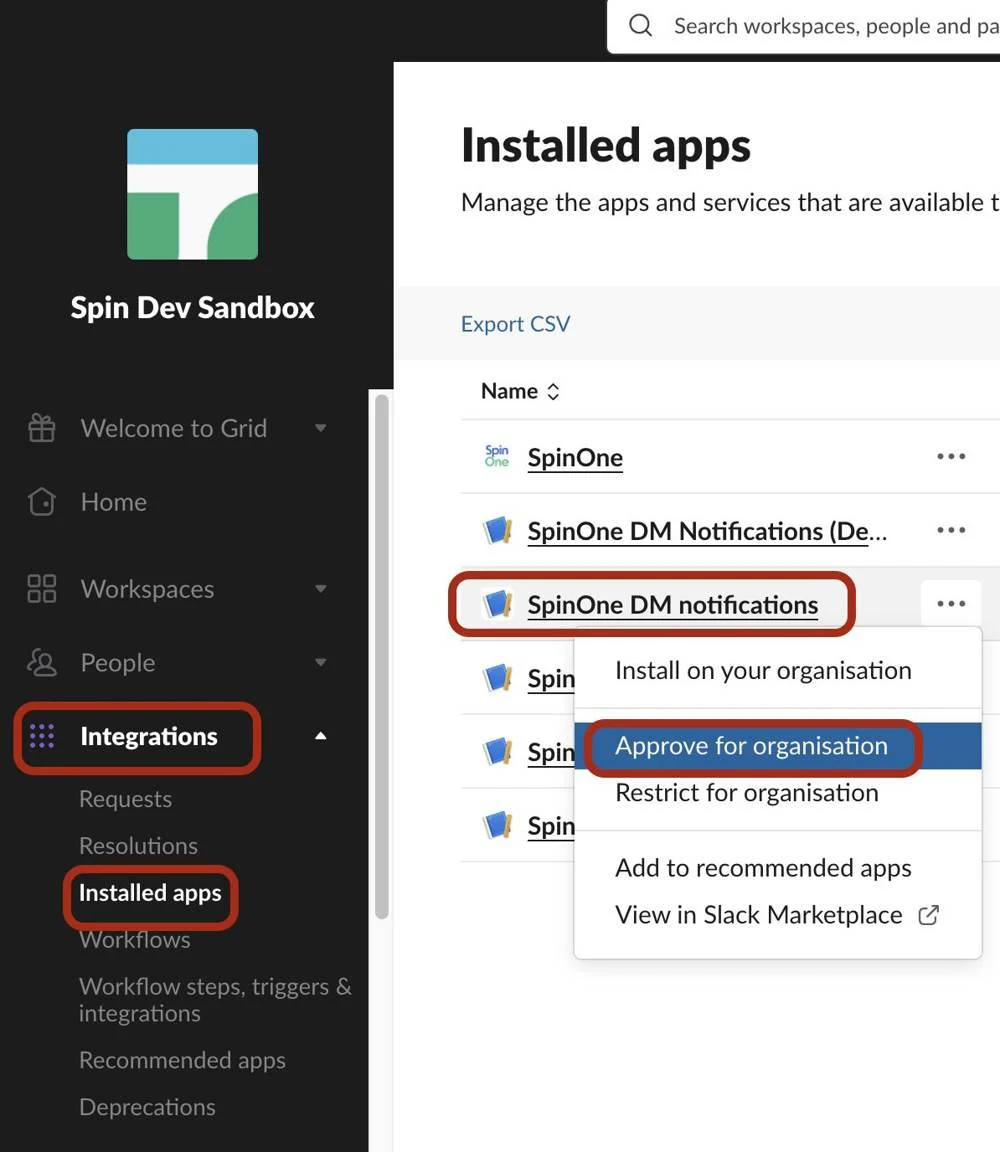
- Go to Integrations > Installed apps.
- Find SpinOne DM notifications, click the ⋯ menu, and select Approve for organisation.
Step 3: Add the Token to SpinOne
- In SpinOne, go to Settings > Integrations > External Integrations.
- On the Slack tile, click View connections.
- Click Edit on the Approval_Process_Channel connection.
- Paste the token into the Slack Token field and click Save.
End users will now receive SpinOne notifications as Slack direct messages. To customize the message text, go to Approval Process > Settings > Notification Templates > Slack > User Notifications.