
Set Up an AI Model in SpinOne

Your organization’s AI model can be connected to validate sensitive data detected by SpinOne. This reduces false positives while preserving your data’s integrity by ensuring that your data is reviewed by your trusted AI model.
AI Model Setup
The setup can be configured in the Account settings page, followed by the AI Models tab.
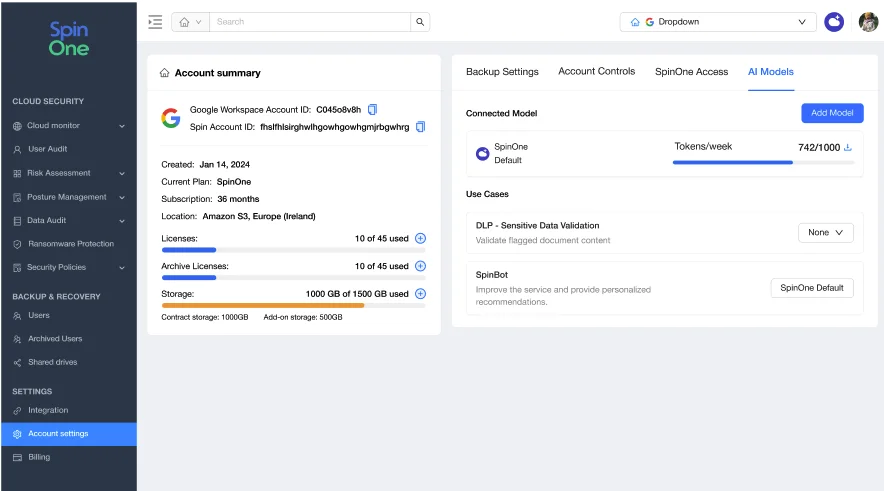
Selecting Add Model allows you to specify your AI Provider, Model, and API Key. A weekly (Monday thru Sunday UTC) token usage limit must also be specified. Once 80% of the configured usage is reached, a notification is displayed in the dashboard and an email is sent as a warning.
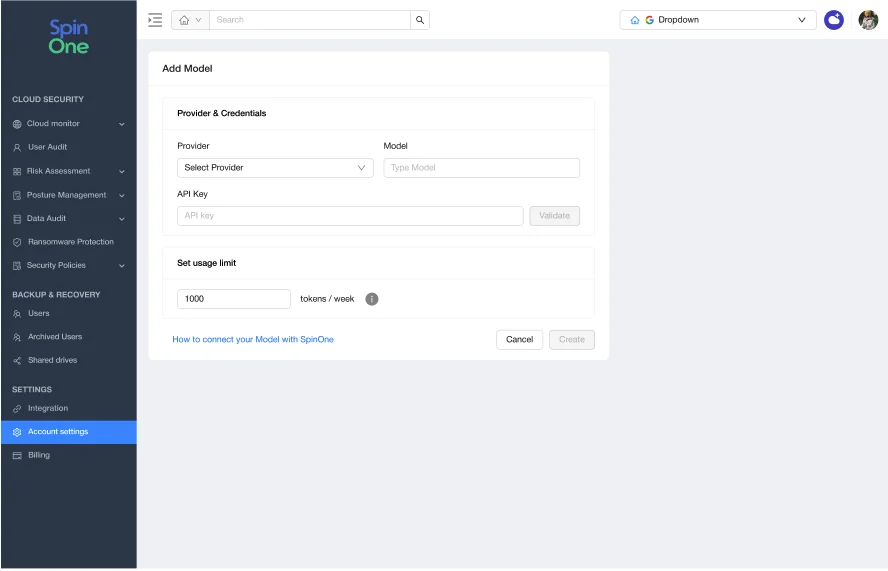
Anthropic (Claude) API Key
- Sign into the Claude Console.
- Go to Settings > API keys and click Create key. Give the key a name, such as “SpinOne”.
- Set Linked account to a service account and select the workspace, if prompted.
- Copy the key and paste it into SpinOne.
Google (Gemini) API Key
- Sign into Google AI Studio.
- Navigate to your Google Cloud project.
- Go to the API Keys page and click Create API key. Select your project.
- Restrict the key. Hover over the Unrestricted label next to the key, click Add restrictions, select Restrict to Gemini API only, and click Restrict key.
- Copy the key.
Get more information on Google Workspace™ Backup Solutions
Was this helpful?