
Google Account: Deleted Data Recovery

1. On the left of your dashboard click on Users.
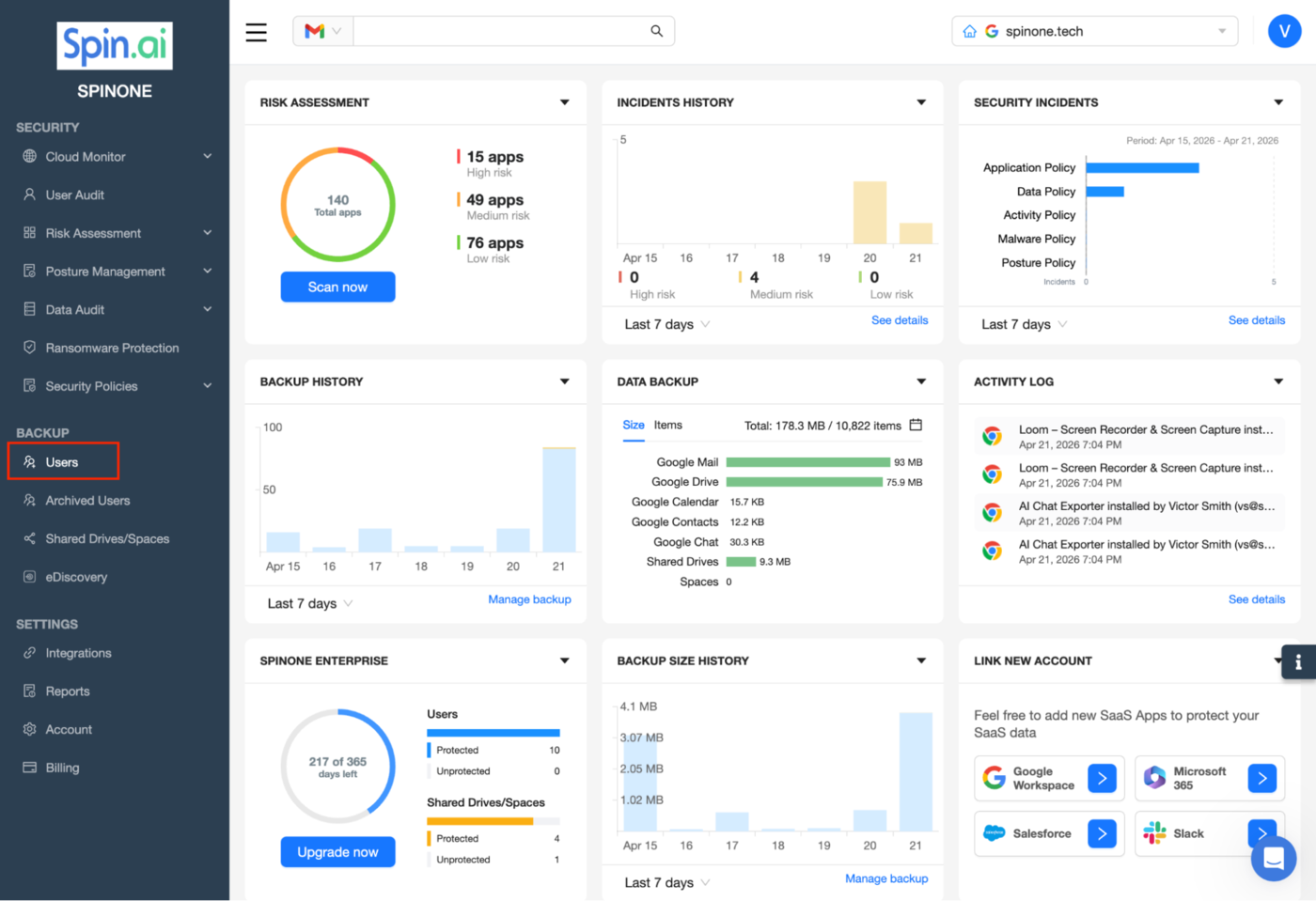
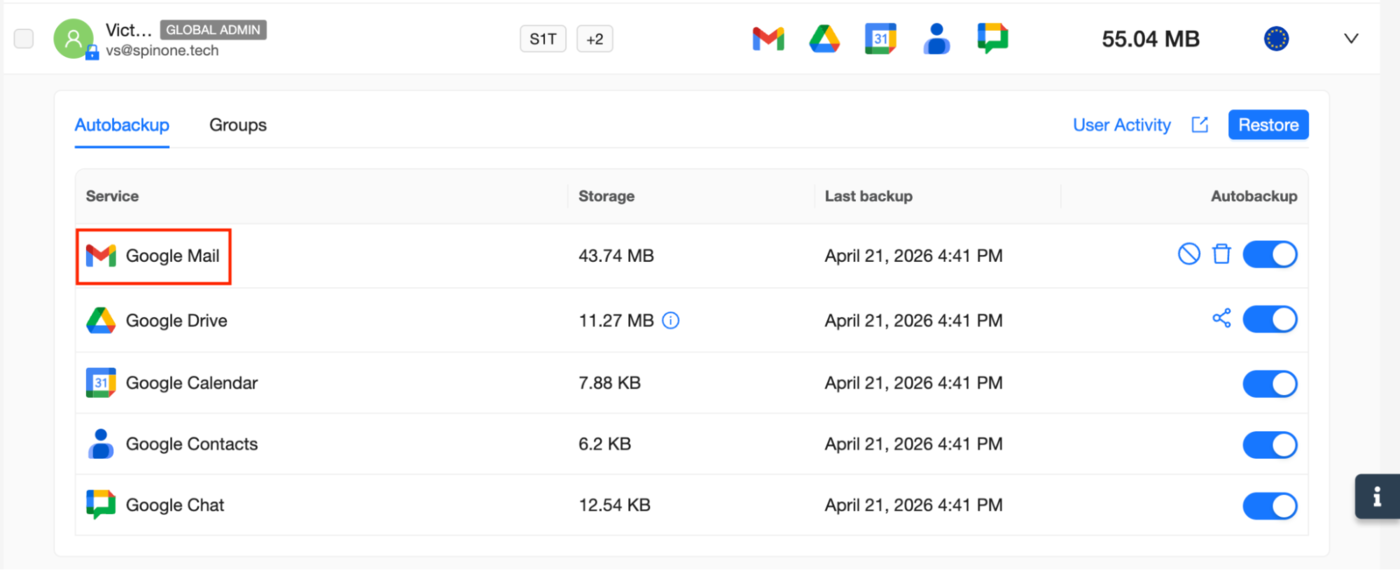
- You will see a list of all your protected users.
Click the name of the user, whose Google account must be restored…
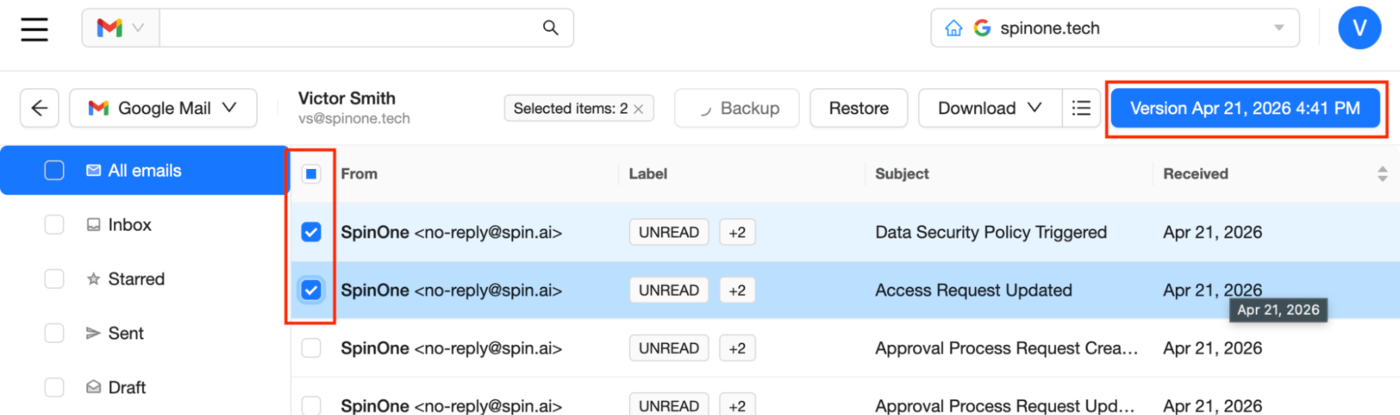
- By clicking the Version button, choose the backup version that corresponds to the restore point for which you want to recover the account…
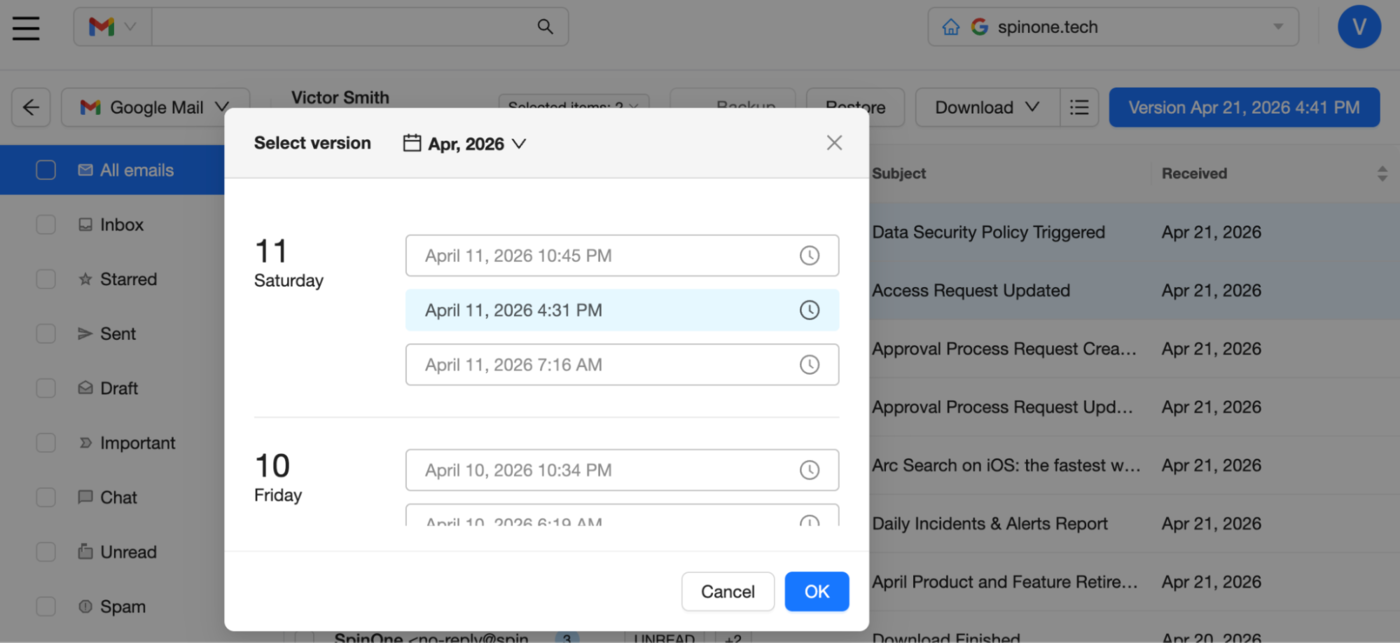
You can choose the required version by finding it in the list or choosing the required date in the calendar. When the version is chosen, press Ok. Tip! If the desired restore point corresponds to the last backup version, skip this step.
4. Click Restore…
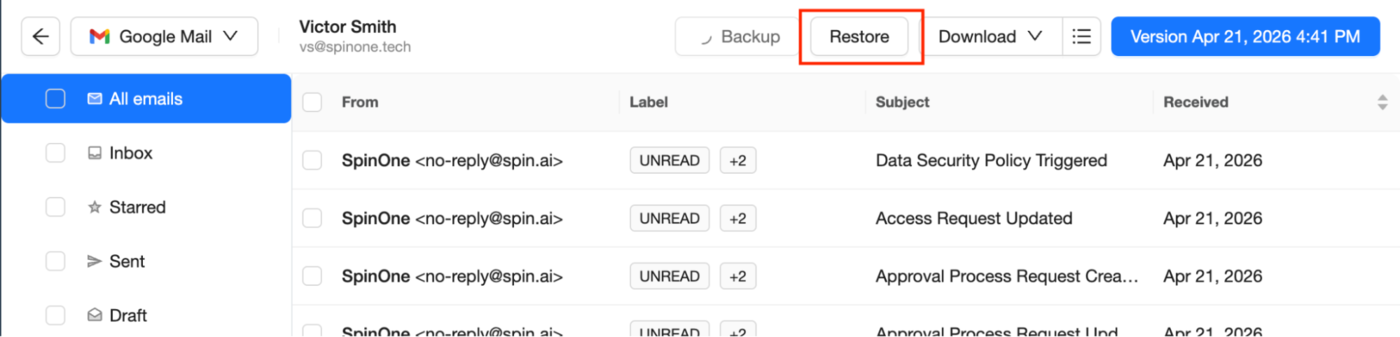
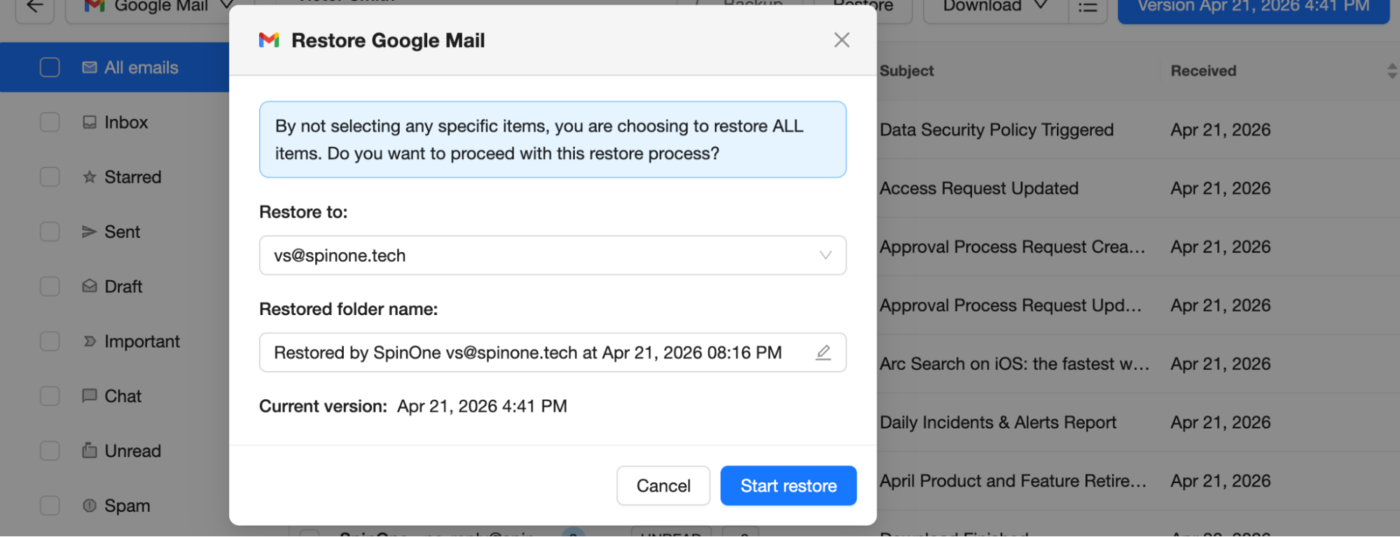
- In a new window select the e-mail address of your domain user, to which you want to send the restored mailbox.
Tip! Available User options only apply to SpinOne licensed domain users.
Then press the Start Restore button.
- The system will notify you as soon as the restoration process is done. You can find the restored mailbox in the “Restored by SpinOne at…” folder…
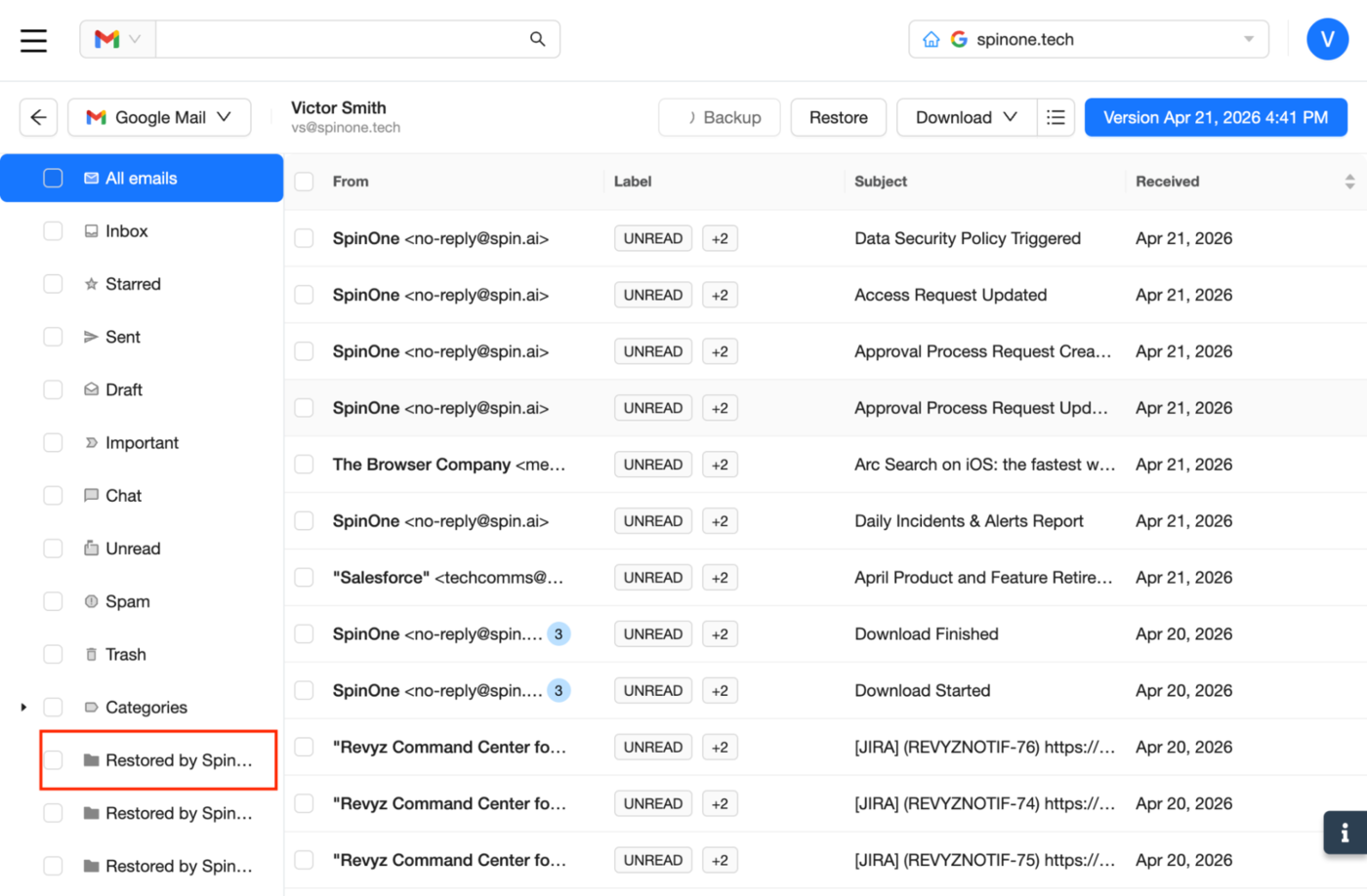
Congratulations. Your Google Mail is restored!
Note: These restore steps apply to all backed-up Google services!
To perform a full recovery for a deleted account…
- On the left of your dashboard click on Users…
- You will see a list of all your protected users.
Click the name of the user, whose Google account must be restored…
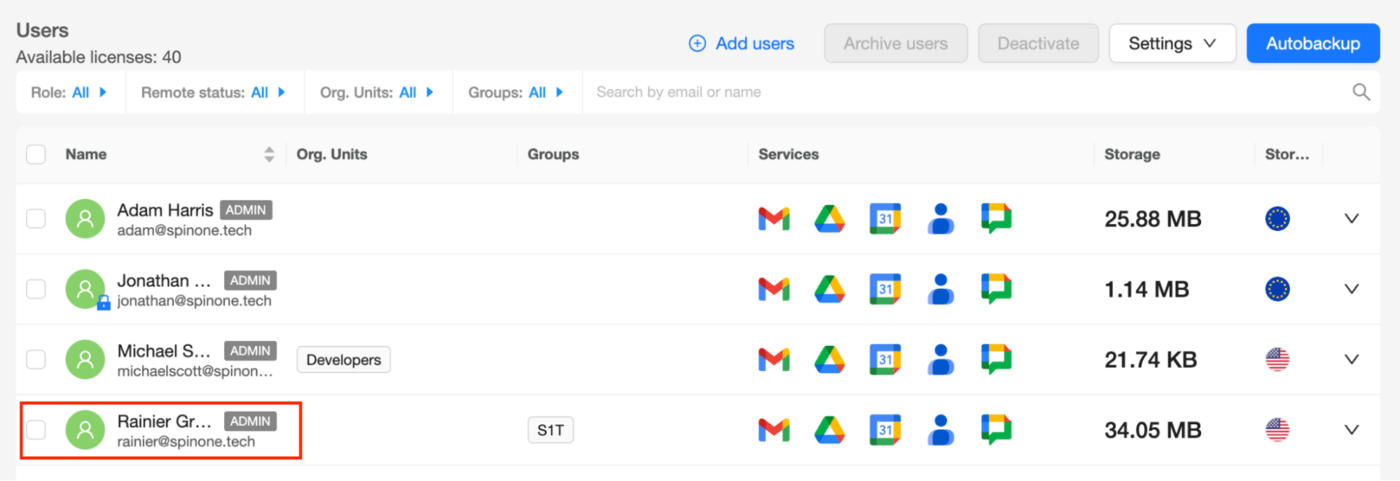
- Select Restore…
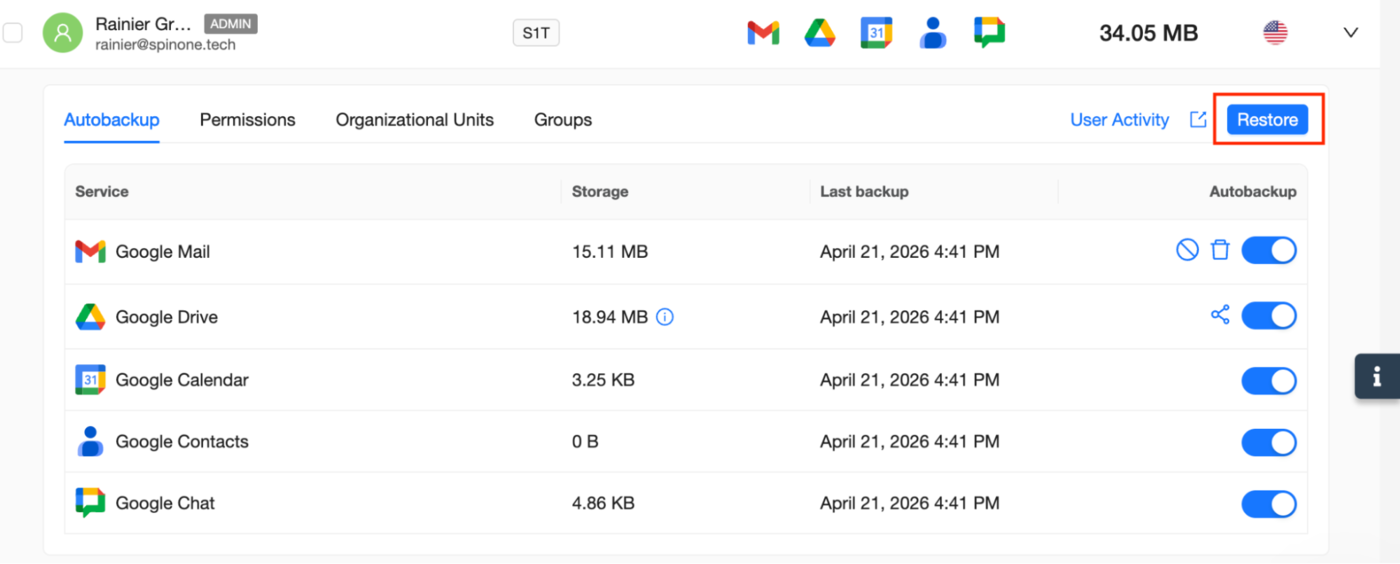
- Select the Google Services you would like to restore, make a selection of the destination/user and name the restore if applicable and click Start Restore…
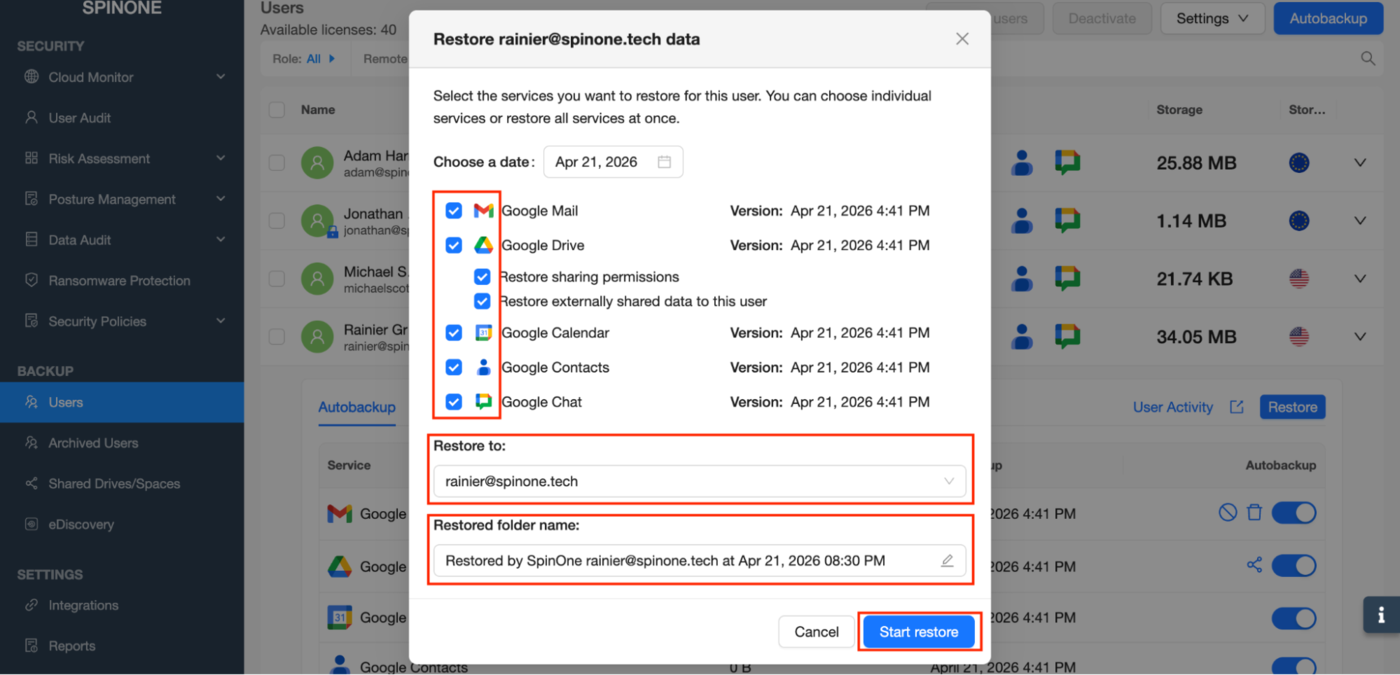
Congratulations. Your Google account is restored!
Get more information on Google Workspace™ Backup Solutions
Was this helpful?