
How to Download Google Data to a Local Device

With SpinOne for Google Workspace™ you can easily download the backed up data from your SpinOne account directly to your local device.
- On the left of your dashboard click on Users
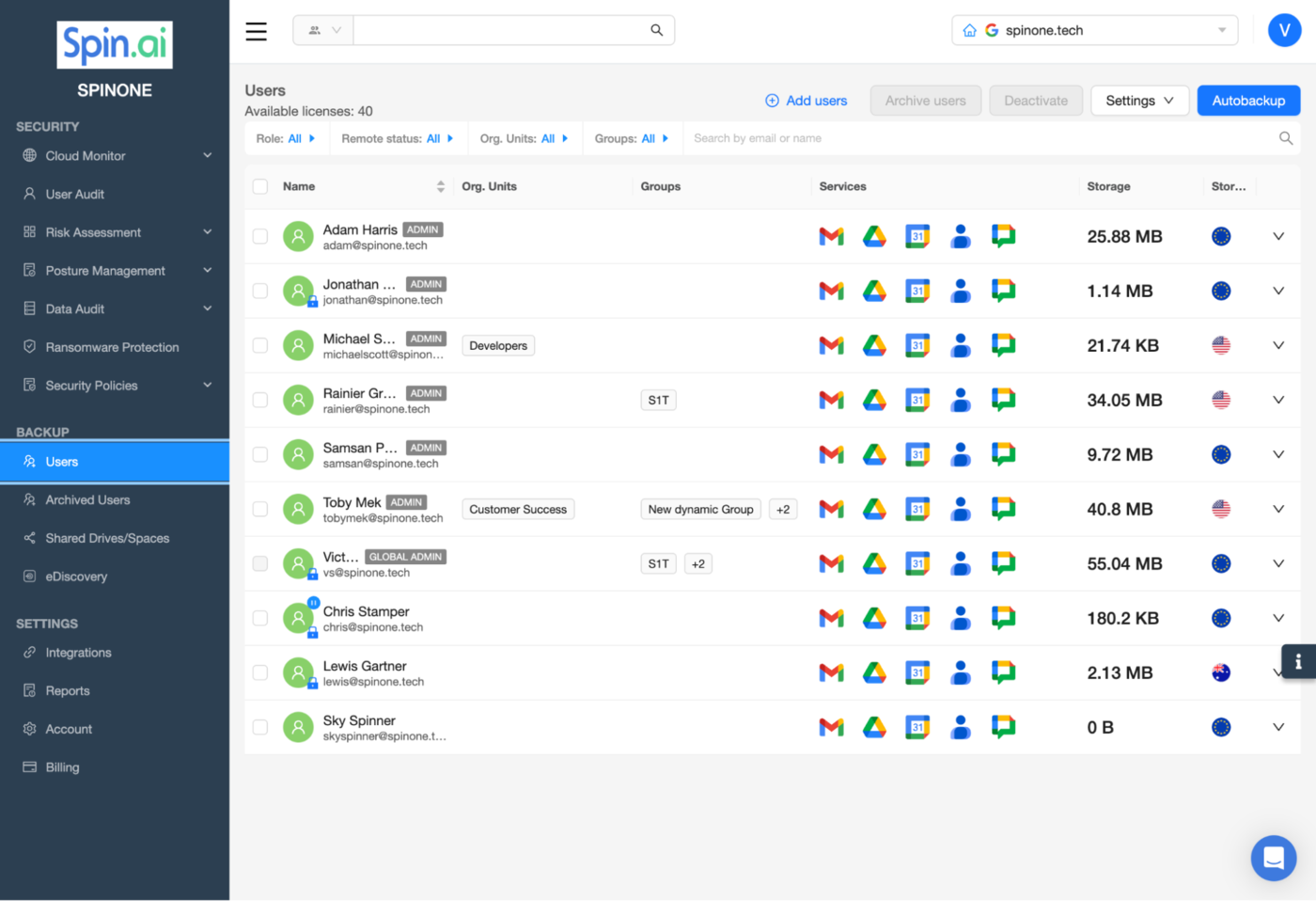
- In a new window you will see the list of all your domain users that are onboarded to Spin.
Click the name of a user, whose data needs to be downloaded.
You can download files from any protected Google service, so choose the corresponding application name button and click on it.
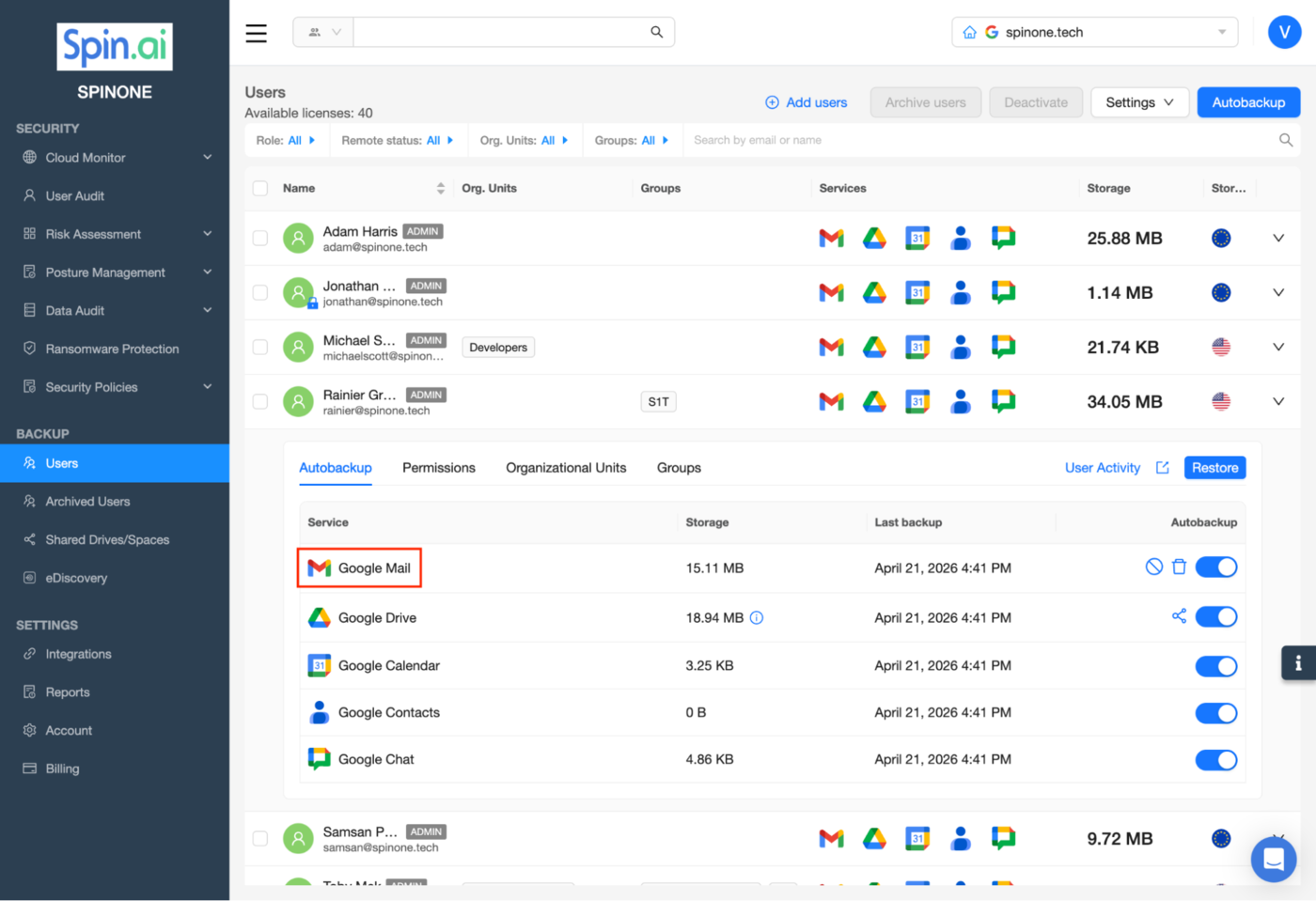
- You will be directed to the User’s backed up data.
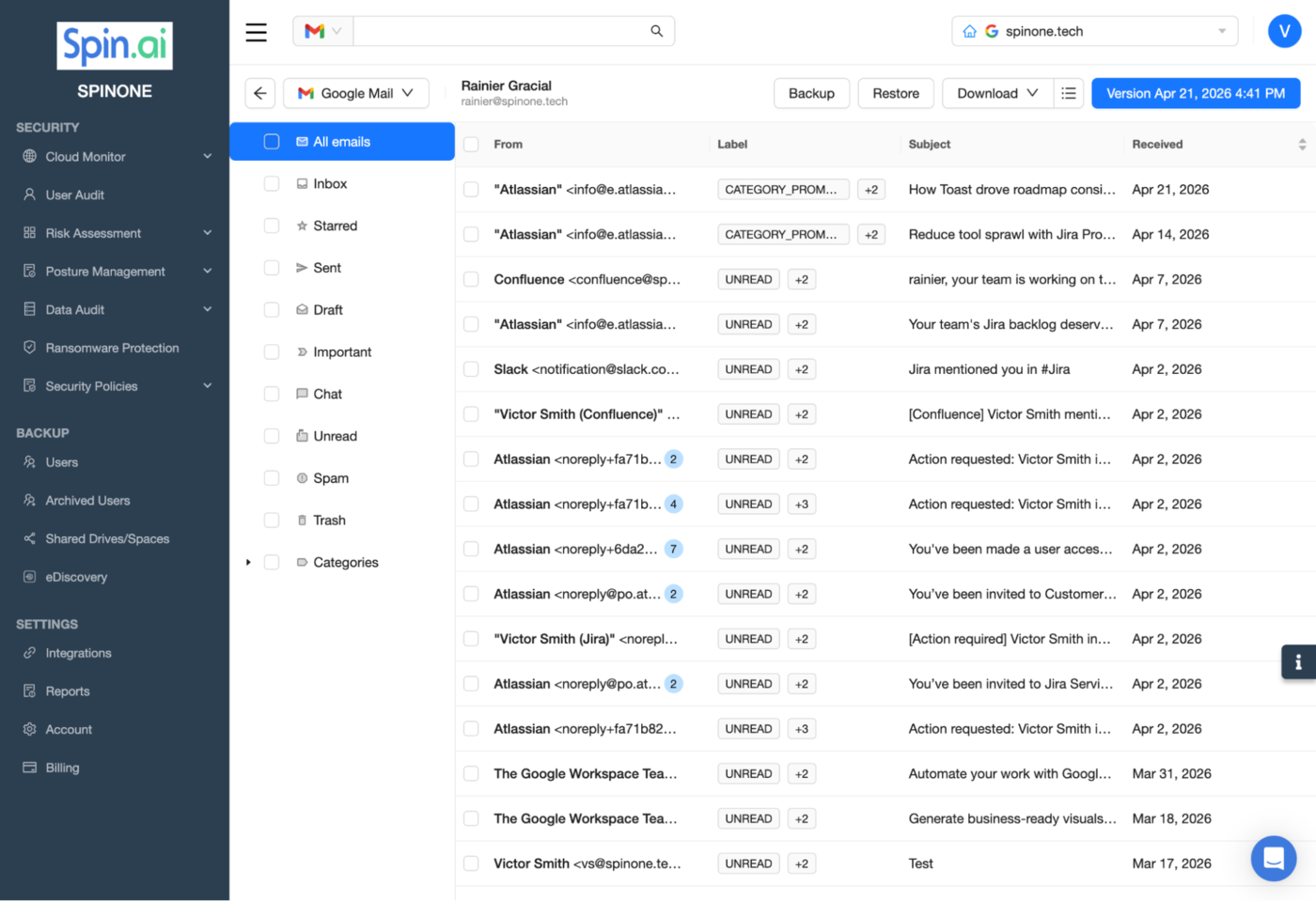
- Select the desired data and click Download
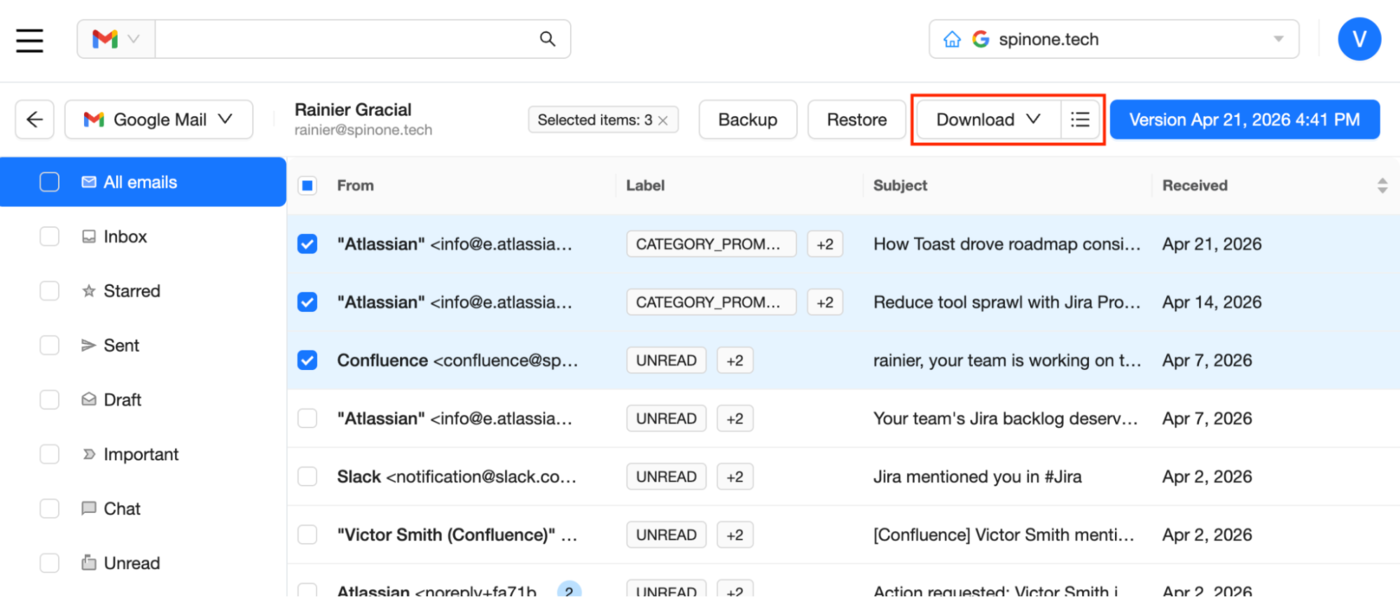
- Select the Format of your download
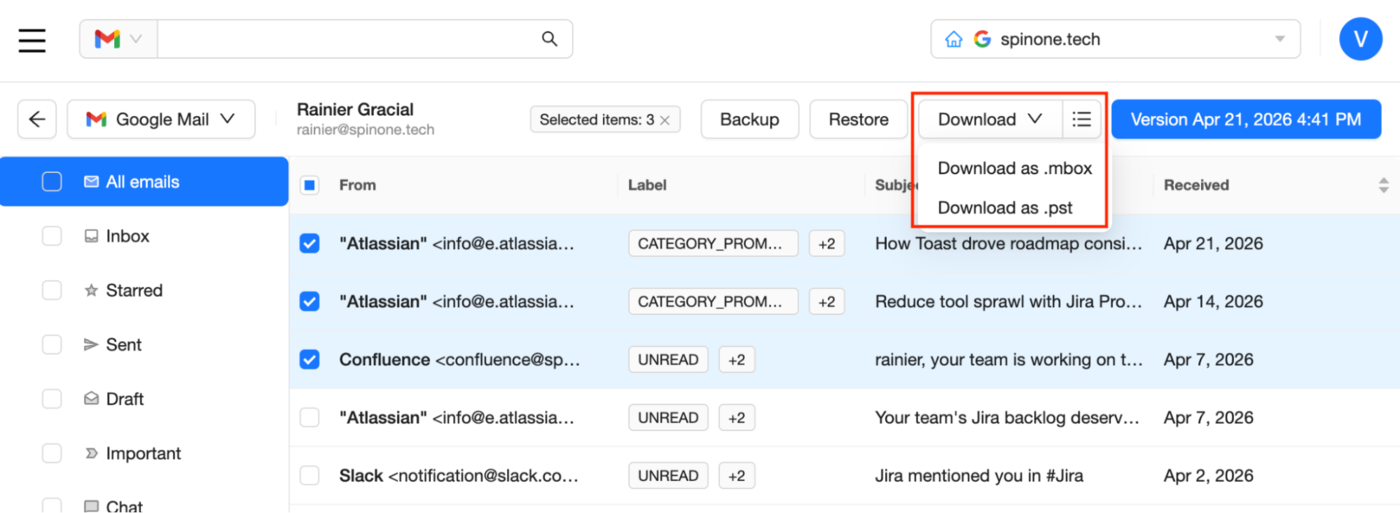
- Once you have selected the format, click Start Download
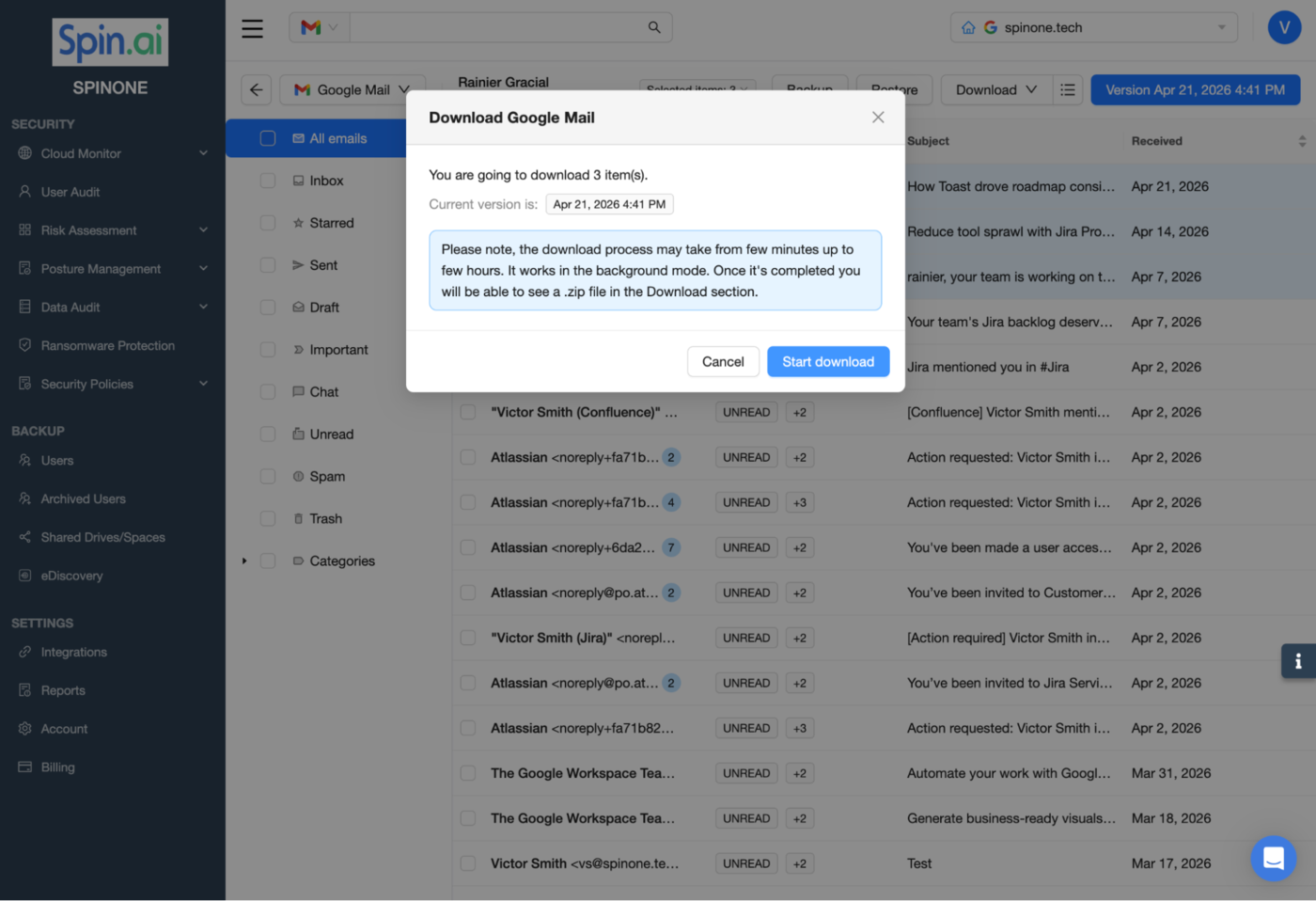
- If you close the window before the download process is over, when you are back, simply click on the Download section to the right of the Download button.
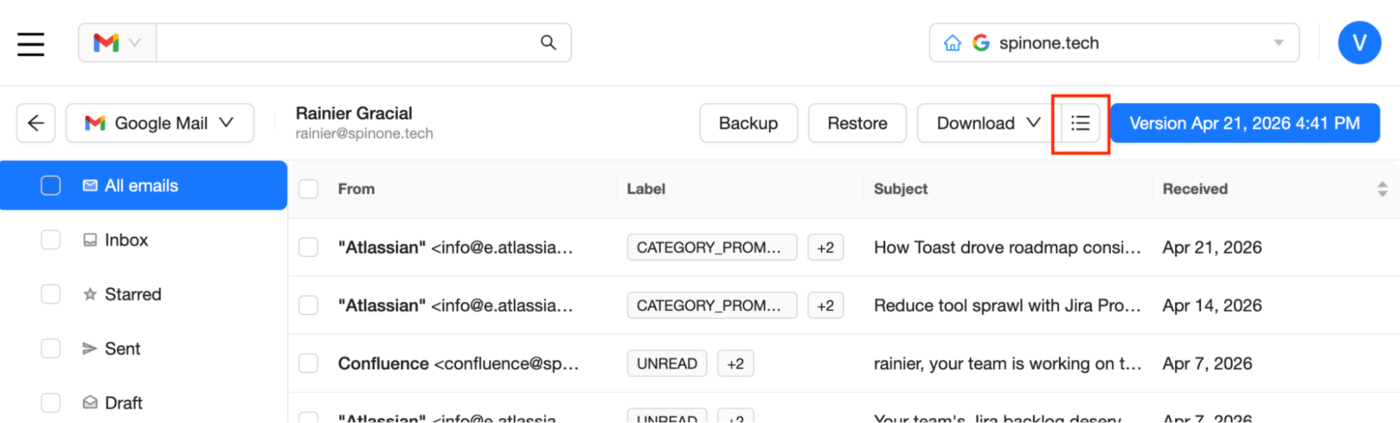
In a new window you will see the list of archived files ready to download.
- Find the required file and then press the Download button.
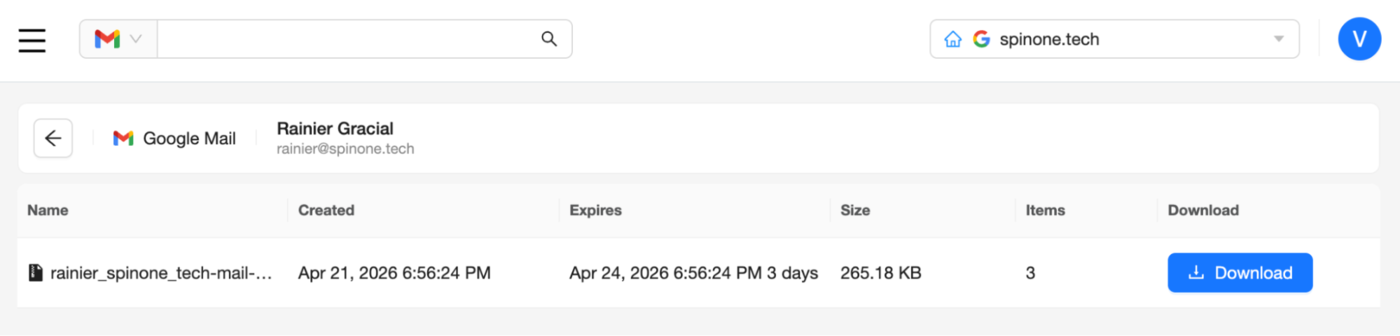
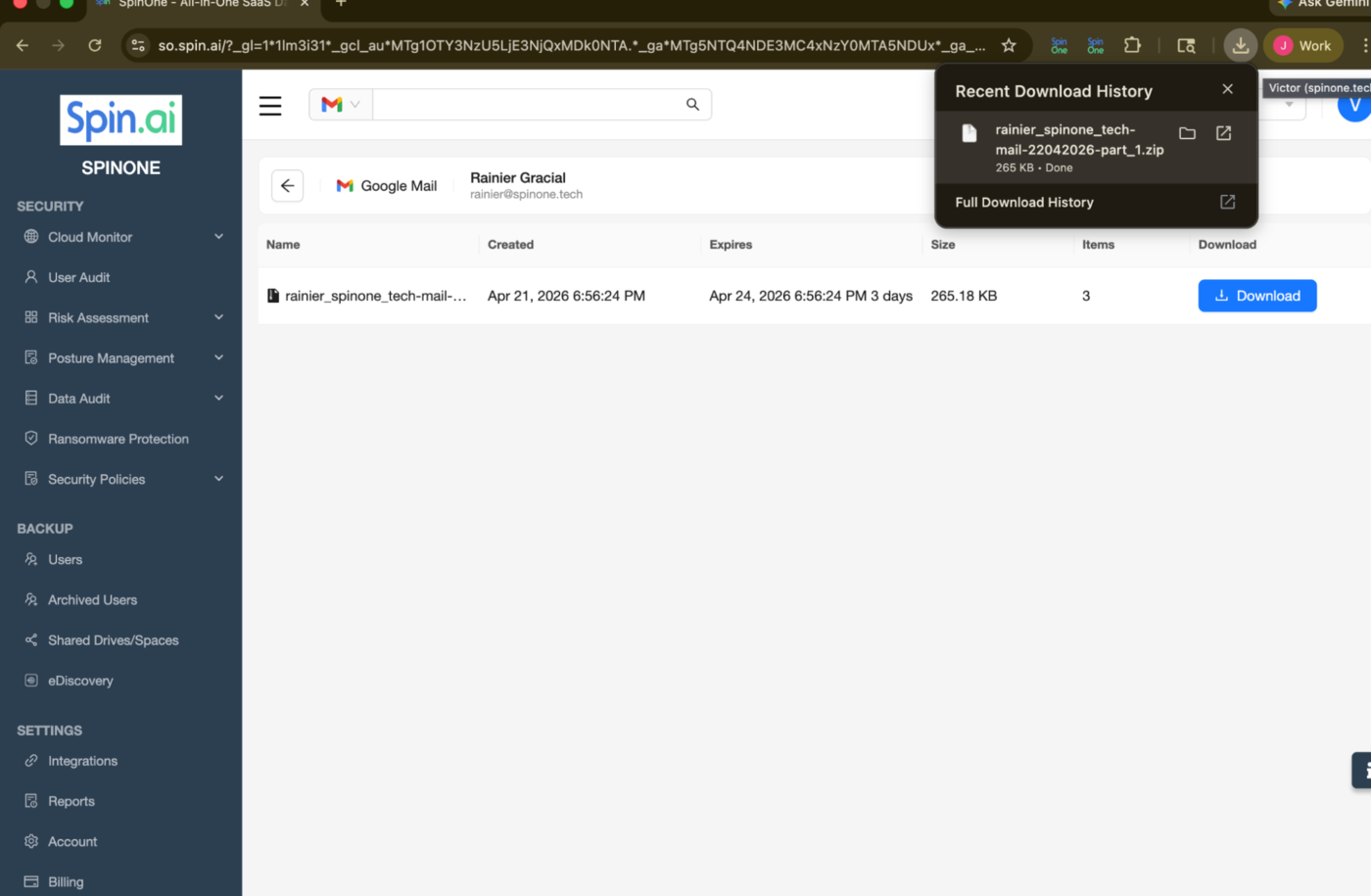
- Then unpack the .zip archive.
Pro Tip! Even after the end of the download job, all downloaded archives are stored in the Download section. You can re-download data easily before the expiration time.
Get more information on Google Workspace™ Backup Solutions
Was this helpful?