
Understanding Backup Settings

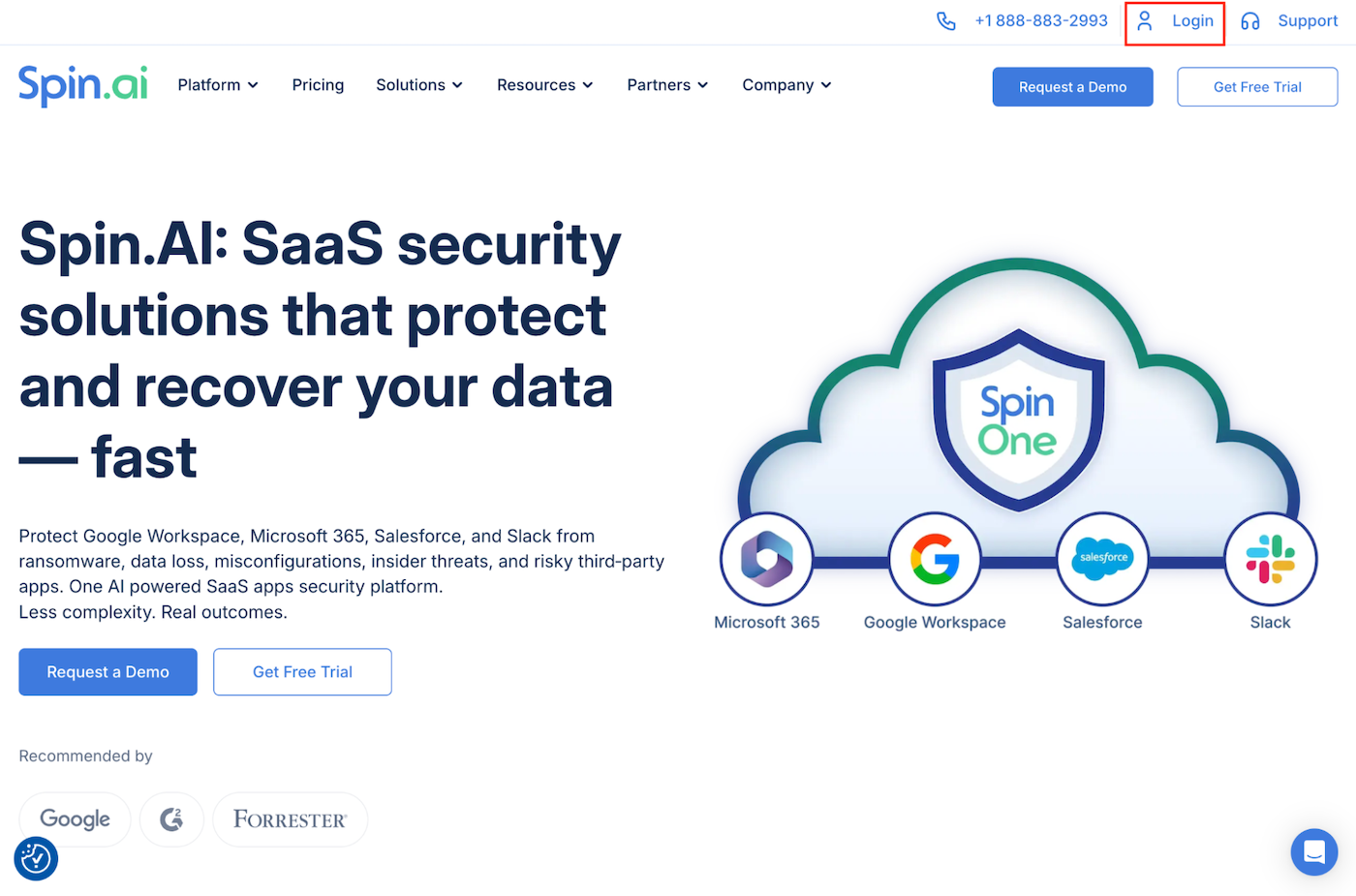
In this article, we will aim to describe the configurable settings available for Backups. To follow along in the UI, please login to your Spin account.You can do so by heading to spin.ai and choosing the “Login”…
Then, from the dashboard, select the User Logo on the top right of the page and click Account Settings
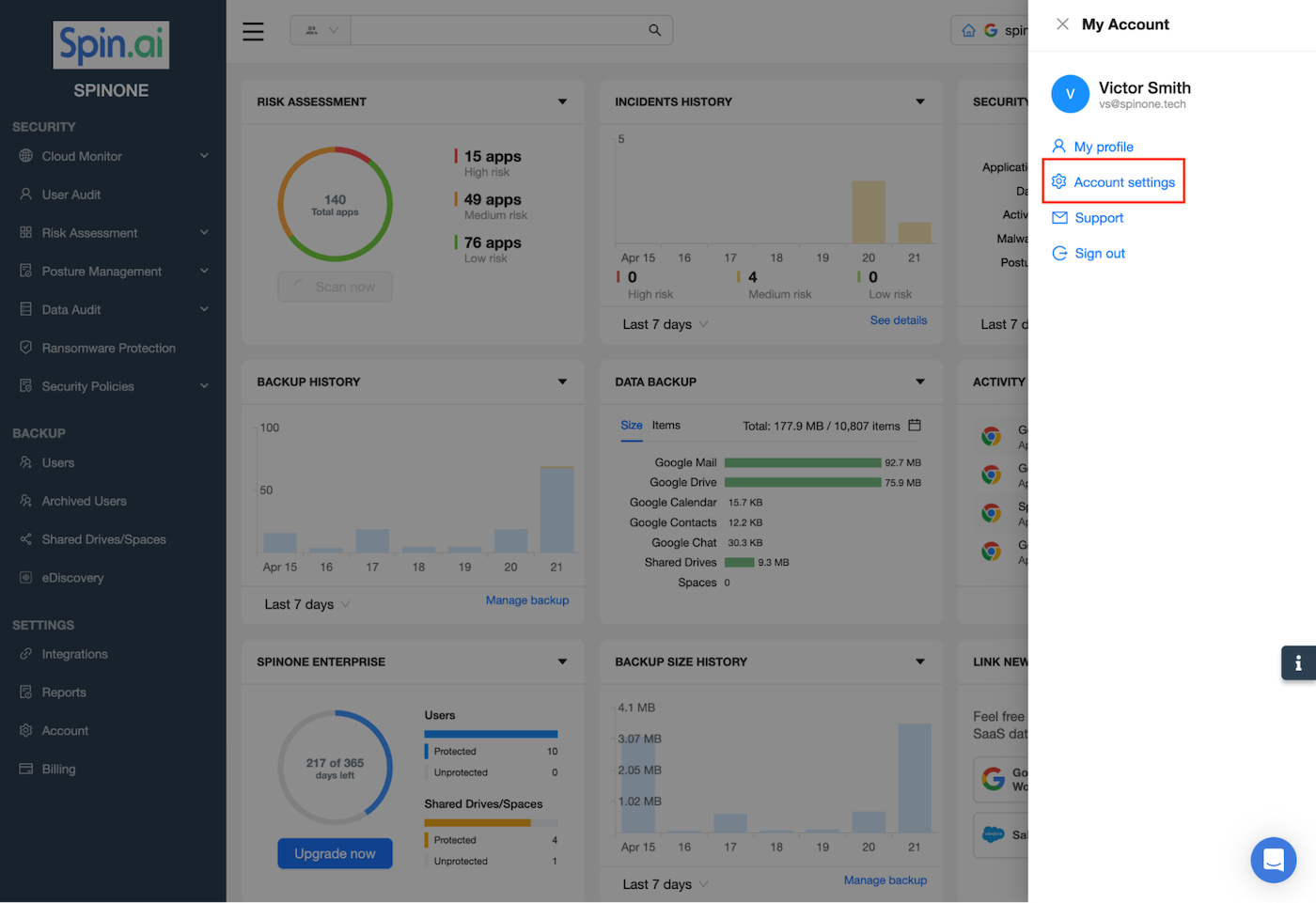
Now that you’ve reached the Account Settings menu, let’s discuss what you can configure!
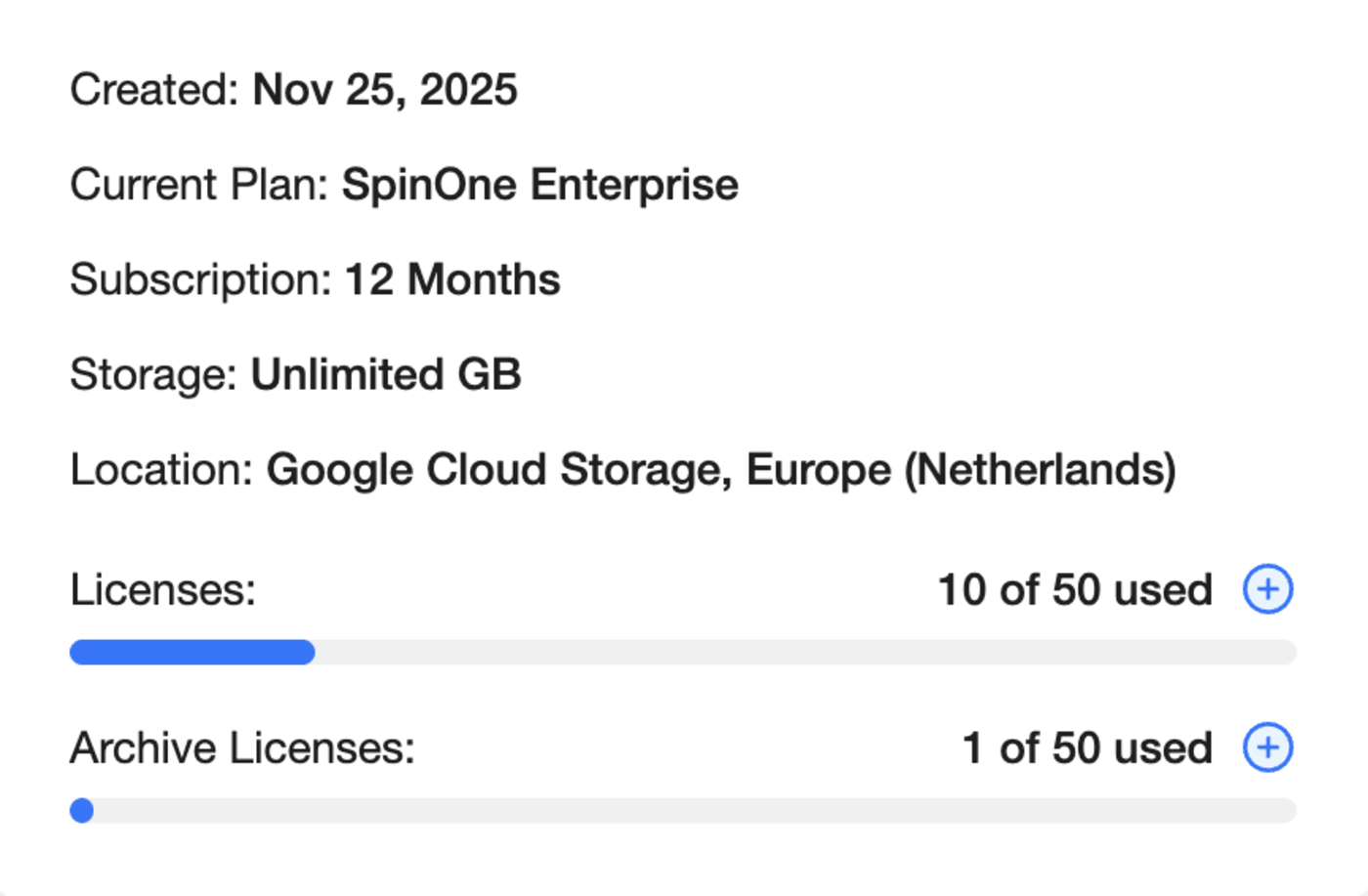
Licenses
Ability to on-demand add Active User and Archive User licenses
Automated Backup Frequency
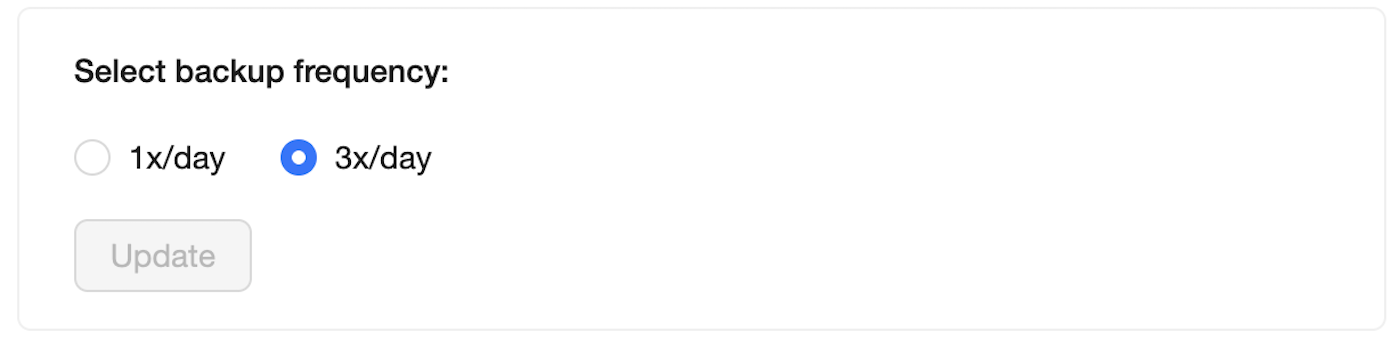
Here, you can alter the automated backup frequency for your organization by choosing between 1x or 3x a day backups of all Users & Shared Drives/Spaces.
Please note, that this option is only available for the SpinOne, SpinOne Enterprise and SpinBackup Enterprise platform.
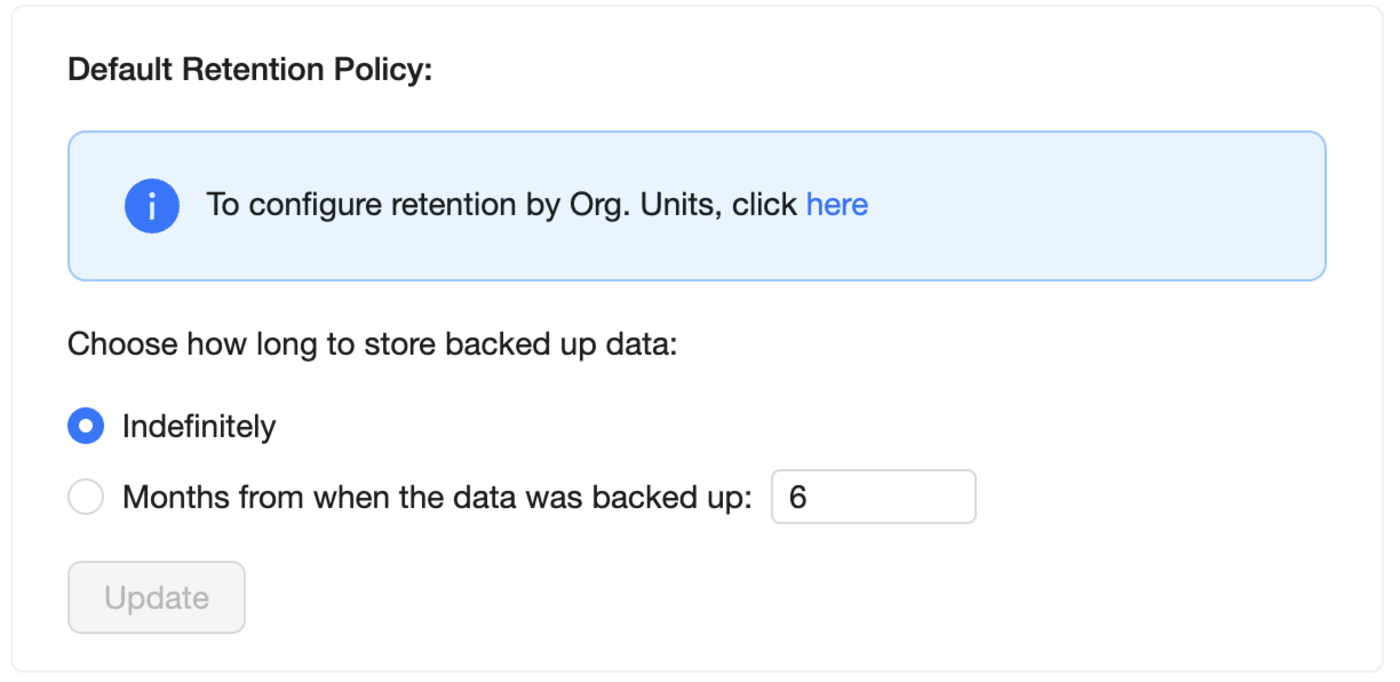
Retention Policy
Retention minimum is 6 months while the max retention is indefinite.
Account Controls
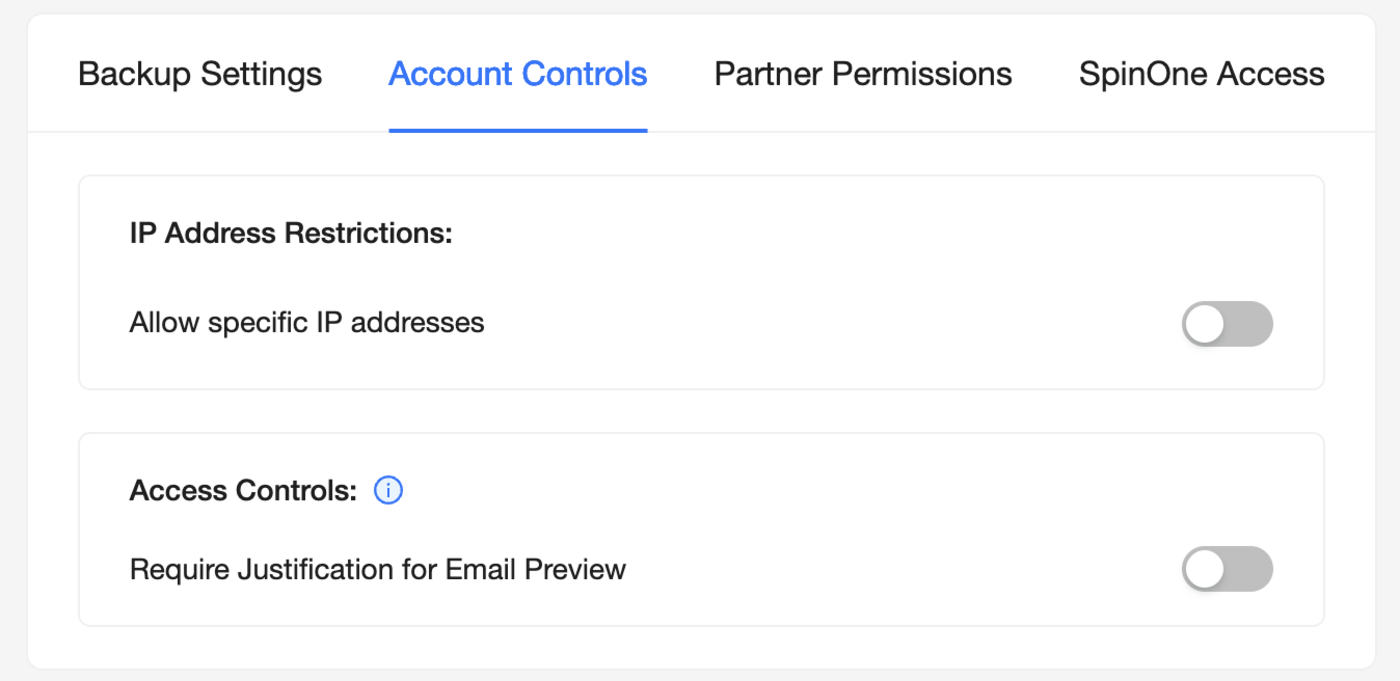
- Ability to restrict access to SpinOne via specific IP addresses
- Ability to Require Justification for Email Preview actions
Partner Permissions
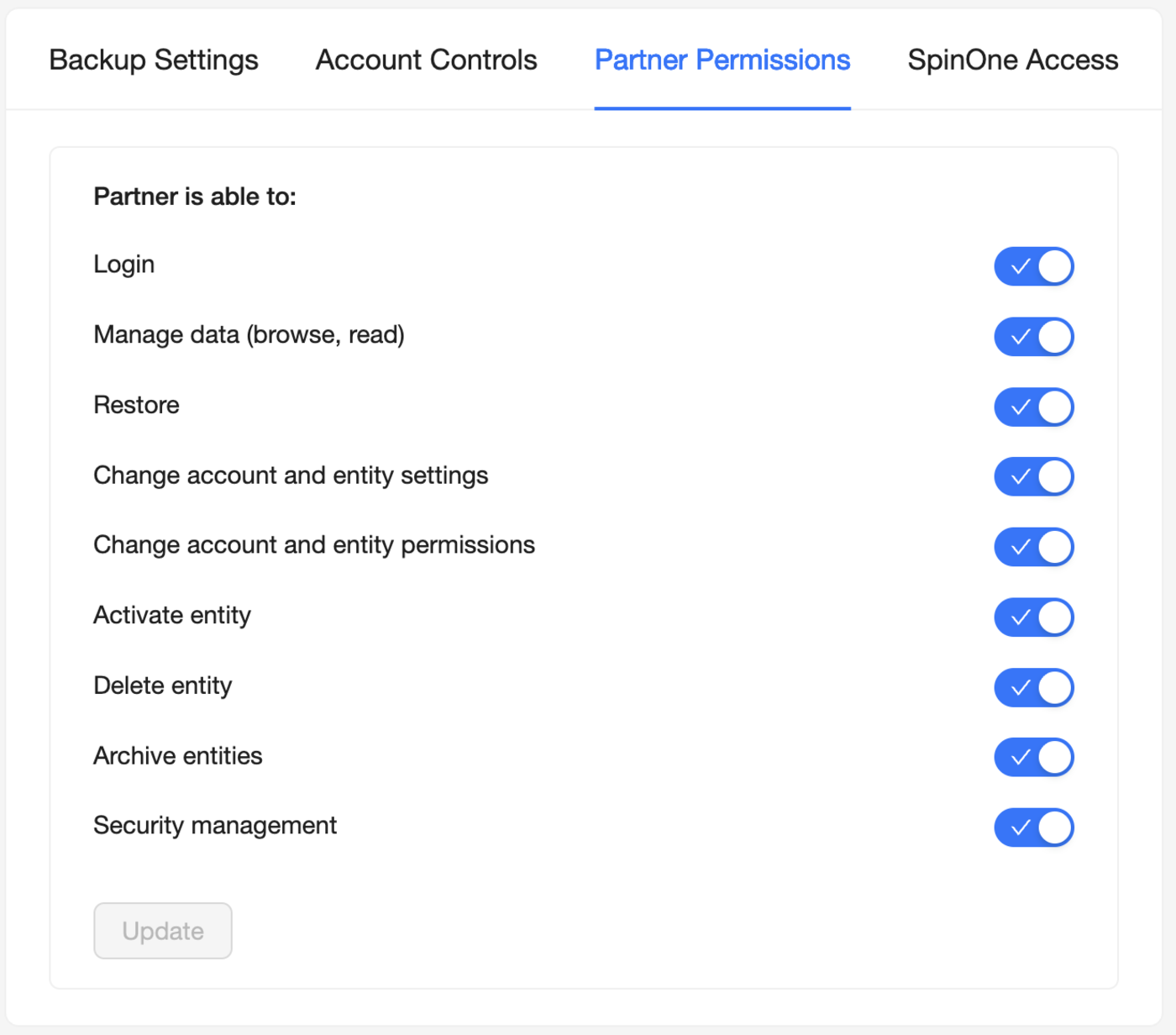
If your Spin Account is registered with your Managed Service Provider, you are able to delegate access for them to monitor, action and maintain the SpinOne platform for you.
Get more information on Google Workspace™ Backup Solutions