Google Workspace Email Hosting: A Complete Guide

TL;DR
- Enterprise Email Performance: Moving to Google Workspace gives your team high deliverability, 99.9% uptime, and email that blocks over 99.9% of spam, phishing, and malware.
- Simple Migration:
- Set up user accounts
- Verify domain ownership via TXT record
- Point MX records to Google
- Configure SPF, DKIM, and DMARC for domain protection
- Migrate user data
- The Shared Responsibility Model: Google secures the cloud infrastructure, but you own and protect your data.
- Add Complete Protection: Partnering with an automated SaaS backup solution like Spin.AI provides cloud-to-cloud backups, ransomware recovery, and risk monitoring.
Email isn’t just a basic communication channel. It’s the central nervous system for your daily operations. It’s also a vector for malware, phishing, and time-wasting spam. It holds your client agreements, critical workflows, and sensitive data while also serving as a way to threaten them.
That’s why companies make the move to Google Workspace. It provides enterprise-level deliverability and comprehensive threat protection. But while Google Workspace provides superior uptime and security against cyber threats, cloud hosting doesn’t guarantee protection.
Your host is responsible for keeping the service up; they don’t safeguard your data from human error, accidental deletion, internal threats, or ransomware.
In this guide, we’ll explore how Google Workspace email hosting works, how to set it up for your team, and why a comprehensive SaaS backup and data recovery strategy is important.
What Is Google Workspace Email Hosting?
Google Workspace’s email hosting is an enterprise service that expands on Gmail’s technology with enterprise security, centralized administration, and support for custom domains.
Instead of routing messages through generic or self-hosted mail servers, your email runs on Google’s high-availability infrastructure. So your team has the familiar Gmail interface that millions of people use every day, combined with rock-solid reliability.
Isn’t Google Workspace Just Gmail?
Google Workspace hosted email looks and feels like a free Gmail account, but it’s a fundamentally different product.
| Feature | Google Workspace for Business | Free Gmail Account |
| Address | user@{yourdomain}.com | user@gmail.com |
| Data Ownership | Owned and controlled by organization | Owned by individual account holder |
| Administration | Centralized administration console for access, security, and policies | No centralized management |
| Storage and Limits | Scalable across organization | 15GB shared between drive, email, photos. |
| Uptime and Service Level Agreement (SLA) | 99.9% uptime SLA | No guaranteed SLA |
| Support | 24/7 phone, email, and chat support | Community forums and articles |
| Security and Compliance | Advanced security controls, Vault, HIPAA/GDPR support | Basic security filters. No compliance controls. |
Google Workspace email hosting isn’t an isolated service. It’s part of Google’s full suite of cloud collaboration tools, and the security and compliance tools control all the data your team shares across Google Drive, Docs, Sheets, & Slides.

Key Features and Benefits
A shift to Google Workspace provides your team with more than better email. It’s an upgrade to your organization’s productivity tools.
Here are the features and enterprise benefits of Google Workspace:
1. Deliverability & Enterprise Security
- Domain Reputation Protection: Native integration with SPF, DKIM, and DMARC protocols keeps emails out of spam folders.
- Threat Prevention: Google’s automated threat detection blocks more than 99.9% of spam, phishing attempts, and malware.
- Advanced Access Controls: Administrators can easily enable and require two-factor authentication (2FA) and access policies.
2. Scalable Administration & Compliance
- Sophisticated Access Control: Google’s Admin Console allows you to enforce policies based on a team member’s organization and role, establish data loss prevention (DLP) rules, and manage device security.
- Regulatory Readiness: Google Workspace’s ability to support strict compliance frameworks, including HIPAA, GDPR, and FINRA, is a key benefit.
How Do You Set Up Google Workspace Email Hosting?
Here’s a step-by-step walkthrough to get your domain fully configured and ready for business. Read it through all the way before proceeding, as there are a few hints on how to make your migration go smoothly.
Create User Accounts
Before you proceed with configuring email delivery, create Google Workspace accounts for all your team members so their emails have somewhere to go.
- In the Google Admin Console, navigate to Directory > Users.
- Click Add new user (or Bulk upload users if migrating a large team via CSV).
- Enter the primary details:
- First & Last Name
- Primary Email Address. Be sure to use the same email address as your legacy system.
- Secondary Email/Phone Number (for password recovery)
- Assign an initial password or generate a temporary one requiring a change at first login.
Prove Domain Ownership (TXT Record)
Before Google will route emails for your domain to their servers, you need to verify that you own it.
- Sign in to the Google Admin Console (admin.google.com) with your administrator account.
- Go to Account > Domains > Manage Domains and click Verify Domain.
- Copy the unique verification string starting with google-site-verification=.
- Log into your domain registrar, open your DNS Management settings, and add a TXT record. Google has sample steps for many domain providers here.
- Host/Name: @ (or leave blank, depending on your host)
- Value: [Paste your google-site-verification code]
- Time to live (TTL): 3600 (1 hour) or default
- Depending on your DNS provider, it may take a few minutes, or even hours, for the TXT record to propagate across the internet. Wait a bit, then return to Google Admin and click Confirm. If it fails, verify you entered the record correctly and wait longer.

Route Incoming Mail (MX Records)
Now that you’ve confirmed that you own your domain and have mailboxes ready for your users, you can point email delivery to Google via your MX records.
This change will route new emails to Google within a few hours but not necessarily all at once. Don’t decommission your legacy server immediately, as you may see messages going to two places at once for as long as a few days.
You can alleviate this by setting the TTL for your existing record to 300 seconds a day or two prior to the migration.
- Go to your registrar’s DNS panel, and delete the existing MX records. If you’re worried about being able to migrate back to your current provider, copy them to a text file for backup.
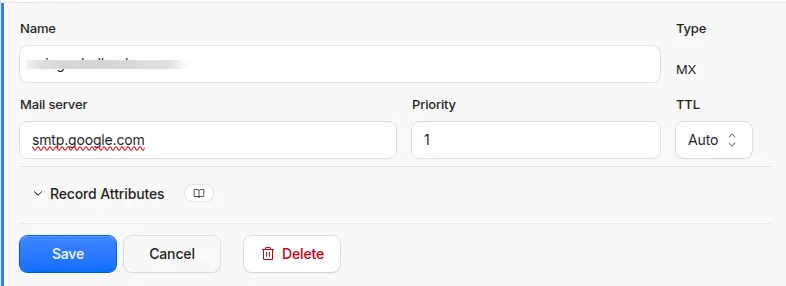
- Add the primary Google Workspace MX record:
- Type: MX
- Host: / Name: @
- Priority: 1
- Value: / Destination: smtp.google.com
- Save the record.
In the past, Google used a set of aspmX.l.google.com records, but smtp.google.com is Google’s newer single-record configuration.
Configure Authentication (SPF, DKIM, & DMARC)
Setting up email security records keeps your domain safe from impersonation and improves your email’s deliverability.
Add SPF (Sender Policy Framework)
SPF records specify which mail servers can send email on your behalf. You need one for Google, as well as any email list providers your company uses.
Add a TXT record to specify Google as your authorized sender:
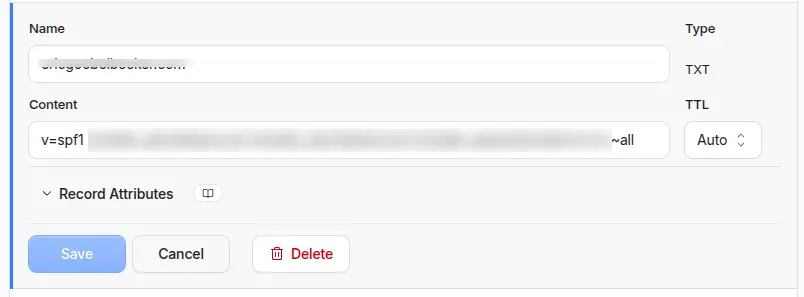
- Host: @
- Value: v=spf1 include:_spf.google.com ~all
Enable DKIM (DomainKeys Identified Mail)
DKIM records are cryptographic signatures. Google adds a matching signature to your emails so receivers can verify that the emails are not from spammers or phishers.
- In Google Admin Console, navigate to Apps > Google Workspace > Gmail > Authenticate email.
- Select your domain and click Generate New Record.
- Copy the generated text key string.
- In your domain DNS settings, create a TXT record:
- Host: google._domainkey
- Value: [Paste the long string from Google Admin]
- Return to Google Admin and click Start Authentication.
Set Up DMARC
DMARC records tell receivers how to handle messages that appear to come from unauthorized senders.
Add a basic DMARC monitoring TXT record:
- Host: _dmarc
- Value: v=DMARC1; p=none; rua=mailto:dmarc-reports@yourcompany.com
Import Legacy Emails & Contacts
Now that you’ve migrated email delivery, it’s time to migrate over your message history. Google makes this easy, especially if you’re moving from Microsoft 365.
- In Google Admin, go to Data > Data Import & Export > Data Migration.
- Click Set Up Data Migration.
- Select your source system (e.g., Microsoft 365, IMAP, Exchange).
- Connect to your source email server, map users to their new Google Workspace addresses, and run the migration task.
What Are the Common Challenges to Migrating to Google Workspace Email?
Transitioning to Google Workspace is straightforward, but it’s not always smooth and painless. Below is a list of some of the most common problems.
Emails Going to Spam or Bouncing After Migration
The Cause
Missing or misconfigured DNS security records (SPF, DKIM, and DMARC) after changing mail servers.
The Solution
- Double check that your SPF record includes Google: v=spf1 include:_spf.google.com ~all.
- Check your DKIM key in the Google Admin Console and verify that it matches the TXT record in your DNS.
- Set up a DMARC policy (p=none) to monitor outbound traffic, ensuring both SPF and DKIM pass alignment before enforcing stricter rules (p=quarantine or p=reject).
Downtime or Missing Emails During DNS Propagation
The Cause
Swapping MX records while old DNS records are still cached across global ISP networks. This results in messages going to the old provider.
The Solution
Reduce your existing MX record TTL (time to live) to 300 seconds at least 24 hours prior to the cutover to avoid this. Also, keep your legacy mail server active for 48–72 hours after the move to catch any messages delivered to the old location.

Protecting Google Workspace Email and Business Data
Google handles cloud infrastructure reliability, but your data protection is subject to a Shared Responsibility Model. It’s up to you to secure and back it up.
Native Google Workspace features like Vault excel at compliance and retention, but they’re not solutions for accidental deletion, malicious insider threats, or ransomware attacks.
Only a dedicated third-party SaaS backup and recovery solution will keep your data safe. You need a system with:
- Automated Daily Backups: Protect Gmail, Drive, Shared Drives, Contacts, and Calendar with point-in-time recovery.
- Ransomware Protection: Automatically detect ongoing encryption attacks, block compromised sessions, and restore affected files to their last clean state.
Integrating an enterprise backup tool like Spin.AI provides automated, cloud-to-cloud backup along with AI-driven ransomware detection and risk assessment for third-party applications.
Upgrade Your Email Infrastructure
Migrating to Google Workspace transforms how your business communicates and collaborates. And as you’ve seen from this guide, all the tools you need to make the move are at your fingertips.
But enterprise cloud hosting is only half the battle. While Google offers solid infrastructure, your business is responsible for protecting the data you put in it.

Don’t wait for a data loss incident to test your recovery strategy. SpinOne by Spin.AI extends Google Workspace security with automated cloud-to-cloud backups, rapid ransomware incident response, and proactive risk assessments for third-party OAuth applications.
Start your free trial with Spin.AI today or schedule a demo to see how full-stack SaaS protection keeps your business resilient, compliant, and always operational.
FAQs
Google Workspace supports both IMAP and POP3, as well as HTTP-based web access and the Gmail API.
While most users access their accounts via the web browser or mobile app, administrators can enable IMAP or POP3 in the Admin Console.
This allows team members to sync their Google Workspace email with legacy or preferred third-party desktop clients, such as Microsoft Outlook, Apple Mail, or Thunderbird.
Organizations move away from personal Gmail accounts because they can’t control their critical business data. Personal accounts also lack professional presence, as most potential clients expect to receive email from domains that match a company’s name or brand.
Yes, for businesses and professionals. While Google Workspace uses the same interface as free Gmail, it’s an enterprise product. It offers custom domains, zero advertising, a 99.9% uptime SLA, customer support, and centralized administration tools.