What Is Browser Hijacking and How Do You Remove a Browser Hijacker?

- What Is Browser Hijacking?
- How Do Browser Hijackers Get Onto Your Device?
- What Are the Signs of Browser Hijacking?
- What Can a Browser Hijacker Do?
- Why Is Browser Hijacking a Security Risk for Organizations?
- How Do You Remove a Browser Hijacker?
- How Can You Prevent Browser Hijacking?
- How Does Spin.AI Protect Organizations From Browser Hijacking?
- Frequently Asked Questions
You open your browser and something is off. The homepage isn’t the one you set. A search engine you’ve never heard of has taken over. Every click seems to detour through a page you didn’t ask for. That’s browser hijacking, and it is more common, and more serious for businesses, than its reputation as a nuisance suggests.
tl;dr
- Browser hijacking is the unauthorized change of a web browser’s settings, such as the homepage, default search engine, or new-tab page, to redirect traffic, serve ads, or collect data.
- Hijackers get in through bundled software, malicious or compromised browser extensions, deceptive downloads, and phishing links.
- Warning signs include an unfamiliar search engine, unexpected redirects, new toolbars or extensions, and pop-ups that won’t go away.
- To remove a browser hijacker, run an anti-malware scan, remove suspicious extensions and programs, reset your browser settings, and secure any exposed accounts.
- For organizations, a single hijacking extension can reach thousands of employee browsers at once. Spin.AI researchers found malicious extensions in the RedDirection campaign that redirected 14.2 million more users to attacker-controlled sites.
What Is Browser Hijacking?
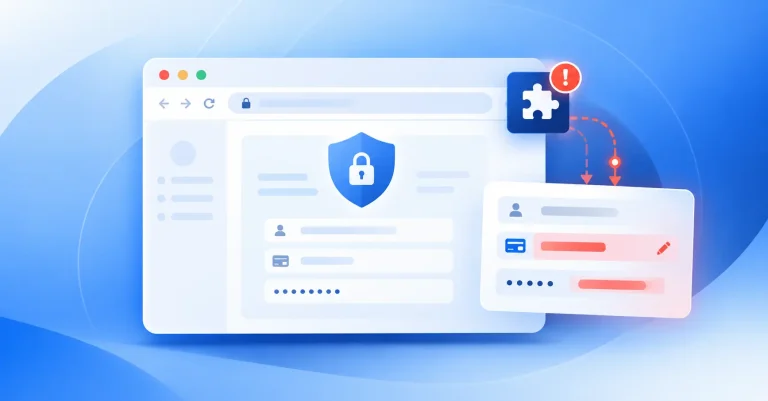
Browser hijacking is the unauthorized change of a web browser’s settings or behavior to redirect your activity, display unwanted ads, or collect your data. The software (malware) responsible is called a browser hijacker.
A browser hijacker might swap your homepage, replace your default search engine, change your new-tab page, or install a toolbar you never wanted. The point is control: over where your browser sends you and what you see when you get there.
How Is a Browser Hijacker Different From a Legitimate Extension?
A legitimate extension tells you what it does and can be managed or removed from your browser settings. A hijacker installs deceptively, resists removal, or behaves in ways you never agreed to. Some malicious browser extensions look useful on the surface while quietly redirecting searches or hijacking clicks behind the scenes.
Why Do Attackers Hijack Browsers?
The goal usually comes down to money or data. By funneling traffic to particular search engines or ad-heavy pages, a hijacker earns revenue for its operators through ad clicks and affiliate fees. It may also collect browsing history, search terms, and anything typed into web pages, which can be sold or used for follow-on attacks.
How Do Browser Hijackers Get Onto Your Device?
Hijackers rely on a deceptive install or a moment of inattention during a routine task. The five most common routes:
- Bundled software. An installer for a program you want includes an extra offer. Click through without reading and the hijacker installs alongside the program.
- Malicious browser extensions. An extension requests broad permissions and uses that access to change browser behavior or collect data. It may work as advertised at first, which makes the problem harder to trace.
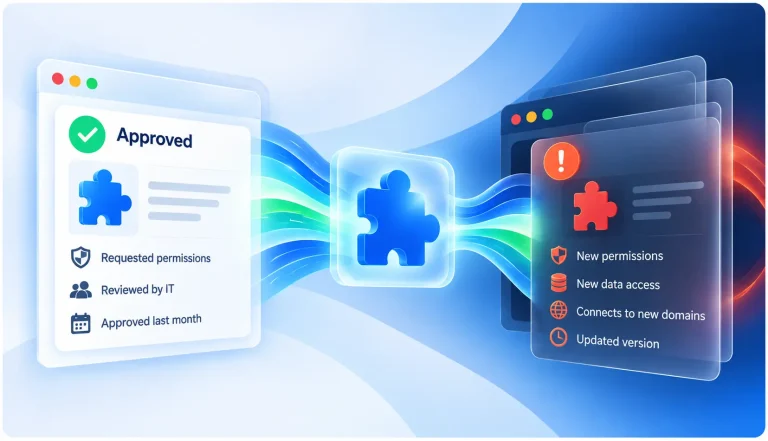
- Compromised extension updates. A trusted extension changes hands or pushes a silent update that adds hijacking code. Extensions are live software, not static tools, and ownership transfers are a documented path to malicious code injection.
- Deceptive downloads. A misleading website or fake “update required” pop-up persuades you to download software that changes your browser settings.
- Phishing links. A link in an email, message, or ad takes you to a page built to trick you into installing unwanted software.
What Are the Signs of Browser Hijacking?
Hijackers change the things you interact with every day, so the symptoms are usually visible. Watch for:
- Your homepage or new-tab page changed without your input.
- Your default search engine was replaced with one you don’t recognize.
- You’re redirected to unfamiliar sites when you click links or search.
- New toolbars or extensions appeared that you didn’t install, or keep coming back after you remove them.
- Pop-up ads and new tabs appear persistently, even on sites that don’t normally show them.
- You see alerts claiming your device is infected.
- Your browser runs noticeably slower than usual.
Google’s Chrome Help guidance lists the same core signs of unwanted software, including a homepage or search engine that “keeps changing without your permission” and browsing that “is hijacked, and redirects to unfamiliar pages or ads.” One symptom alone doesn’t prove your browser has been hijacked, but it’s a clear reason to investigate.
What Can a Browser Hijacker Do?
A browser hijacker can do far more than change your homepage. Depending on what it is and what access it has, it can:
- Track your browsing and sell or exploit the data.
- Inject ads into pages you visit.
- Redirect you to phishing pages built to capture login or payment details.
- Read and change data on websites you visit, including information entered into web applications.
That last capability is the most dangerous. An extension with permission to read and change site data can see what you type into email, CRM, and file-sharing apps. Spin.AI’s guide to the risks of browser extensions explains which permissions matter most and why.
Why Is Browser Hijacking a Security Risk for Organizations?
For a business, browser hijacking is a security posture problem, not a desktop annoyance. Employees reach SaaS applications, customer data, and admin consoles through the browser, so a hijacker sitting in that browser sits in front of all of it.
Scale is the other difference. One malicious extension installed across a workforce can redirect traffic and harvest data from every browser it touches. In the RedDirection campaign, Spin.AI researchers uncovered malicious extensions affecting 14.2 million more users that intercepted web traffic and redirected people to attacker-controlled sites.
Individual cleanup doesn’t solve that at scale. Security teams need an inventory of every extension across every browser, continuous risk scoring as extensions update, and the ability to block risky extensions before users install them.
How Do You Remove a Browser Hijacker?
Yes, you can remove a browser hijacker in most cases. Work through these five steps in order:
- Run a reputable anti-malware scan. Scan your device for unwanted software and follow the tool’s removal instructions.
- Remove suspicious extensions. Open your browser’s extensions menu and remove anything you don’t recognize or no longer use, especially extensions with broad permissions. For step-by-step instructions by browser, see Spin.AI’s guide to removing web browser extensions.
- Uninstall unwanted programs. Review recently installed applications on your computer and uninstall anything you don’t recognize.
- Reset your browser settings. A reset restores your homepage, search engine, and startup pages and disables extensions. See browser-specific steps below.
- Secure exposed accounts. If sensitive information may have been exposed, change affected passwords from a trusted device, turn on multi-factor authentication, and check for unfamiliar account activity.
If the changes return after cleanup, run a full system scan or contact IT support.
How Do You Reset Browser Settings in Chrome, Edge, Firefox, and Safari?
- Google Chrome: Settings > Reset settings > Restore settings to their original defaults > Reset settings. Re-enable only trusted extensions afterward.
- Microsoft Edge: Settings > Reset settings > Restore settings to their default values > Reset.
- Mozilla Firefox: Help > More troubleshooting information > Refresh Firefox. Refresh removes extensions and restores defaults while keeping bookmarks and saved passwords.
- Apple Safari: Safari has no single reset button. Set your homepage in Settings > General, your search engine in Settings > Search, and remove unwanted extensions in Settings > Extensions.
How Can You Prevent Browser Hijacking?
A few habits reduce your exposure significantly:
- Download software only from official sources.
- Read every installer screen and decline bundled extras.
- Keep your browser and extensions updated.
- Review an extension’s permissions before installing it.
- Remove extensions you no longer use.
- Heed browser security warnings and ignore unexpected download prompts.
For organizations, prevention works best at the policy level: centralized visibility into every installed extension, risk assessment before approval, and continuous monitoring after. Spin.AI’s Dangerous Browser Extensions Tracker lists extensions already known to be compromised.
How Does Spin.AI Protect Organizations From Browser Hijacking?
Browser hijacking starts with an unwanted download, a deceptive link, or an extension that has more access than it needs. Spin.AI Browser Security gives security teams complete visibility into every extension across every browser, profile, and device in the organization, across Chrome, Edge, Safari, and Firefox. It scores extension risk using assessments of more than 1,000,000 browser extensions and automatically remediates threats, enforcing based on your risk threshold through granular security policies, so risky and compromised extensions are blocked or removed across the whole organization automatically. In this way, it enforces your security policies automatically, preventing the hijacking to begin with.
Frequently Asked Questions
Look for changes you didn’t make: a different homepage, an unfamiliar default search engine, unexpected redirects, or extensions you don’t recognize. Persistent pop-ups and fake virus alerts are also common signs of unwanted software.
Yes, in most cases. Scan your device, remove suspicious extensions and programs, and reset your browser settings. If the problem returns after cleanup, get IT or security support.
Browser hijacking changes how your browser behaves, usually to redirect traffic or show unwanted ads. Depending on its permissions, a hijacker can also track browsing activity, send you to phishing pages, or read data you enter into websites.
It depends on what the hijacker can access. A changed search engine is disruptive; an extension that can read and change data on the websites you visit is a serious security risk because it can see logins and business data. Investigate either promptly.
No. A browser hijacker is unwanted or malicious software that changes browser behavior. A virus is a specific type of malware that replicates itself. A hijacker doesn’t need to be a virus to warrant removal.
Yes. A legitimate extension can turn malicious after a silent update or a change of ownership. Continuous monitoring catches these changes; a one-time approval at install does not.
Resetting restores your homepage, search engine, and startup settings and disables extensions, which removes most extension-based hijackers. If the hijacker also installed a program on your computer, you need to uninstall that program and run an anti-malware scan too, or the changes may return.
Companies prevent it with centralized browser security: an inventory of every extension installed across the workforce, risk scoring before extensions are approved, policies that block risky extensions automatically, and continuous monitoring for extensions that change after approval.